
Metadata Fields (Enterprise Plan)
 | Note: Metadata Fields feature differ between the Growth and Enterprise plans. This article covers metadata fields in the Enterprise Plan. For information about metadata fields in the Growth Plan, see Metadata Fields (Growth Plan). |
Metadata fields (also known as form fields) are data attributes used to capture, organize, and manage information across ManageArtworks entities, including Projects, Components, Asset Library, Views, and Reports. These fields enable users to efficiently search, filter, and navigate data across the system.
Metadata fields are grouped into the following categories:
- System Generated Fields
- Fields that are automatically populated by the system to track system activities and records. The field behavior and underlying system logic cannot be modified. However, the display name of these fields can be customized based on business requirements (for example, Project Number can be renamed to Workflow Number).
- Asset Library Fields
- Fields that define and store key information about assets in the Asset Library. These fields help in organizing, searching, and managing assets effectively. The field behavior and underlying system logic cannot be modified. However, the display name of these fields can be customized based on business requirements (for example, File Name can be renamed to Asset Name).
- Project Fields
- Fields that capture high-level information related to a project. These fields provide an overview and context for project-level data.
- By default, a set of system-defined fields is available. You can modify the display names of these fields based on their requirements or create new custom fields.
Note: Creation of new fields is limited and cannot be undone. Field configurations should be planned carefully before creation. - You can also configure additional properties for project fields, including:
- Use as Collection
- Auto-Update to Master
- Use in Project / DMS
- Component Fields
- Fields that capture detailed information about components, such as packaging type, printing method, or packaging material spec. These fields are used to manage component-specific data.
- Similar to project fields, a set of default fields is provided. You can update the display names of these fields or create new custom fields as needed.
Note: Creation of new fields is limited and cannot be undone. Field configurations should be planned carefully before creation. - You can also configure additional properties for component fields, including:
- Use as Collection
- Auto-Update to Master
- Use in Project / DMS
Add a New Metadata Field
Follow these steps to create a new metadata field in ManageArtworks.
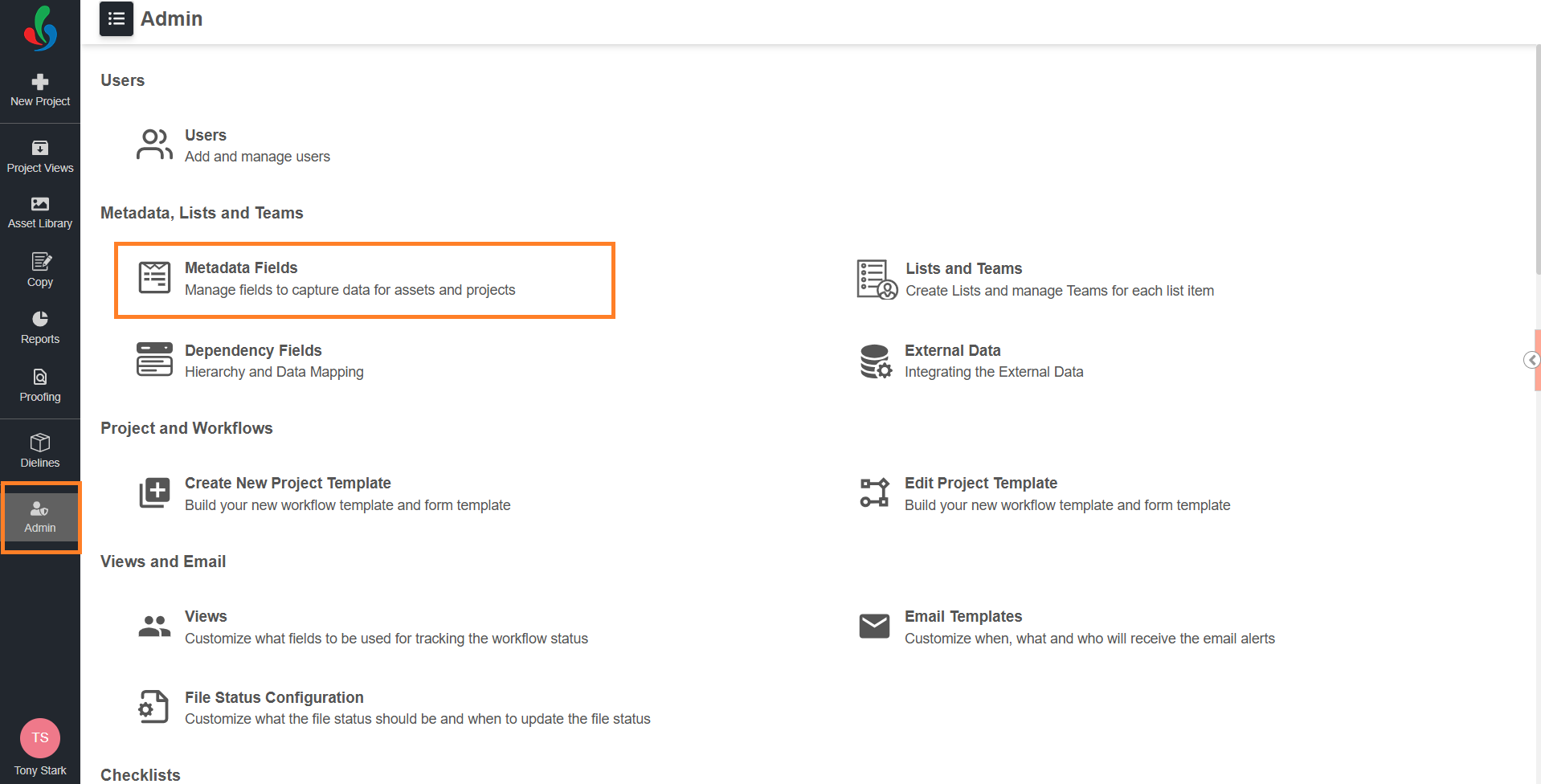
01. Access the Admin Module
- Sign in to your ManageArtworks account.
- Navigate to the Admin module.
- Under Metadata, Lists and Teams, select Metadata Fields.
02. Create New Field
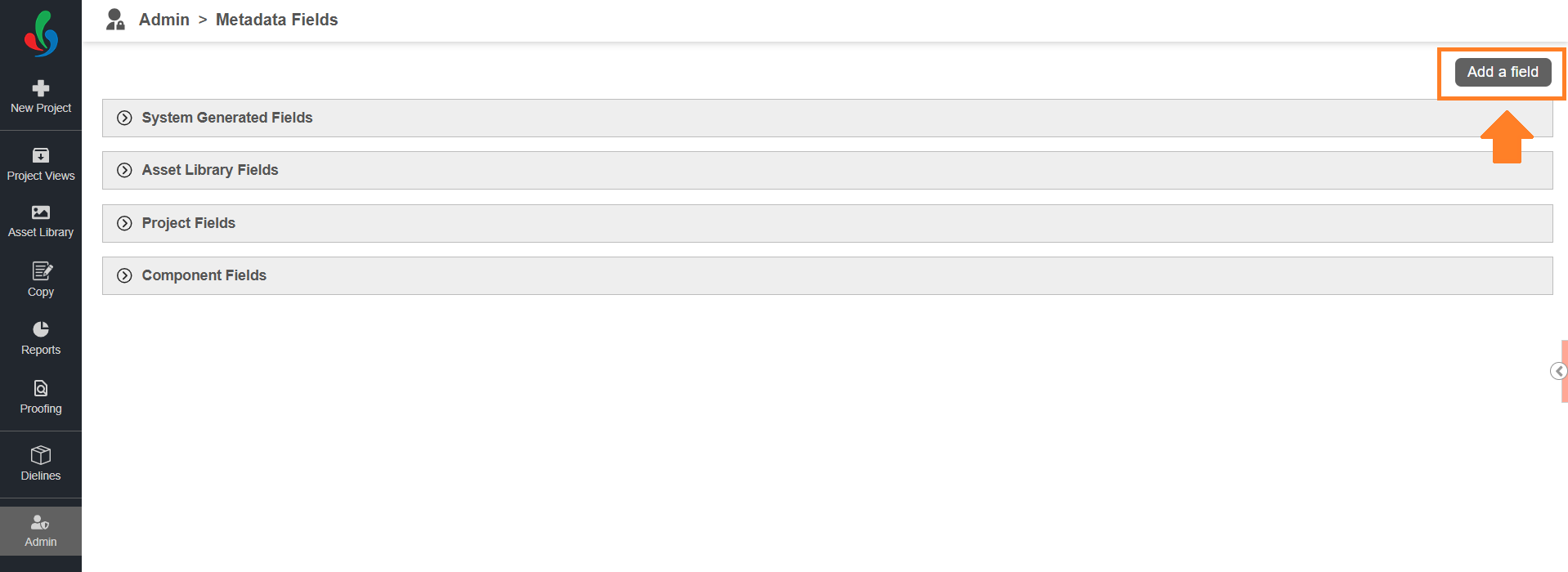
- Select Add a Field in the upper-right corner.
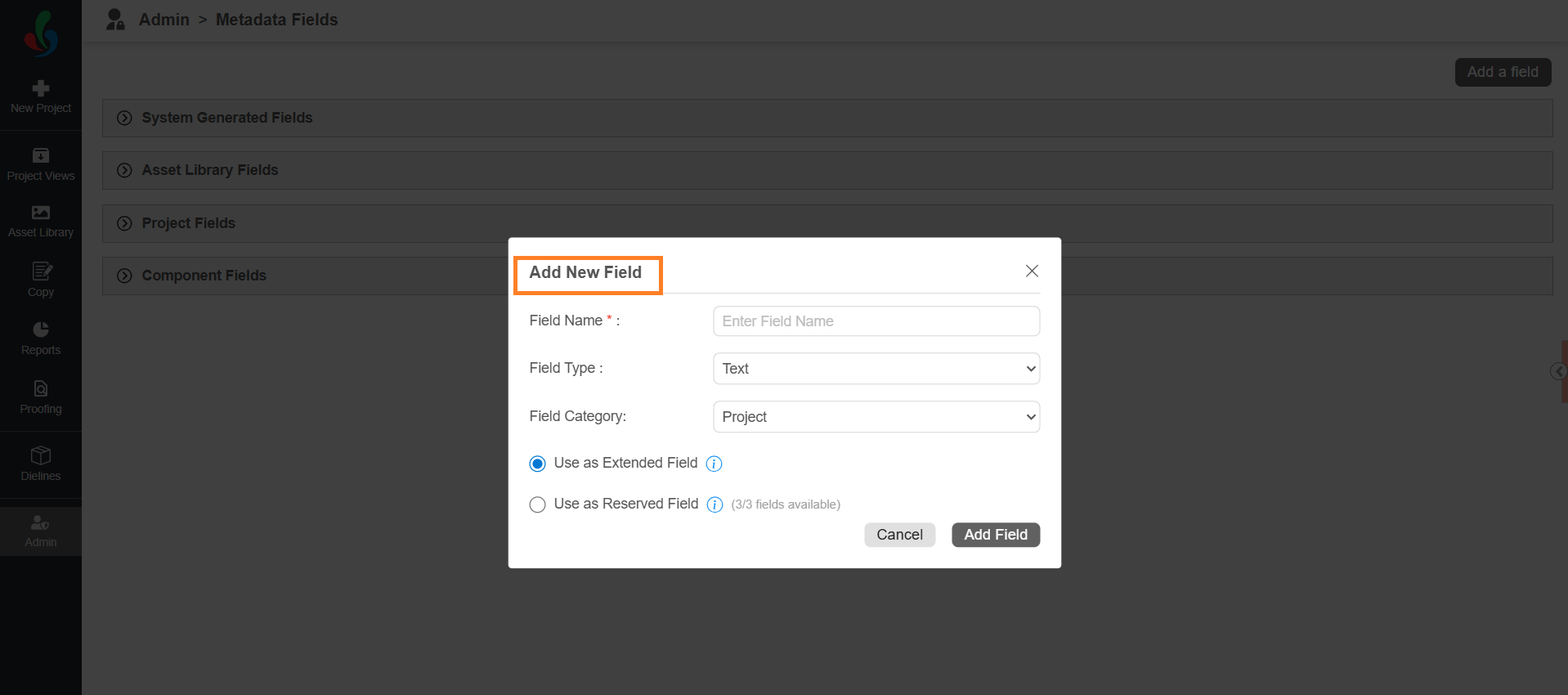
- In the Add New Field dialog, enter the following details:
- Field Name - Enter a unique name for the field.
Note: You can enter up to 100 characters. - Field Type - Select the appropriate type based on your data requirement.
- Text – For short text values
- Text Area – For longer descriptions
- Date – For date-related information
- Field Category - Select where the field should be used:
- Project – Adds the field under Project Fields
- Component – Adds the field under Component Fields
- Select Field Usage Type - Select how the field will be used:
- Use as Extended Field - Select this option when the field is used to capture additional information but is not required for tracking or reporting.
- Available in Projects and Asset Library.
- Not available for configuring Views, Unique Fields or in Reports.
- Suitable for optional or non-critical data.
- No limit on the number of Extended Fields that can be created.
- Use as Reserved Field - Select this option when the field must be available for tracking and reporting.
- Available for configuring Views, Unique Fields, and Reports (data grids).
- Suitable for important or frequently used fields.
- Limited number of reserved fields allowed per field type. Refer Field Limits to know more.
- Use as Extended Field - Select this option when the field is used to capture additional information but is not required for tracking or reporting.
- Field Name - Enter a unique name for the field.
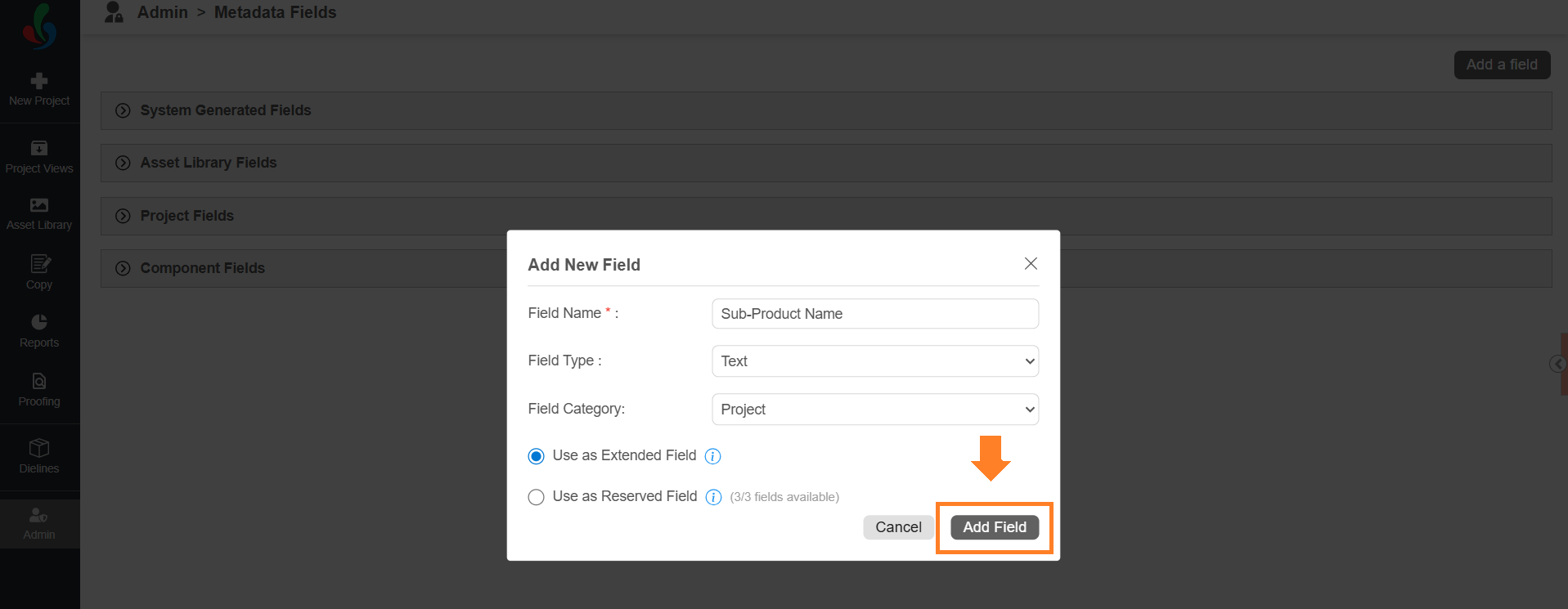
- Select Add Field to create the metadata field.
 | Note: Plan your fields carefully before creating them. Once added, a field cannot be deleted, and the details you set here cannot be changed. |
Field Limits
| Note: The following limits apply only to Reserved Fields. There is no limit for Extended Fields. |
| Field Type | Project (Reserved Fields) | Component (Reserved Fields) |
|---|---|---|
| Text | 3 | 4 |
| Date | 1 | 3 |
| Text Area | 1 | 3 |