Manage Copy Template
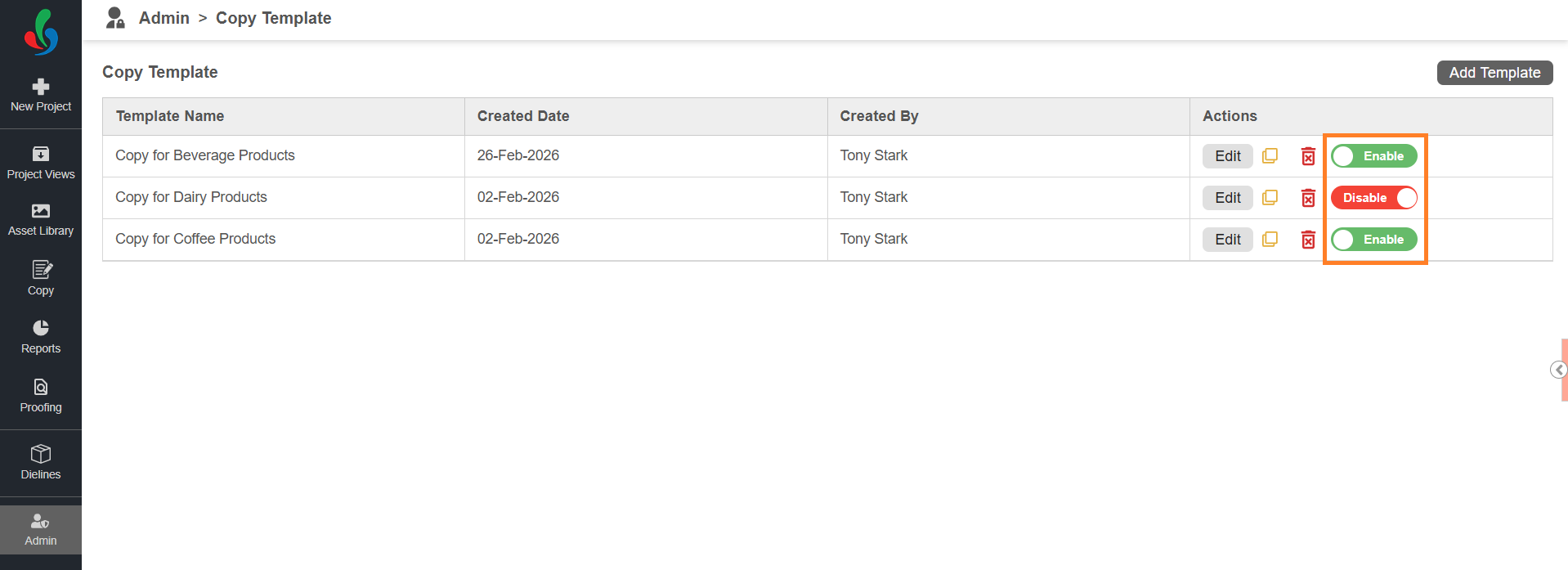
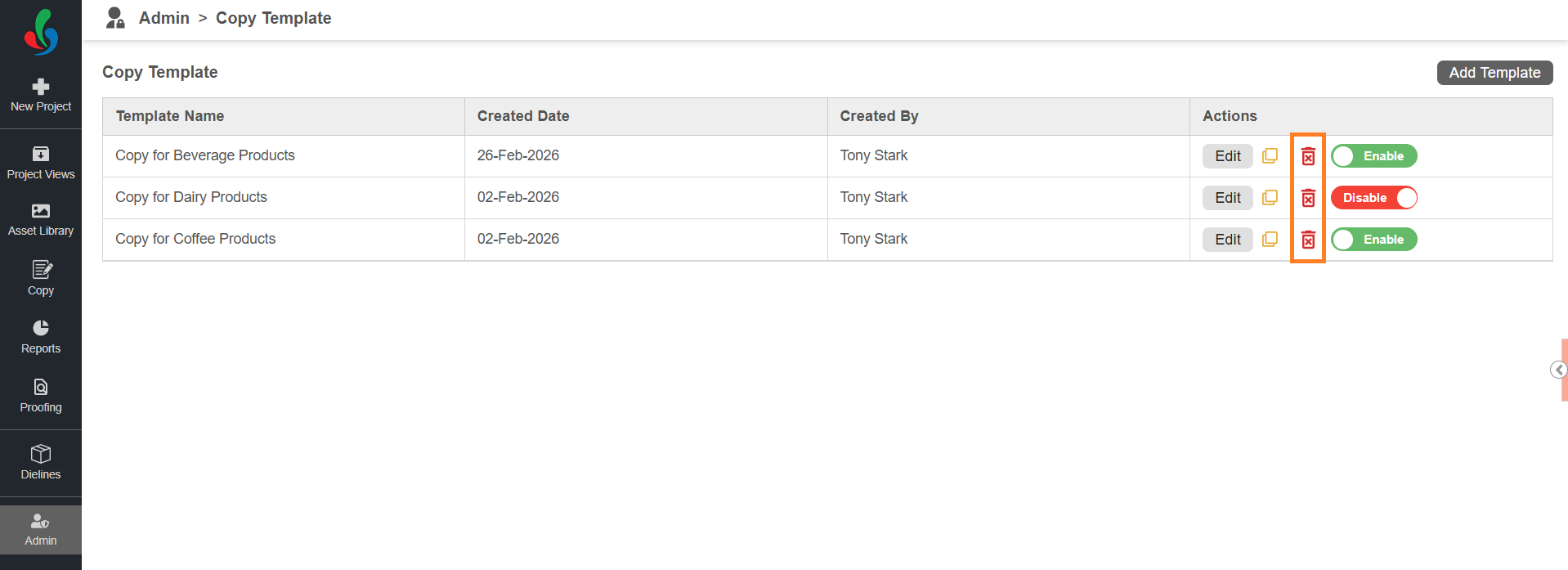
Each Copy Template includes an Actions column that allows you to manage existing templates efficiently.
From this section, you can:
- Edit
- Clone
- Delete
- Enable or Disable templates
These options help maintain and control the availability of templates in the system.
Edit a Copy Template
To modify an existing template:
- In the Copy Template list, locate the required template.
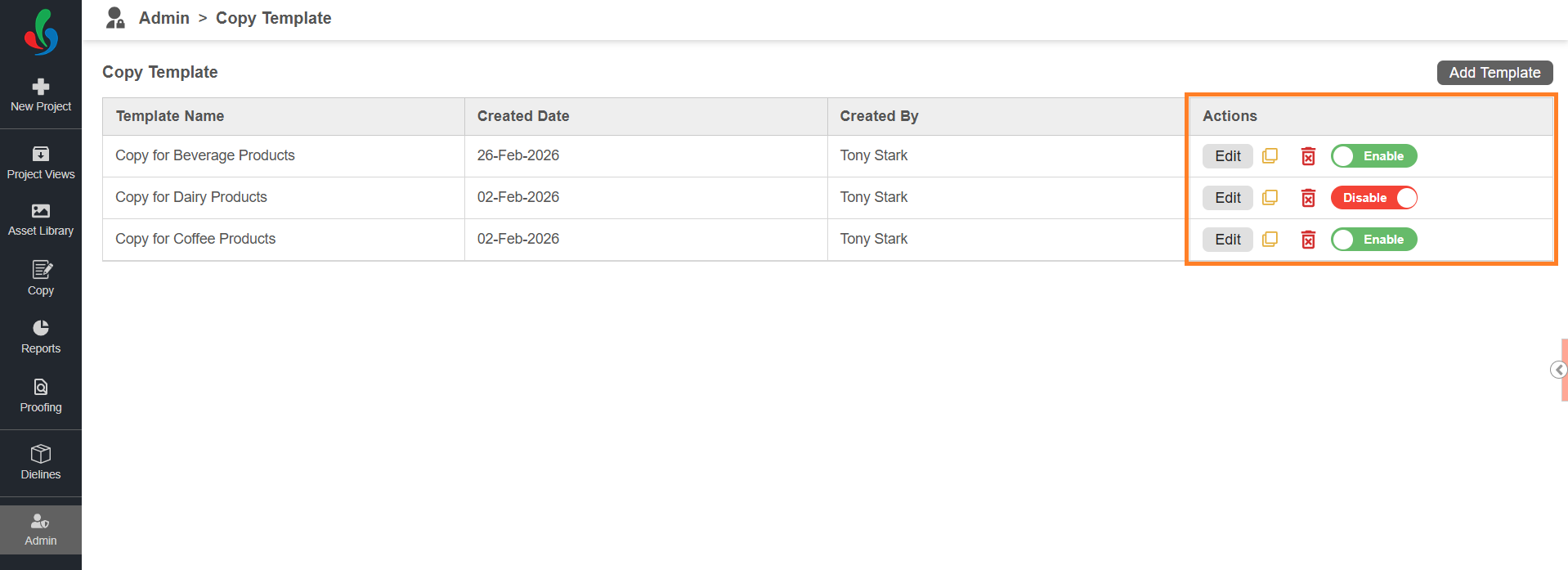
- Select Edit in the Actions column associated with the desired template.
- The template opens in edit mode.
Note: For detailed instructions on configuring a template, refer to Configure Copy Template. - Update the required details such as:
- Template Name
- Metadata
- Copy Elements
- Translation Languages
- User Assignments
- Element Properties
- Changes are saved automatically and will apply when the template is used in future projects.
Note: Updates do not affect projects that are already in progress.
Clone a Copy Template
Cloning is useful when you want to create a new template based on an existing one with minor modifications.
To clone:
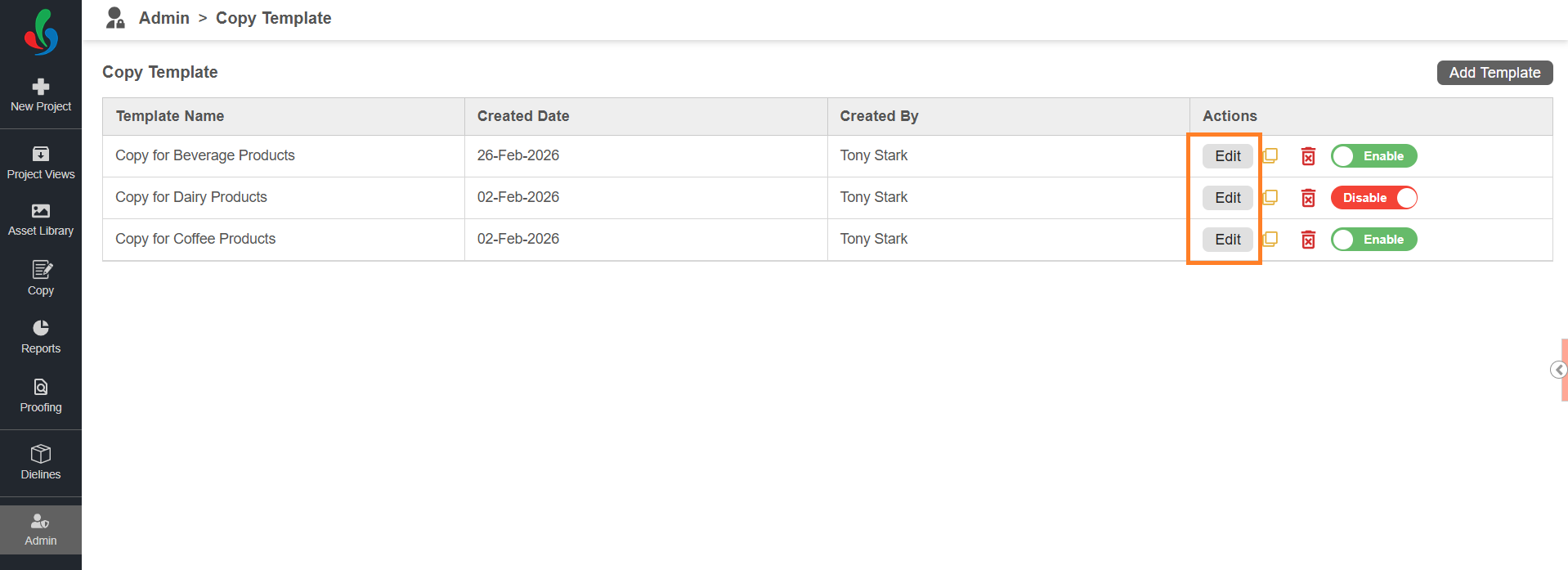
- Select the Clone icon in the Actions column associated with the desired template.
- Enter a new template name in the pop-up.
- Select Create.
- A new template is created with all configurations copied from the original template.
- You can then select Edit in the Actions column associated with the cloned template to modify it as required.
Note: For detailed instructions on configuring a template, refer to Configure Copy Template.
Delete a Copy Template
To permanently remove a template:
- Locate the template in the list.
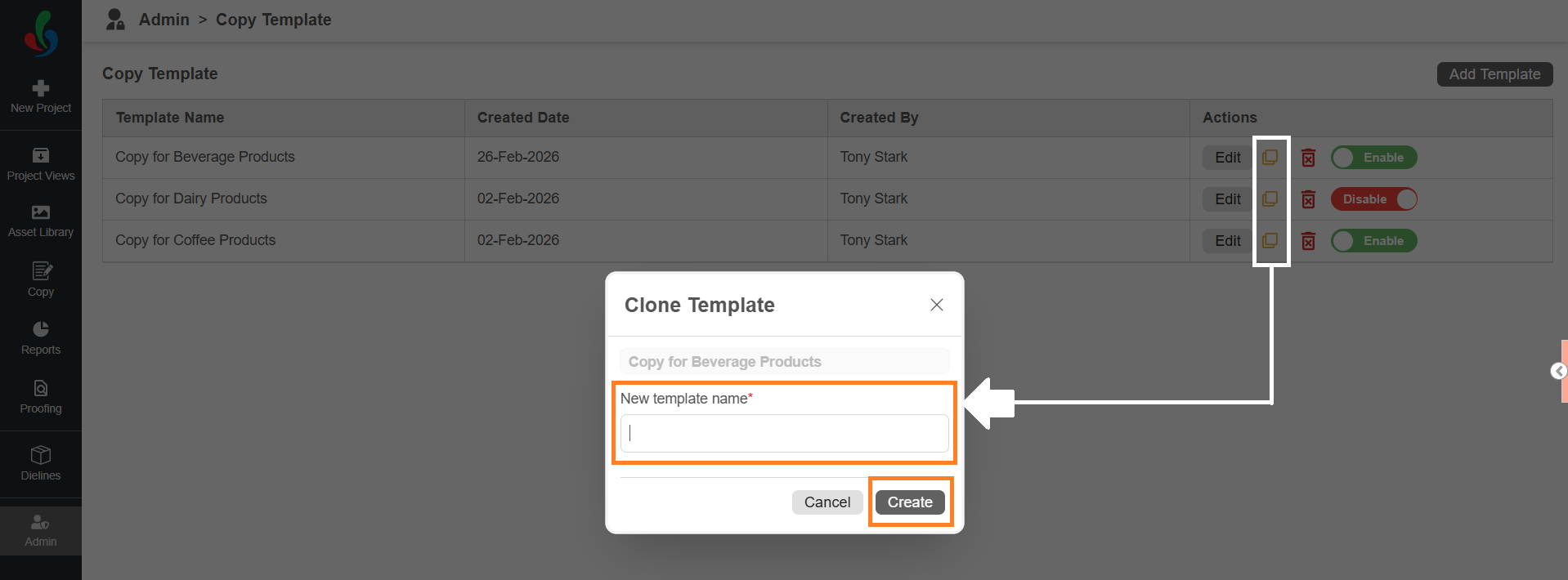
- Select the Delete (Trash) icon in the Actions column associated with it.
- Confirm the action when prompted.
- The template is permanently removed and cannot be used in future projects.
Note: Deleting a template does not impact projects that have already used it.
Enable or Disable a Copy Template
You can control whether a template is available for selection in new projects.
To enable or disable:
- Locate the template.
- Toggle the Enable / Disable switch in the Actions column.
- Enabled
- The template is available for selection in any copy-enabled projects.
- It can appear under Matched Templates (if metadata matches).
- Disabled
- The template cannot be selected for new projects.
- Existing projects that already use the template remain unaffected.
- Enabled