Sign In to the ManageArtworks Plugin
Users sign in with their ManageArtworks account to reach copy sheets, dielines, the Asset Library and their assigned tasks from inside Adobe Illustrator or InDesign. One sign-in in the plugin covers everything the plugin shows, so no separate sign-in in a browser is needed.
Note:
|

01. Open the Sign-In Screen
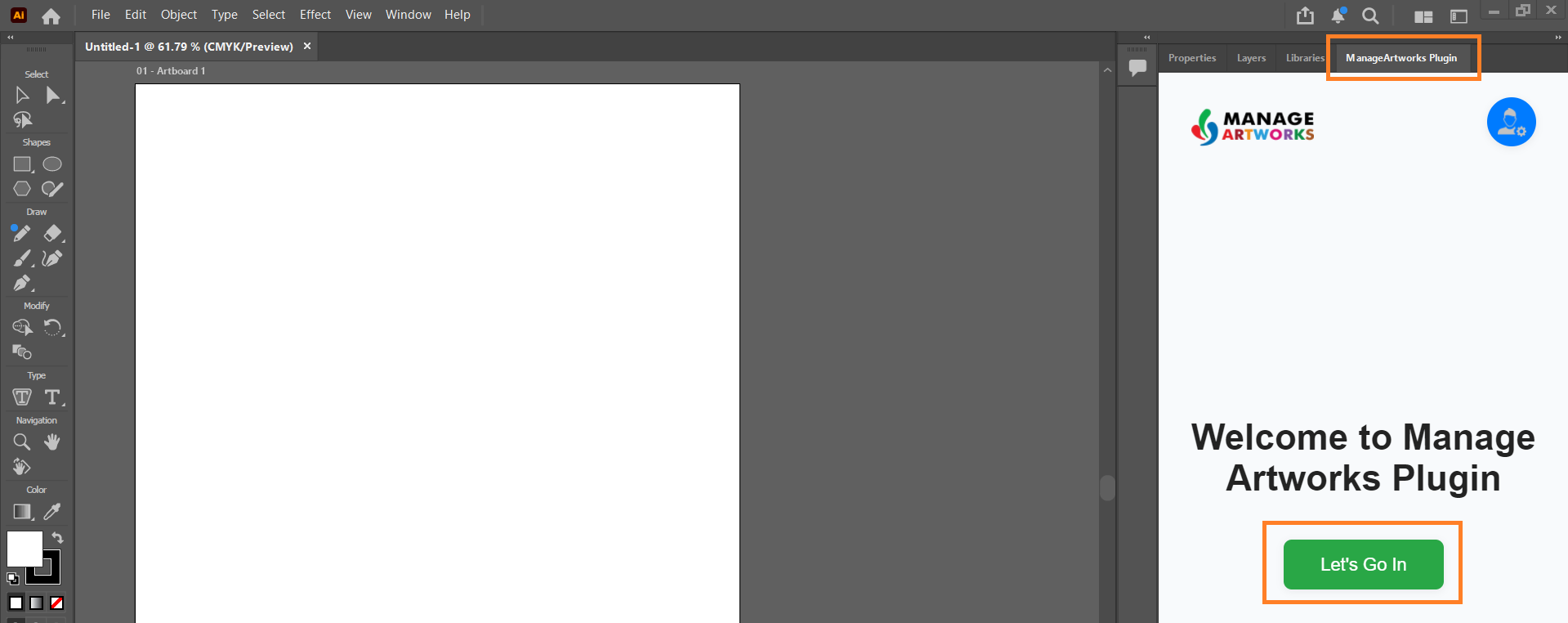
- Open the plugin panel in Adobe Illustrator or Adobe InDesign.
- Select Let's Go In on the welcome screen.
02. Enter Your Credentials
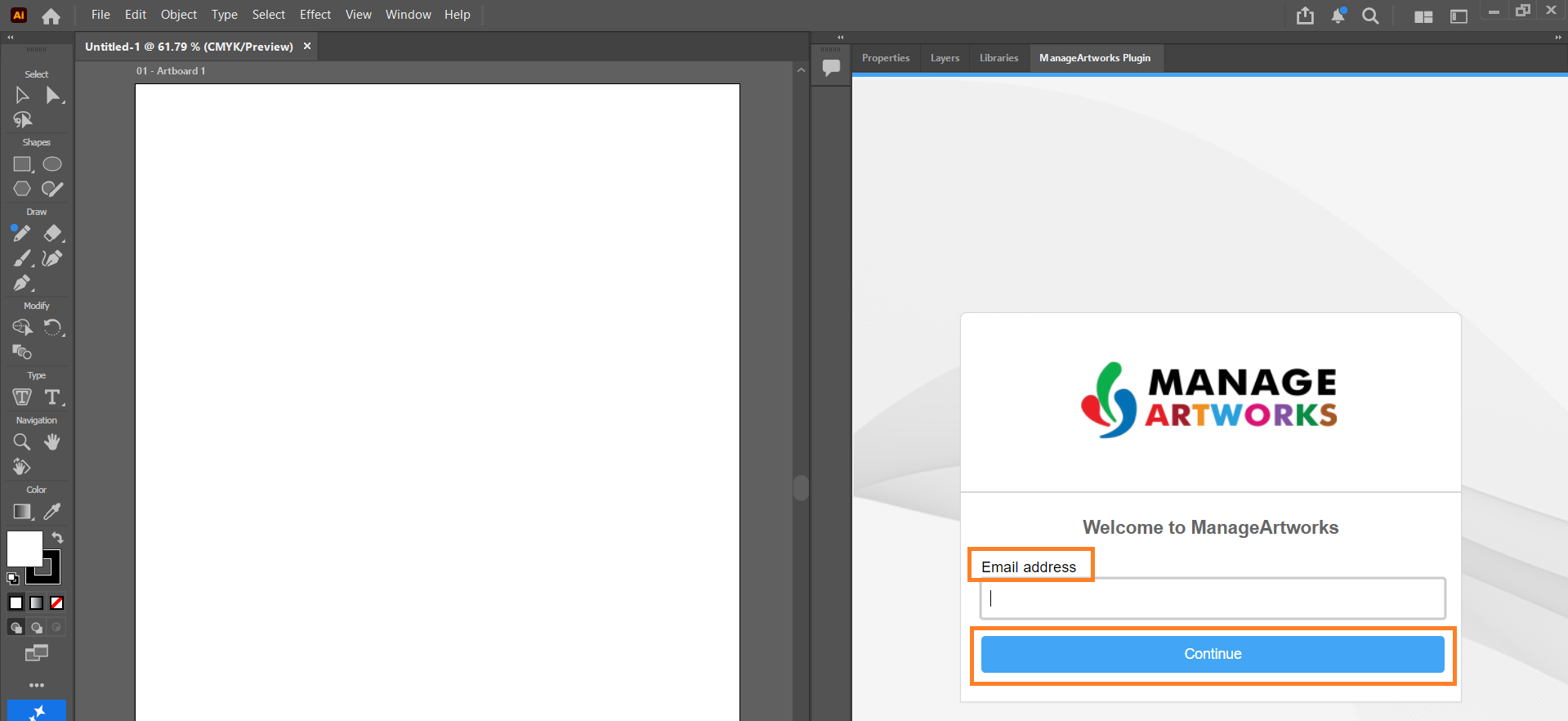
- Enter your email address and select Continue.
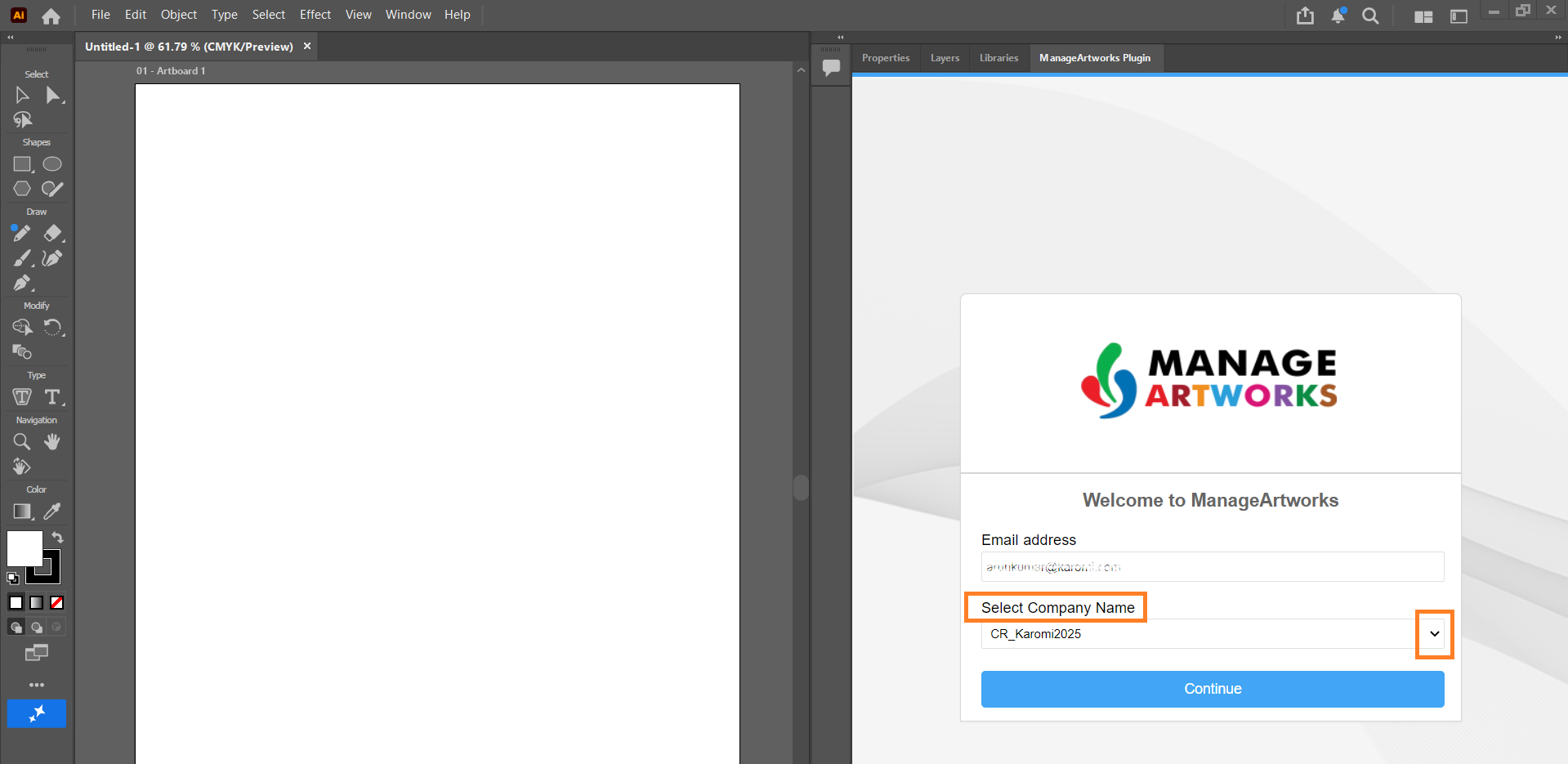
- If your email address is registered with more than one company, select the required Company ID.
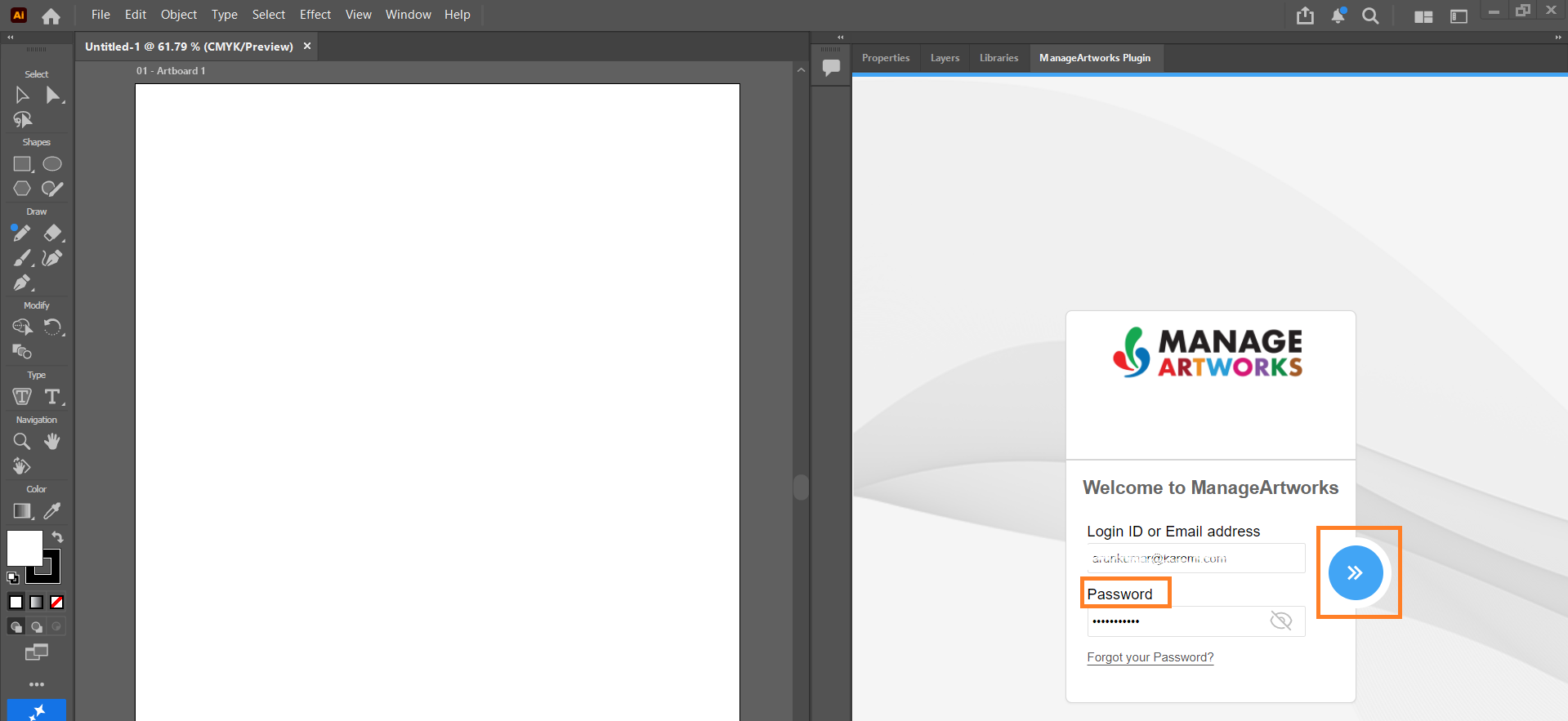
- Enter you password and select the ›› Sign In button.
Note: If you see the message "You are logged in elsewhere. Log out from there and log in here," select here to learn more.
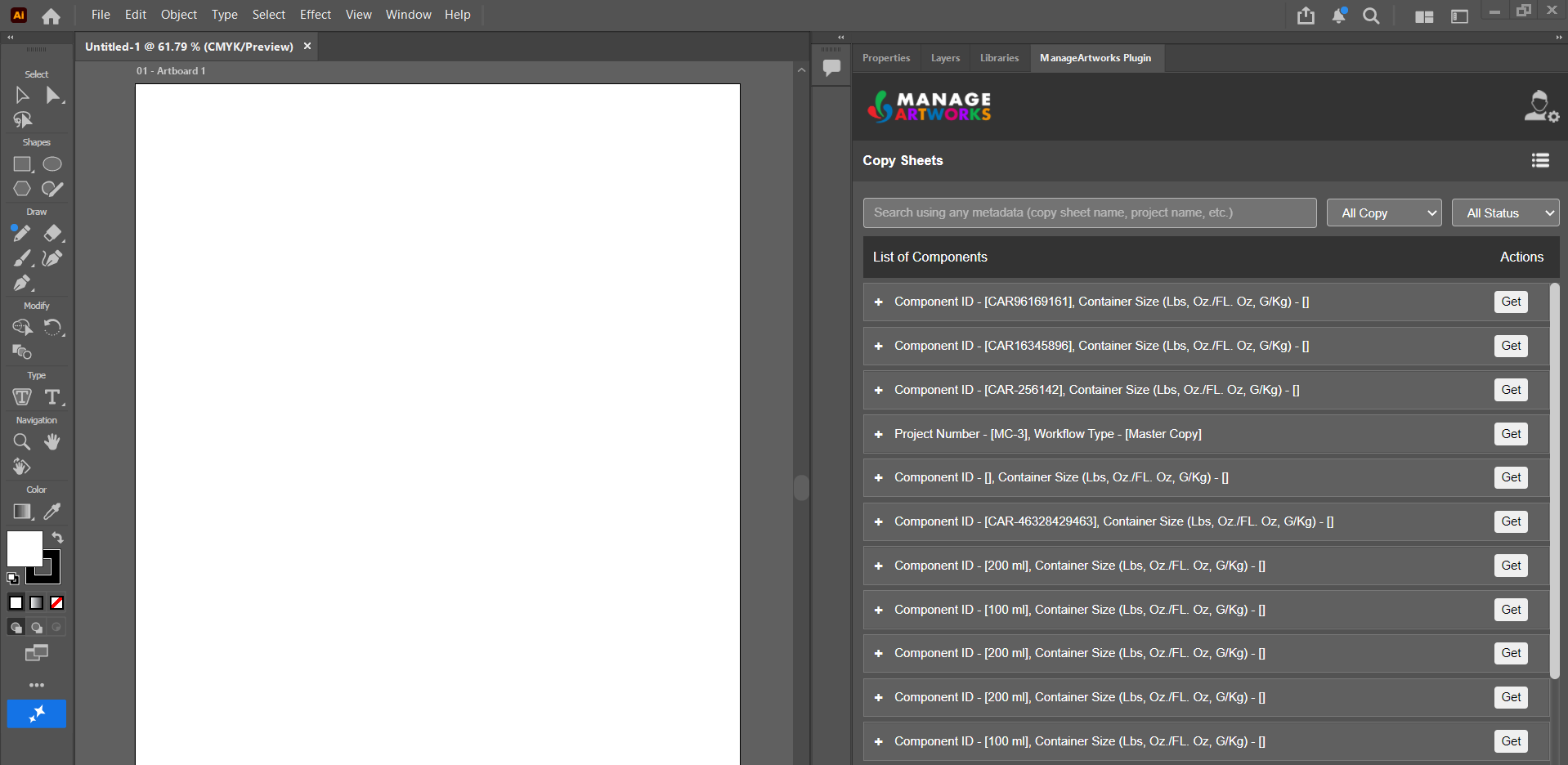
- The plugin displays all published and in-progress Component Copy and Master Copy from every Copy project.