
Open and Set Up the Plugin
Once the plugin is installed, users open it from the Extensions menu of Adobe Illustrator or Adobe InDesign and connect it to their ManageArtworks server. The server address is entered once and stored on the computer, so the plugin uses it for every session that follows.
01. Open the Plugin Panel
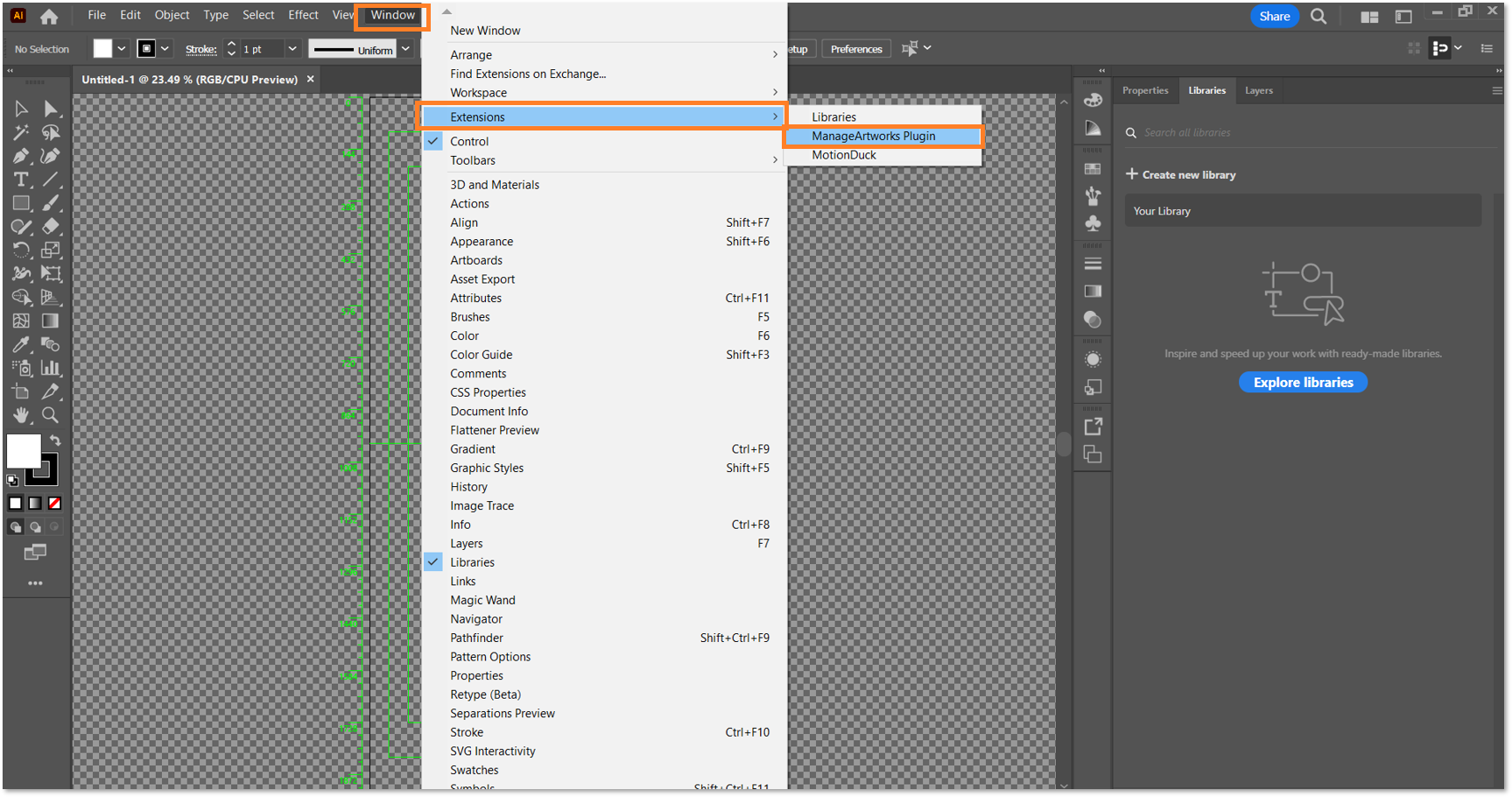
- Open Adobe Illustrator or Adobe InDesign.
- On the top menu bar, select Window.
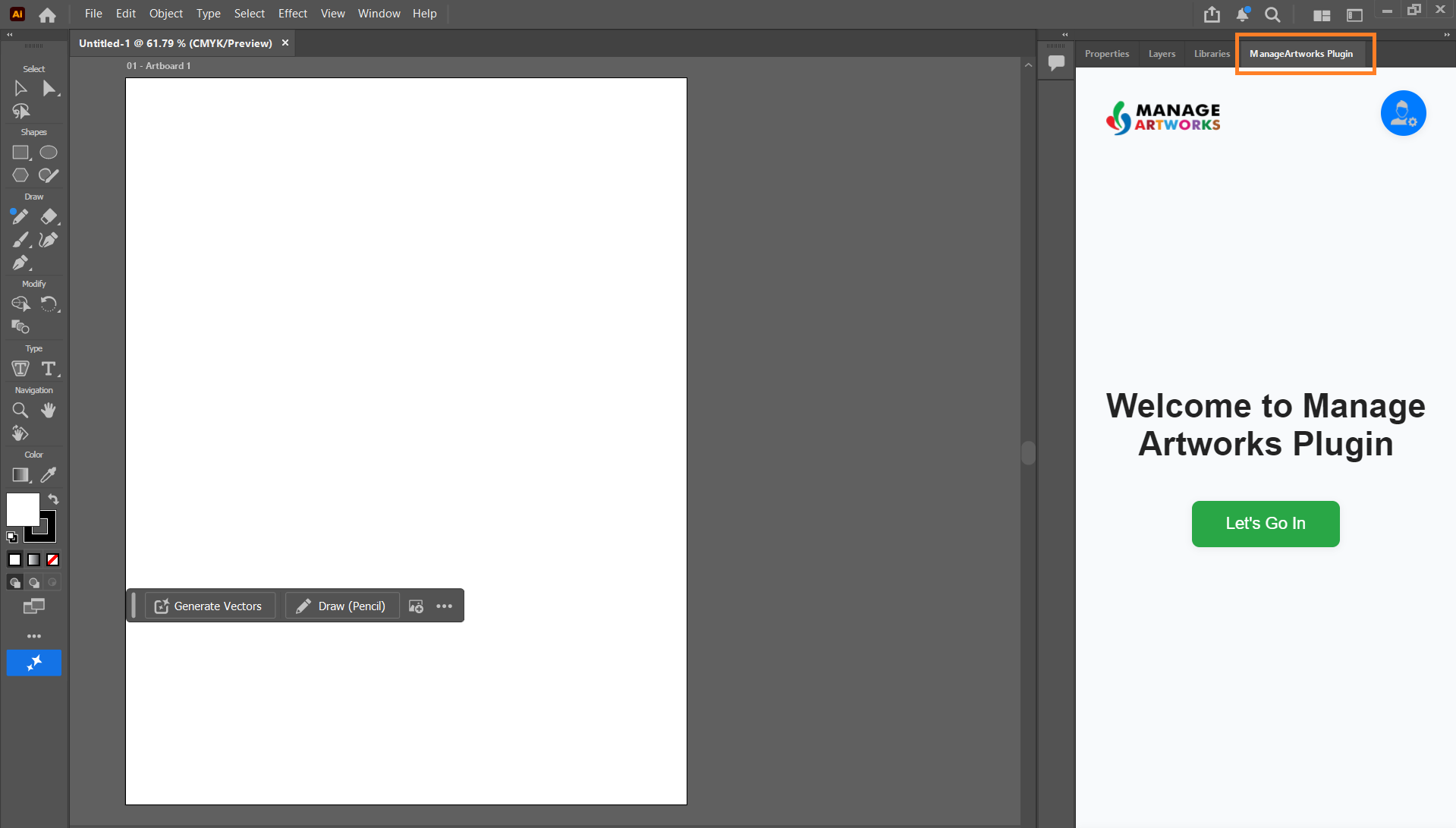
- Hover over Extensions, then Select ManageArtworks Plugin.
- The plugin opens as a dockable panel at the side of the workspace, or as a floating panel, depending on how the workspace is arranged. Drag the panel by its tab to move or dock it.
02. Connect the Plugin to ManageArtworks Server
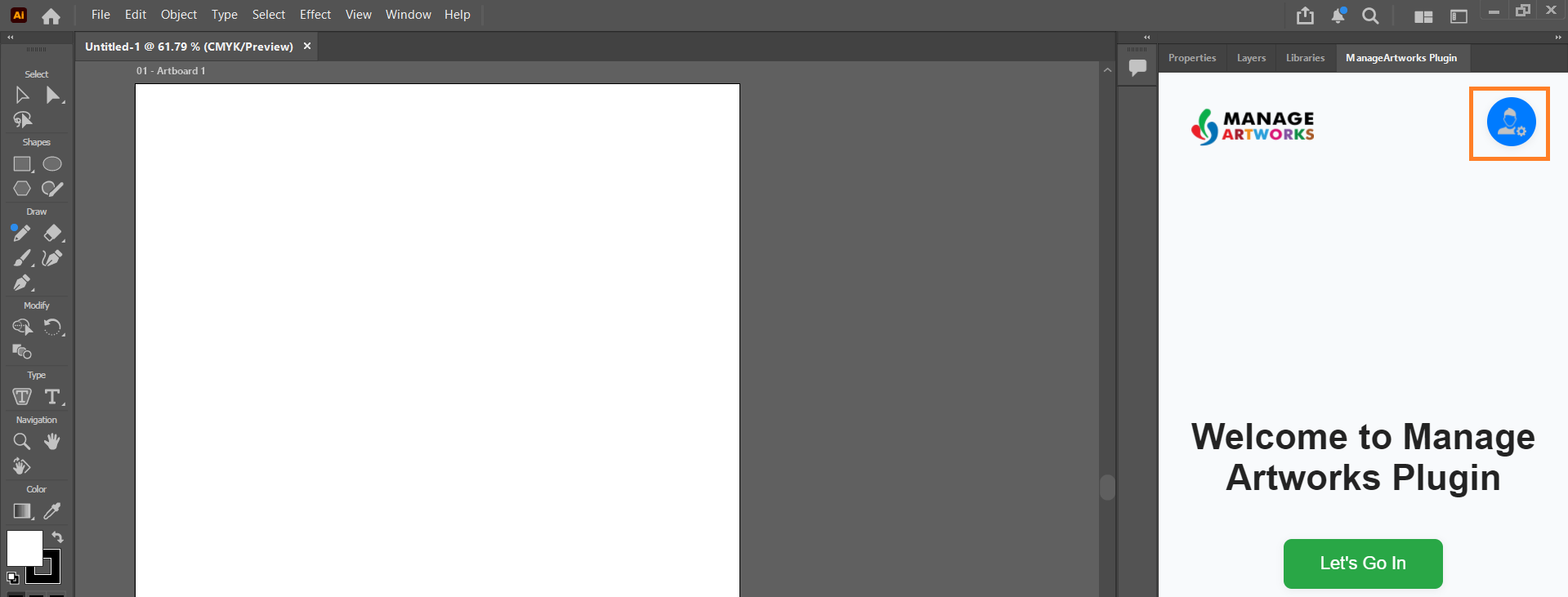
- In the upper-right corner of the plugin panel, select the Settings icon.
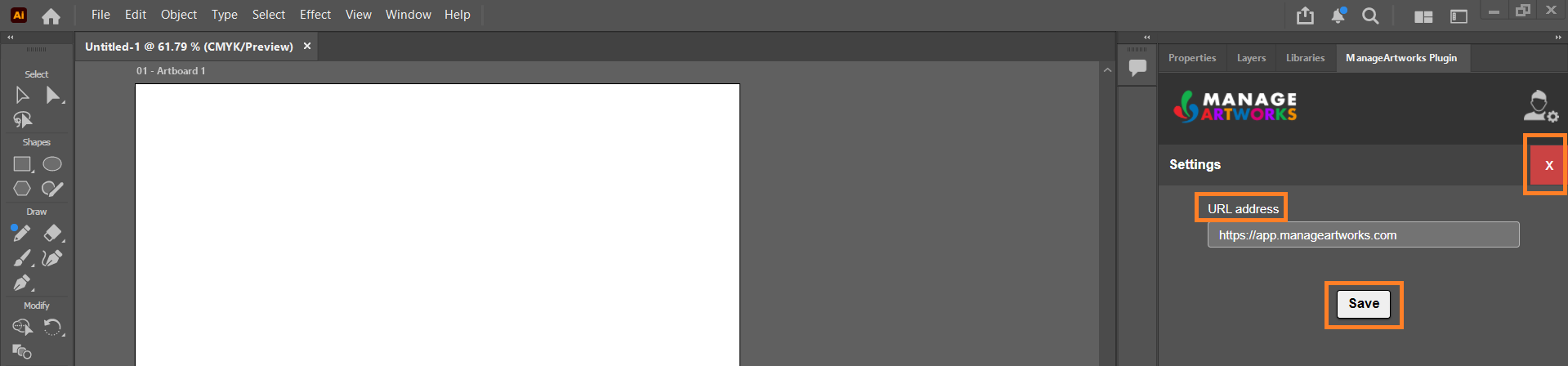
- In the URL address field, enter the ManageArtworks application URL, for example
https://app.manageartworks.com. - Select Save.
- Select X to close the Settings panel.
 |
|
Before You Sign In
Signing in gives access to copy sheets, dielines, the Asset Library and your assigned tasks. For more information, refer to Sign In to the Plugin.
Two tools work on the open artwork alone and can be used from Settings without signing in:
- Font Map, to replace the fonts used in the artwork. For more information, refer to Change Fonts in an Artwork.
- Color Map, to replace a colour throughout the artwork. For more information, refer to Change Colours in an Artwork.