
GS1 Profile Configuration (3D Snapshot)
Admin users can define and manage GS1 Snapshot Profile Groups from the Admin module. These configurations serve as master data for GS1 Snapshot generation — all default values that users see during snapshot configuration are derived from this setup.
The Admin configuration enables you to:
- Create and manage Profile Groups
- Define default values for image generation
- Manage multiple profiles under a single group
- Create reusable configuration groups for end users
- Centralize governance of GS1 Snapshot settings
The values configured here automatically populate the relevant fields when a user selects a Profile Group during GS1 Snapshot generation. For details on generating snapshots, see GS1 Profile Snapshot.
Supported Profile Categories
The system supports the following GS1 Snapshot profile categories.
01. Primary Images
The Primary Images category represents standard GS1-compliant product images used for general product identification and display. A Primary Image is the main product picture that shows how a product appears when sold in stores. It focuses on the main marketing face of the product — typically displaying the brand name, product name, and key information such as weight or content.
Primary Images are commonly used for:
- Shelf management
- E-commerce websites
- Printed marketing materials
A Primary Image must clearly show the product, be centered, have a clean background, and accurately represent the real product. For most products, this means a straight-on front view — exactly as it would appear on a store shelf.
Supported subcategories:
- Product Image (Web) – Primary Image: A web-optimized product image intended for digital platforms such as e-commerce websites, product listing pages, and digital product databases.
- Product Image (High Resolution): A high-resolution GS1-compliant product image intended for print and omnichannel usage, including print catalogues, marketing materials, and high-resolution digital assets.
Both subcategories share these characteristics:
- Resolution settings follow the GS1 specification for the subcategory.
- GS1 metadata fields are auto-populated based on configured defaults.
- File naming follows GS1 naming conventions.
- Validation ensures metadata aligns with the actual 3D snapshot orientation.
02. Secondary Images
The Secondary Images category represents supporting product visuals that provide additional information beyond the primary product view. These images focus on specific sections of the packaging rather than the full product.
Supported subcategories:
- Nutrition Label: Captures the product's nutritional information panel.
- Ingredient Label: Captures the list of ingredients displayed on the packaging.
- Nutritional and Ingredient Label: Captures both nutritional and ingredient information in a single image.
| Note: Users can crop the required label area. Facing and Orientation options are not available for Secondary Images, and no camera angle validation is applied. GS1 naming conventions still apply where applicable. |

03. Technical Images
The Technical Images category represents images used for capturing technical or machine-readable elements of the product.
Supported subcategories:
- Barcode: Captures the barcode present on the packaging. The image focuses specifically on the barcode area.
| Note: Users can crop the required barcode area. Facing and Orientation options are not available for Technical Images, and no camera angle validation is applied. |
04. Custom Profile
The Custom Profile category allows users to generate a 3D snapshot without GS1 restrictions. It is intended for flexible, user-defined image generation:
- No GS1 naming enforcement
- No restrictions on Facing or Orientation
- No camera angle validation
- Users can freely rotate, tilt, and adjust the 3D model
- Snapshots are generated based on the current camera position
Add a New GS1 Profile Group
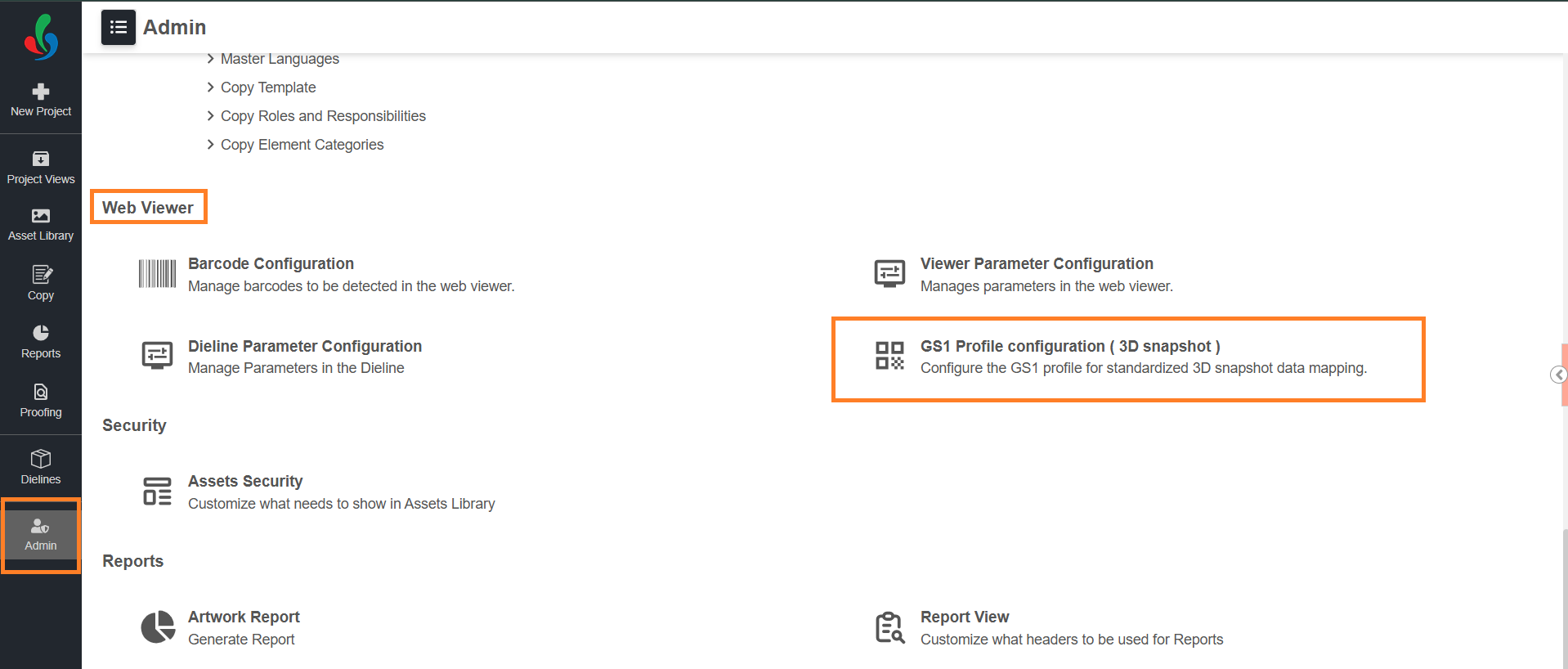
01. Access GS1 Profile Configuration
- Sign in to your ManageArtworks account.
- Navigate to the Admin module.
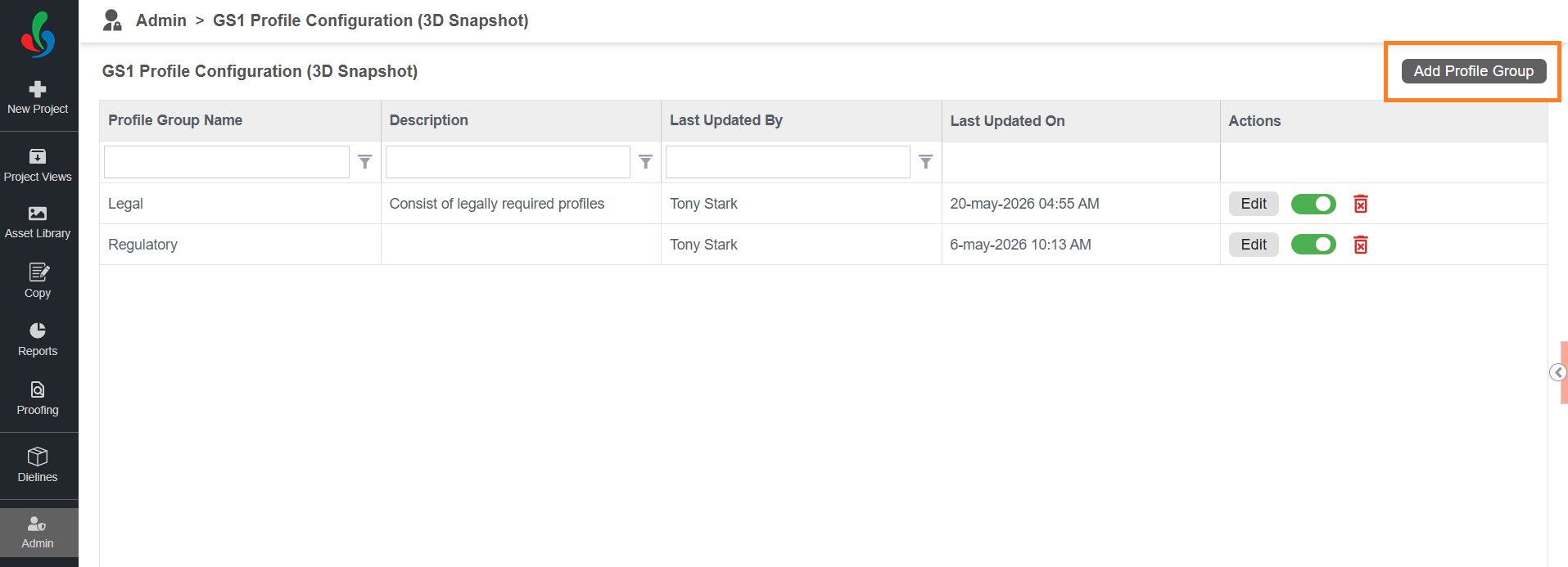
- Under Web Viewer, select GS1 Profile Configuration (3D Snapshot). The configuration page lists all existing Profile Groups.
02. Add a New Profile Group
- Select Add Profile Group.
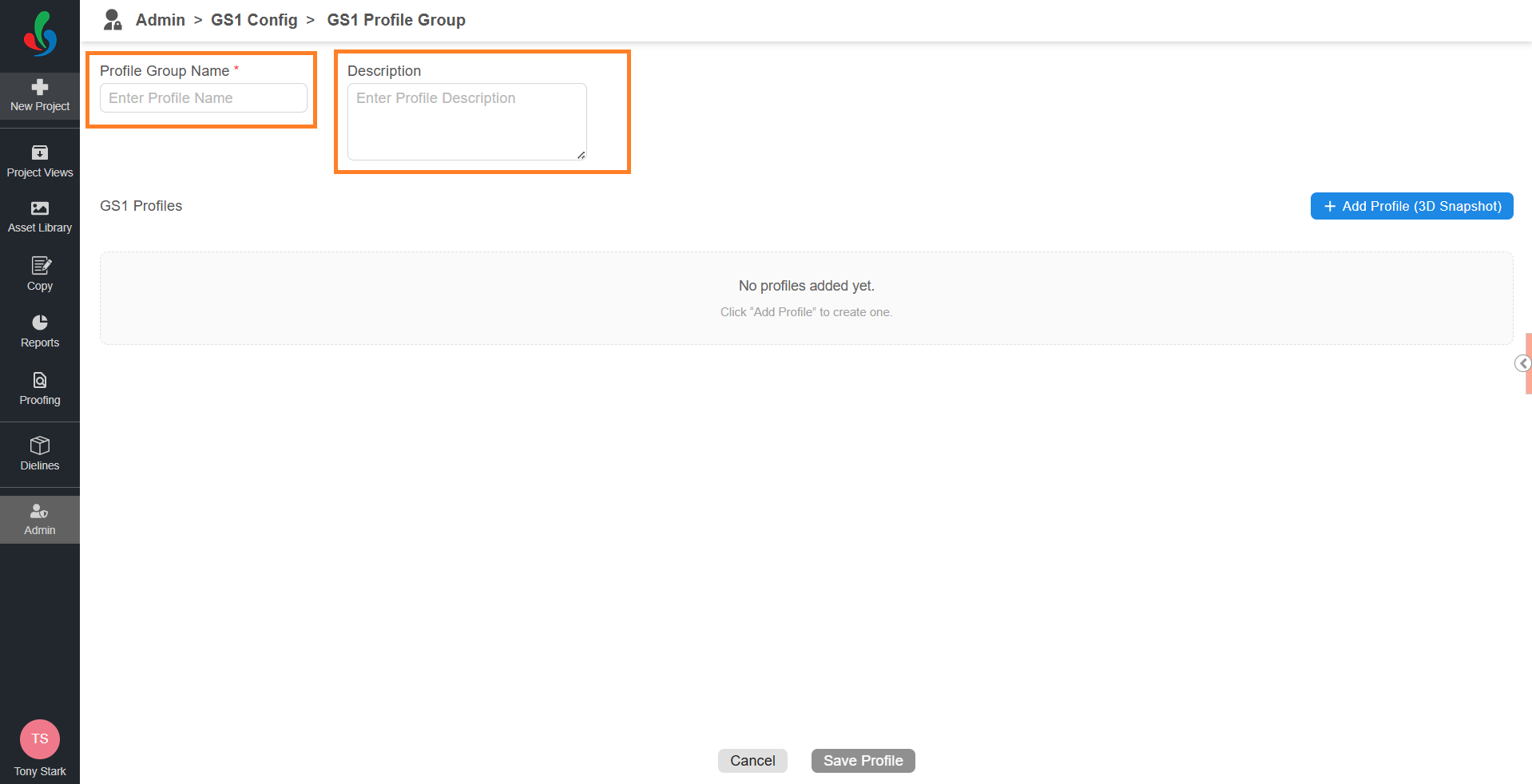
- Enter a unique name in the Profile Group Name field.
Note: Duplicate names are not allowed. - If required, enter a description in the Description field to help users identify the purpose of the Profile Group.
03. Add Profiles to the Group
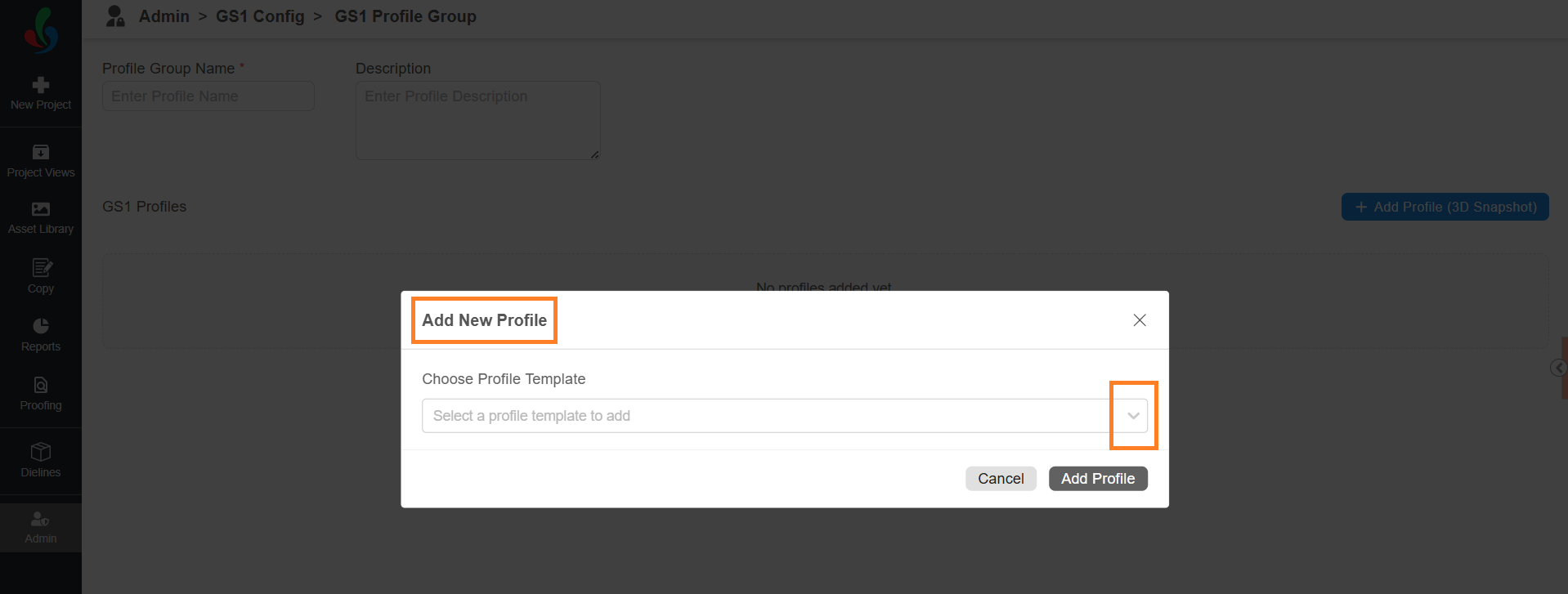
- Select Add Profile (3D Snapshot).
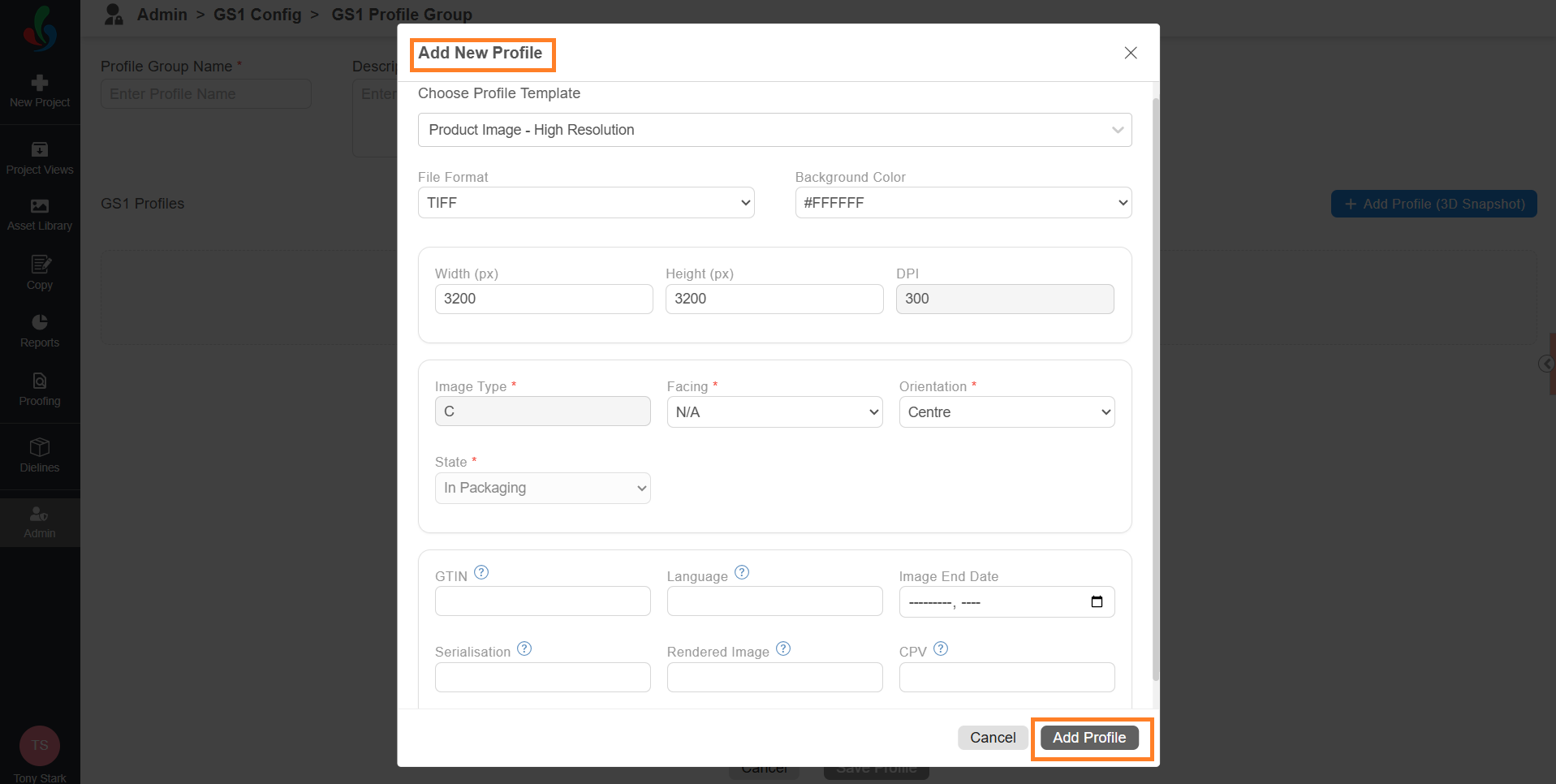
- In the Add New Profile dialog, select the Choose Profile Template drop-down list.
- Select the required image profile from the list — for example, Product Image - High Resolution.
Note: Only Primary Image category profiles can be added from the Admin module. Secondary, Technical, and Custom profiles can be added to a Profile Group from the Web Viewer. For details, see Add Profile in the GS1 Profile Snapshot article.
- Configure the profile fields:
- File Format: Defines the image format used during image generation.
Note: This is auto-filled based on GS1 standards and cannot be changed. - Background Color: Defines the background color of the snapshot.
- #FFFFFF – White
- #F0F0F0 – White Smoke (a neutral shade of grey, also referred to as Grey94)
- Width (px) and Height (px): Define the dimensions of the generated image.
Note: Supported range: 2401–4800 px. - DPI: Defines the image quality.
Note: This is auto-filled based on GS1 standards and cannot be changed. - Image Type: Denotes the image type.
Note: This is auto-filled based on GS1 standards and cannot be changed. - Facing: Denotes the side of the 3D model to be captured. Select a value from the drop-down list.
- Orientation: Defines the camera angle for the selected facing. Select a value from the drop-down list.
- State: Denotes the state of the snapshot.
Note: This is auto-filled based on GS1 standards and cannot be changed. - GTIN: The Global Trade Item Number. Enter a 14-digit numeric value.
Note: Only numeric values are accepted. The GTIN must be exactly 14 digits in length. - Language: Enter the language code (for example, en-US).
- Image End Date: Select a date using the calendar tool.
- Serialisation: Enter a two-digit number after "s" (for example, s01).
- Rendered Image: Enter R.
Note: As per the GS1 standard, "R" indicates a computer-generated (rendered) image. - CPV (Consumer Product Variant): Enter the CPV value.
Note: CPV accepts up to 20 alphanumeric characters.
- File Format: Defines the image format used during image generation.
- Select Add Profile. The profile appears under GS1 Profiles.
- Repeat these steps to add more profiles to the same group.
- To remove an added profile, select the delete icon associated with the profile, and then confirm in the dialog.


04. Save the Profile Group
- Select Save Profile.
The Profile Group is saved and becomes available in the GS1 Snapshot workspace in Web Viewer.
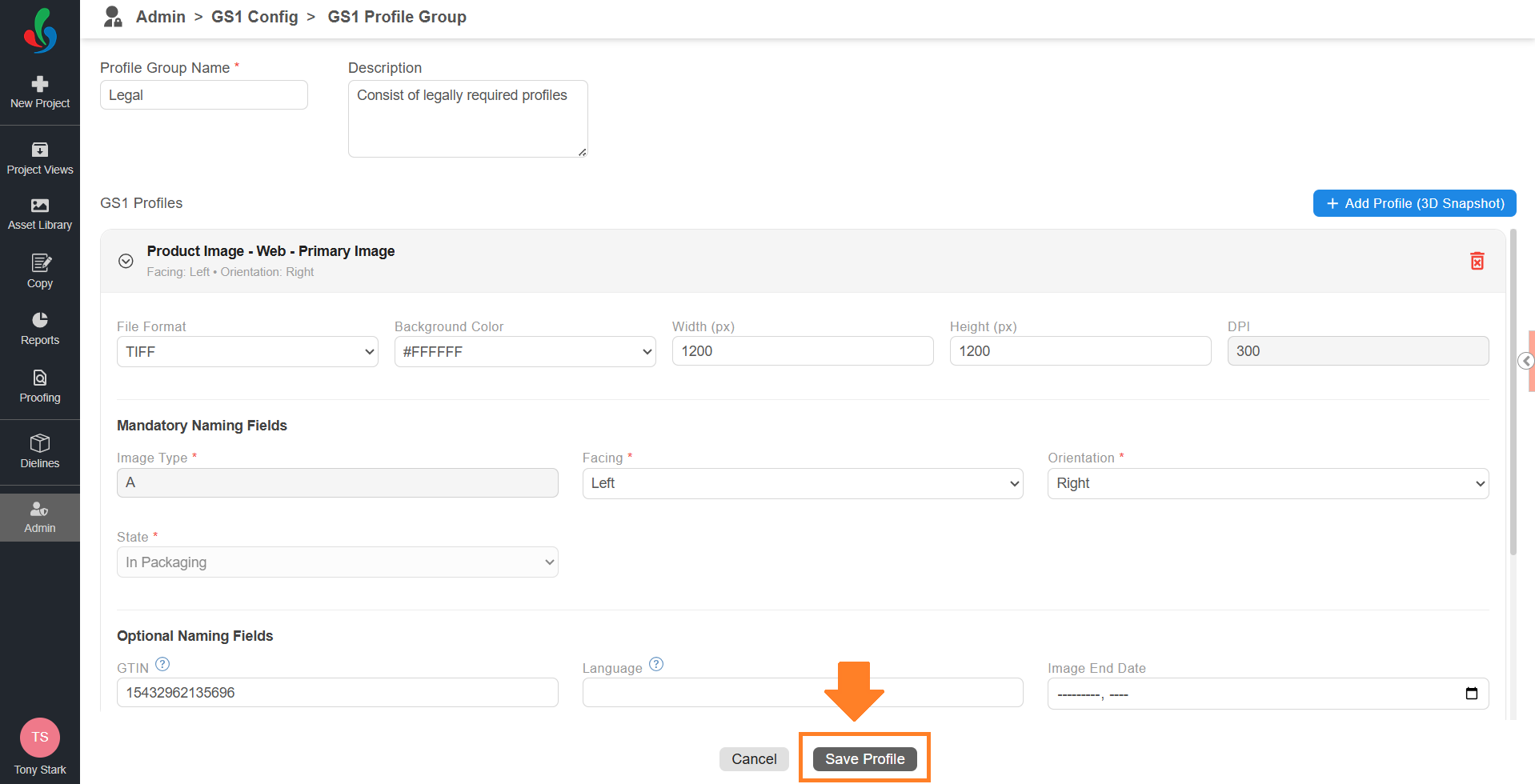
When users select the Profile Group, the configured values are loaded as default settings. Users can modify editable fields within the allowed limits before rendering the images. For more information, refer to GS1 Profile Snapshot.