
Drag and Drop Copy Content into Your Artwork
Designers can use the plugin to place approved copy into an artwork in Adobe Illustrator or InDesign without retyping it. The plugin lists all in-progress and completed Component Copy and Master Copy from the Copy projects you have access to.
| Note: When you drag and drop the content, the plugin applies default font and paragraph settings. You can change them to suit your business needs. For more information, refer to Set Up Styling Templates for Copy Content. |

01. Access the Copy Sheet
- Make sure you are signed in to the plugin. For more information, refer to Sign In to the ManageArtworks Plugin. After you sign in, the plugin opens on the List of Components page.
- Locate the required copy using one of the following methods:
- Search: In the search box, enter the copy sheet name, project name or any other metadata of the copy, such as the project number.
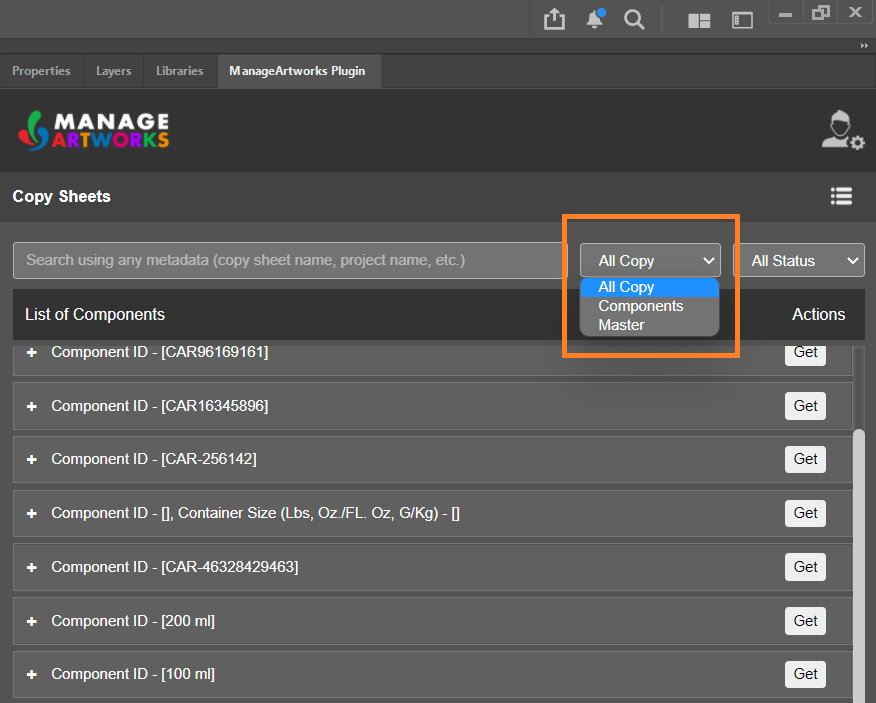
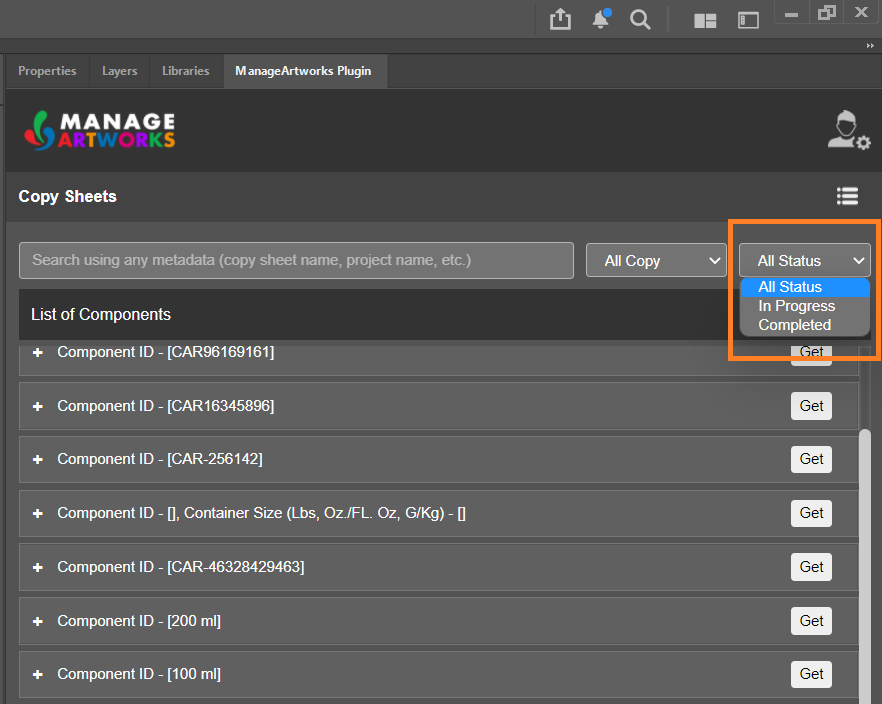
- Filter: Use the drop-down lists next to the search box to filter by copy type or status.
- In the copy type drop-down list, select one of the following:
- All Copy: Displays both Component Copy and Master Copy. This is the default.
- Components: Displays only Component Copy.
- Master: Displays only Master Copy.
- In the status drop-down list, select one of the following:
- All Status: Displays both in-progress and completed copy. This is the default.
- In Progress: Displays copy that has at least one copy element added to it.
- Completed: Displays only completed copy.
- In the copy type drop-down list, select one of the following:
- Search: In the search box, enter the copy sheet name, project name or any other metadata of the copy, such as the project number.

02. Get the Copy Elements
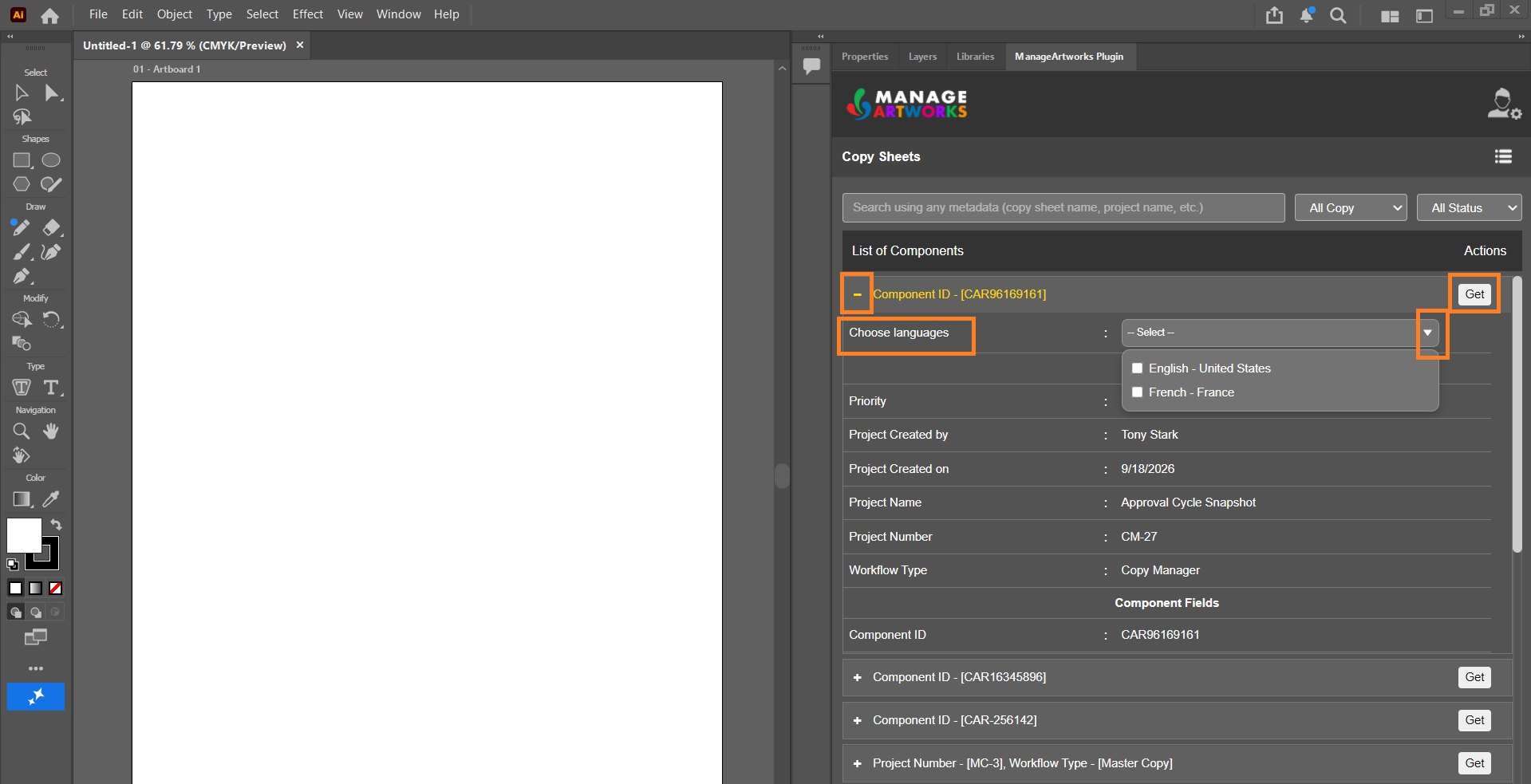
- Select the expand (+) icon next to the required copy to view its project and component details.
- If required, filter the copy elements by language: in the Choose languages drop-down list, select the check box for each language you need.
- Select Get next to the copy.
Note: If you select languages, Get retrieves the content of the copy elements only in those languages. If you do not select a language, it retrieves the content in every language of the copy sheet.
03. Work with the Copy Elements
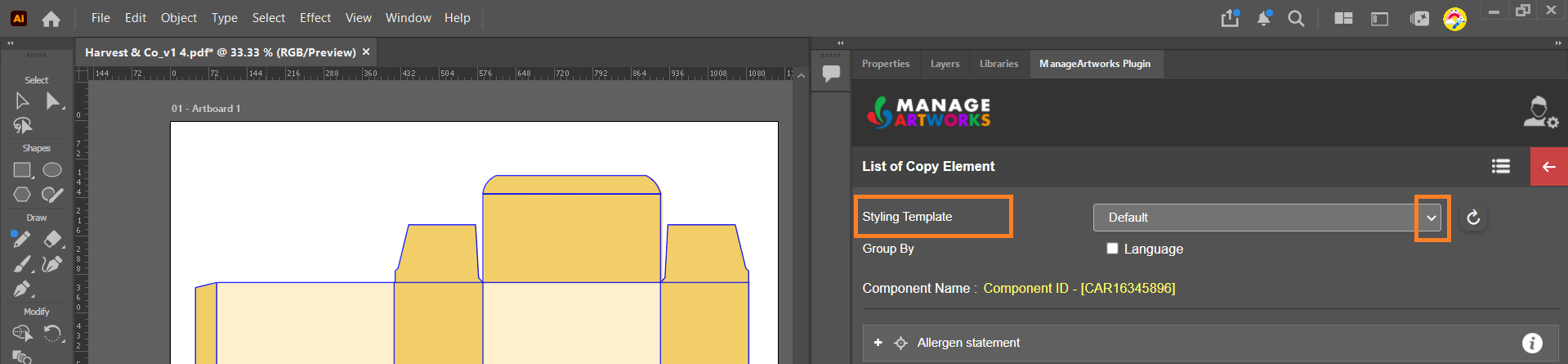
1. Apply a Styling Template (If Required)
- In the Styling Template drop-down list at the top of the panel, select the required template.
| Note: The selected template is applied to the content when you drag and drop it into the artwork. Only the Default template is available until you create one. For more information, refer to Set Up Styling Templates for Copy Content. |
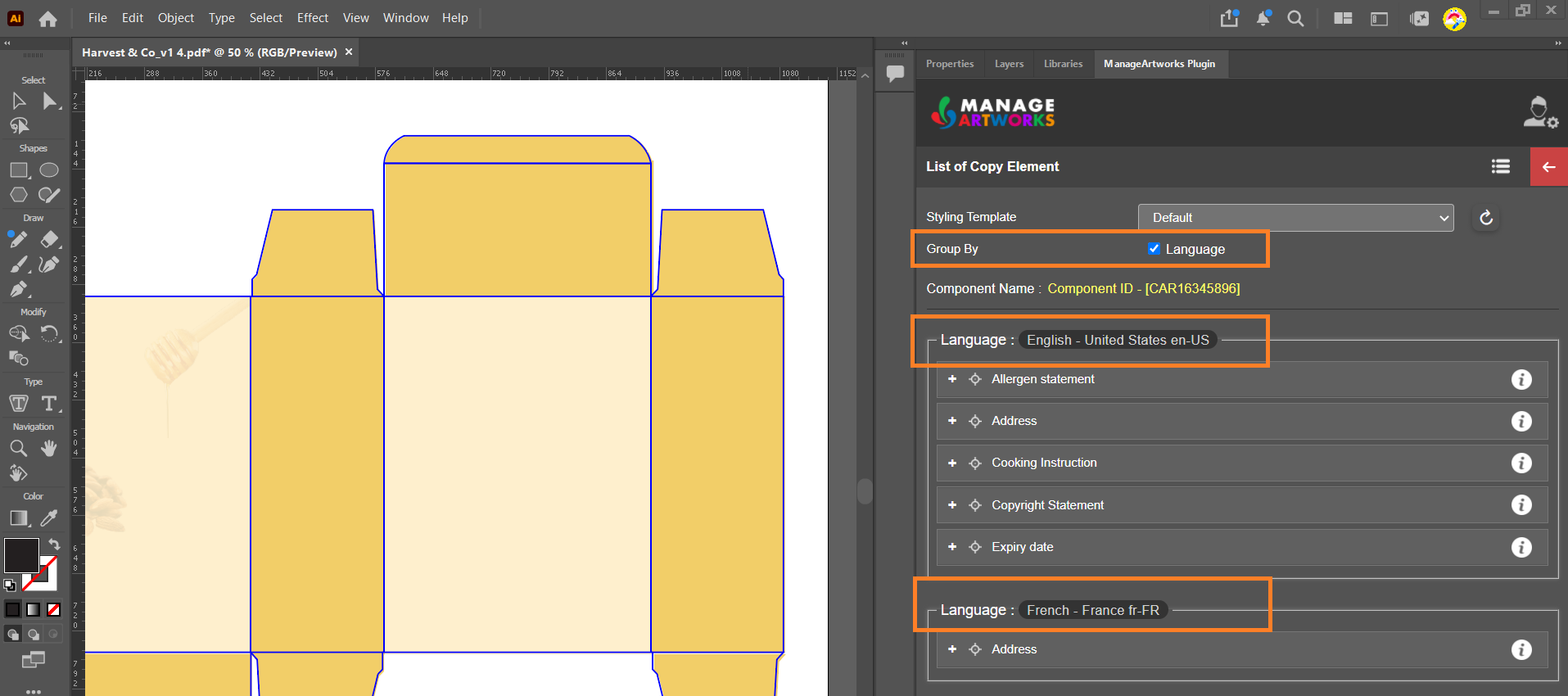
2. Group Copy Elements by Language (If Required)
- Next to Group By, select the Language check box. The plugin groups the copy elements by language.
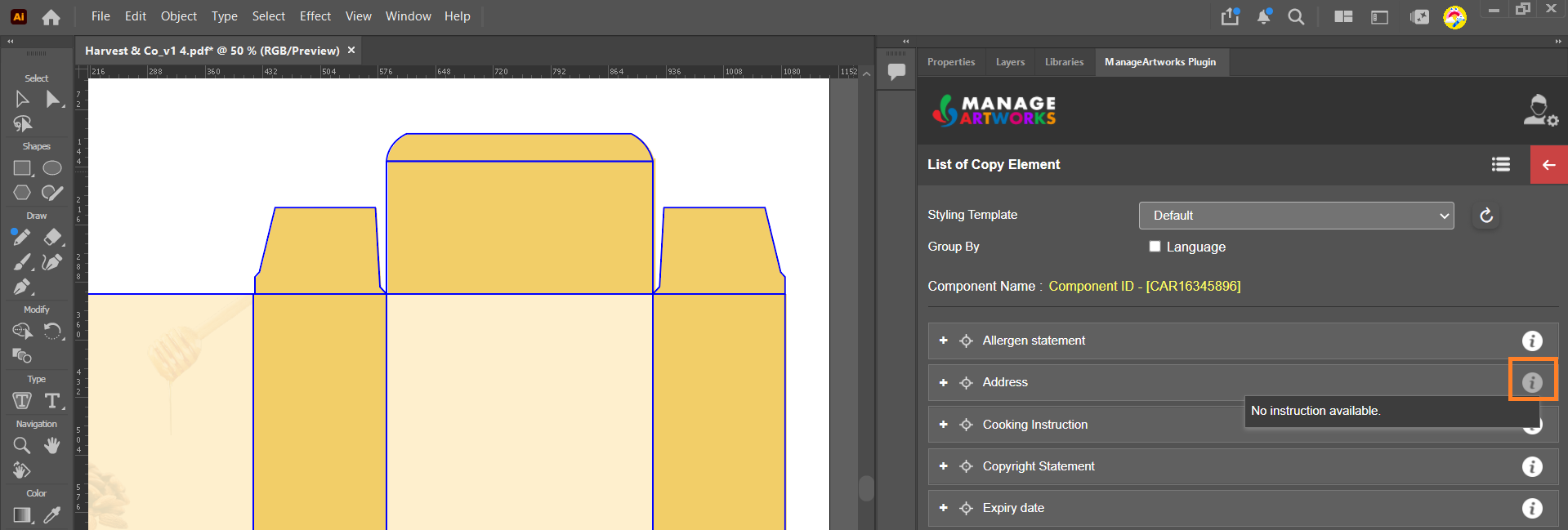
3. View the Instructions for an Element (If Required)
Check an element's instructions before inserting it into the artwork.
| Note: The Info icon next to the element turns blue when the element has instructions. If the element has no instructions, the plugin displays No instruction available. |
- To view the instruction associated with the element, select the Info icon next to the required element.
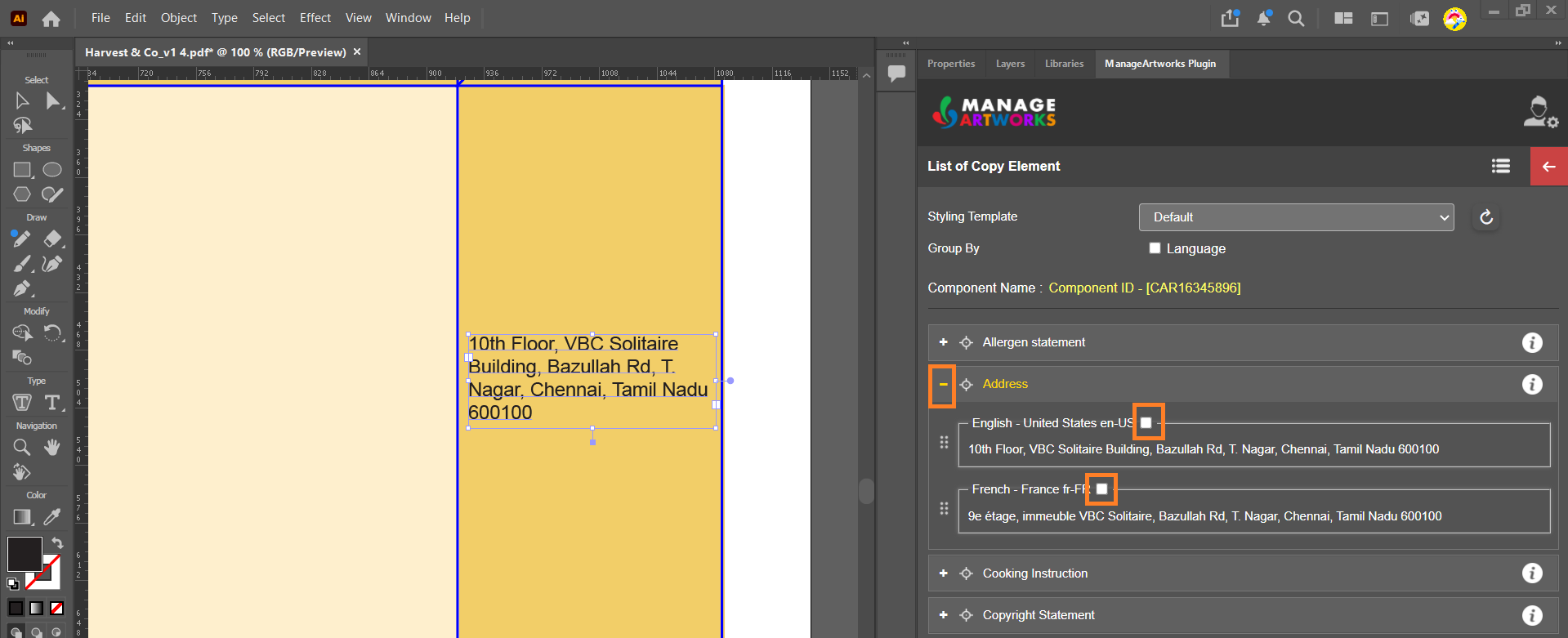
4. Insert Content into the Artwork
- Select the expand (+) icon next to the required element. The plugin displays the element's content in each language.
- If required, to insert the content of more than one language in one drag, select the check box next to each language you need.
- Hover over the content, then drag it and drop it onto the artwork. The plugin places the content in the artwork with the selected styling template applied.
Note: If you selected more than one language in step 2, the plugin inserts their content together. - Repeat these steps for each element you need.
| Note: You can change the font and paragraph settings of inserted content with the Illustrator or InDesign formatting tools. Your changes override the styling template. |
04. Change the Copy or Refresh It
1. Change the Copy
- Select the back arrow (←) icon at the top-right corner of the panel.
- Locate the copy and select Get, as described in 01. Access the Copy Sheet.
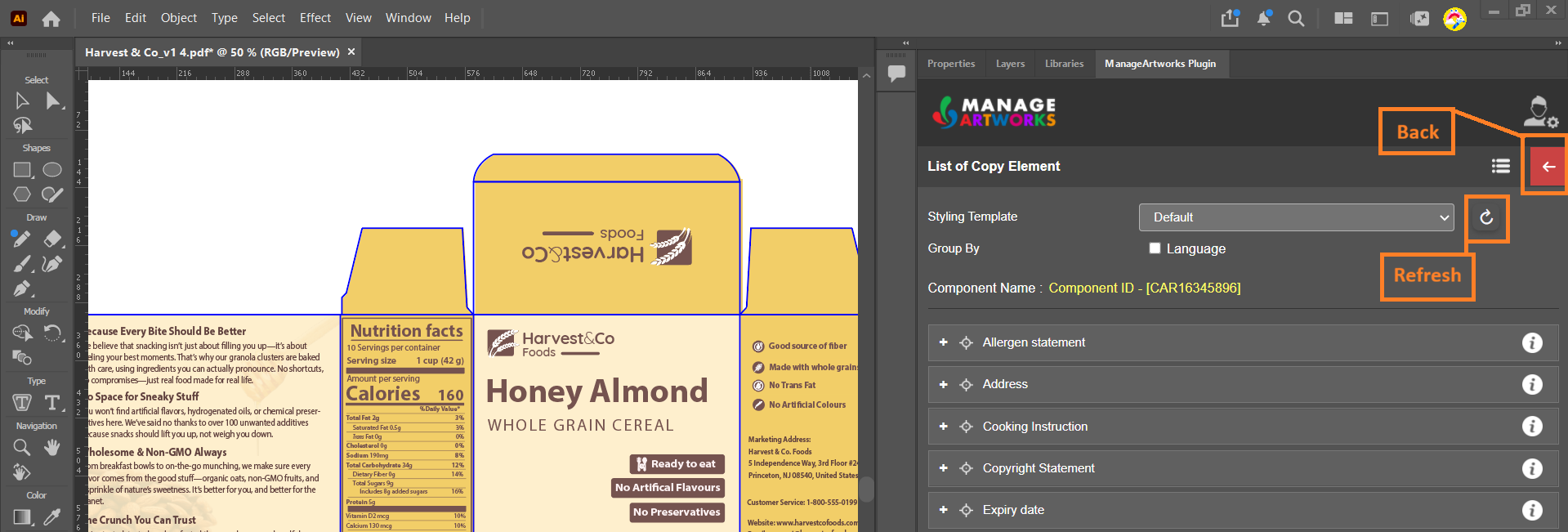
2. Refresh the Copy
Changes made to the copy in ManageArtworks do not appear in the panel automatically.
- To see the latest copy, select the Refresh (↻) icon next to the Styling Template drop-down list.
Related Articles