Assets Security
 | Note: Assets Security is an enterprise feature available exclusively to users on the Enterprise plan. For more information on all ManageArtworks plans, click here. |
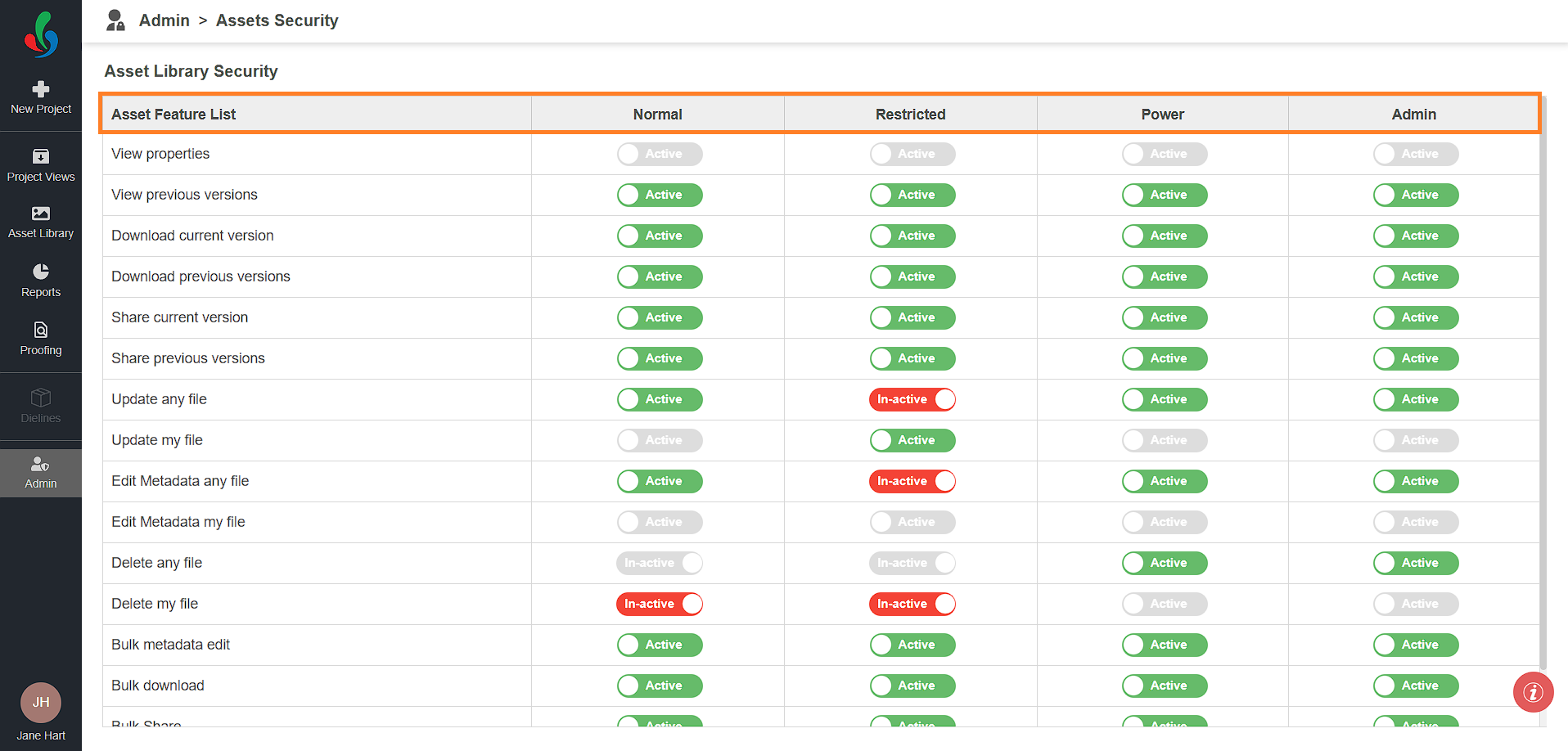
Different people need different levels of control over the files in your Asset Library. Assets Security lets you set, for each user type, which file actions are allowed — so, for example, Normal users can download and share files while only Power users and Admins can delete them.
Two terms appear throughout the feature list:
- My file — files the user uploaded themselves.
- Any file — every file in the Asset Library, regardless of who uploaded it.
How to Configure Asset Library Security
01. Access Assets Security
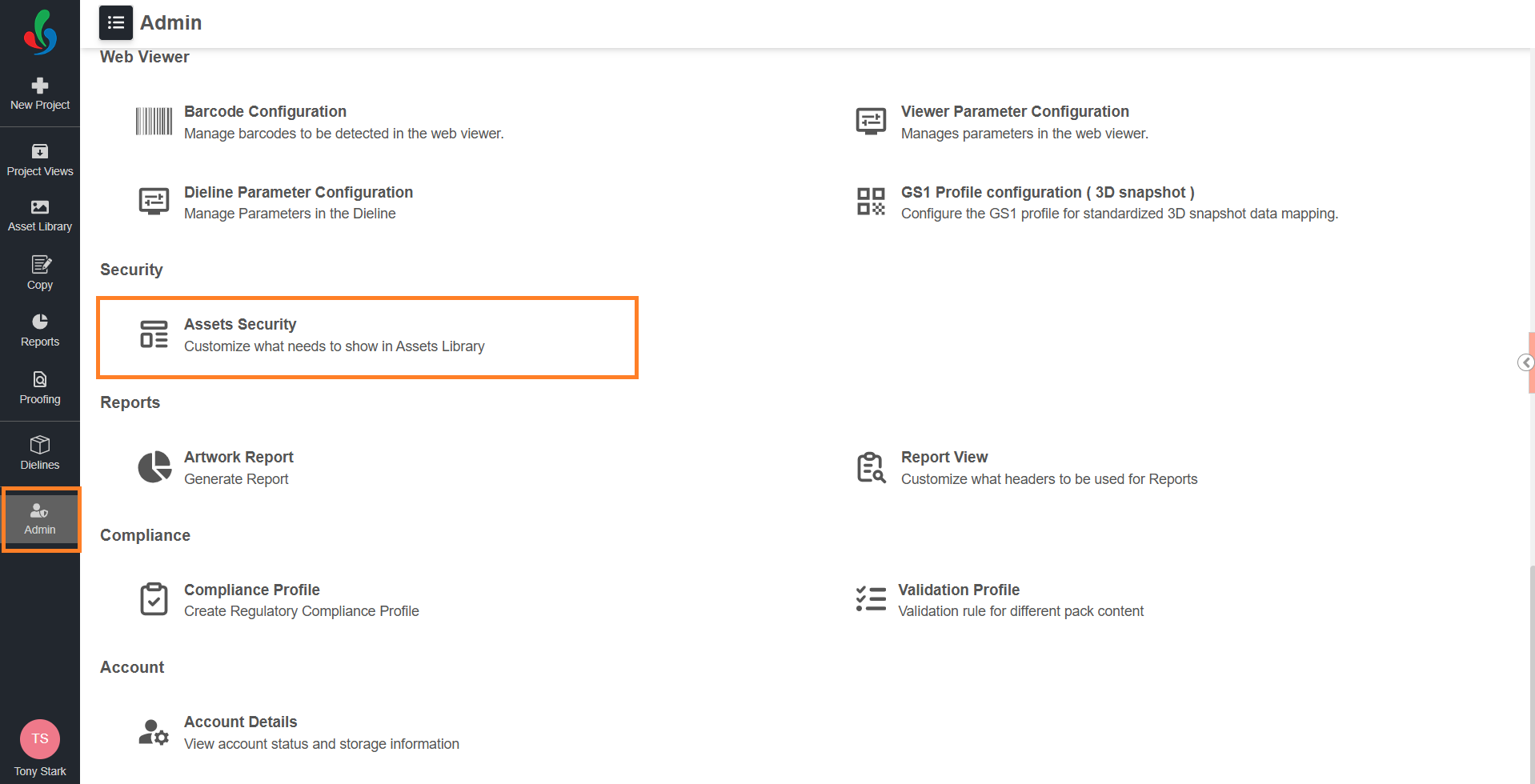
- Sign in to your ManageArtworks account.
- Navigate to the Admin module.
- Select Assets Security.
02. Configure the Permissions
- For each feature, select the toggle in the user type's column to set it to Active or In-active.
- The change applies immediately — users see the updated permissions when they refresh.
Note: Some permissions are pre-configured and cannot be changed. These appear greyed out.
 | Note: Some permissions depend on another permission and stay locked until it is enabled. For example, enabling Delete my file for Normal users unlocks Delete any file and Bulk delete for them. |