Create New Project Template (Enterprise Plan)
 | Note: The process for creating a new project template varies depending on the user’s plan. This article covers the Enterprise Plan. If you are on the Growth Plan, refer to Create New Project Template (Growth Plan). If you're creating a new project template with Copy Manager, refer to Configure Project Template with Copy Manager. This article covers the steps to create a project template without Copy Manager. |
What You Set Up in a Project Template
A project template has four parts. You set them up in this order.
| Part | What it decides |
|---|---|
| Approval Flow | Whether a project stays as one project, or splits into a separate project for each component. |
| Form Template | The project fields and component fields that users fill in when they start a project. |
| Workflow Template | The tasks in the project, who works on each task, how long each task takes, and where the project goes after each action. |
| Publish | Links the form template to the workflow template and makes the template available for new projects. |
Steps to Create a New Project Template
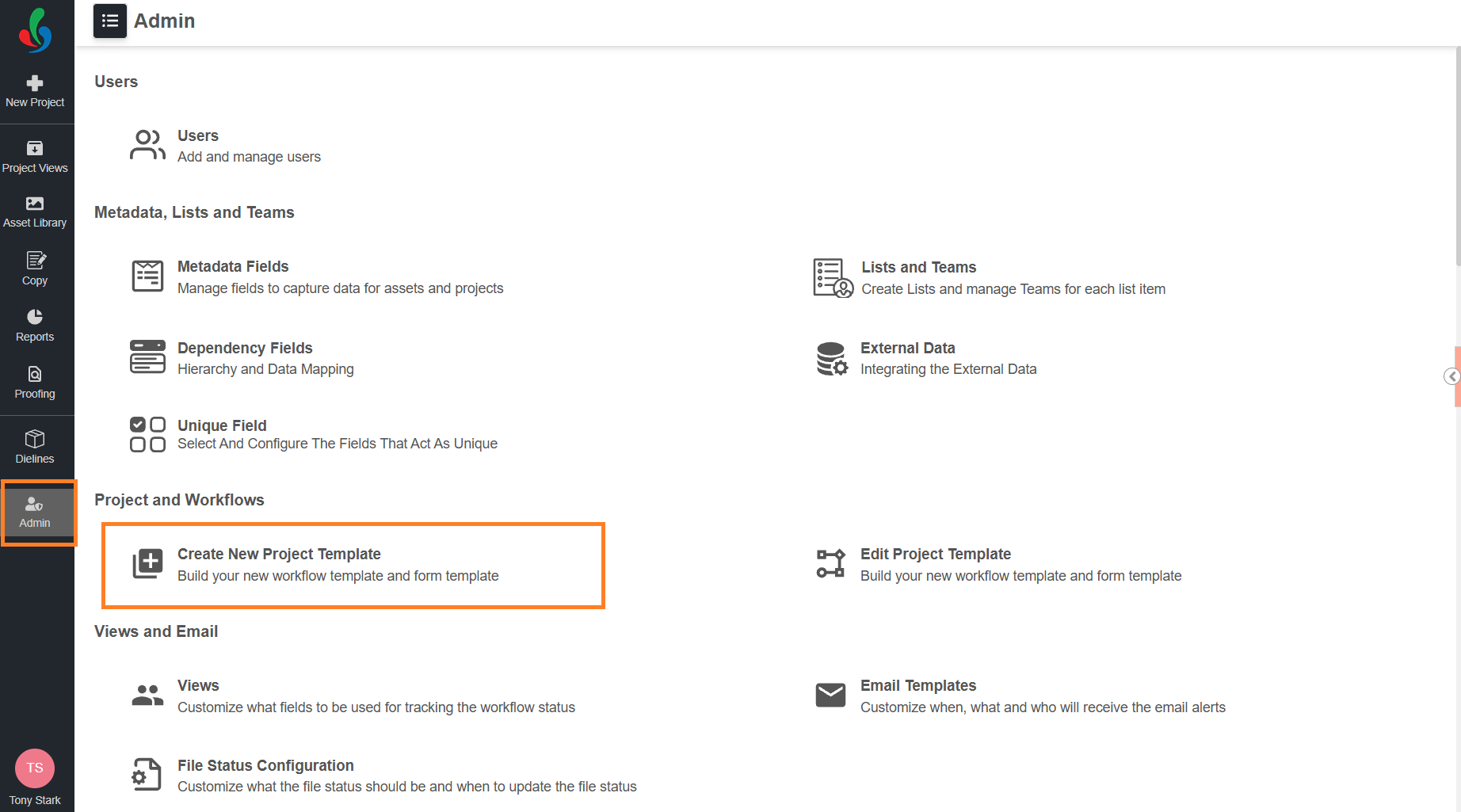
- Sign in to your ManageArtworks account.
- Navigate to the Admin module.
- Under Project and Workflows, select Create New Project Template.
The template is set up in the following steps:
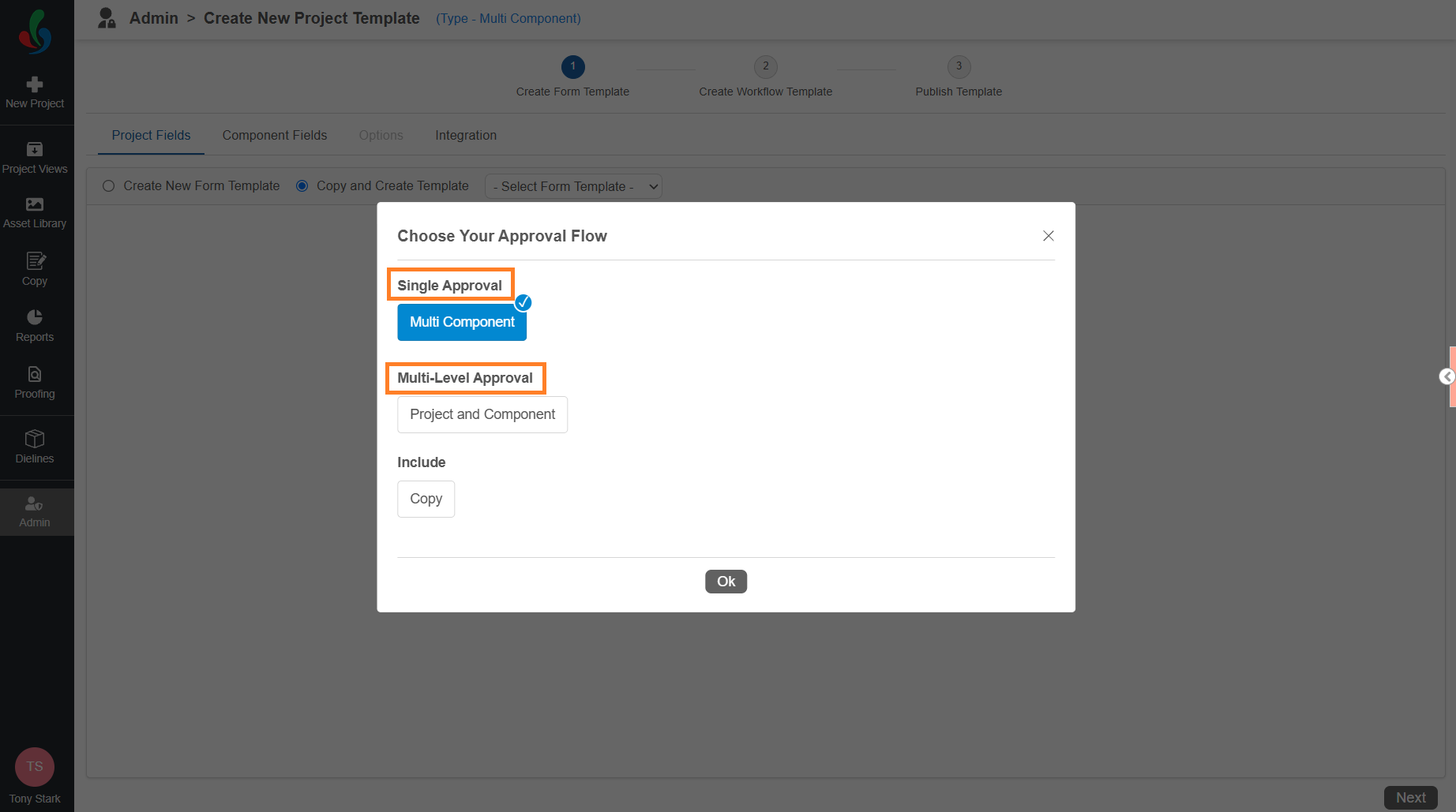
Step 1: Select Approval Flow
Choose whether a project stays as one project or splits into a separate project for each component.
Here you can:
- Select Multi Component under Single Approval, to review all the components of a project together in one project.
- Select Project and Component under Multi-Level Approval, to run the project at two levels. The project you start is the parent project. Each component in it becomes a child project that follows its own component workflow, so you can track and approve each component separately.
- Select Copy under Include, to add copy tasks to the workflow. This option appears only if your account has Copy Manager.
For detailed steps, refer to Step 1: Select Approval Flow (Enterprise Plan).
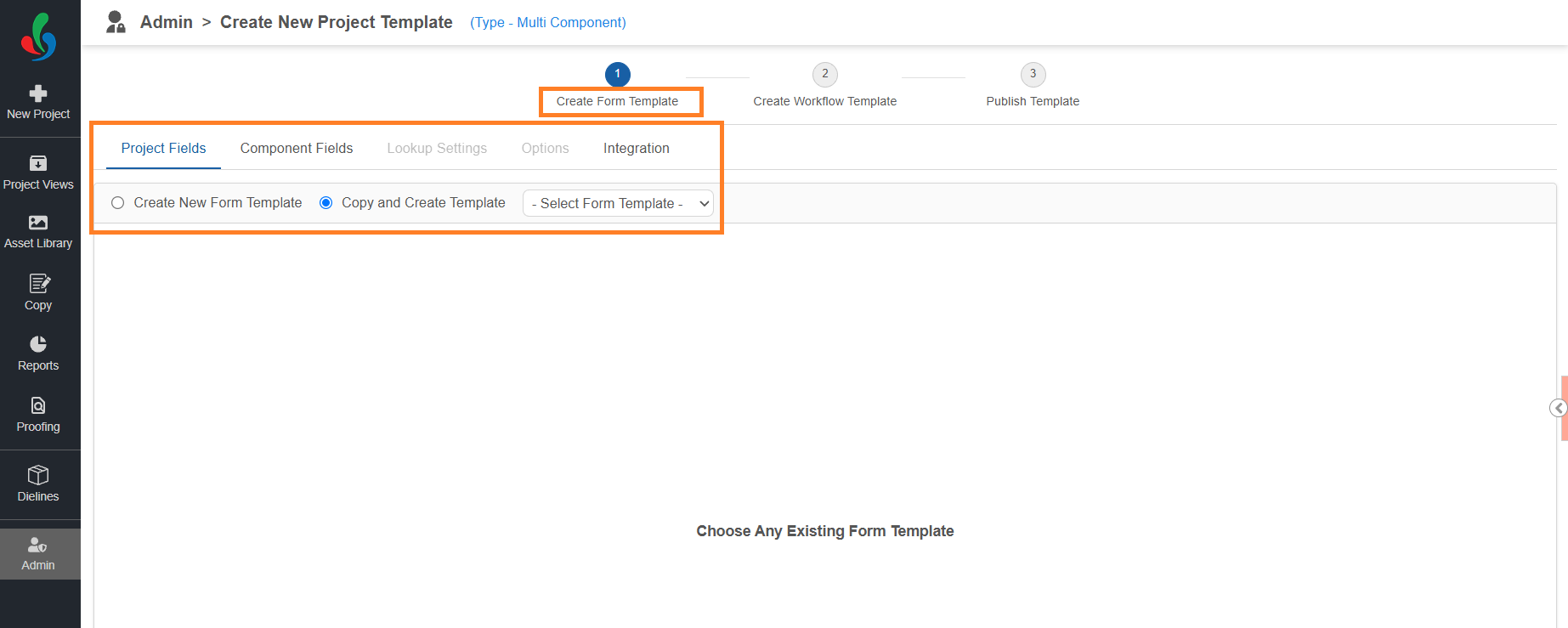
Step 2: Create Form Template
Build the form that users fill in when they start a project.
Here you can:
- Start a new form template from scratch, or copy an existing one and adapt it.
- Choose the project fields users fill in, and arrange how they appear on the Request Info tab.
- Choose the component fields users fill in for each component.
- Set additional properties for the fields you added.
- If enabled for your account, set up lookup fields that fill in values from an earlier project when users revise it.
- If enabled for your account, connect fields to a third-party system, such as SAP, so their values are filled in automatically.
For detailed steps, refer to Step 2: Create Form Template (Enterprise Plan).
 | Note: Any unique field defined in Admin settings is automatically included in the form template and marked as mandatory. |
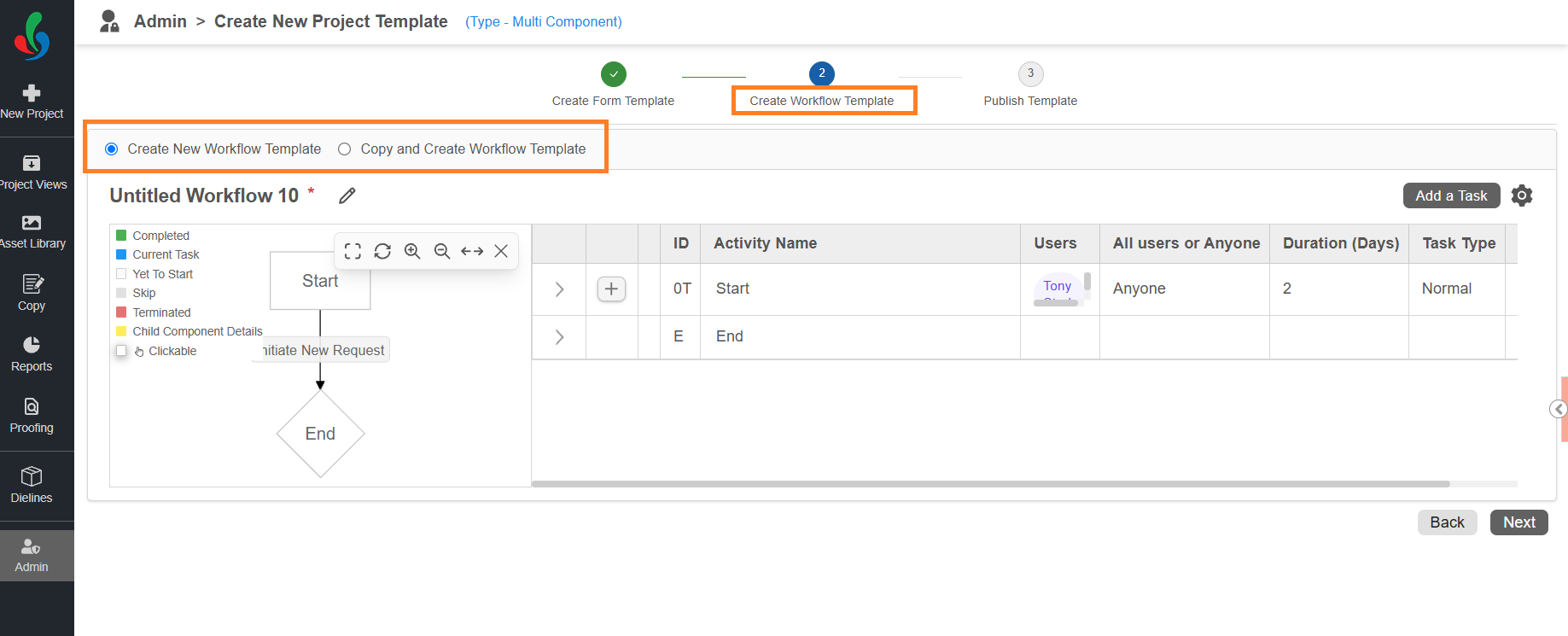
Step 3: Create Workflow Template
Design the path a project follows from start to approval.
Here you can:
- Start a new workflow template from scratch, or copy a published one and adapt it.
- Add the tasks a project goes through — tasks to complete and submit, decisions to approve or reject, automated emails, and forks that run tasks in parallel.
- Choose who works on each task — specific users, teams, or users picked from a form field.
- Set how many days each task takes, and whether all participants or anyone of them must complete it.
- Decide where the project goes after each action, including where it returns when it is rejected.
- Add checks a task must pass before it can be completed, such as files to upload or a checklist to fill in.
- Use the Settings icon to add a description, set how project numbers are generated, and choose the status files get when they are published.
| Note: Every workflow begins with a Start task. The users in the Start task are the ones who can start projects from this template. |
For detailed steps, refer to Step 3: Create Workflow Template (Enterprise Plan).
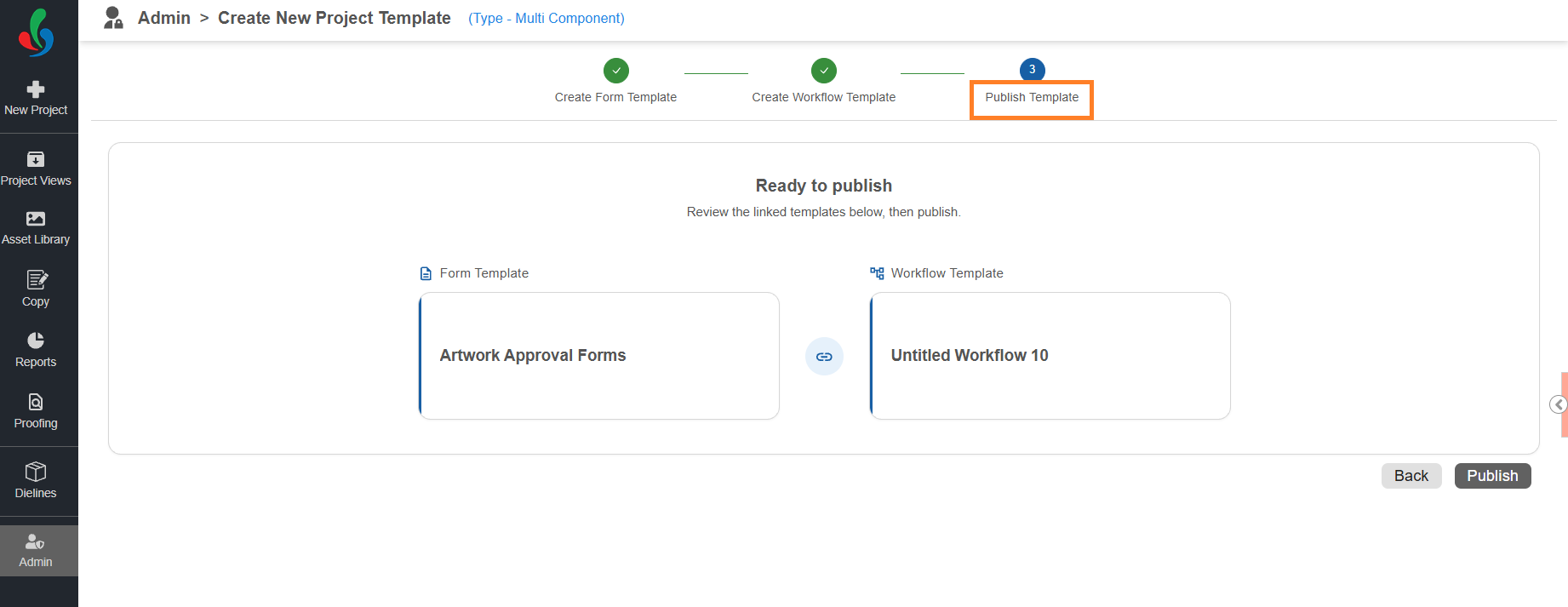
Step 4: Publish Template
Once you've built and configured your workflow and form template, double-check everything before publishing. Once published, users in the Start task can start projects from the template.
| Note: If you edit and publish the template later, your changes apply only to projects started after that. Projects already in progress continue with the version they started with. |
For detailed steps, refer to Step 4: Publish Template (Enterprise Plan).