About ManageArtworks Plugin
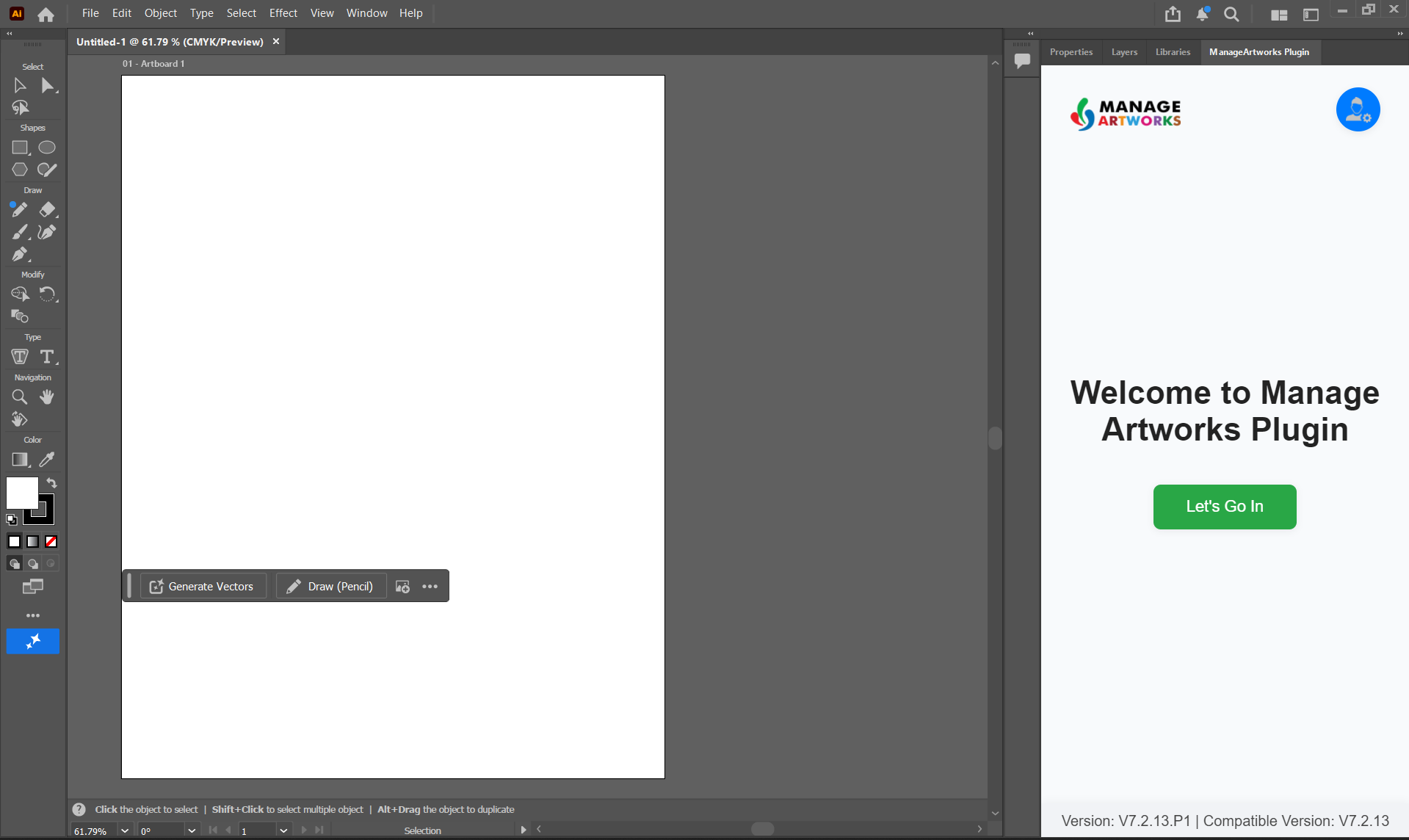
Artwork is typically created in Adobe Illustrator and InDesign, but the copy that goes on it, the dieline it sits on and the task that tracks it all live in ManageArtworks. The ManageArtworks plugin brings them into a panel beside your artboard, so you can pull approved copy into the artwork, change fonts and colours across a file, build variants of an approved pack, and submit your task without leaving the application you are designing in.
The plugin is for the people who build the artwork — packaging designers, artwork coordinators and brand teams working on projects where the wording on the pack has to be exact.
Why Use the Plugin
Packaging artwork is rarely one file and rarely one version. The same design is repeated across pack sizes, flavours, languages and markets, and the wording on it changes whenever a regulation, a claim or a corporate name changes. Each of those updates normally means moving content between applications by hand: copy arrives as an email or an exported document and is retyped into the artwork, a new variant is raised as a request to a design studio, and a single wording correction is applied file by file.
The plugin closes that gap by putting ManageArtworks next to the artboard. Copy is placed from the approved copy sheet rather than retyped, a correction is applied across a folder of artworks in one pass, and a new variant is adapted from an artwork that is already approved. The work stays in Adobe Illustrator, and the artwork stays in ManageArtworks throughout.
What that changes for a team:
- First-time-right artwork. Content comes from the approved copy sheet, so the pack carries what was signed off rather than what was transcribed.
- Shorter turnaround. A variant that takes a design studio several days to return is produced in minutes and reviewed the same day.
- Less dependency on design studios. Brand and packaging teams handle routine variants, resizes and wording corrections themselves, leaving designers free for original design work.
- Consistency across a range. The same change is applied to every file in one operation, so artworks in a range do not drift apart.
- Fewer handoffs. Dielines, assets, copy and your assigned tasks are reached from the panel, so there is no export, upload and re-download cycle.
Where the Plugin Helps
Situations where teams reach for the plugin:
- A regulation changes the wording on every pack in a range. Apply the correction to every artwork file in the folder in one operation, instead of opening and editing each file.
- A copy sheet is revised after the artwork was built. Map the revised copy sheet to the artworks built from the earlier version, and the plugin updates every element the revision changed.
- A new pack size, flavour, language or market is added. Adapt the approved artwork onto the dieline of the new variant, changing the copy, images, colours and fonts the variant needs, instead of raising a design request.
- A whole range launches together. Adapt one approved artwork onto a folder of dielines in a single operation, producing one artwork for each pack.
- A brand refresh changes the fonts or the spot colours. Replace them across the artwork in one action, and roll the change out over the existing pack range.
- An artwork opens with fonts that are missing or no longer approved. Map them to approved fonts in one action rather than correcting each text frame.
- A print vendor asks for a colour change before production. Swap the colour throughout the artwork, defining a new process or spot swatch if the one you need is not already in the file.
- A task reaches you while you are designing. Open it in the panel, upload the artwork you have open, and submit it without switching to a browser.
Getting Started
Set the plugin up once, and it is available in every artwork you open.
- Install the plugin on your computer using the ZXP Installer. For more information, refer to Install the ManageArtworks Plugin.
- Open the panel from Window > Extensions and point it at your ManageArtworks server. For more information, refer to Open and Set Up the Plugin.
- Sign in with your ManageArtworks account. For more information, refer to Sign In to the Plugin.
Once you are signed in, the panel lists every published and in-progress component you have access to, and the rest of the plugin becomes available.
Copy Sheets
- Work from approved content: find the component you are designing for, choose the languages you need, and see every copy element in the panel beside your artboard.
- Place text by dragging: drag each element onto the artwork, so the wording on the pack matches what was approved and nothing is retyped.
- Reference: Drag and Drop Copy Content into Your Artwork.
Styling Templates
- Format content as it lands: set the font and paragraph properties once as a template, and copy arrives styled instead of needing to be formatted by hand.
- Style the component or a single element: apply one general rule across every element, and add element rules where a particular element needs its own treatment.
- Reference: Set Up Styling Templates for Copy Content.
Font Map
- Replace fonts across the artwork: map each font used in the artwork to another font available in Illustrator, and apply every mapping in one action.
- Standardise on brand fonts: swap missing, outdated or unapproved fonts for approved ones before the artwork goes for review.
- Reference: Change Fonts in an Artwork.
Color Map
- Replace a color throughout the artwork: choose a color the plugin found in the artwork and swap it for another, across every object that uses it.
- Define the color you need: add a custom process or spot swatch in RGB, CMYK or Hex when the replacement color is not already in the artwork.
- Reference: Change Colors in an Artwork.
Bulk Find and Replace Text
- Correct wording across a set of artworks: apply the same text change to every file in a folder in one operation, instead of opening and editing each file.
- Roll out a copy sheet revision: map a revised copy sheet to the artworks built from the earlier version, and the plugin updates every element the revision changed.
- Reference: Bulk Find and Replace Text Across Artworks.
Adapt AI
- Build a variant from an approved artwork: select the approved artwork and the dieline of the variant you need, and the plugin adapts the design onto that dieline.
- Change what the variant requires: swap the copy, images, spot colours and fonts in the same operation, onto one dieline or onto a whole folder of them.
- Reference: [Create Artwork Variants with Adapt AI].
Proofread
- Check the artwork against the copy sheet: the plugin marks content that is missing from the artwork, cut off by its text frame, or different from the copy sheet.
- Fix what it finds: replace incorrect text from the panel, then verify again to confirm the artwork matches.
- Reference: Proofread Artwork Against the Copy Sheet.
Dieline
- Start on the right structure: choose a dieline from the Dieline Library, customise and preview it, and export it into Illustrator ready to design on.
- Skip the download: the exported dieline opens in Illustrator by itself, so you can begin building the artwork straight away.
- Reference: [Work with Dielines in the Plugin].
Inbox
- Work your tasks where you design: open an assigned task, read the request information, add comments, and approve, reject or submit it without leaving Illustrator.
- Send your artwork to the project: upload the open Illustrator file to the task, with no exporting and no upload through a browser.
- Reference: [Work with Your Inbox in the Plugin], [Upload Artwork from Illustrator to a Project] and [Use the Web Viewer from the Plugin].
Asset Library
- Find approved assets: search or browse the Asset Library, narrow the results with facets, and download what the artwork needs.
- Keep track of what you use: bookmark assets, and check share and download history from the panel.
- Reference: [Use the Asset Library in the Plugin].
What Stays in the Web Application
The plugin gives you the parts of ManageArtworks you need while designing, not the whole application. Administration, asset management such as revising and sharing, and the full proofing toolset are done in the ManageArtworks web application, which stays available alongside the plugin.
For a module-by-module list of what works in the plugin, refer to [Access ManageArtworks Inside the Plugin].