Manage GS1 Profile Group
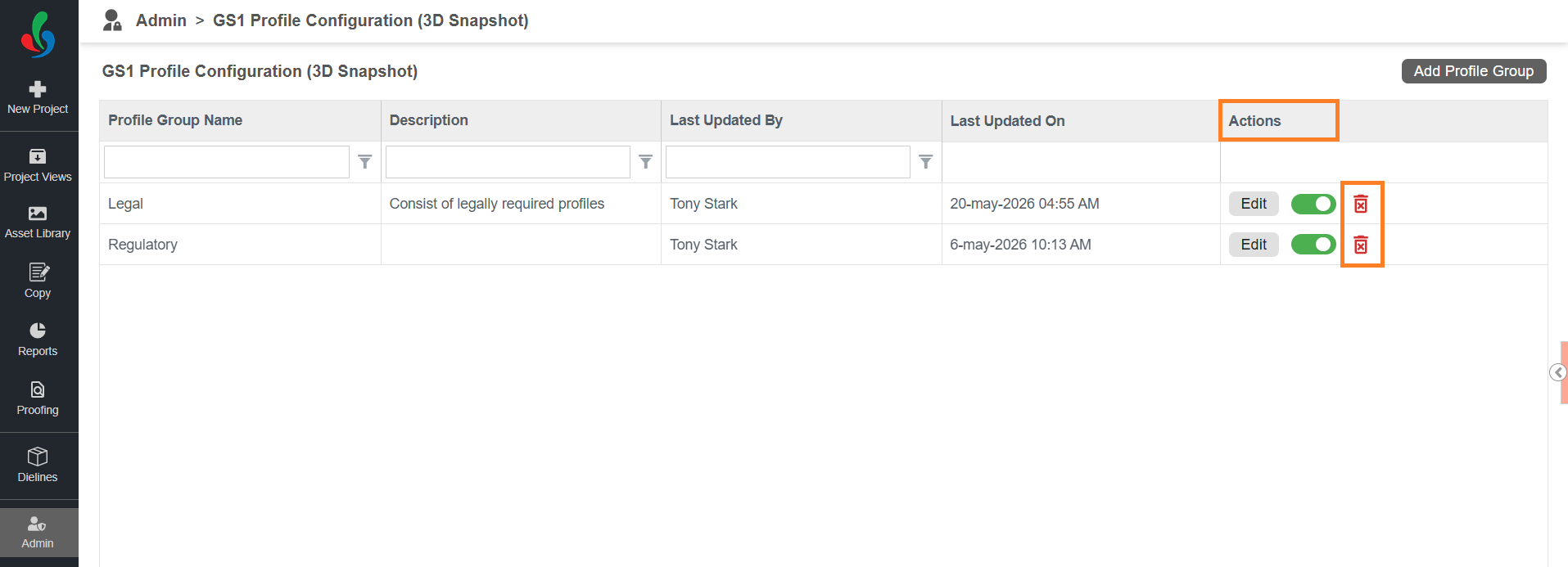
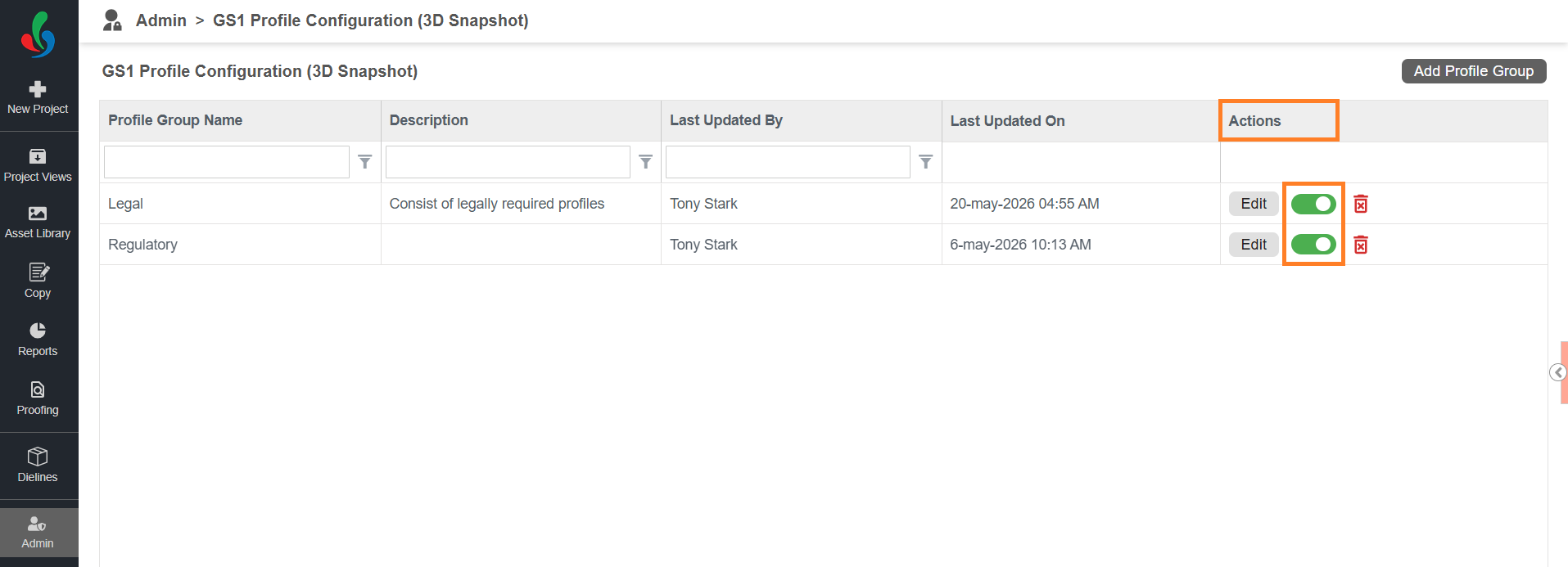
After creating GS1 Profile Groups, you can edit their configuration, control their availability to users, or delete them. Each Profile Group in the configuration list shows its available Actions (Edit, status toggle, and delete).
To Edit GS1 Profile Group
01. Access GS1 Profile Configuration
- Sign in to your ManageArtworks account.
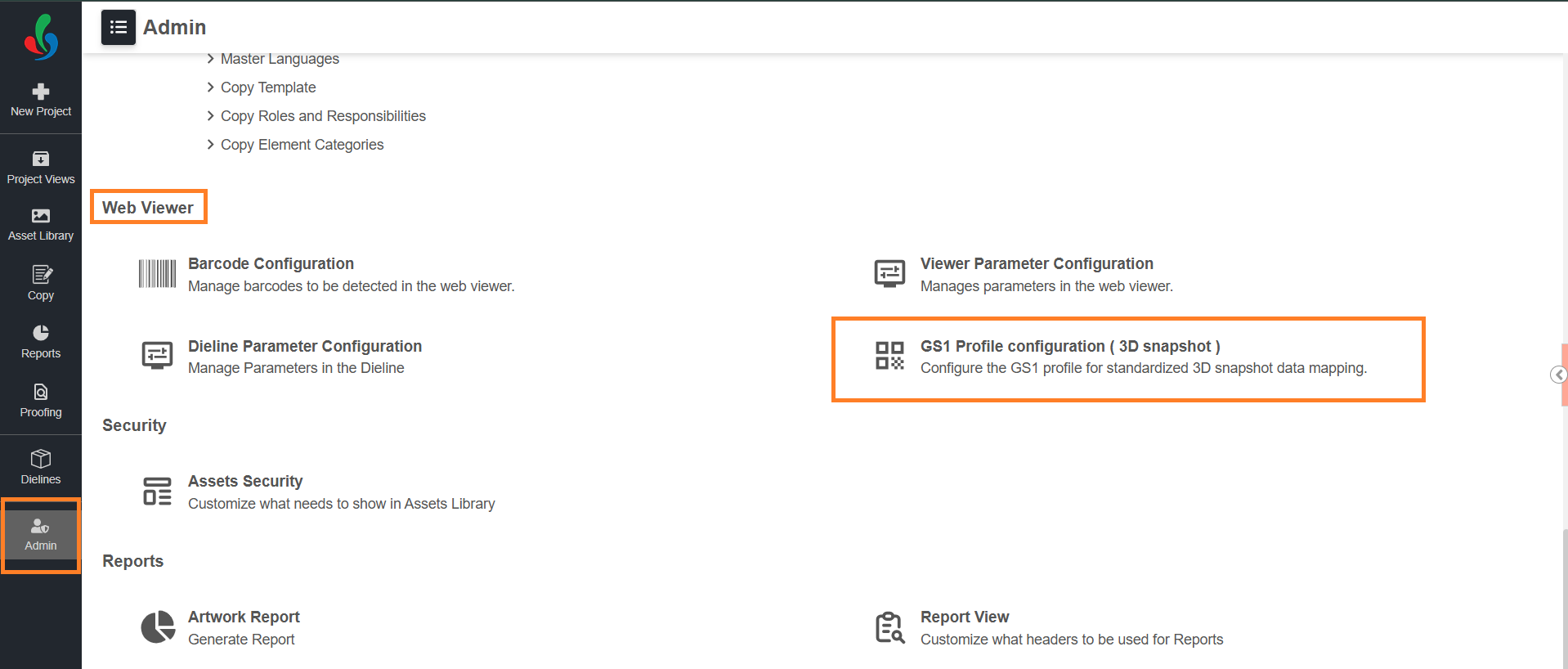
- Navigate to the Admin module.
- Under Web Viewer, select GS1 Profile Configuration (3D Snapshot). The configuration page lists all existing Profile Groups.
02. Edit a Profile Group
 | Note: Only Primary Image profiles can be modified from the Admin module. If Secondary, Technical, or Custom profiles were added to the group from the Web Viewer, you can delete them here, but you cannot modify them. |
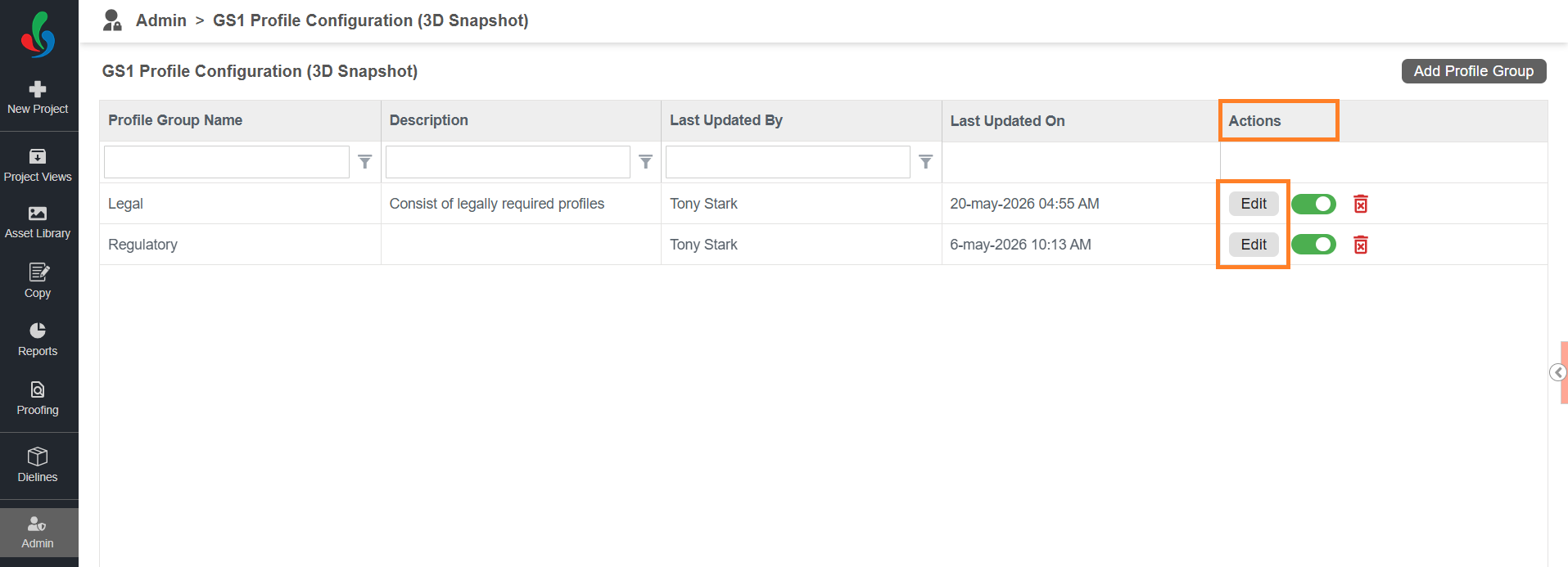
- In the configuration list, select Edit in the Actions column for the required Profile Group.
- Modify the group name or description as required. When renaming, enter a unique name.
Note: Duplicate names are not allowed. - To modify an added profile:
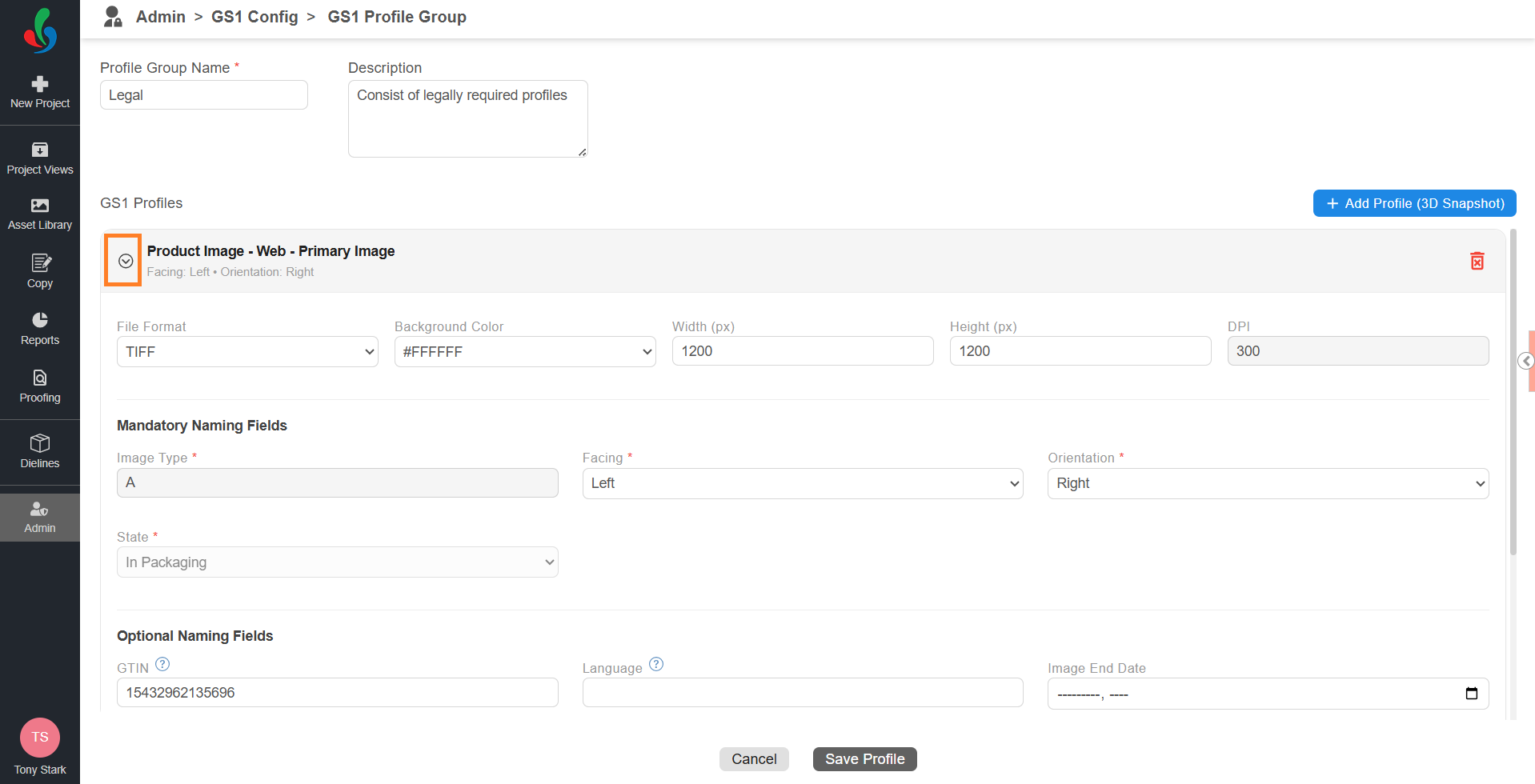
- Select the profile to expand its configuration. All associated fields (file format, resolution, naming defaults) are displayed.
- Modify the editable values as required.
- Select the profile to expand its configuration. All associated fields (file format, resolution, naming defaults) are displayed.
- To add a profile to the group, refer to Add Profiles to the Group in GS1 Profile Configuration (3D Snapshot).
- To remove a profile from the group, select the delete icon associated with the profile.

03. Save the Profile Group
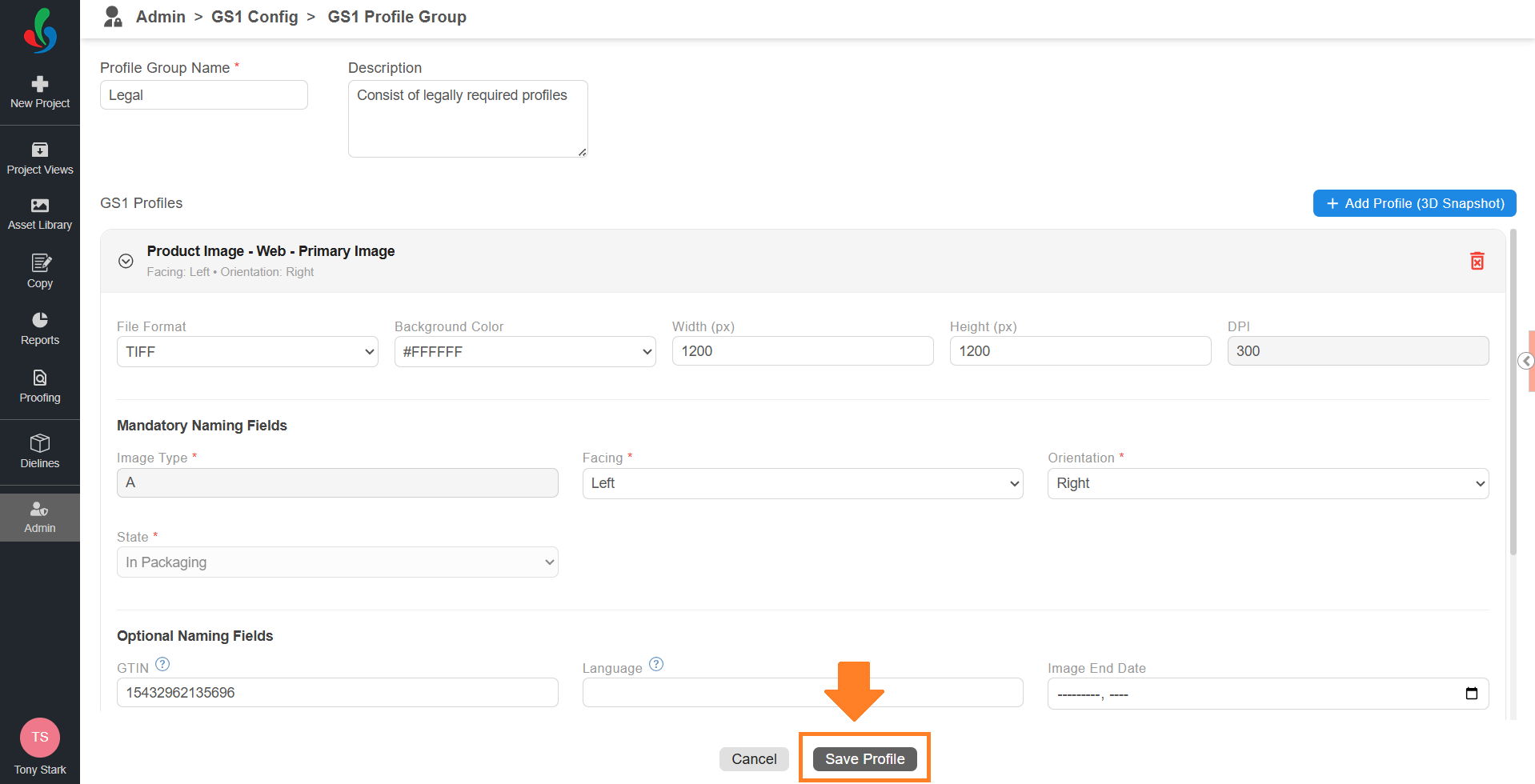
- Select Save Profile to save your edits.
The updated profile group is saved and becomes available in the GS1 Snapshot workspace in Web Viewer. Changes apply the next time users open the workspace.
When users select the Profile Group, the configured values are loaded as default settings. Users can modify editable fields within the allowed limits before rendering the images. For more information, refer to GS1 Profile Snapshot.
To Activate or Deactivate a Profile Group
Use the status toggle in the Actions column to control which Profile Groups are available to users.
- In the configuration list, select the status toggle for the required Profile Group.
- Deactivated groups remain in the admin list but are hidden from users in the Web Viewer.
Note: If no active Profile Groups exist, the Profile Group selection is not displayed in the Web Viewer's GS1 Snapshot workspace.
To Delete a Profile Group
- In the configuration list, select the delete icon in the Actions column for the required Profile Group.
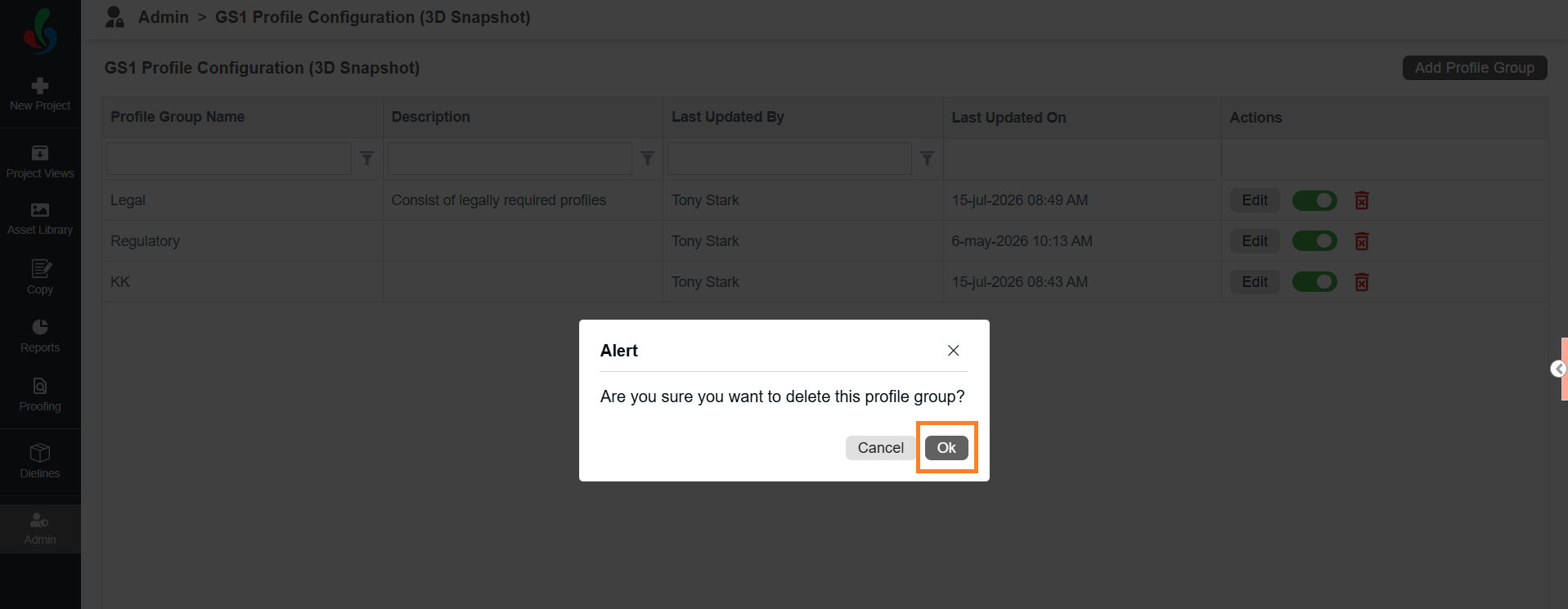
- Select Ok in the confirmation dialog.
Note: Deleting a Profile Group is permanent and does not affect images that were already generated with it.