
Manage Metadata Fields (Enterprise Plan)
 | Note: Metadata Fields feature differ between the Growth and Enterprise plans. This article covers managing metadata fields in the Enterprise Plan. For information about managing metadata fields in the Growth Plan, see Manage Metadata Fields (Growth Plan). |
You can update the display name and configure additional properties for metadata fields in ManageArtworks.
Manage Metadata Field Properties
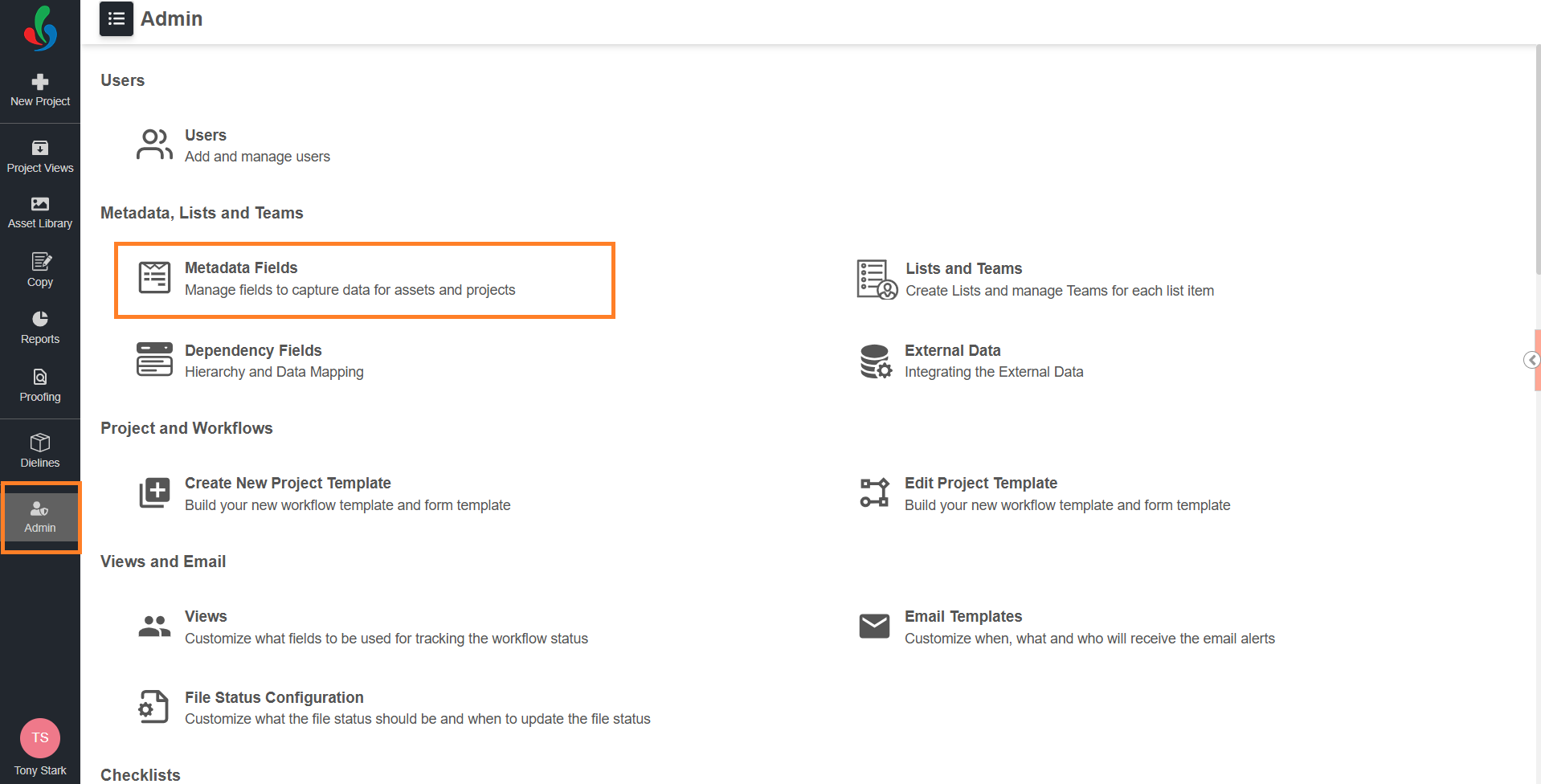
01. Access Metadata Fields
- Sign in to your ManageArtworks account.
- Navigate to the Admin module.
- Under Metadata, Lists and Teams, select Metadata Fields.
02. Update Field Display Name
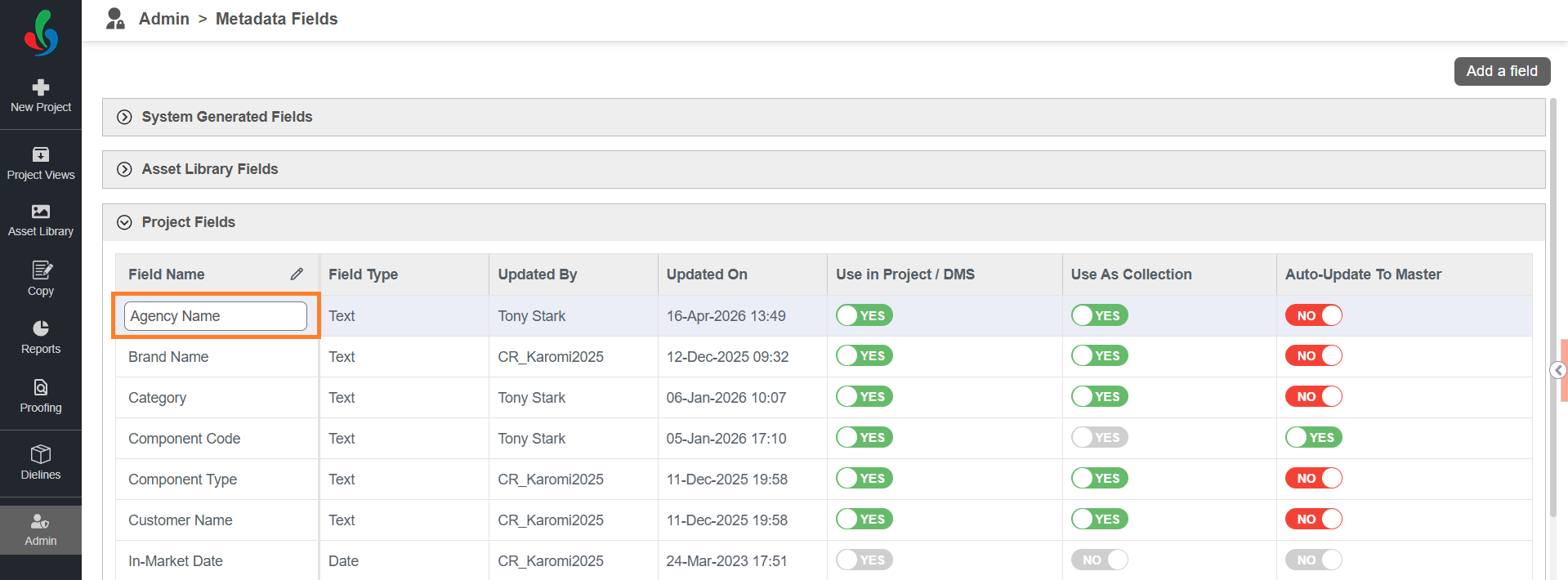
- Select the required field category (for example, Project Fields or Component Fields).
- Double-click the field to enable edit mode.
- Enter the new display name.
- Select outside the field to save the changes.
 | Note: Changing the display name does not modify the field’s backend behavior. The display name is only a label for the field. When you rename a field, the new name appears everywhere that field is used — including projects that are in progress, completed, or terminated. |
03. Configure Field Properties
| Note: Additional properties can be configured only for Project Fields and Component Fields. Some fields have predefined settings that cannot be modified. |
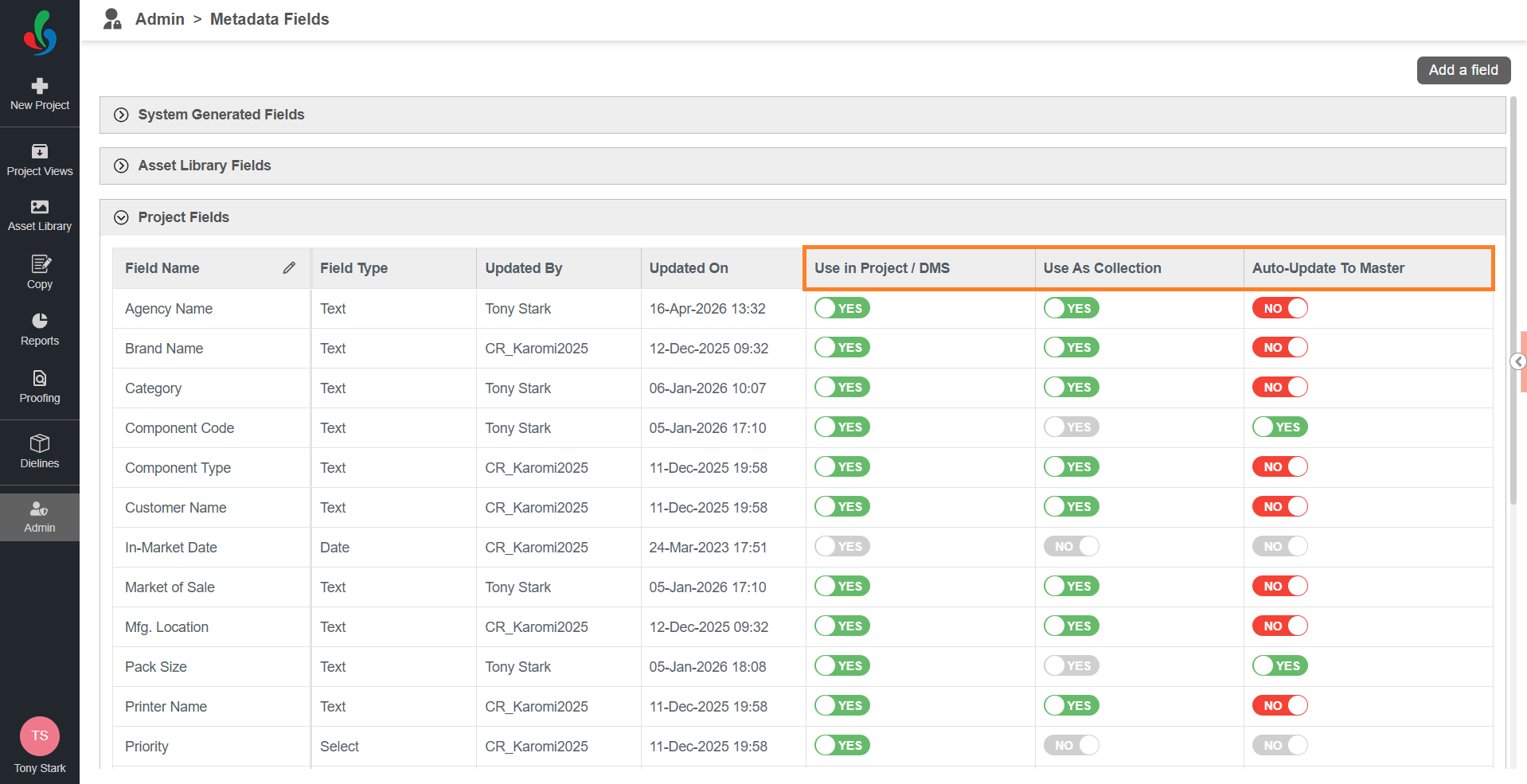
Use in Project / DMS
Determines whether the field is available during:
- Project related activities
- File upload in the Asset Library
Enabling this option allows users to capture relevant metadata for projects and assets.
| Note: If Use in Project / DMS is set to YES and the field is already used in uploaded assets or project(s), you cannot change it to NO. This ensures data consistency and prevents loss of associated metadata. |
Use as Collection
When set to YES, users can only select values from a predefined list.
- Ensures data consistency
- Reduces manual entry errors
The master data for these fields can be managed under Lists and Teams in the Admin module.
Auto-Update to Master
When set to YES, users can:
- Select existing values from the collection or enter new values
Any new value entered is automatically added to the master data.
| Note: This option is available only when Use as Collection is set to YES. |