Compare Type
ManageArtworks Web Viewer supports two compare types. You can choose one or both methods depending on what you want to verify.
The available comparison types are:
- Pixel Compare – for visual differences
- Text Compare – for content and formatting differences
Pixel Compare
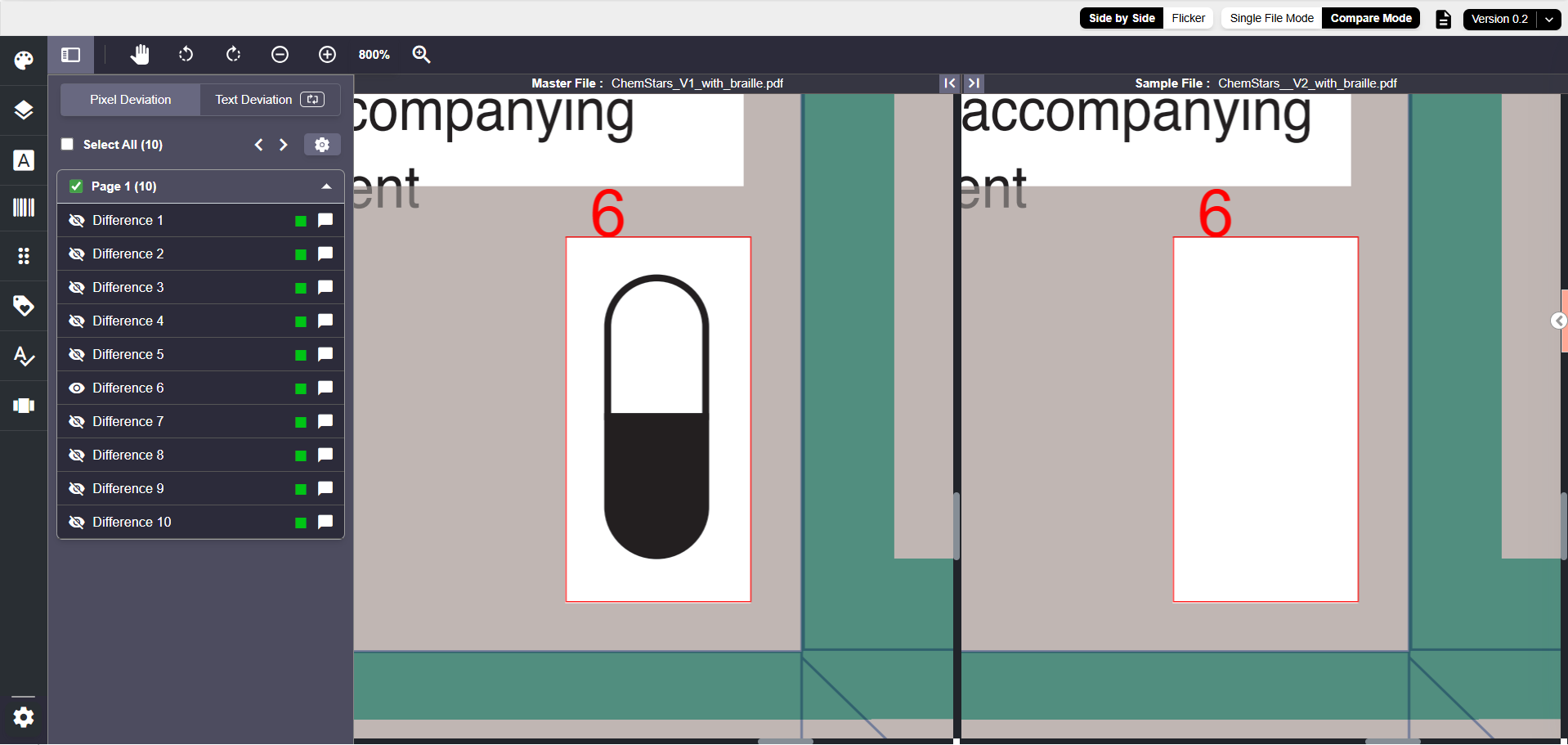
Pixel Compare identifies visual differences between the Master and Sample files. It is used to verify changes in design, layout, color, graphics, and other visual elements.
The Web Viewer compares the artwork pixel by pixel. At every coordinate, it checks whether the pixel color in the Master matches the pixel color in the Sample. If the pixel colors match at all coordinates, the images are considered visually identical. Any variation in pixel color indicates a visual deviation.
Use Pixel Compare when reviewing:
- Layout adjustments
- Design updates
- Color or graphic modifications
- Minor visual shifts that may impact print quality
How Pixel Compare Works?
To make the comparison accurate, the tool performs the following steps behind the scenes:
- Converts both artworks into high-resolution images (like 300–600 DPI).
- Automatically aligns the Sample artwork with the Master, even if their size, position, or rotation differs.
- Compares the images pixel by pixel.
- Highlights every visual difference in the artwork using colored overlays so changes are easy to notice.
What Pixel Compare Can Detect?
Pixel Compare is very sensitive and can capture even the smallest visual differences, including:
- Text moved slightly from its original position
- Changes in font style (e.g., bold vs. regular) or size
- Replaced or modified icons, logos, or images
- Differences in image sharpness or quality
- Alignment or layout shifts
- Missing or newly added design or text elements
- Color changes, even subtle ones (e.g., black vs. grey text)
When Pixel Compare Should Be Used?
Pixel Compare works best when the Master and Sample artworks use the same KLD/Dieline. It is ideal for:
- Reviewing artwork revisions
- Verifying printer proofs
- Performing print inspections
- Checking updated versions with minor or moderate changes
When Pixel Compare May Not Be Suitable?
Because Pixel Compare checks visuals pixel-by-pixel, it will highlight many differences in cases where the layout has changed significantly. It may not be suitable for:
- Comparing Word content against a designed PDF
- Rebranding projects with major layout updates
- Different package sizes or shapes (where the Master and Sample files have different KLD/Dieline or layout)
Even when the dieline is the same, if large blocks of content move to different panels, Pixel Compare will show many deviations. In such cases, Text Compare may be more useful.
Text Compare
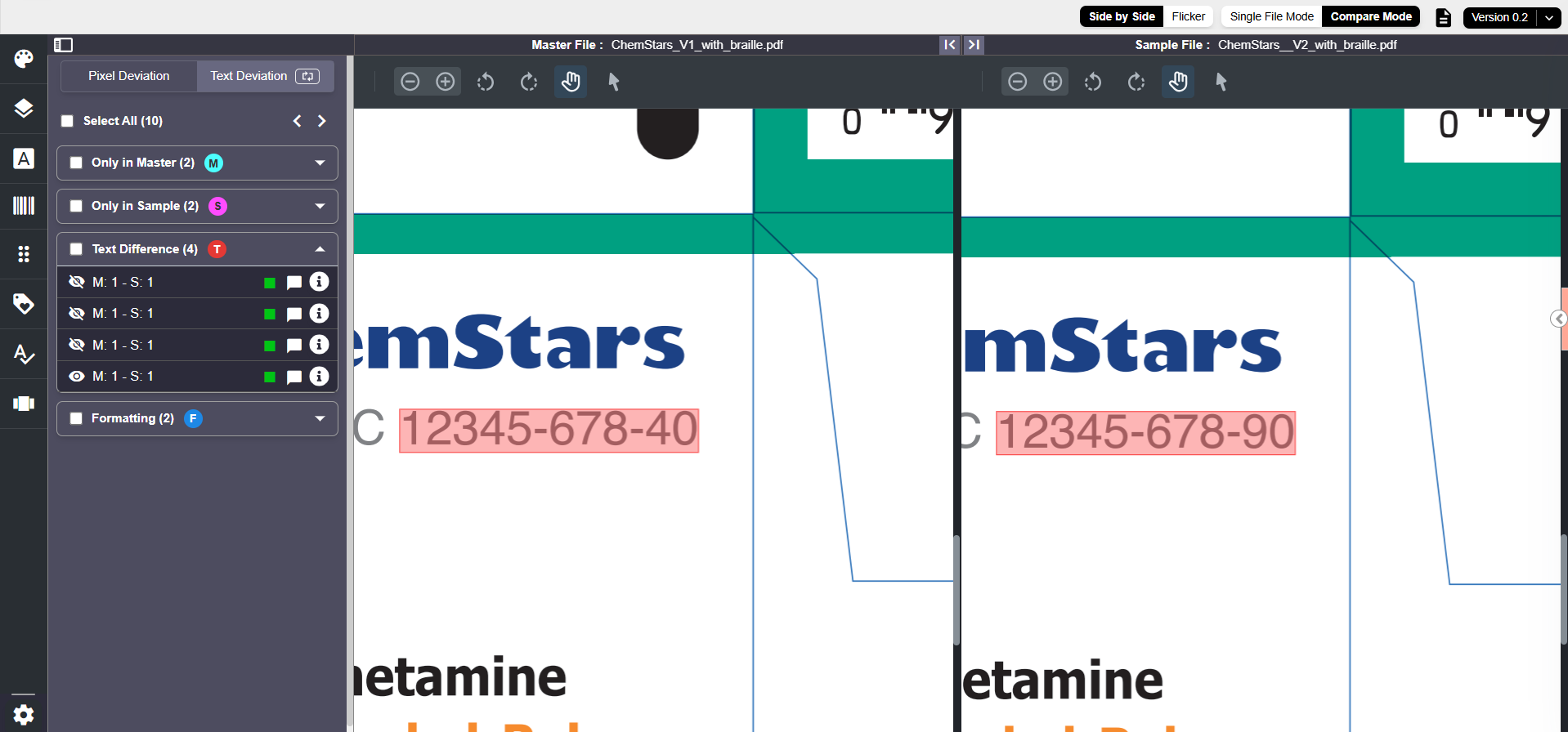
Text Compare focuses on the written content inside the artwork. It reads and compares the text found in the Master and Sample files and shows you exactly what has changed. The tool supports all world languages, including right-to-left scripts.
 | Note: Text Compare works only with live text—that is, text that is selectable and not converted into outlines. If an artwork contains curve text (outlined text) or graphics, these elements cannot be extracted or compared through Text Compare. This means:
For these types of differences, we recommend using Pixel Compare, which can detect visual changes in outlined text, symbols, shapes, and graphics. |
What Text Compare Can Detect?
Text Compare can identify a wide range of content-level differences, such as:
- Missing or removed text
- Newly added text
- Changes in wording or spelling
- Font size or style differences (bold, italics, underline)
- Changes in uppercase/lowercase
- Superscript and subscript changes
- Updated values in tables or data fields
Text Compare Results
To make the comparison easy to understand, the results are grouped into clear categories:
- Only in Master
Text that appears in the Master file but is missing in the Sample file. This usually indicates content that was removed. - Only in Sample
Text that is new and appears only in the Sample file. This represents added or inserted content. - Text Differences
Text that exists in both files but has been changed. Helpful for spotting wording updates or corrections. - Formatting Differences
Changes in the way text looks, such as bold, italics, or font size. - Casing Differences
Changes in capitalization, such as- UPPERCASE
- lowercase
- Title Case or camelCase