
Unique Fields
Unique Fields allow you to configure specific fields in a project to accept unique values only. This helps maintain data integrity, prevents duplication, and ensures accuracy across all projects and records.
Example
Consider the Product Code field. If this field is configured as a unique field, users cannot enter duplicate values for it.
For example:
- A user creates a packaging project with the Product Code PROD-00123.
- Later, another user attempts to use the same Product Code for a different project.
- The system prevents this action, ensuring that each Product Code remains unique and eliminating the risk of duplication or confusion.
 | Unique Fields – Important ConsiderationsWhen configuring Unique Fields for the first time, you can select and save the required fields together. Note:
Any field configured as a Unique Field automatically becomes mandatory wherever it is used in the system.
Important: Configure unique fields carefully, as they directly impact project creation and cannot be modified or expanded once projects are initiated. |
 | Note:
|
How do I set up a Unique field(s)?
Set Up Unique Field(s)
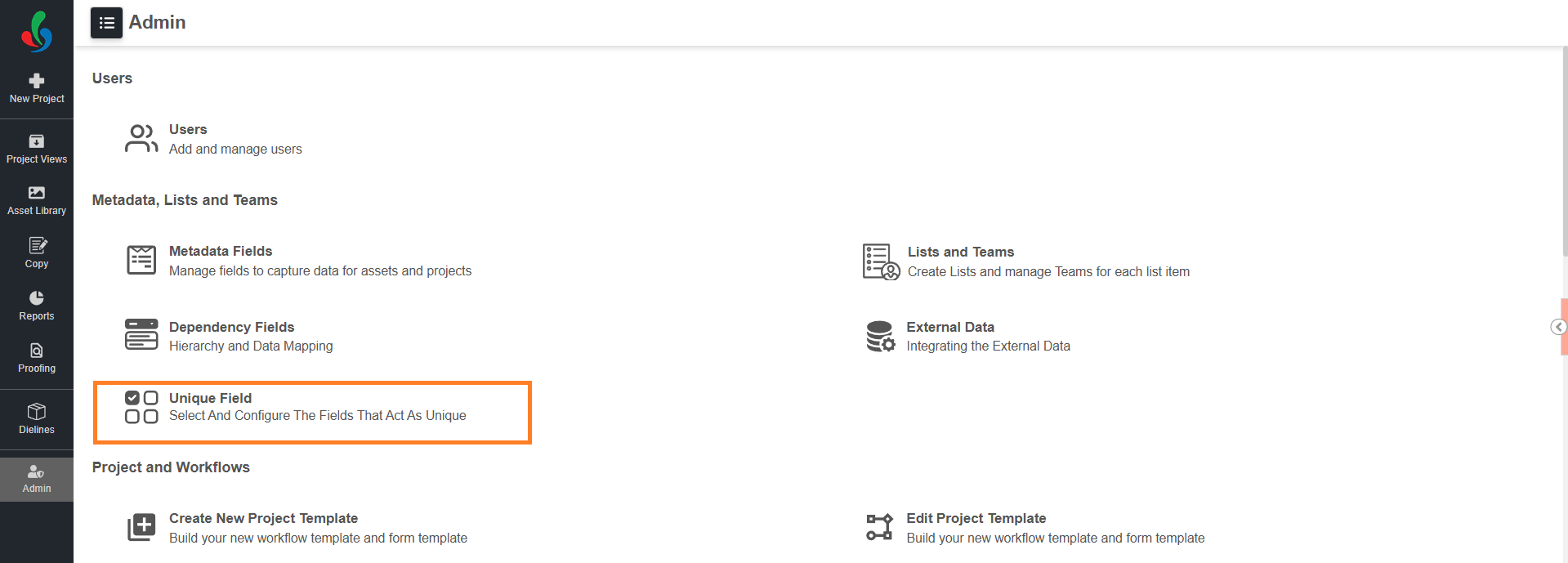
01. Access the Admin Module
- Sign in to your ManageArtworks account.
- Navigate to the Admin module.
- Select Unique Field.
02. Configure Unique Field(s)
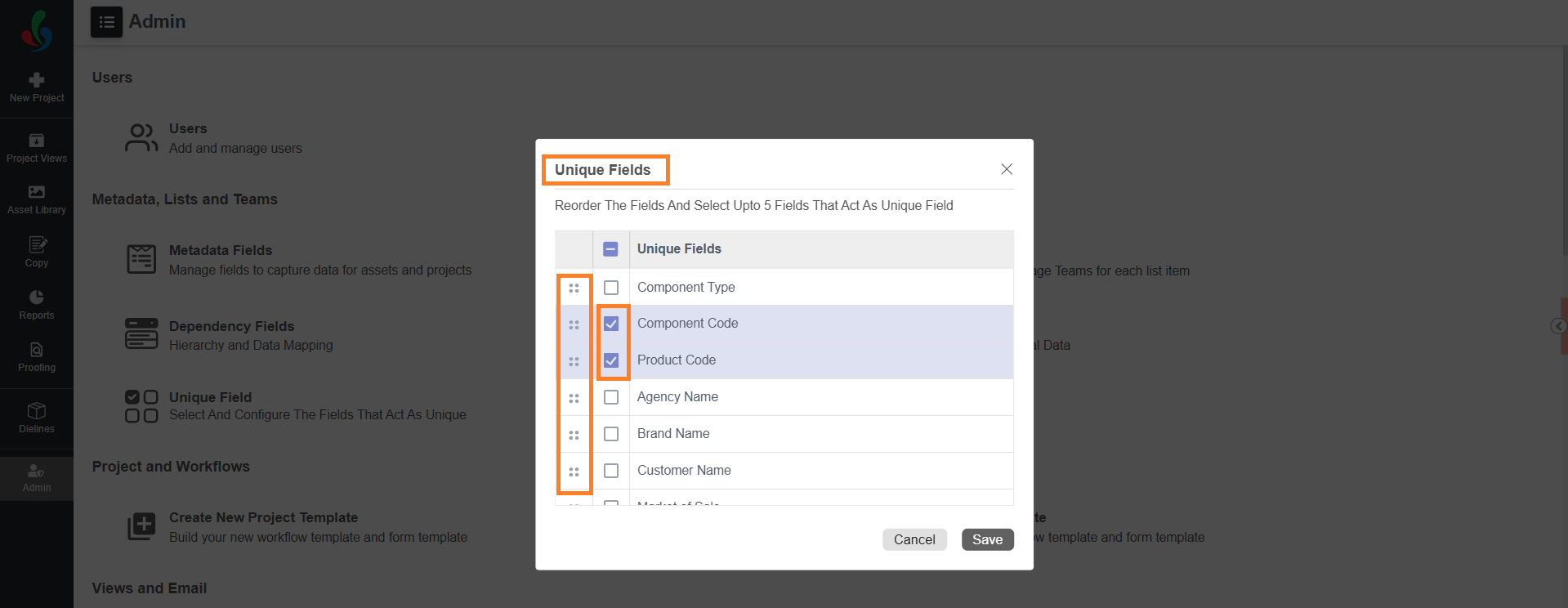
Once selected, the Unique Fields pop-up appears.
- Select the fields you want to configure as unique.
Note: You can select up to max of 5 fields. Only metadata fields with Use as Collection and Auto-Update to Master enabled appear in the list. Ensure both options are enabled for the fields you want to configure as unique. For details on how to enable these options, refer to Manage Metadata Fields. - Use the drag icon (::) to rearrange the selected fields in the preferred order.
Note: The order is for reference only and does not affect project behavior or validation.
03.Finalize the Configuration
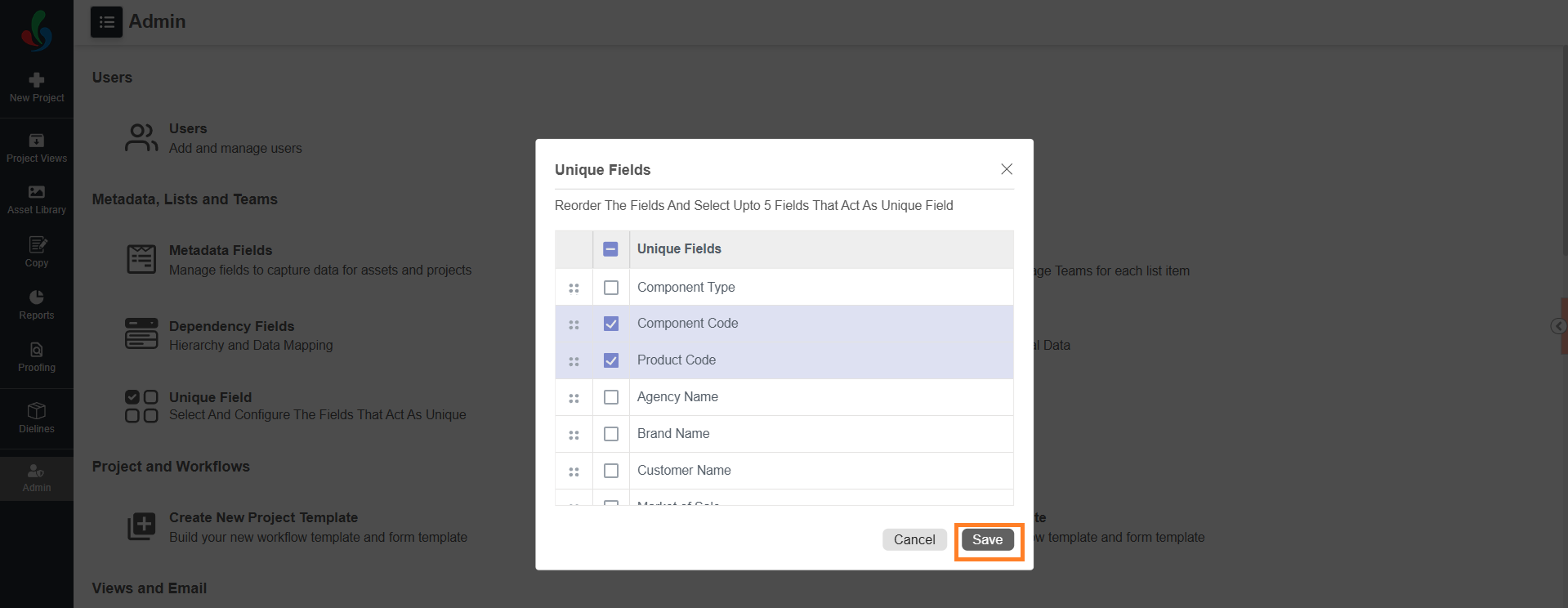
- Select Save to finalize the unique field configuration.
| Note: If you encounter conflicts while saving, existing duplicate values may already exist for the selected fields. For more information, see Handling Existing Duplicates Before Enabling Unique Fields. |
Handling Existing Duplicates Before Enabling Unique Fields
If duplicate values already exist in any In Progress projects, ManageArtworks does not allow you to save the unique field configuration.
For example, if the Product Code field contains the same value (PROD-00123) in multiple projects:
- Project A → PROD-00123
- Project B → PROD-00123
and you attempt to configure Product Code as a unique field, the system blocks the configuration because duplicate values already exist.
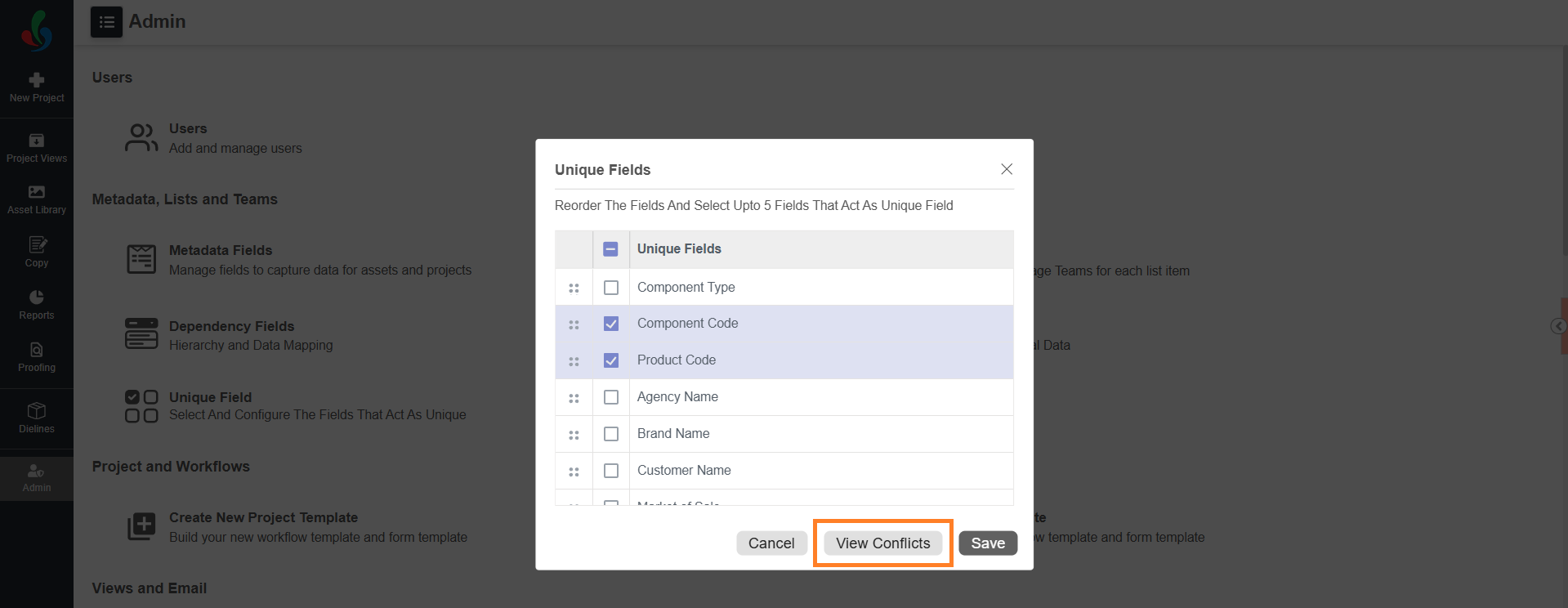
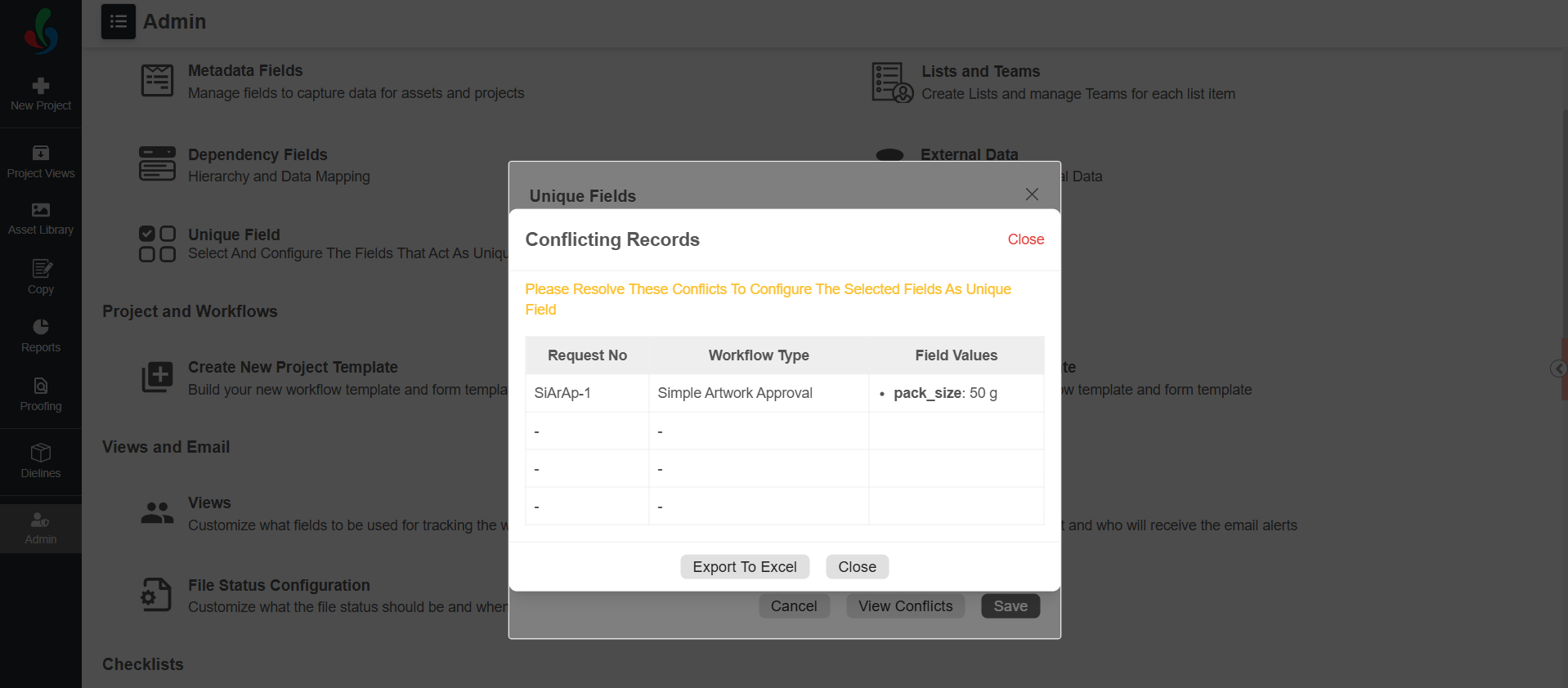
When this happens, an additional option, View Conflicts, becomes available.
View Conflicts
- Select View Conflicts to review the duplicate records identified in the system.
- The Conflicting Records view displays the following details:
- Request Number
- Workflow Type
- Field Values that are duplicated
Resolve Duplicate Values
Based on the information shown in the conflict view, you can resolve duplicates using one of the following approaches:
- Option 1: Update duplicate values manually
- Open the affected projects.
- Update the duplicate field values so that each value is unique.
- Return to the Unique Fields configuration and set up the field as unique.
- Option 2: Complete existing projects
- Complete the projects that contain duplicate values.
- Once no In Progress projects contain duplicates for the selected field, configure the field as unique.
- After all duplicates are resolved, you can successfully complete the unique field configuration.