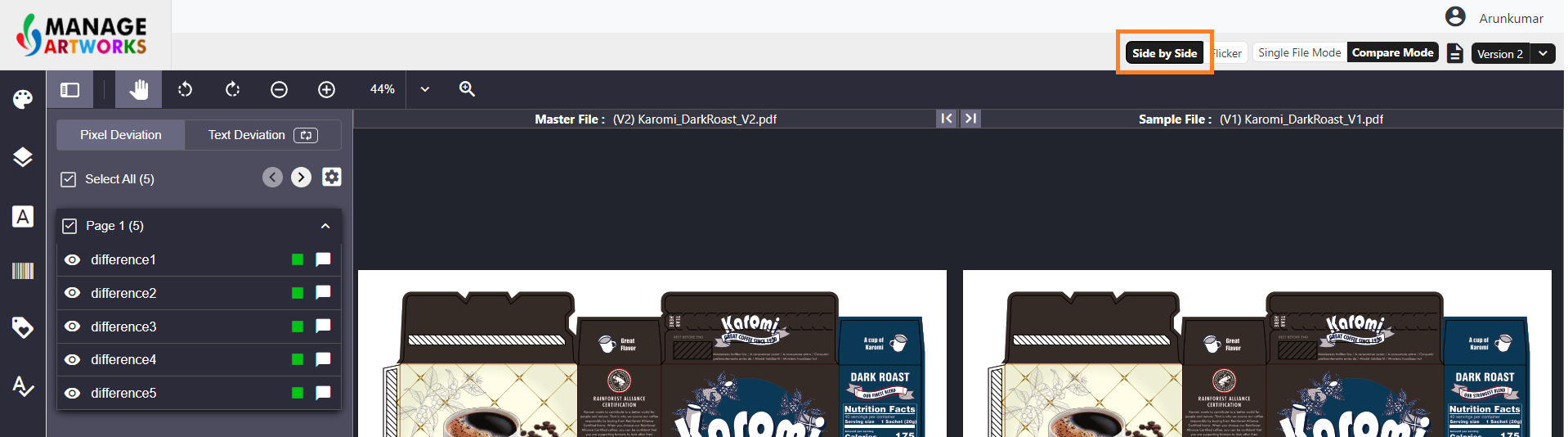
Deviation Panel
The Deviation panel is the central area where you review all detected differences. It contains two tabs: Pixel Deviation and Text Deviation.
| Note: Only the tabs relevant to the comparison you performed will appear. For example, if you ran only a pixel comparison, only the Pixel Deviation tab is displayed. |

- Pixel Deviation: This tab lists and displays pixel-level discrepancies, such as color variations, object misalignment, or missing visual elements.
- Text Deviation: This tab highlights differences in text content, including misspellings, formatting inconsistencies, and missing or altered text segments.
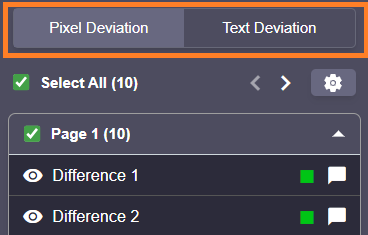
Deviation Settings
| Note: To modify the default deviation settings, refer to Viewer Parameter Configuration. |
Customize how visual differences are highlighted and reviewed using the following settings in the Compare interface:
Deviation Style
Choose how deviations are visually represented on the artwork:
- Box – Highlights differences using rectangular markers around the affected area.
- Contour – Uses shape-based outlines that follow the contours of the deviation for more precise visualization.
Deviation Number
Toggle the display of numbered labels for each identified deviation. Enabling this helps reviewers refer to and discuss specific differences quickly.
High Sensitive
Enable this option to increase detection sensitivity. This is especially useful for identifying minor or subtle changes in text, spacing, or alignment on complex or large-scale artworks.
Gray Out
When enabled, this setting dims the unchanged regions of the artwork, allowing deviations to stand out more prominently. This reduces visual noise and helps users focus on differences.
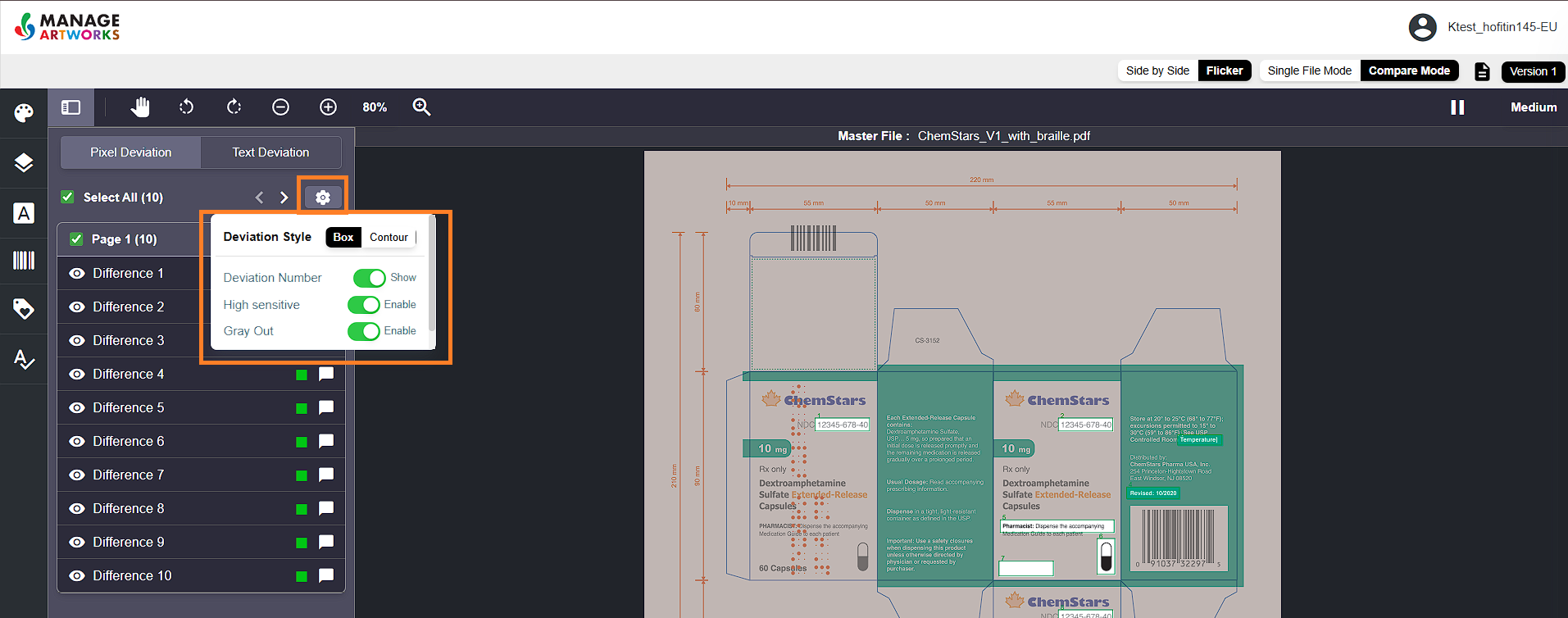
Managing Deviations
- Eye Icon: Toggle the visibility of the "Box" or "Contour" representation for each identified deviation.
- Navigation: Clicking on a listed deviation in any tab instantly zooms you to the corresponding location in the respective artwork file for closer inspection.
- Ignoring Deviations: Click the green box icon beside any deviation you deem acceptable to mark it as ignored. It will change to red for visual confirmation.
- Adding Comments: Click the comment icon next to any deviation to add explanatory notes or justifications for ignoring it.
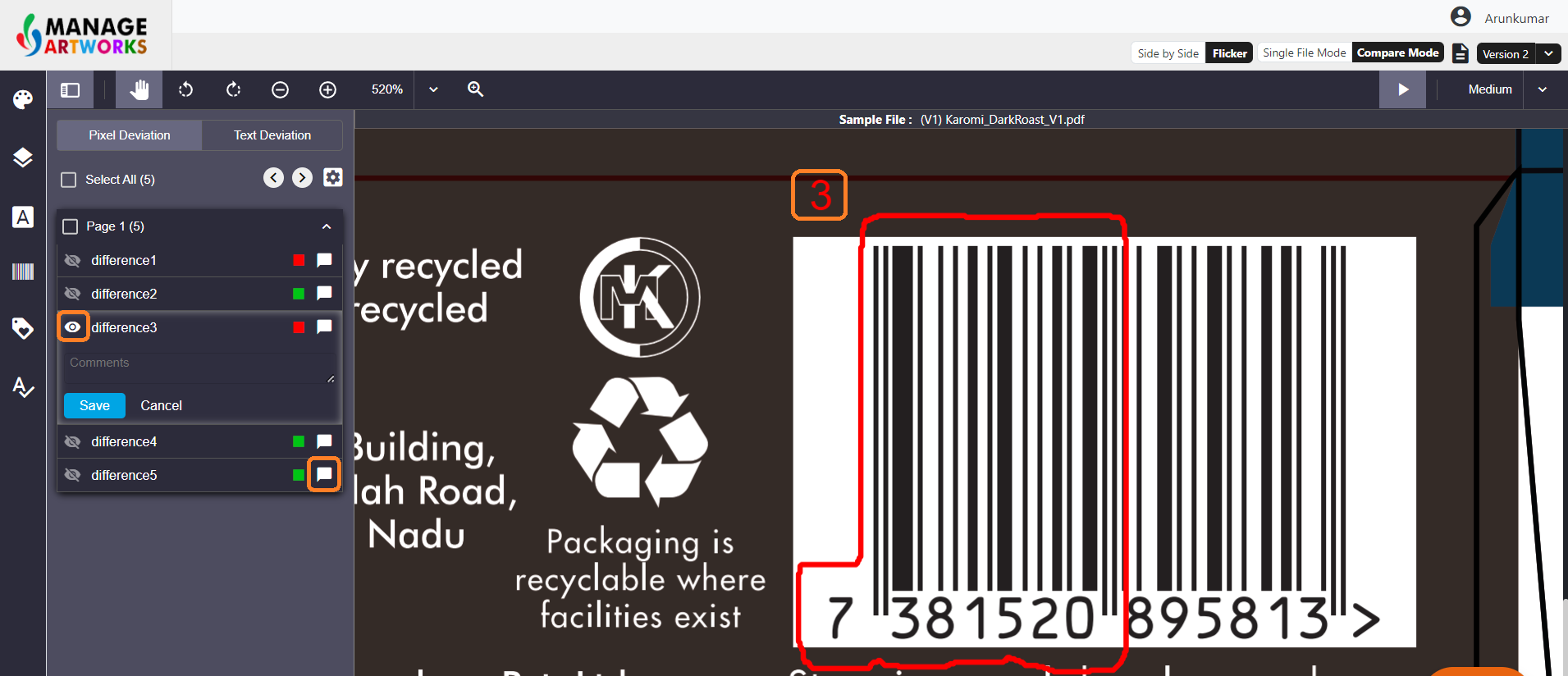
Comparison Modes
Flicker (Default Mode)
- Enables rapid back-and-forth motion between the Master and Sample files, highlighting discrepancies, allowing users to easily identify differences.
- Use the pause button to pause the flickering.
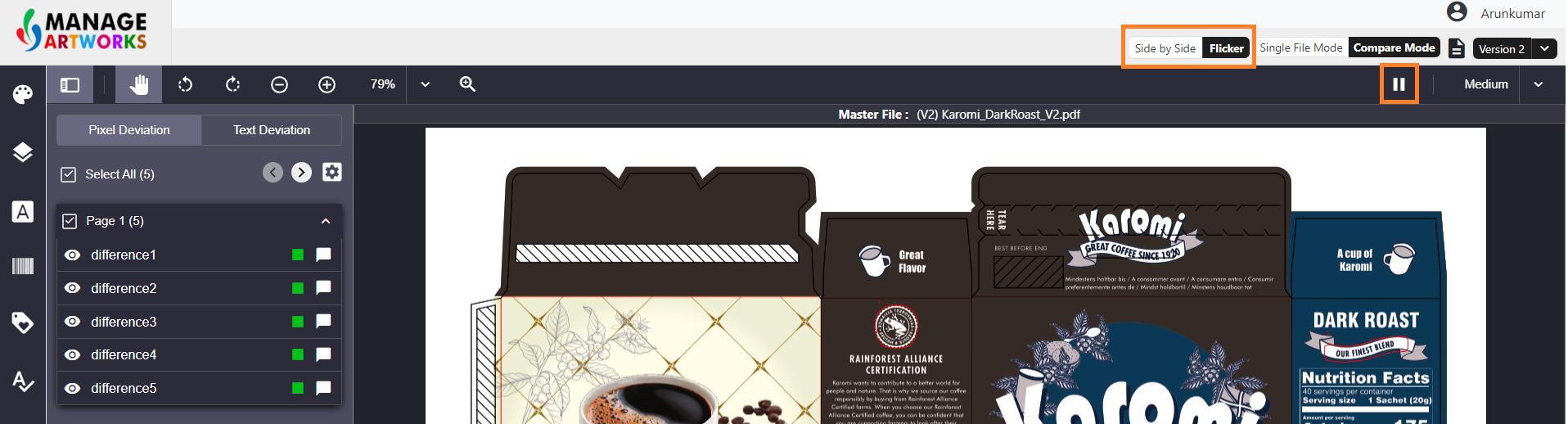
Side by Side Mode
- Prefer a static approach? This mode presents the Master and Sample files side-by-side, enabling detailed comparison at your own pace.