Configure Working Hours
Working hours define your organisation's standard working week — which days of the week are working days and the start and end time for each day. ManageArtworks uses these settings to calculate project and task deadlines, so a task due "in two days" skips your non-working days instead of counting calendar days.
The Week Days option allows you to:
- Set the start and end time for each day of the week
- Mark days as working or non-working
- Align deadline calculations with your organisation's actual working week
Non-working days are excluded from deadline calculations, as are the dates in your Holiday List.
| Note: Working hours are calculated in the time zone set in the user profile. For example, if working hours are 9:00 AM to 5:00 PM, the system applies 9:00 AM to 5:00 PM in that time zone. To view or change the time zone, refer to Manage Account Profile. |

How to Configure Working Hours
01. Access Working Hours
- Sign in to your ManageArtworks account.
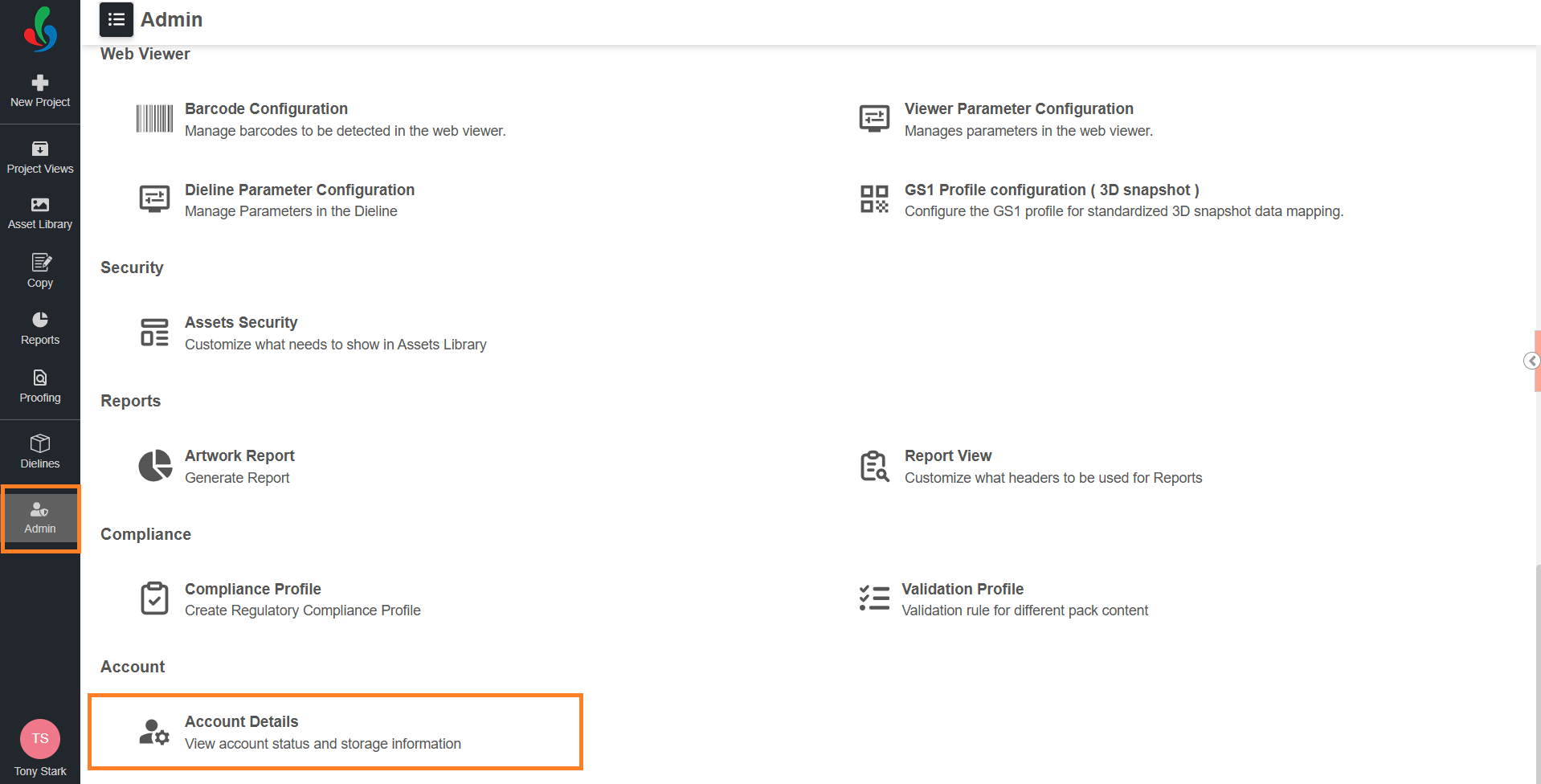
- Navigate to the Admin module.
- Select Account Details.
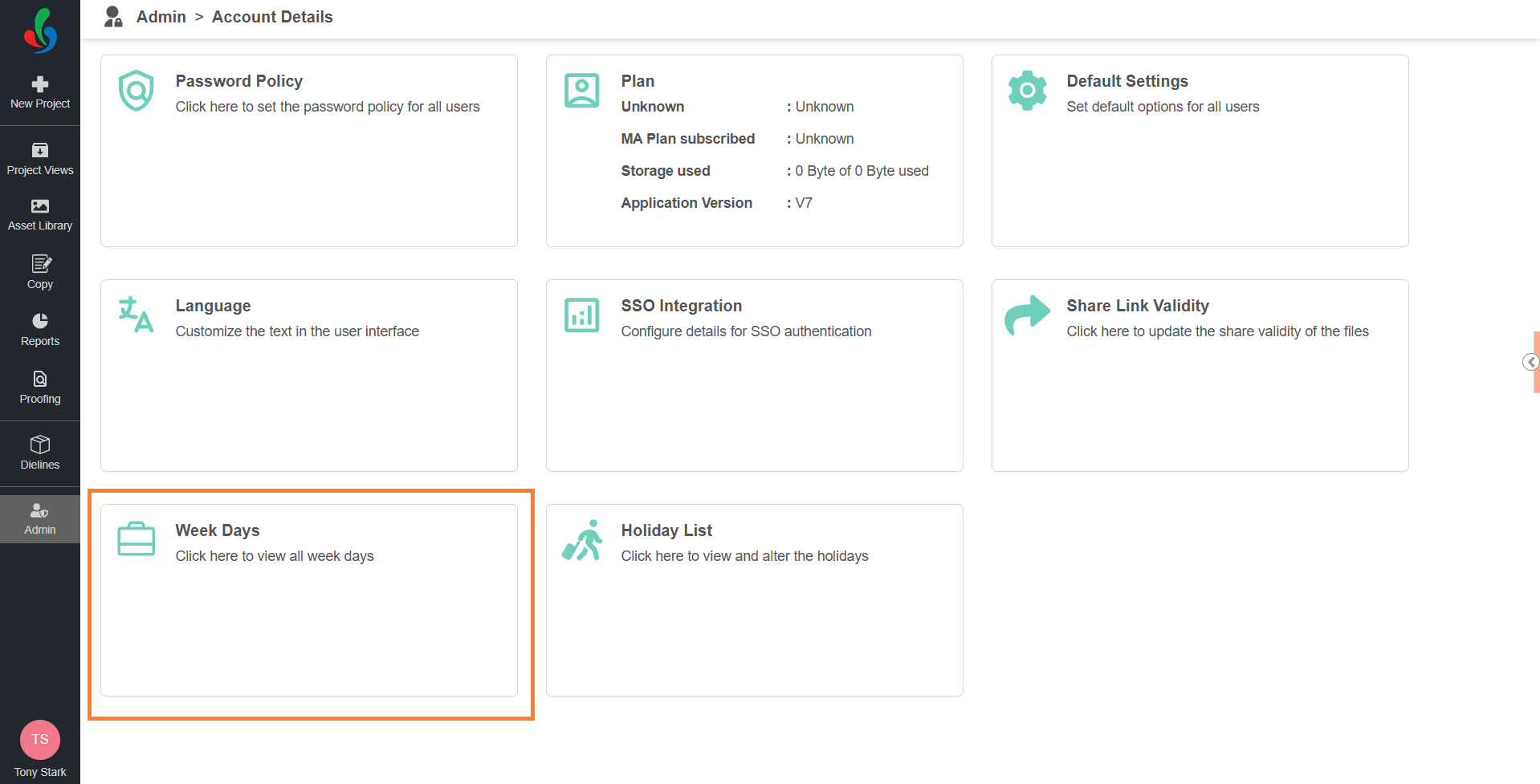
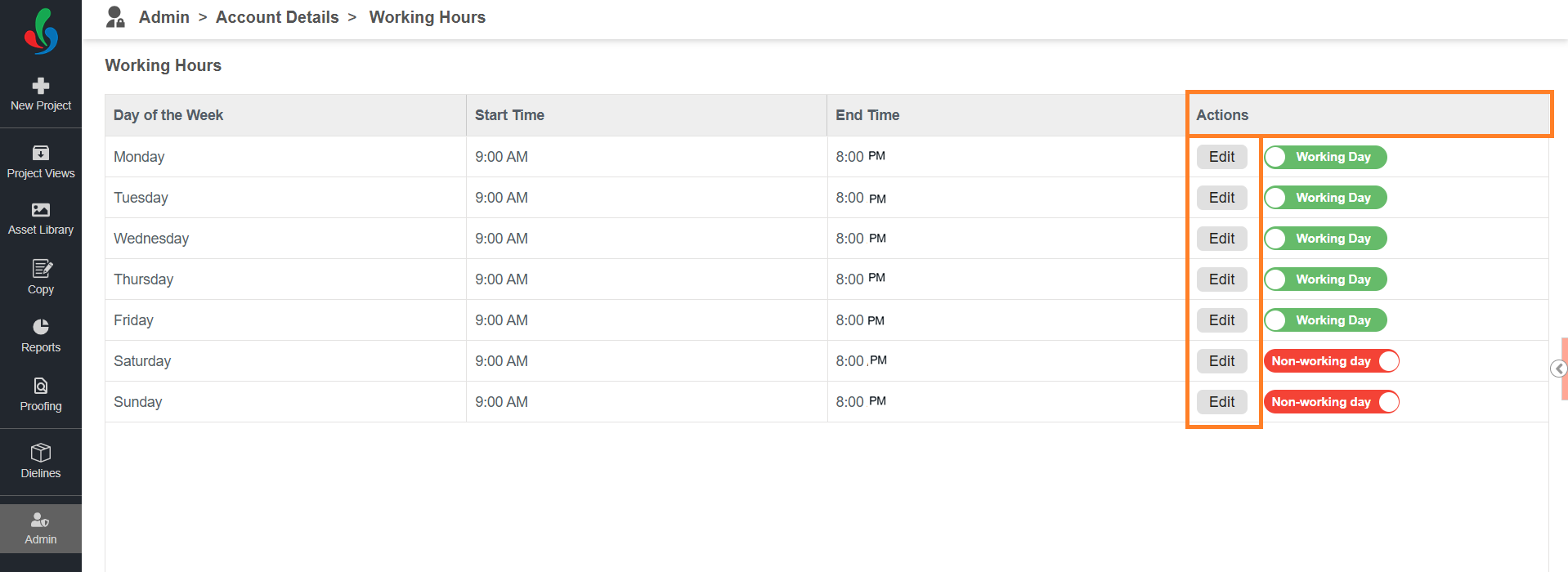
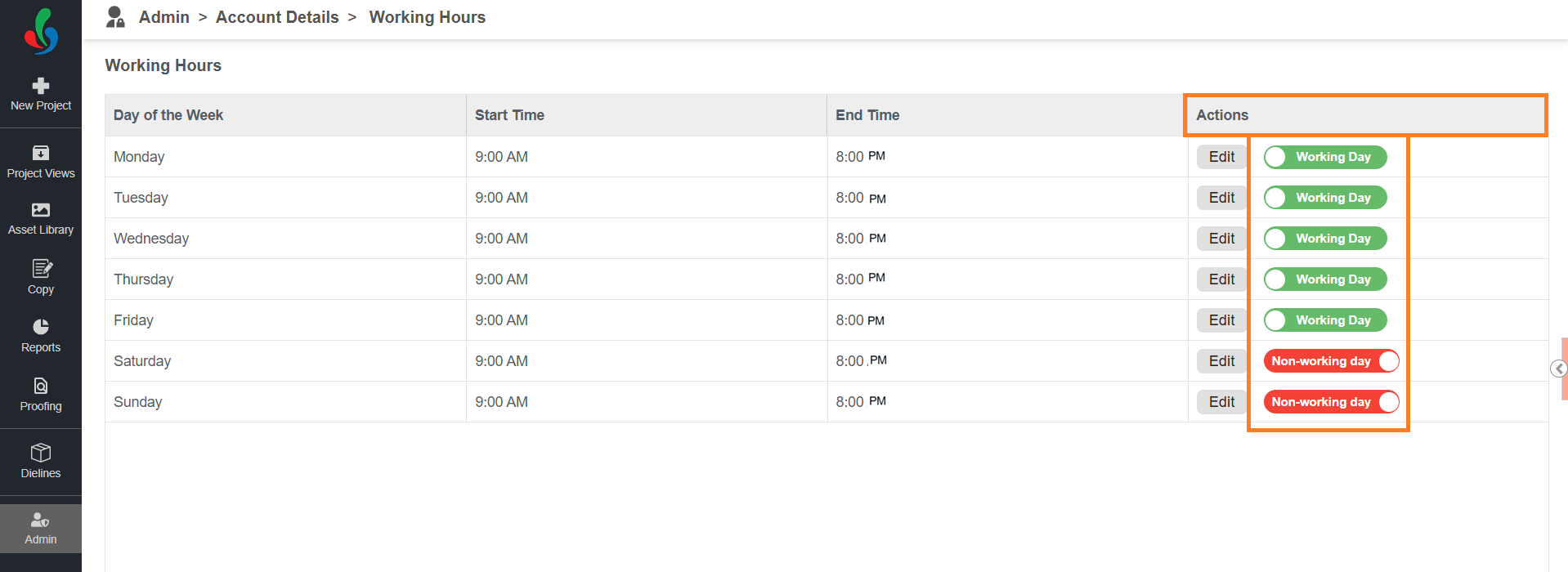
- Select the Week Days card. The Working Hours page lists all seven days of the week with the Start Time, End Time, and Status for each day.
02. Edit the Working Hours for a Day
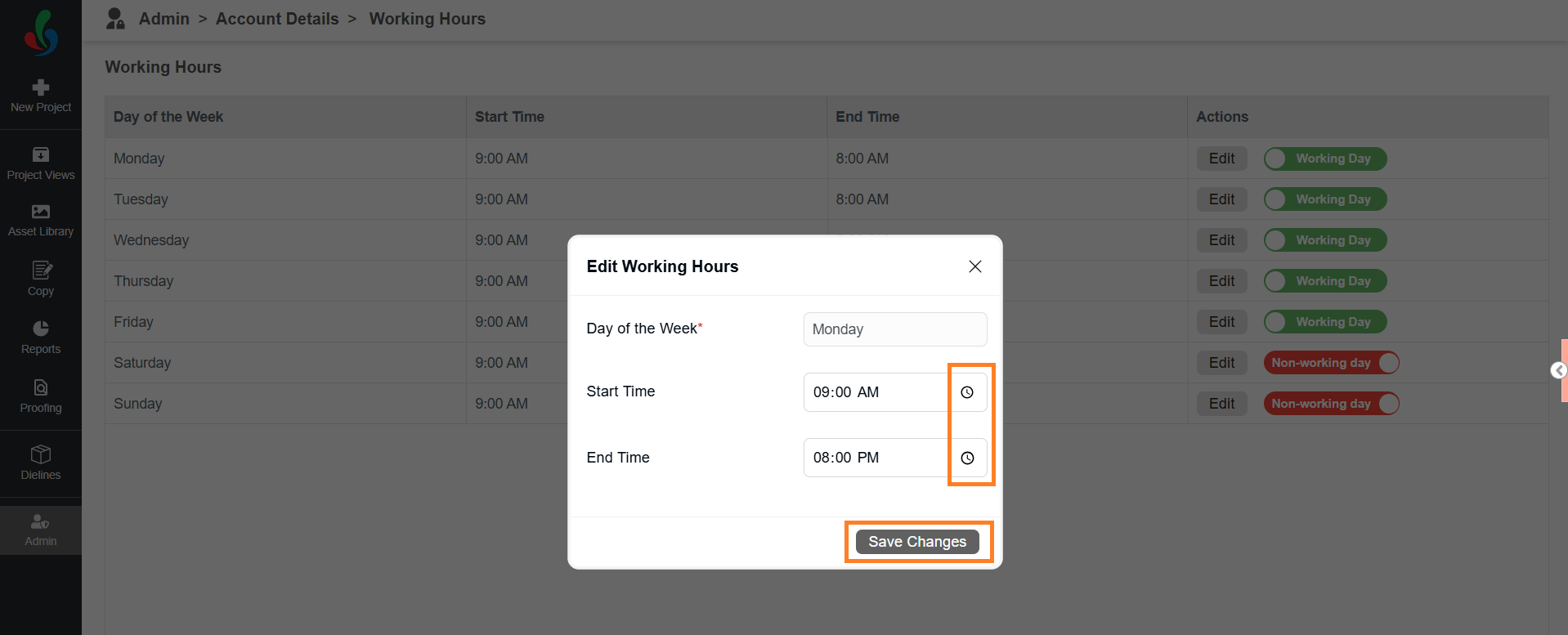
- In the Actions column, select Edit for the required day.
- Set the Start Time and End Time using the time fields.
Note: The start time must be earlier than the end time. - Select Save Changes. The working hours for that day are updated and apply to both in-progress and new projects.
03. Mark a Day as Working or Non-working
 | Note: Non-working days contribute no hours to the working week and are skipped in deadline calculations. Keep at least one day set as a working day — deadlines cannot be calculated for a week with no working days. |
- In the Actions column, select the status toggle for the required day.
The toggle switches between Working Day (green) and Non-working day (red), and deadlines are recalculated for in-progress and new projects.
How Working Hours Affect Deadlines
Task durations set in a workflow template are counted in working days, using the working hours you configure here. The system skips non-working days and holidays, and the deadline keeps the same time of day as the start.
Example 1 — non-working days skipped
A task with a two-day duration starts on Friday at 9:00 AM. Saturday and Sunday are set as non-working days, so they are not counted. The task is due by Tuesday, 9:00 AM.
Example 2 — a holiday extends the deadline
Using the same task, if Monday is marked as a holiday in the Holiday List, the system treats Monday as a non-working day as well. The task is then due by Wednesday, 9:00 AM.
For more information on maintaining the holiday list, refer to Configure Holidays.
Because these settings drive every deadline in the system, review them during initial setup and update them whenever your organisation's working week changes.
 | Note: Changes to working hours and non-working days apply to in-progress projects as well as new ones, so deadlines on active projects are recalculated. Review the impact before changing these settings while projects are running. |