
Install the ManageArtworks Plugin
If you create packaging artwork in Adobe Illustrator or Adobe InDesign, install the ManageArtworks plugin so that approved copy, dielines and your project tasks are available in a panel beside your artboard. You install the plugin once per computer using the ZXP Installer, and it then appears in both applications.
The ZXP Installer and the ManageArtworks plugin file are supplied by the ManageArtworks team. If you do not have them, contact the ManageArtworks support team.
 | Note: Close Adobe Illustrator and Adobe InDesign before you start. The plugin cannot be registered while either application is running. |
01. Install the ZXP Installer
- Open the
ZXPInstaller.exefile supplied by ManageArtworks. - Follow the on-screen instructions to complete the installation.
- Open ZXP Installer from the Start menu or the desktop shortcut.
02. Load the Plugin File
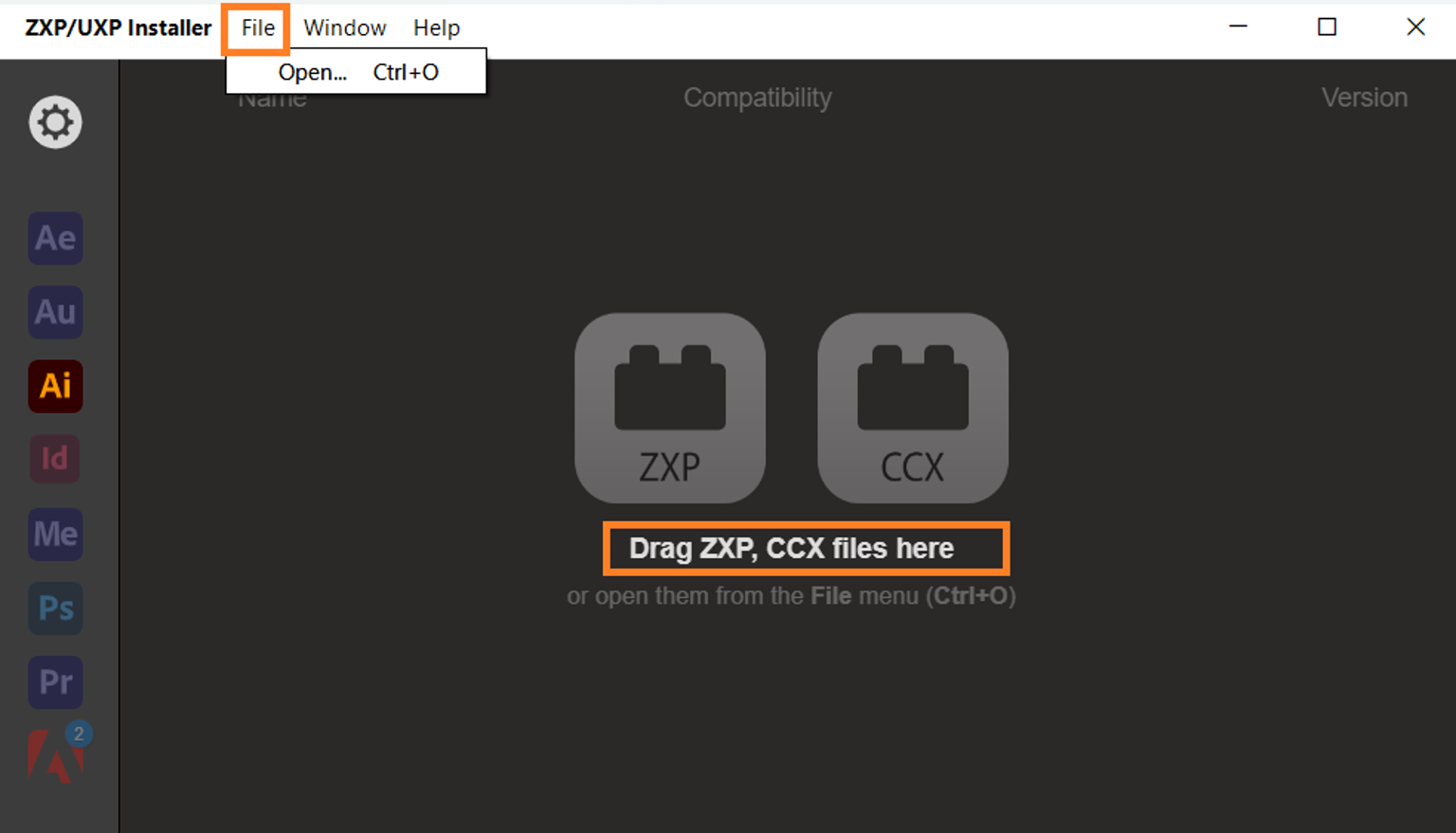
Load the ManageArtworks Plugin.zxp file into ZXP Installer in either of these ways:
- Drag and drop
- Drag the ManageArtworks Plugin.zxp file into the ZXP Installer window.
- Open from the menu
- In the ZXP Installer, select File > Open.
- Browse to the location of the .zxp file
- Select the file, then select Open.
03. Install the Plugin
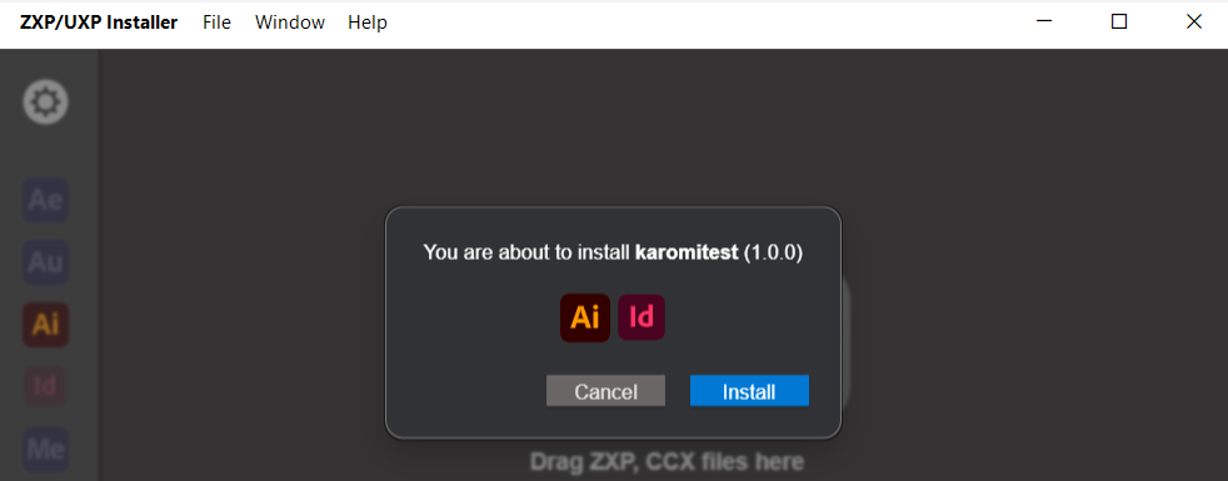
| Note: Before you select Install, make sure you are signed in to the Creative Cloud desktop app with your Adobe account. If you are not signed in, the ZXP Installer displays the message "Adobe requires that you launch the Creative Cloud desktop app and sign into your Adobe account before installing extensions" and the installation will not proceed. |
- Select Install.
- Wait for the installation to finish.
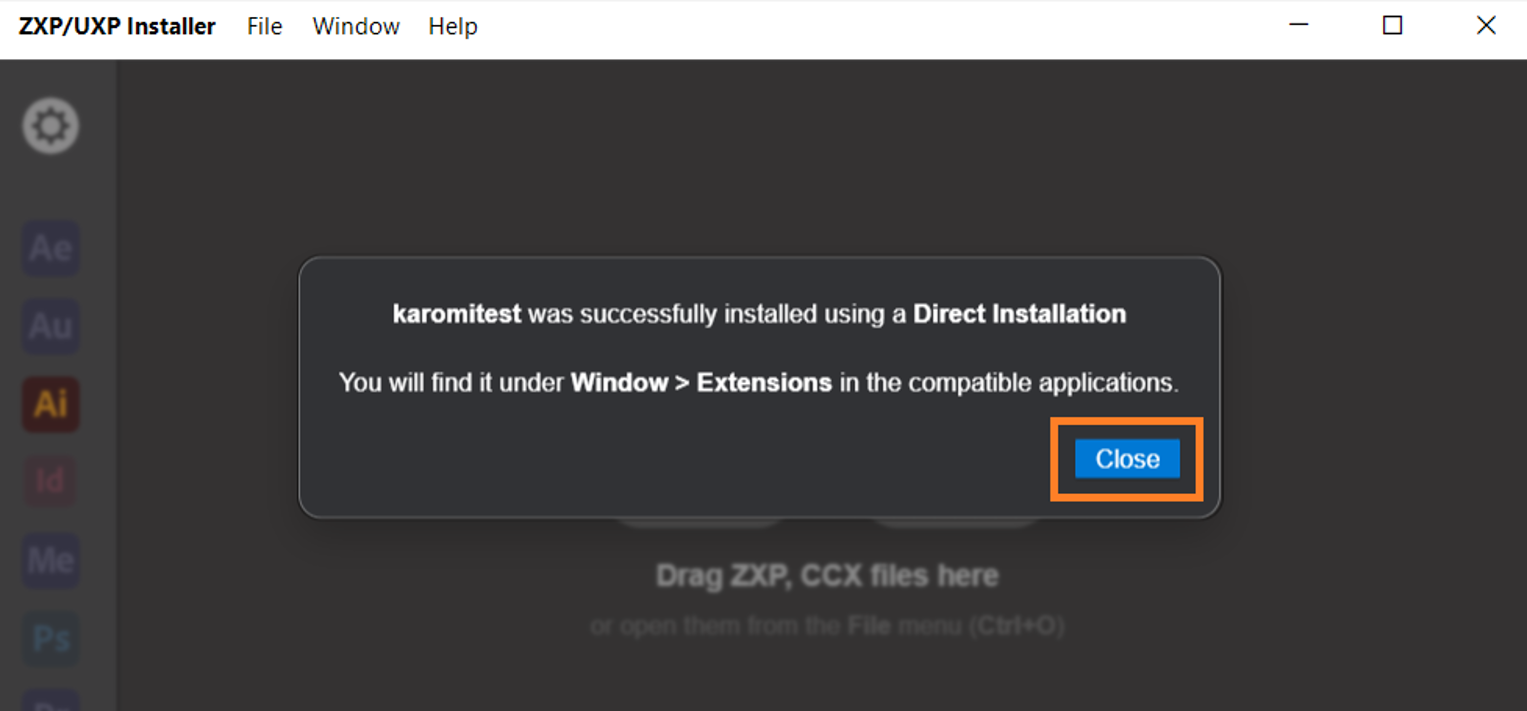
- A confirmation message appears when the plugin is installed successfully. Select Close.
04. Post-Installation Checks
Complete these checks once, right after installation.
1. Remove the UXP Entry (If Present)
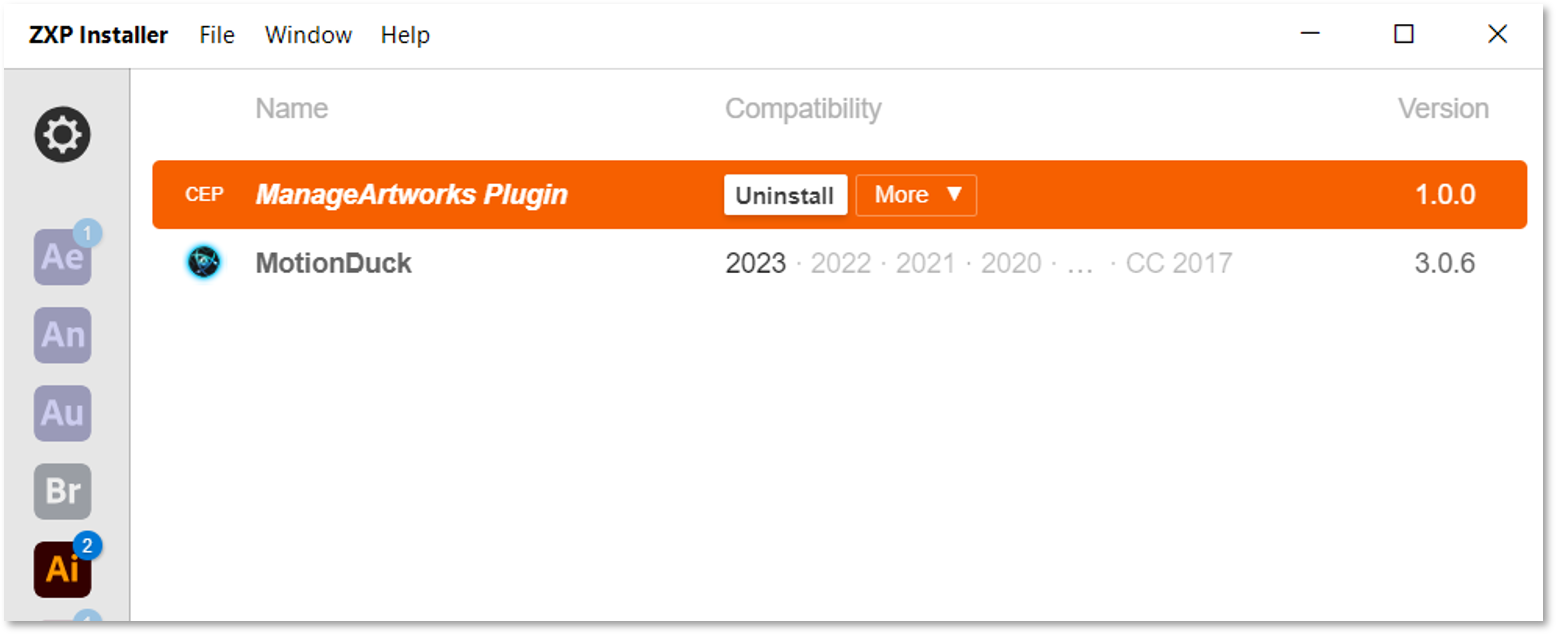
On some systems, the ZXP Installer lists the plugin twice — once as a CEP entry and once as a UXP entry. Only the CEP entry is required. If a UXP entry appears, remove it to avoid conflicts:
- In the ZXP Installer, locate the UXP entry for the ManageArtworks Plugin.
- Select Uninstall next to that entry.
- Confirm the action when prompted.
| Note: Uninstall only the UXP entry. Keep the CEP entry — it is the working version of the plugin. |
2. Adjust Folder Permissions — Windows Only (If Required)
| Note: macOS users, this section does not apply to you — skip ahead to the section Open the Plugin. |

This step applies only to Windows. On some Windows systems, the plugin needs write access to its installation folder to function correctly. If the plugin does not load or behaves unexpectedly after installation, grant the permissions as follows:
- In File Explorer, navigate to:
C:\Program Files (x86)\Common Files\Adobe\CEP\extensions\com.karomi.karomitest
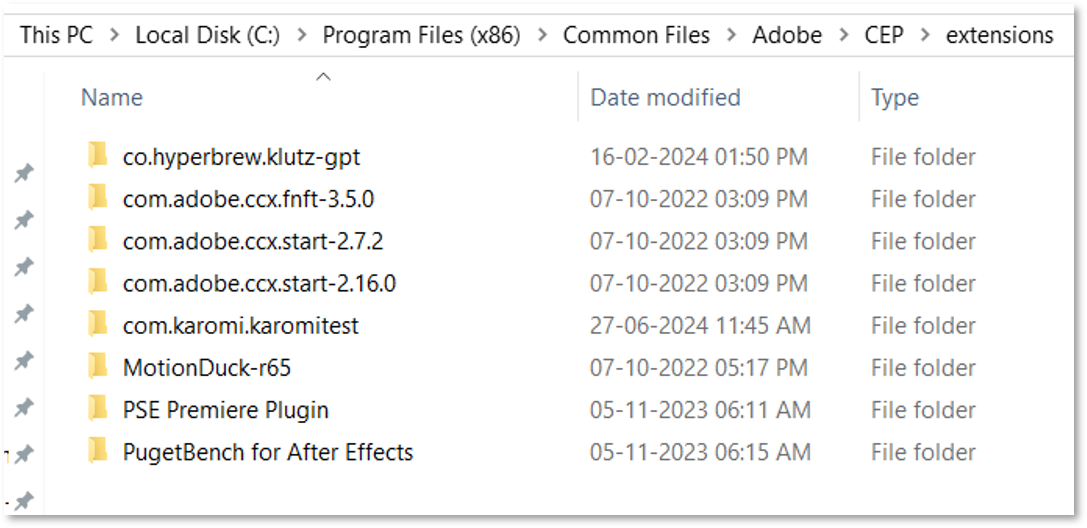
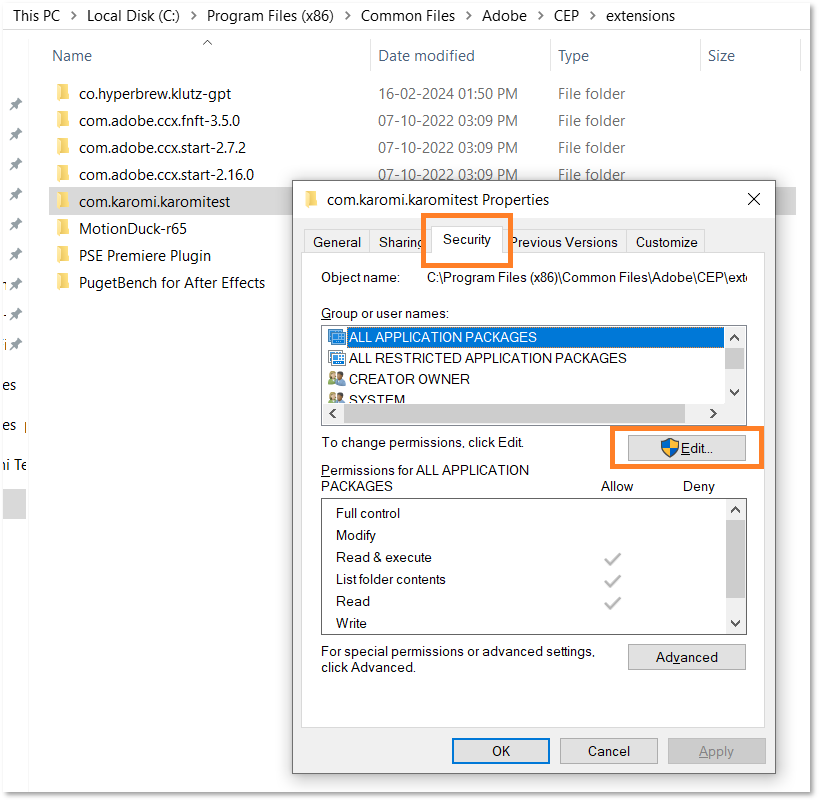
- Right-click the folder and select Properties.
- Select the Security tab.
- Select Edit.
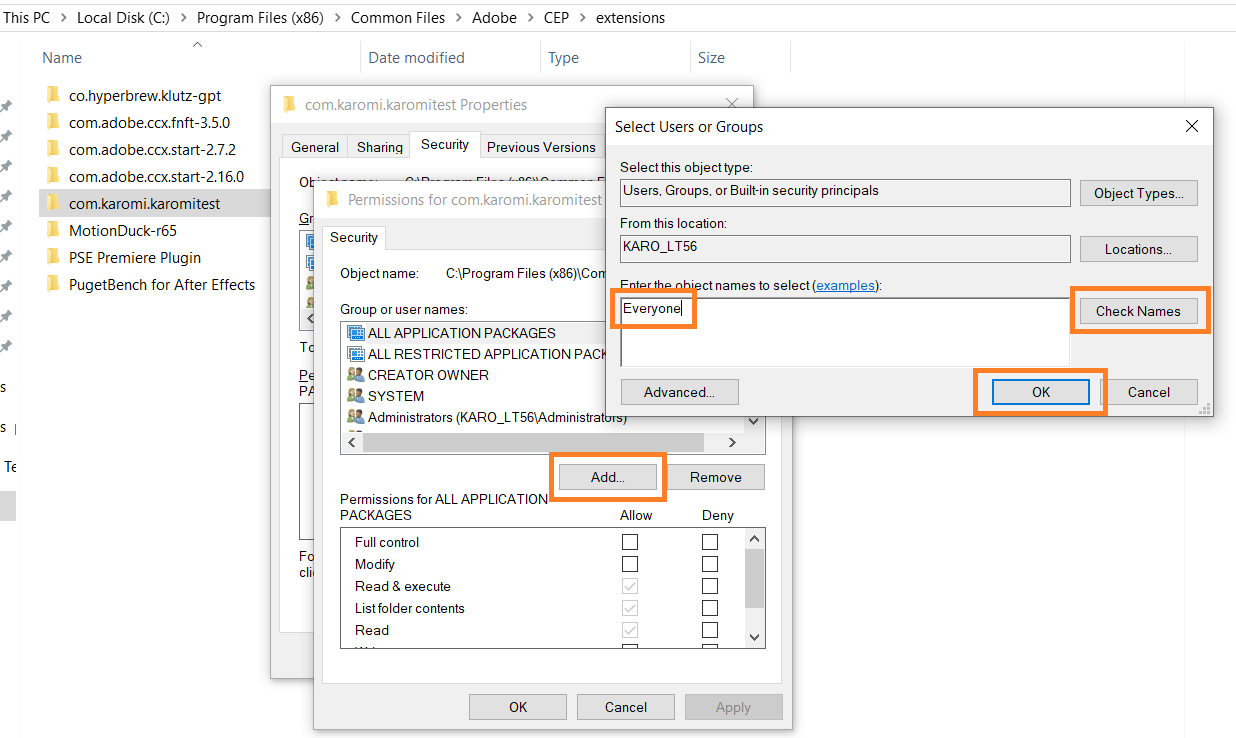
- Select Add.
- Enter
Everyone. - Select Check Names, then select OK.
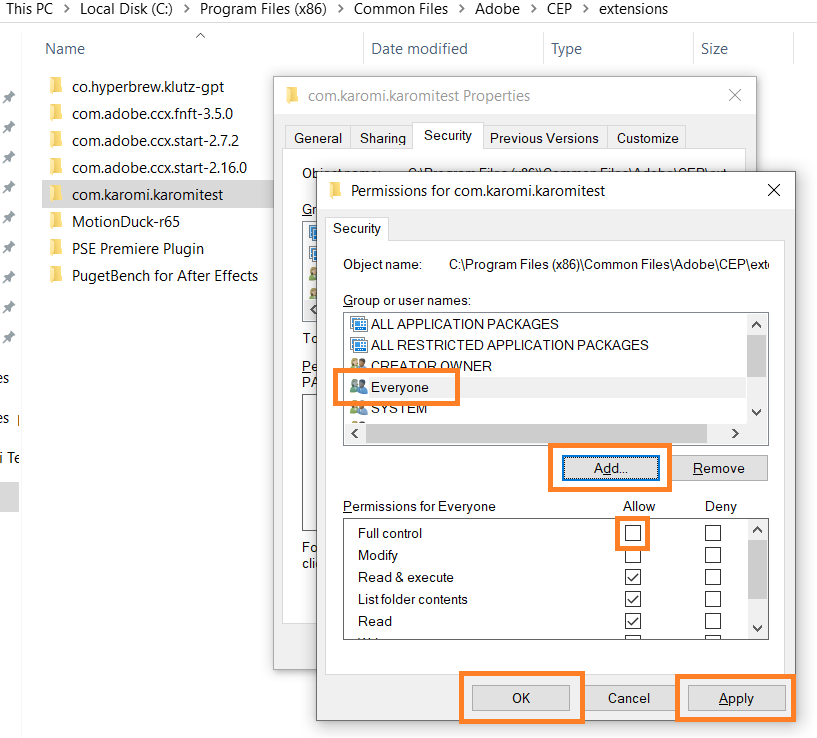
- In the permissions list, select Everyone, then check the Allow box for Full Control.
- Select Apply, then select OK.
- The plugin can now read its installation folder. Restart Adobe Illustrator or Adobe InDesign and open the panel again.
Related Articles
- Open and Set Up the Plugin
- Sign In to the Plugin
- Access ManageArtworks Inside the Plugin