Compare Published Copy Versions
When a published copy is revised and published again, ManageArtworks keeps the earlier version instead of overwriting it. Compare two of those versions to see exactly what changed between them, rather than reading both copy sheets yourself.
A comparison is always between versions of the same copy. You cannot compare one copy with a different copy.
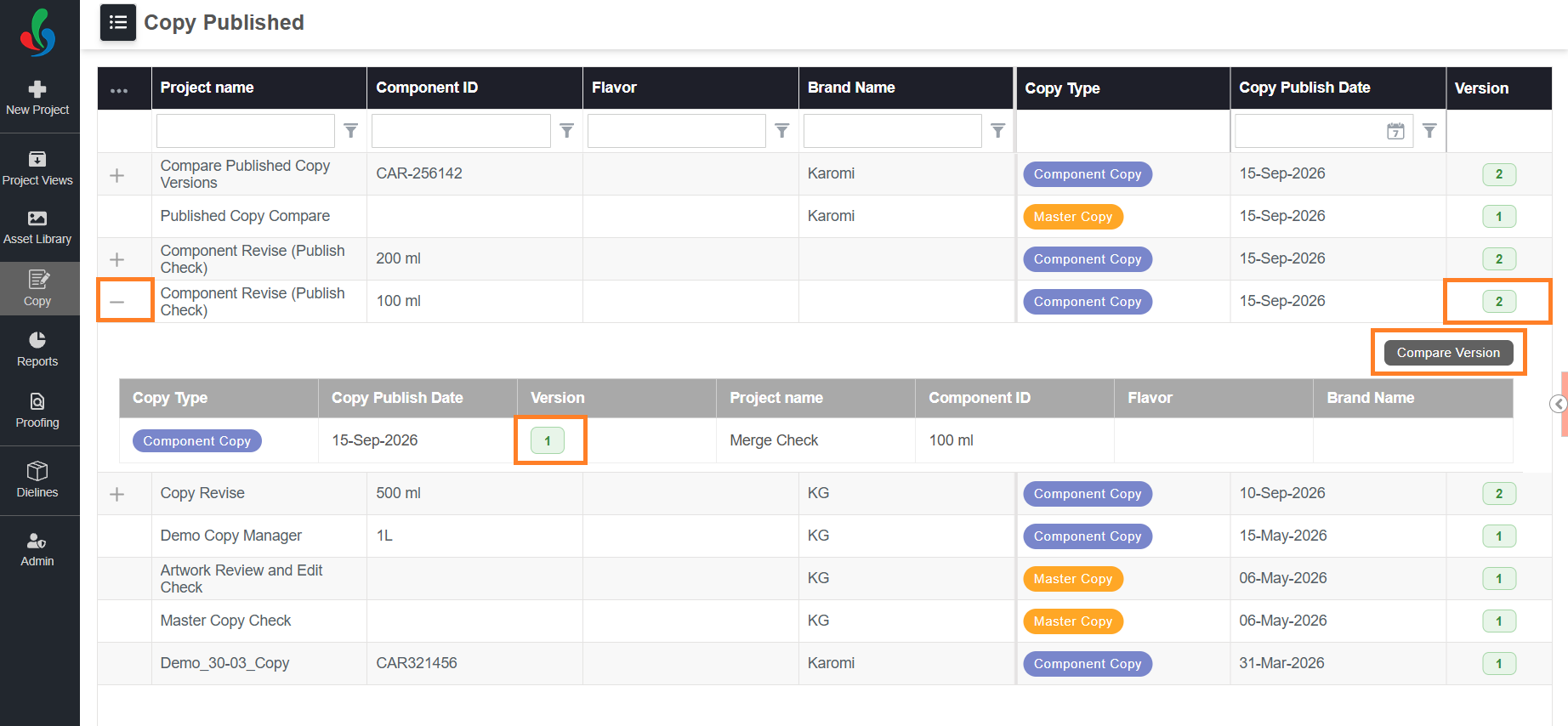
A copy can be compared only after it has been published more than once. Until then it has a single version and there is nothing to compare it against.
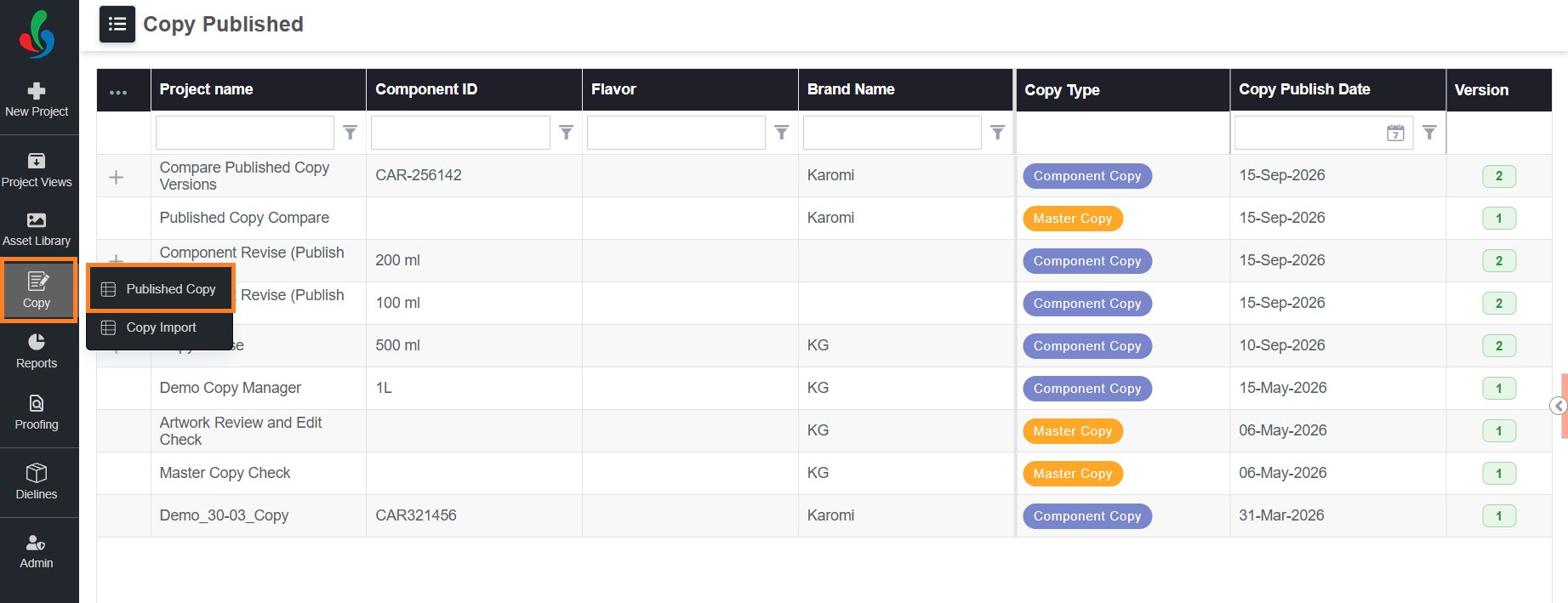
01. Access the Published Copy
- Sign in to your ManageArtworks account.
- Hover over the Copy module.
- Select Published Copy.
02. Initiate the Compare
- Locate the required copy in the list, and then select the plus (+) icon in the first column of the row. The panel lists the other published versions of that copy.
- Select Compare Version.
- In the Base version drop-down list, select the version to compare against.
- In the Compare version drop-down list, select the version or versions to compare with the base version.
Note: Both lists show every published version of the copy with its version number and publish date, for example V2 — 10-Sep-2026.
- Select Compare.


03. Read the Comparison
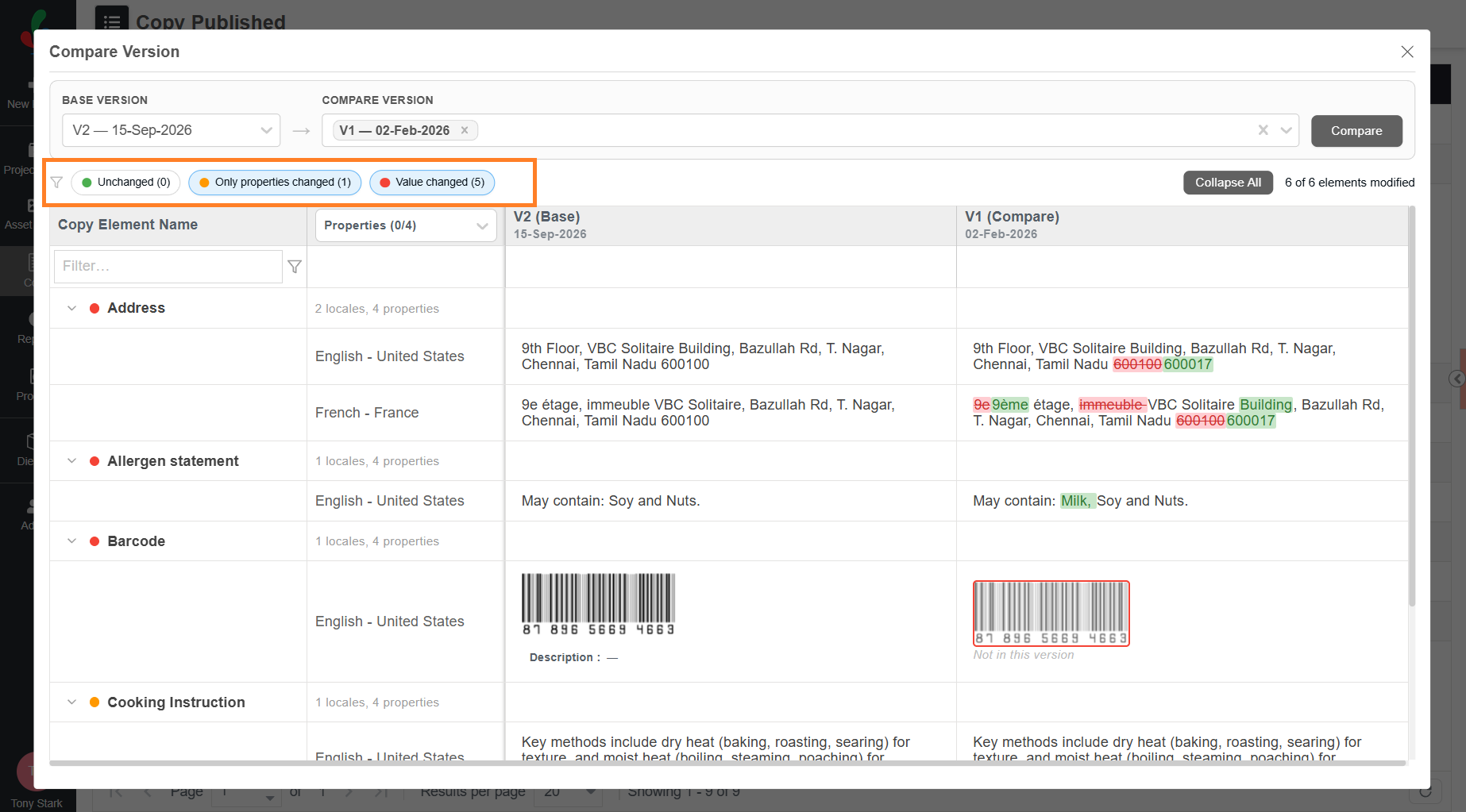
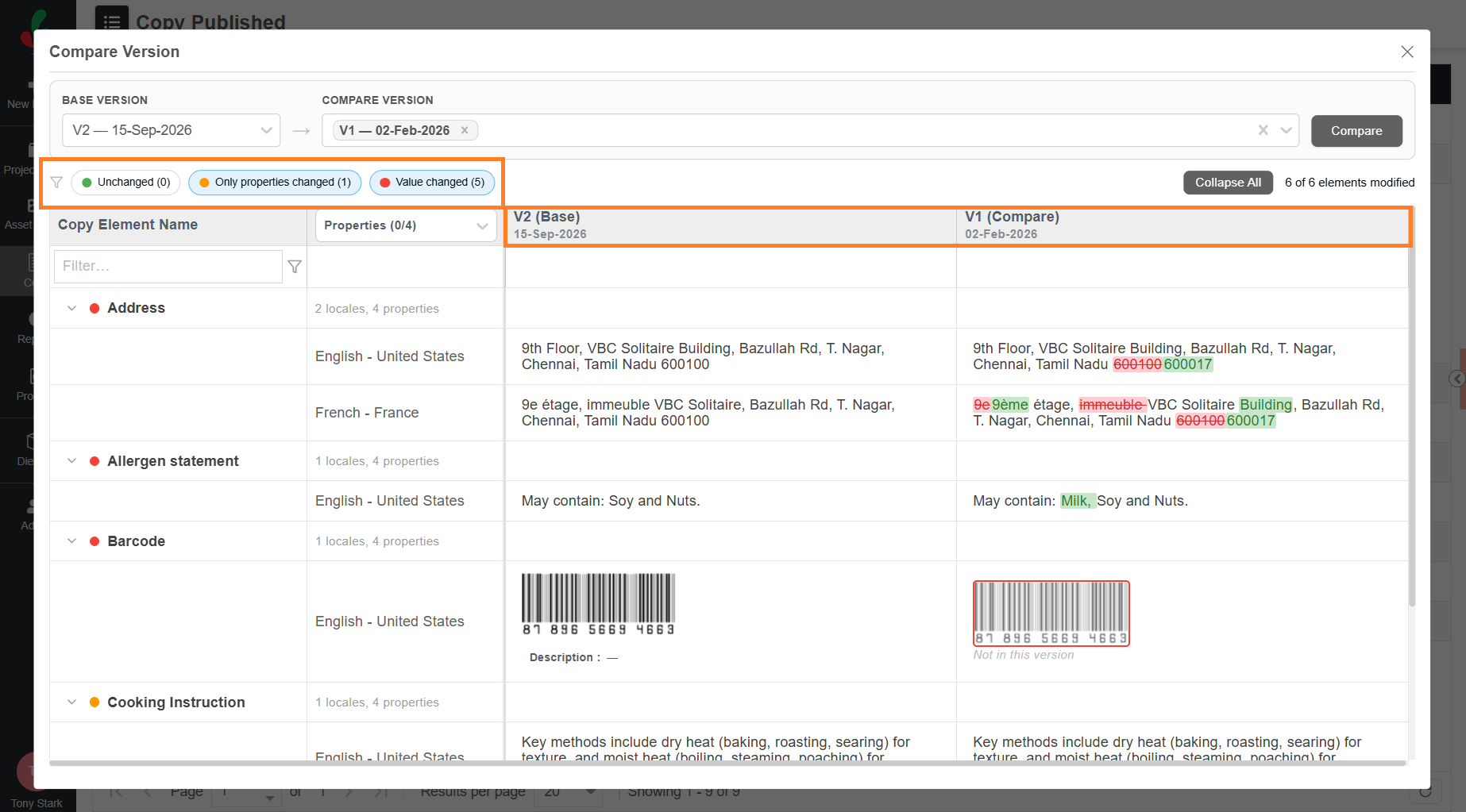
The comparison opens as a grid with one row for each copy element. The base version has its own column, marked (Base), and each version you selected has a column marked (Compare). The differences are highlighted in the compare columns.
| Highlight | Meaning |
|---|---|
| Green | Content added in this version. |
| Red with a strikethrough | Content removed in this version. |
| Red followed by green | Content changed — the old value, then the new value. |
| Not in this version | The copy element does not exist in that version. |
The summary at the top of the comparison counts the copy elements in each state:
- Unchanged — the value and the properties are the same.
- Only properties changed — the value is the same, but the CE Version, Priority, Copy Category, or Instruction changed.
- Value changed — the copy value itself changed.
It also shows how many copy elements changed in total, for example 8 of 12 elements modified
04. Narrow the Comparison
The comparison lists every copy element on the copy sheet, whether it changed or not, and a copy sheet for a full pack can run to dozens of them. The controls above and inside the grid cut that list down to what you are checking.
None of them changes the copy or the versions. They change only what the grid shows, so you can select and clear them as often as you need, and they apply together — filter by state and by name at the same time to answer a question about one element in one version.
- If required, show only the copy elements in one state. Select Unchanged, Only properties changed, or Value changed above the grid to filter the comparison based on its state. Each one shows its own count, so they also tell you the size of the change before you open anything: five copy elements with a changed value and one with only a property change is a different review from the reverse.
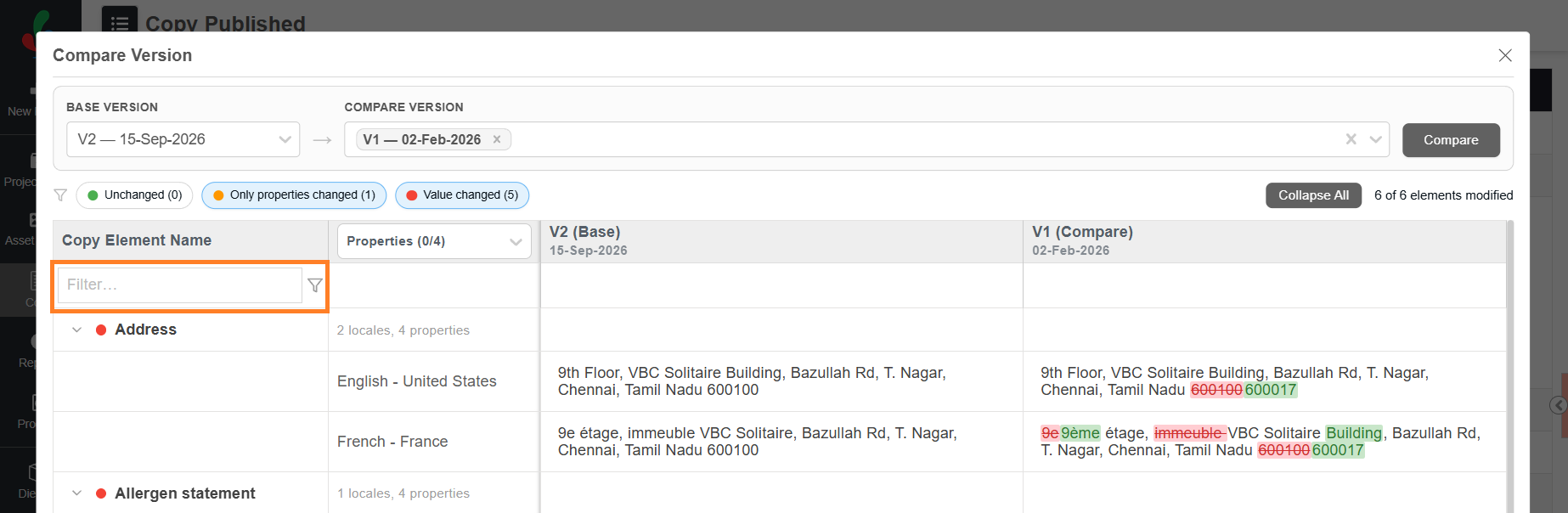
- If required, find a copy element by name. Enter the name in the Filter box under the Copy Element Name column heading. The grid keeps only the copy elements whose names match. This is the quickest way to answer a question about one element — whether the allergen statement changed between two releases, for example — without reading the whole comparison.
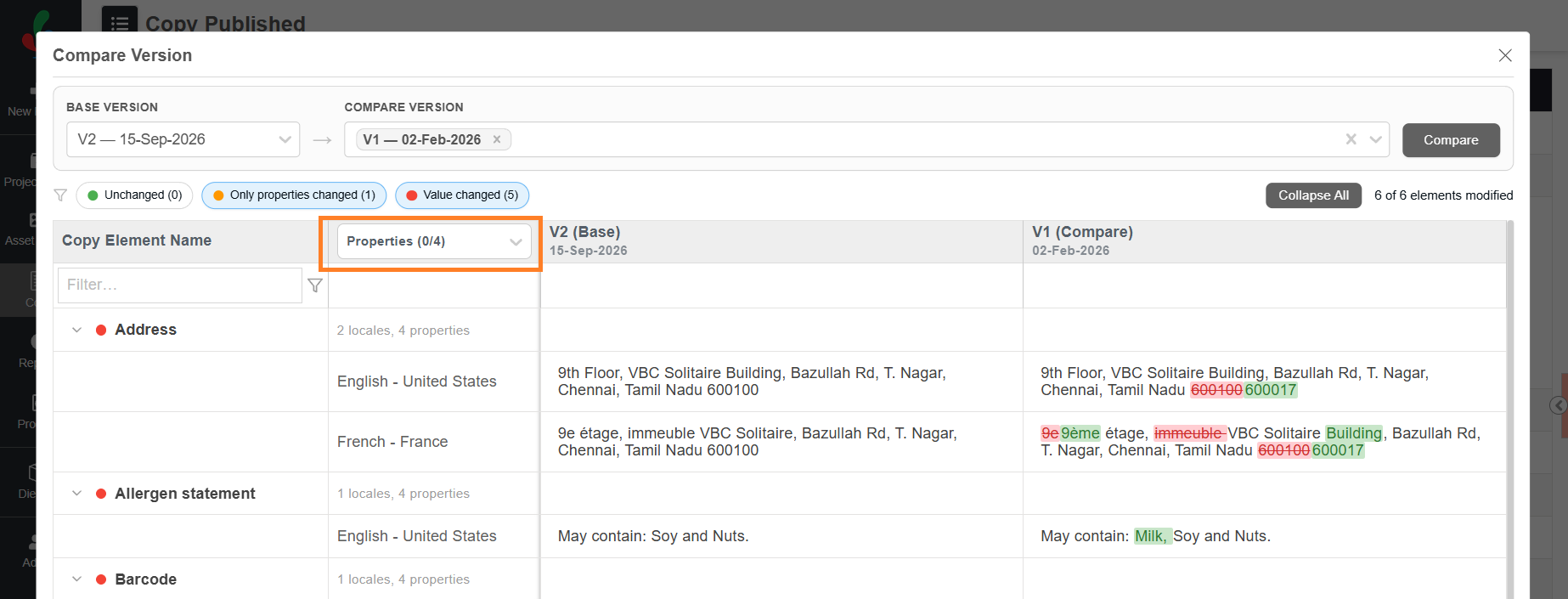
- If required, choose which properties are compared. Select the properties you need from the Properties drop-down list in the column heading. The four properties are CE Version, Priority, Copy Category, and Instruction, and the count beside the label shows how many of them are selected. Comparing fewer properties keeps the grid focused on the copy text when a change to an instruction or a category is not what you are reviewing.
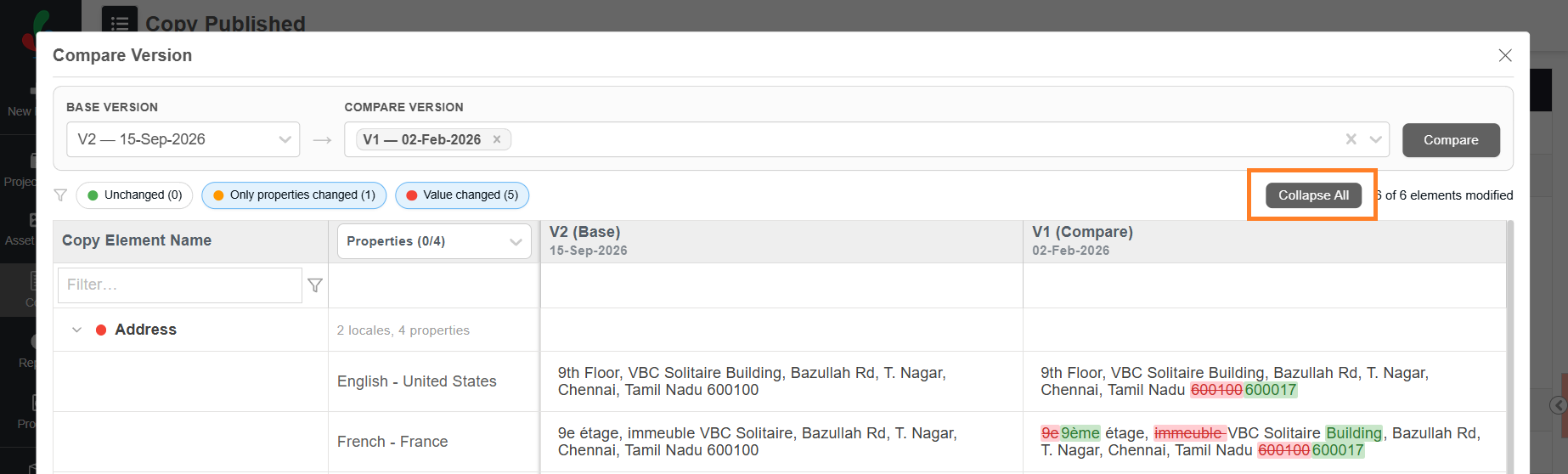
- If required, close the copy elements you expanded. Select Collapse All. Expanding a copy element shows its value in each language. Once several are open the grid is long, and Collapse All returns it to one row per copy element in a single action.