Configure Default Settings
Default settings control the first screen all users see when they sign in to their account. Setting a landing page takes users straight to the module they work in most, instead of a general starting page.
How to Configure Default Settings
01. Access Default Settings
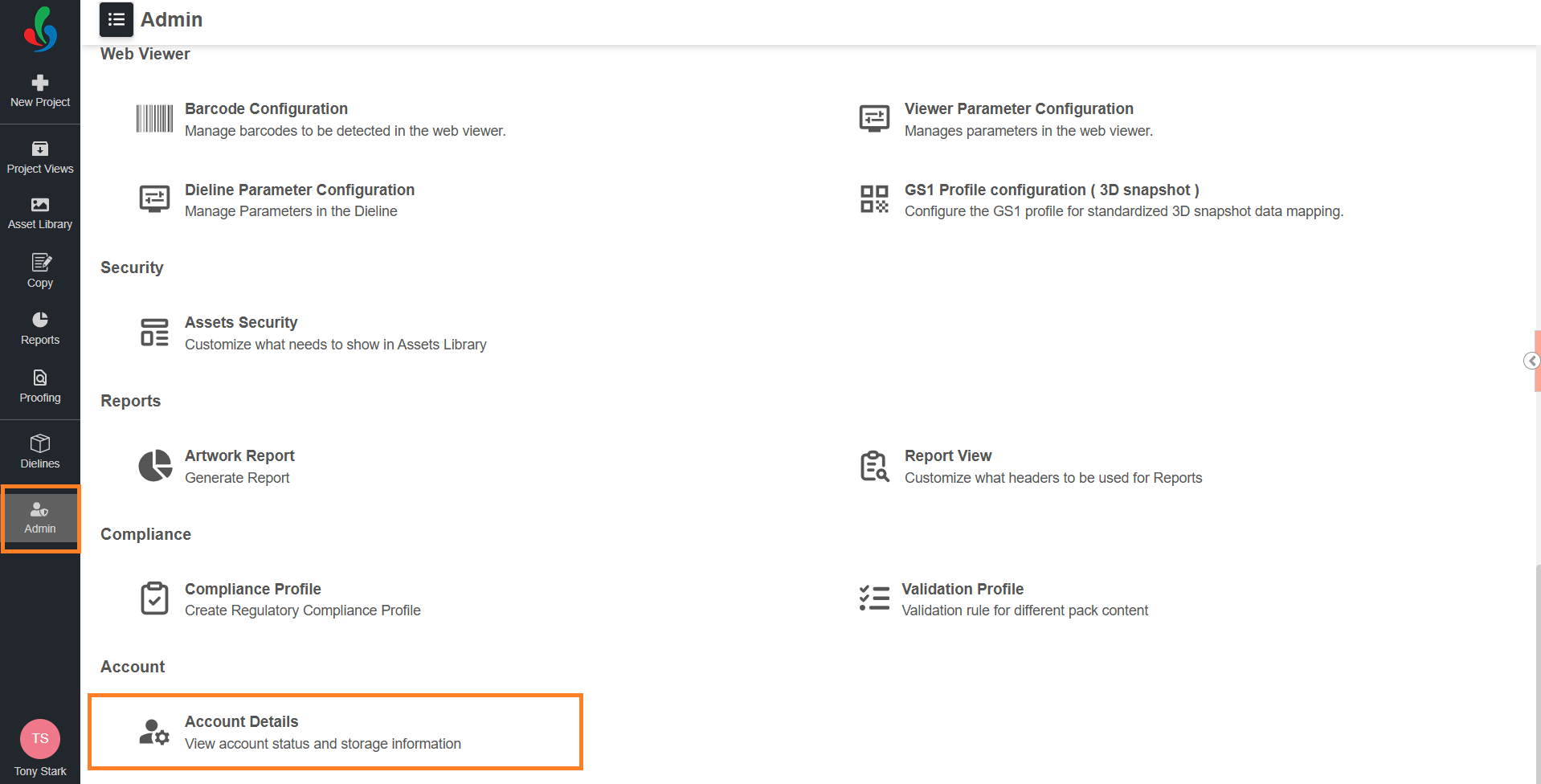
- Sign in to your ManageArtworks account.
- Navigate to the Admin module.
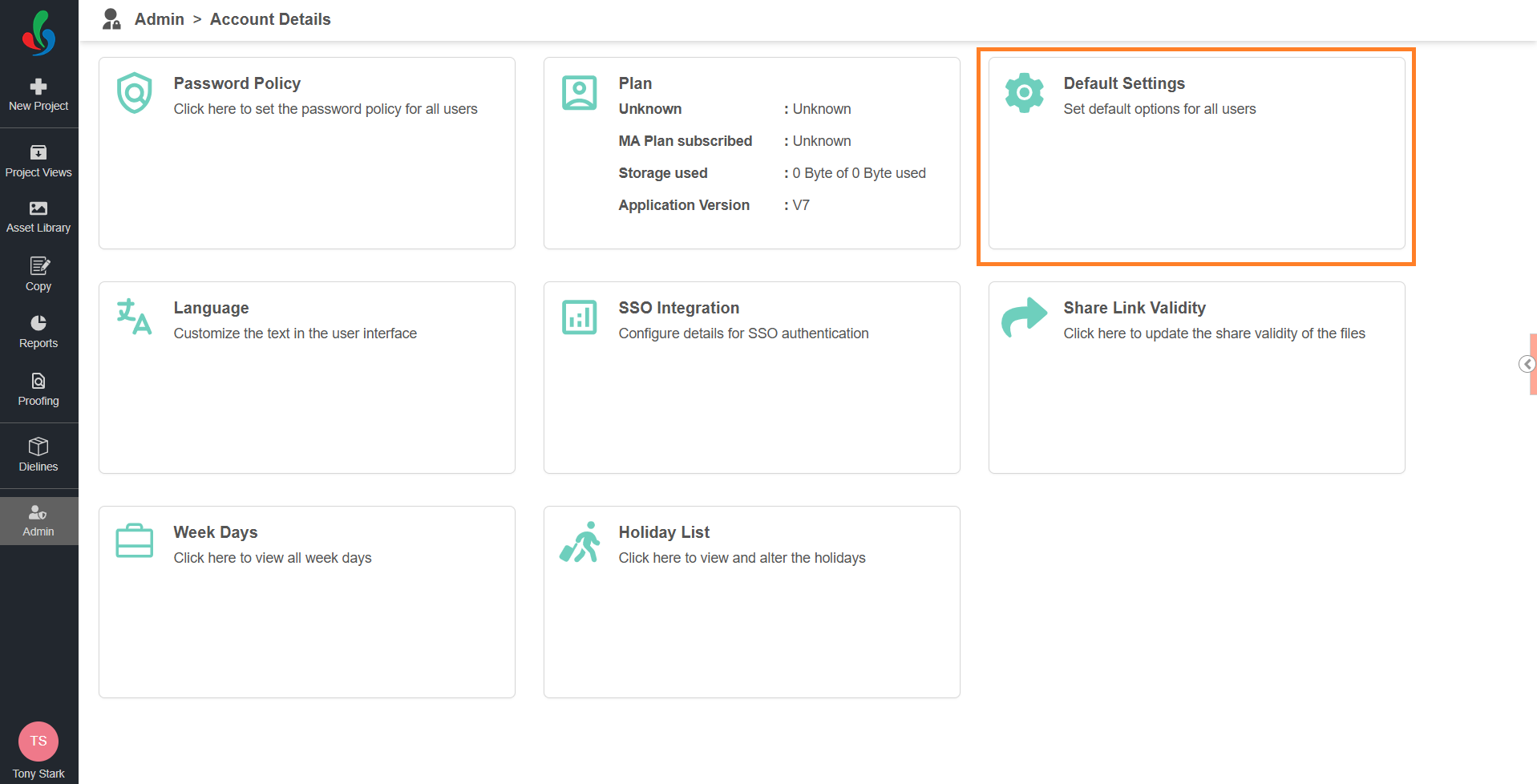
- Select Account Details.
- Select the Default Settings card.
02. Set the First Screen After Login
 | Note: The options available depend on the modules enabled for your account. To set Browse as the first screen, you need at least one active browse hierarchy — the system does not allow you to save Browse otherwise. For more information, refer to Create a New Browse Hierarchy and Manage Asset Browse Hierarchy. |
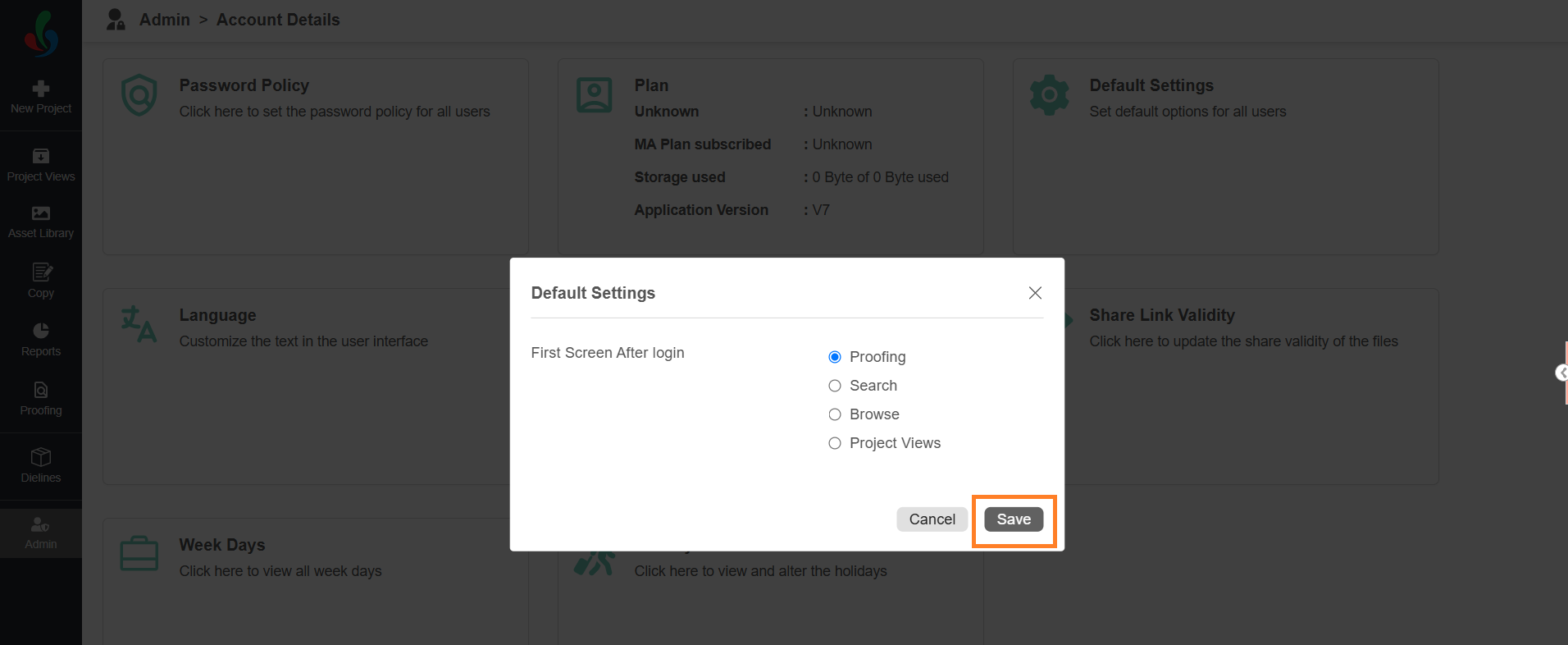
- For First Screen After login, select the module users see when they sign in:
- Proofing
- Search — the Asset Library search screen
- Browse — the Asset Library browse screen
- Project Views
- Select Save. The setting applies to all users in your account the next time they sign in.