
Copy Compare Report
Copy Compare results are quick to read on screen, but much of the review happens away from the artwork — at a desk, in a meeting, or with someone who does not work in ManageArtworks. Generate the Copy Compare Report to take the results with you as a PDF that you can print, mark up, circulate, and keep as the record of the check.
What the Report Contains
The report is generated as a PDF with four sections:
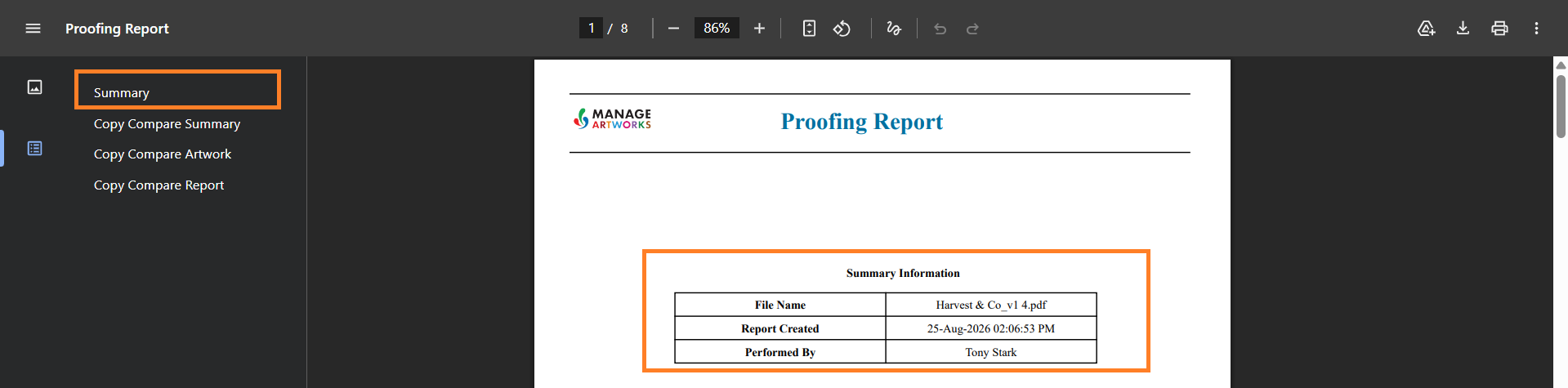
- Summary — the artwork file name, the date and time the report was created, and the name of the user who generated it.
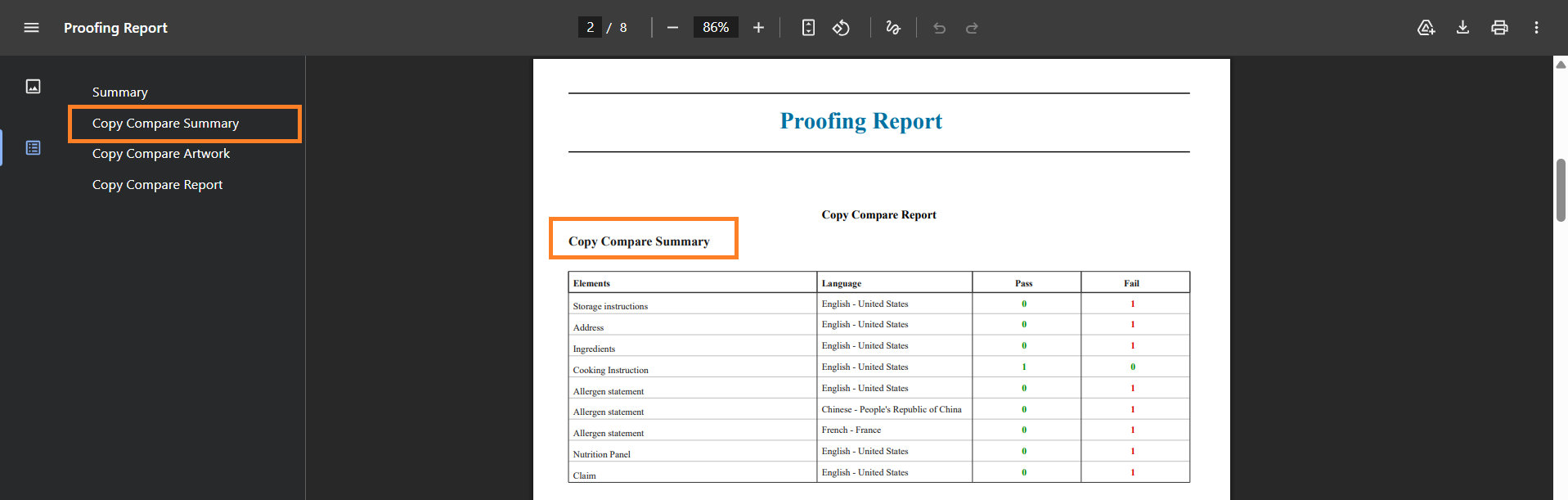
- Copy Compare Summary — one row per copy element and language, with a Pass and a Fail count. Pass counts the occurrences in the artwork that matched the copy value, and Fail counts the occurrences that did not.
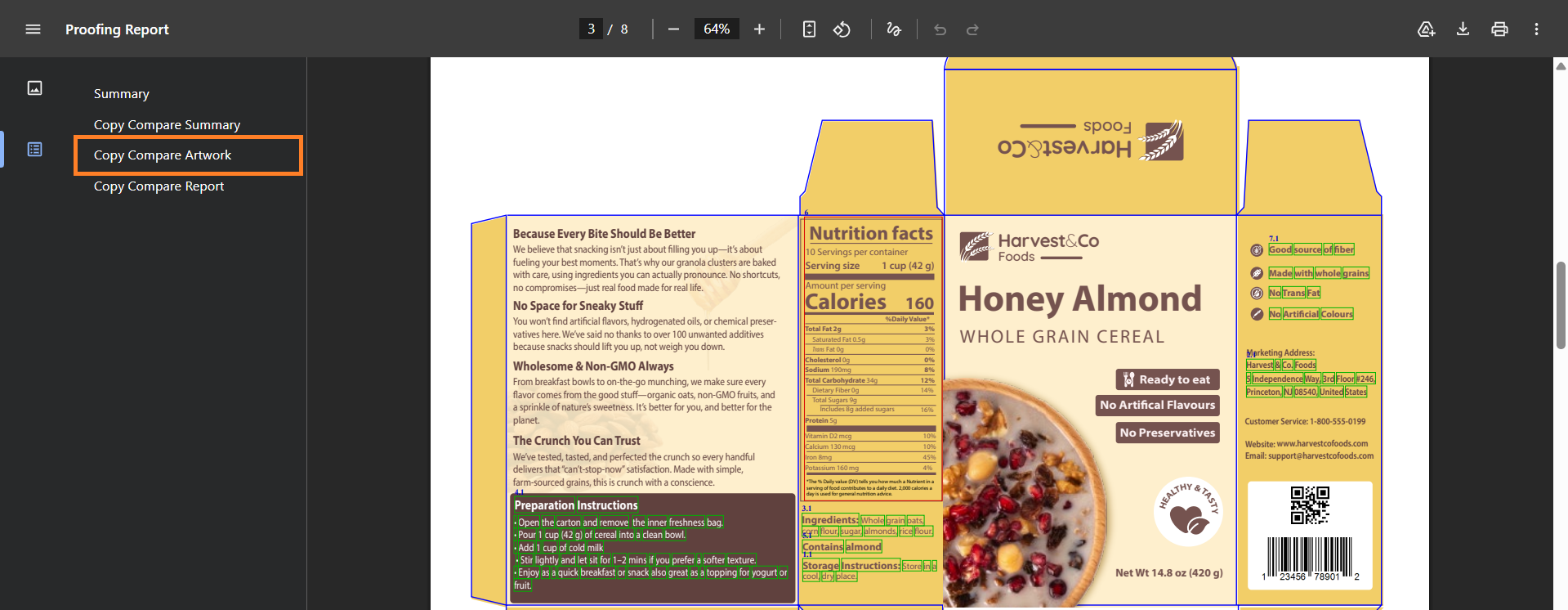
- Copy Compare Artwork — the artwork file that was compared.
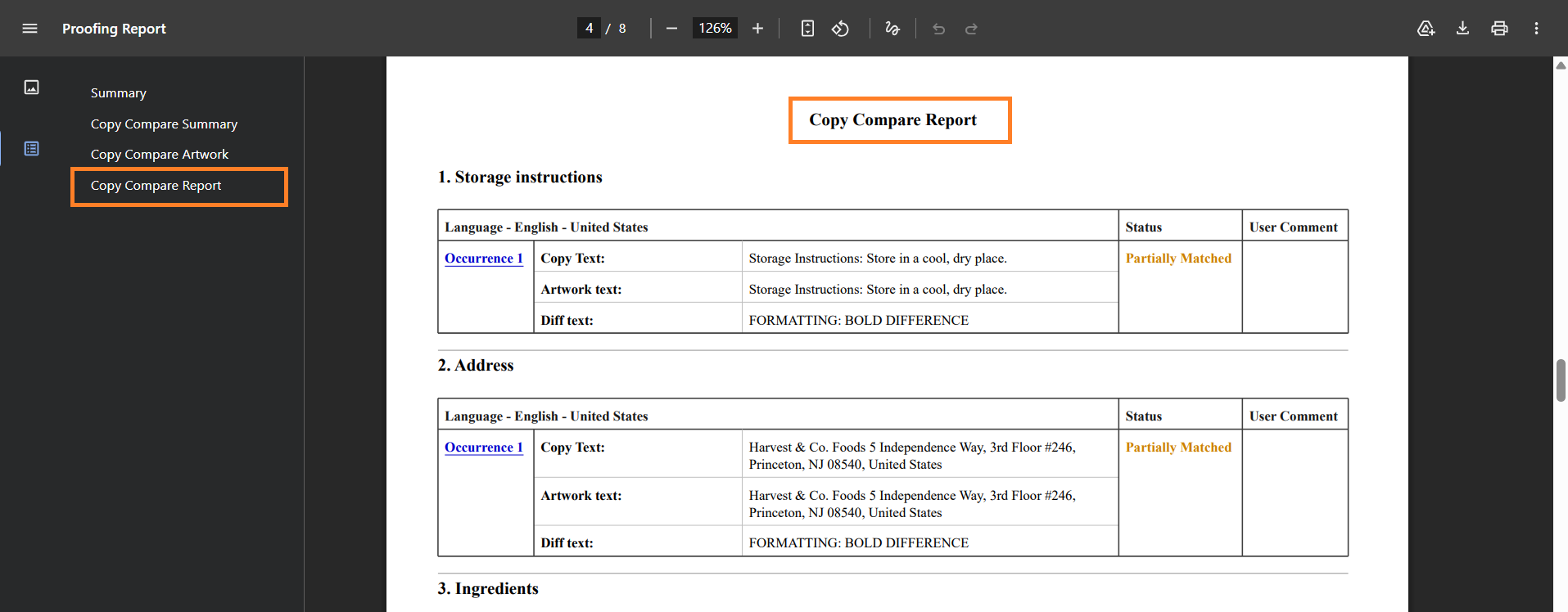
- Copy Compare Report — the detailed comparison, one entry per occurrence, each with its status.
- Each occurrence carries one of three statuses:
- Matched — the artwork text is the same as the copy value.
- Partially Matched — the artwork text contains the copy value with differences.
- No Match — the copy value was not found in the artwork.
- Each occurrence carries one of three statuses:
How to Generate a Copy Compare Report
 | Note: You can only generate the report from comparison results, so compare the copy against the artwork first — either run the comparison now or load a saved result. For more information, refer to Copy Compare. |
01. Generate the Report
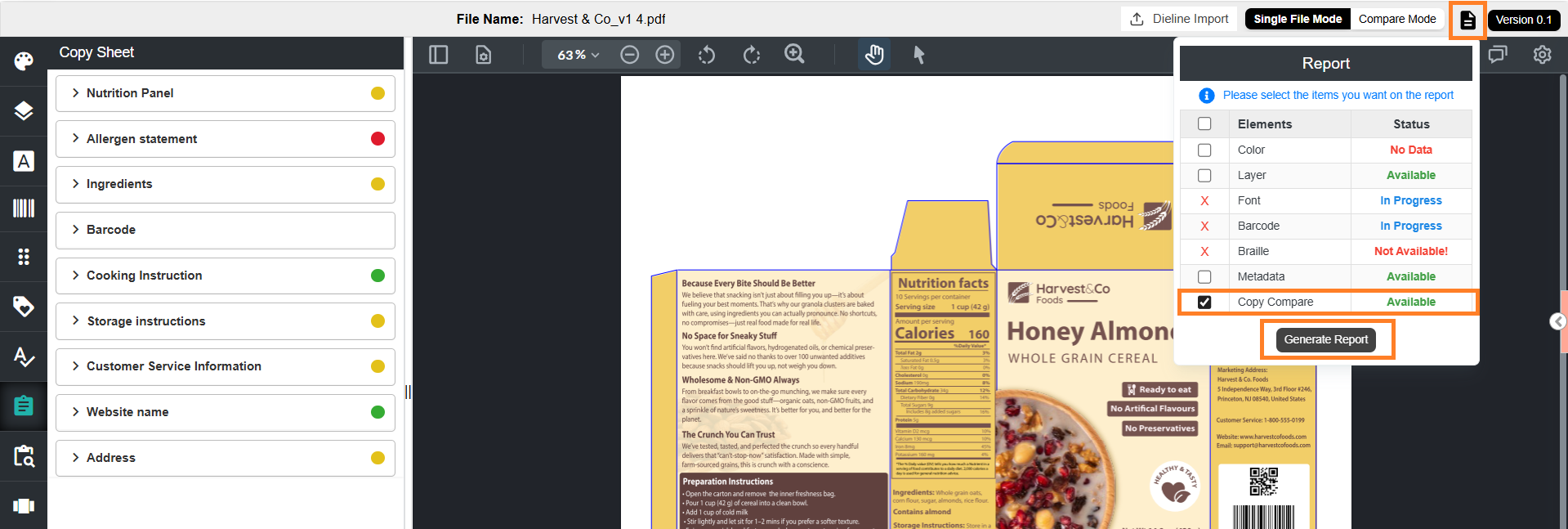
- Select the Report icon in the upper-right corner of the Web Viewer.
- Select Copy Compare in the Report panel.
Note: Copy Compare is available only after you run a comparison or load a saved comparison result. - Select Generate Report. The report is downloaded to your computer as a PDF.
02. Open an Occurrence in the Artwork from the Report
Matched and partially matched occurrences are linked back to the artwork, so a reader who has ManageArtworks access can open any result and check it in place.
- Open the downloaded PDF and check the Copy Compare Summary section for the elements with a Fail count.
- Select a copy element name in the Copy Compare Report section. The artwork opens at that occurrence, with the matched text highlighted.
- If an element was found in several places, select each occurrence to open its own location.
Note: Occurrences with a No Match status are not linked, because there is no location in the artwork to open.