
Configure Holidays
The holiday list defines the dates your organisation does not work. ManageArtworks treats an active holiday as a non-working day, so it is skipped when project and task deadlines are calculated — in the same way as the non-working days in your working week.
The Holiday List option allows you to:
- Add the holidays your organisation observes
- Edit a holiday's name or date
- Remove a holiday you no longer need
How to Add a Holiday
01. Access the Holiday List
- Sign in to your ManageArtworks account.
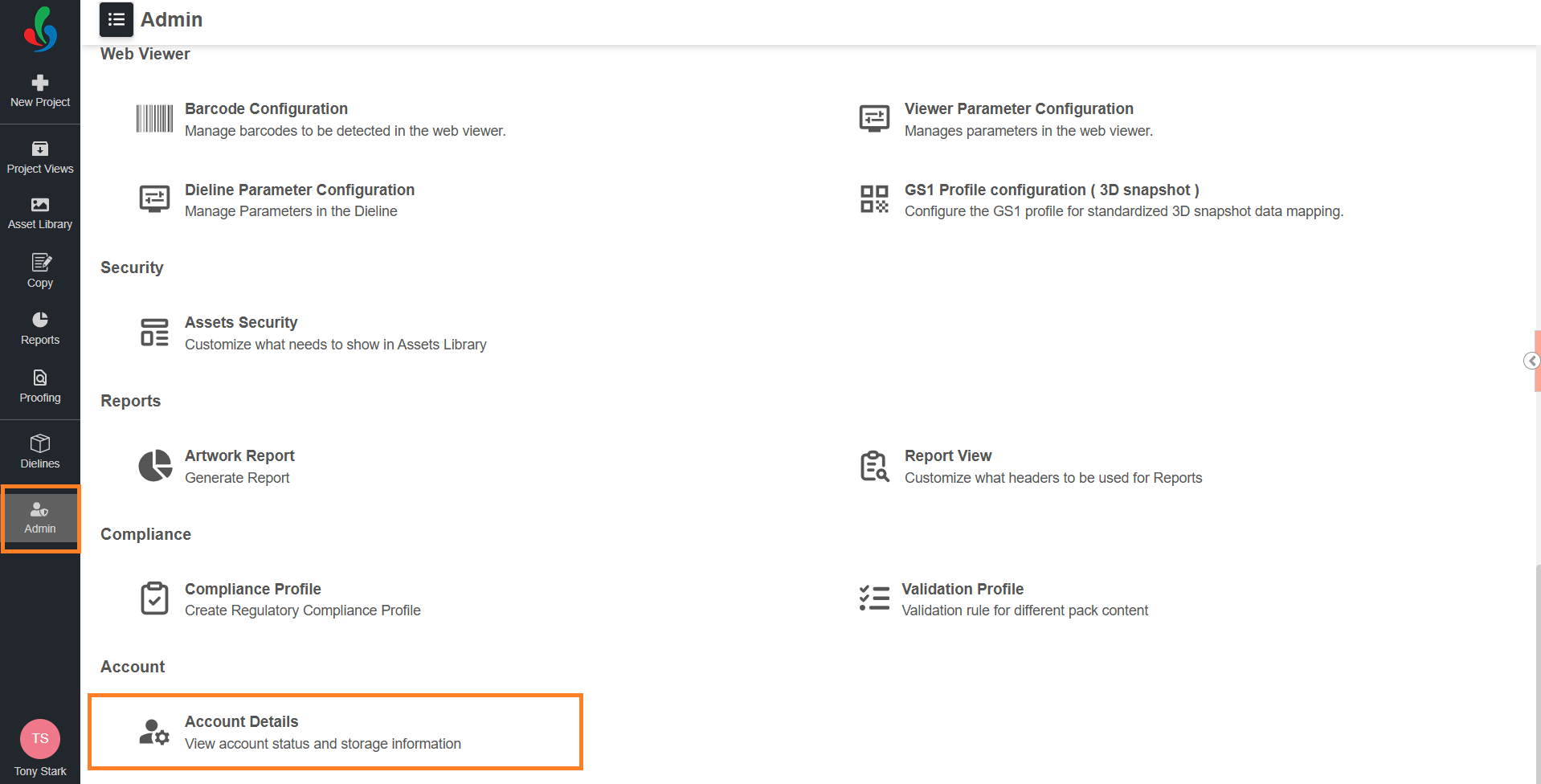
- Navigate to the Admin module.
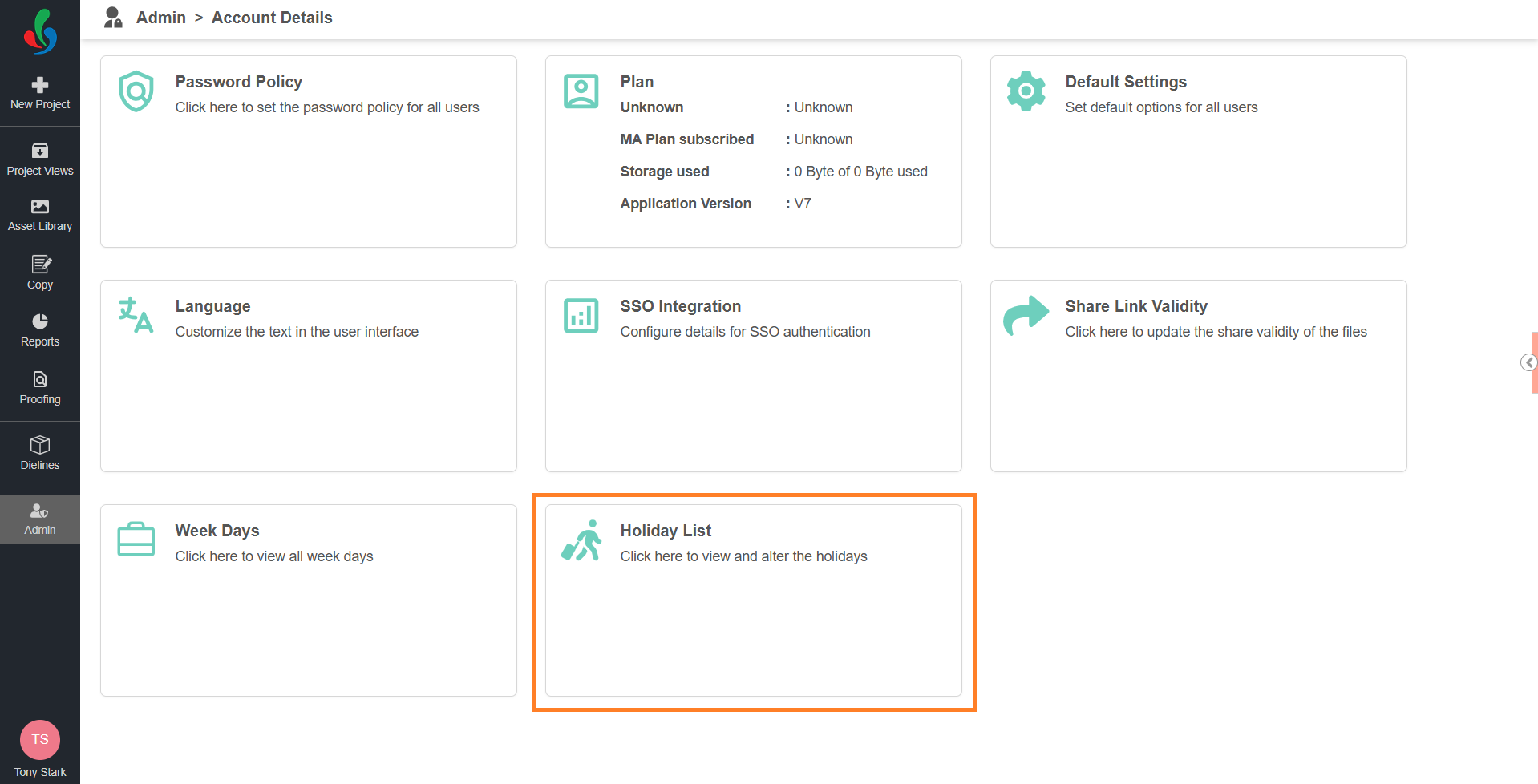
- Select Account Details.
- Select the Holiday List card. The Holidays page lists the existing holidays.
02. Enter the Holiday Details
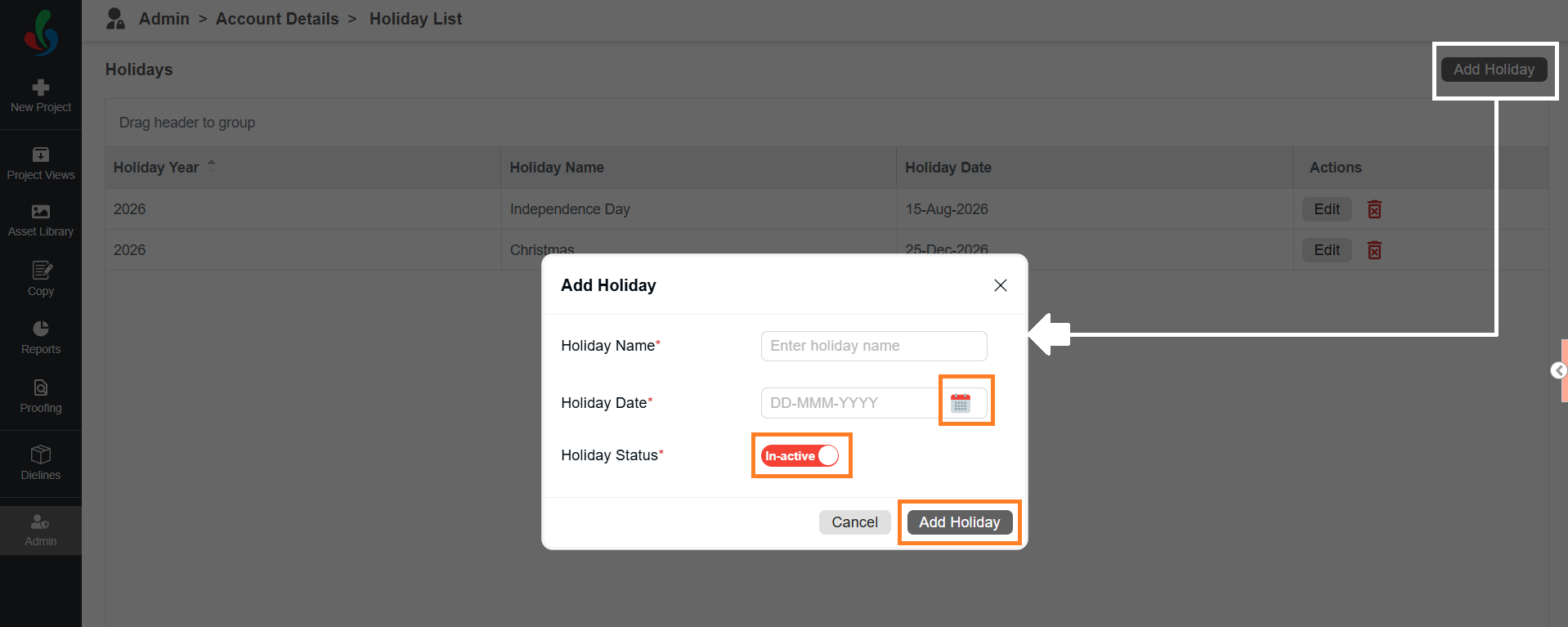
- Select Add Holiday.
- Enter a name for the holiday in the Holiday Name field.
- In the Holiday Date field, select the calendar icon, and then select the date.
Note: You can select today's date or a future date. Past dates are not available. - Set Holiday Status to Active.
Note: Only active holidays are applied to deadline calculations. Set the status before you save — it cannot be changed after the holiday is added. - Select Add Holiday. The holiday is added to the list, and deadlines are recalculated for in-progress and new projects.
How to Edit a Holiday
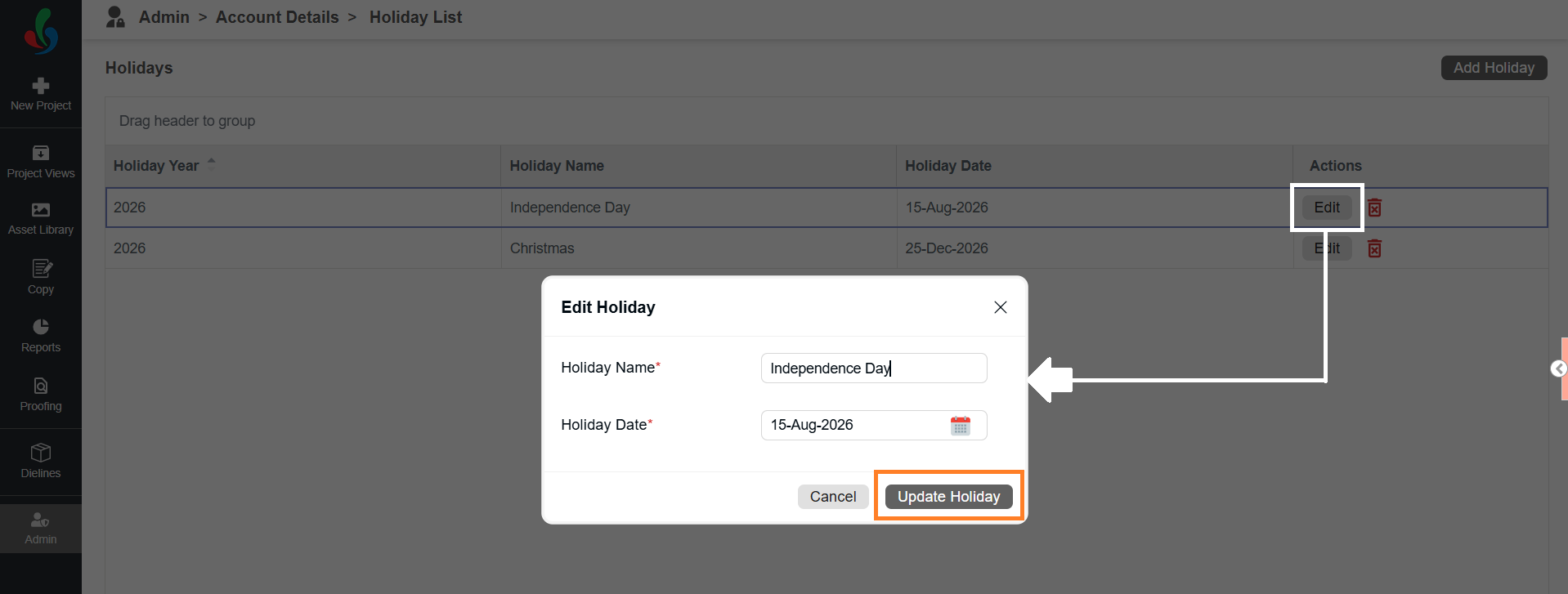
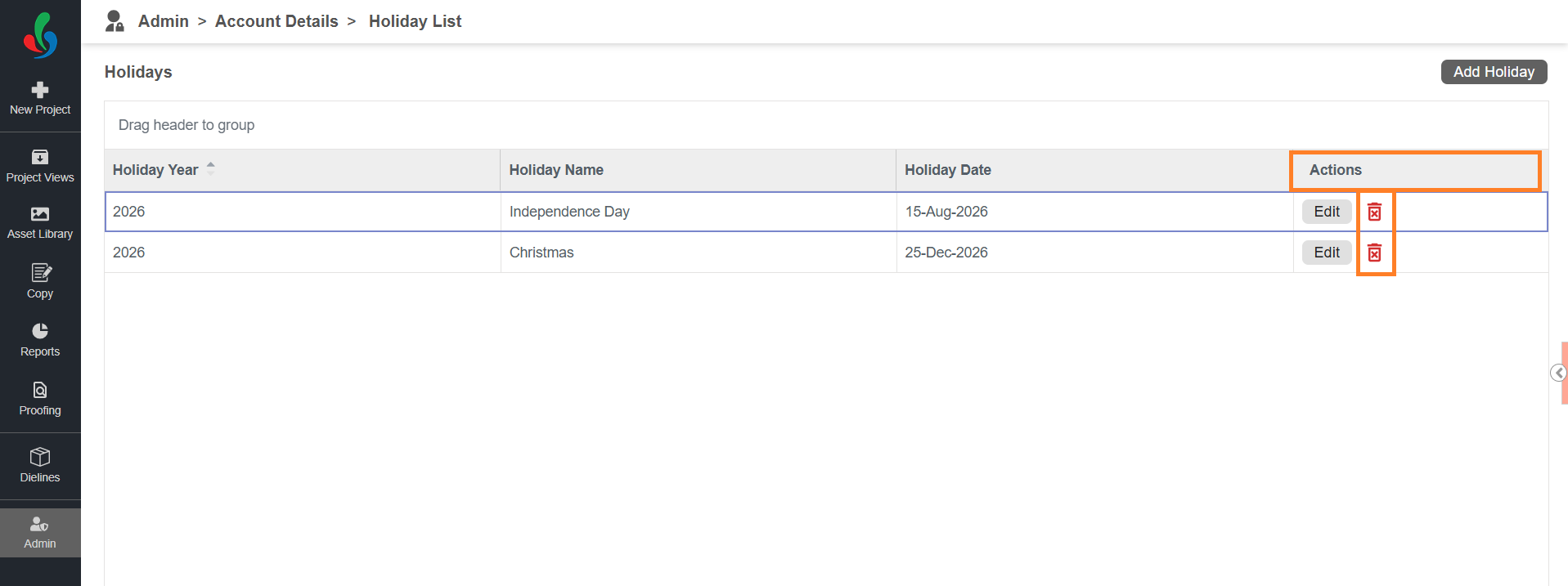
- On the Holidays page, in the Actions column, select Edit for the required holiday.
- Update the Holiday Name or Holiday Date as required.
Note: Each holiday must have a unique date. Two holidays cannot share the same date. - Select Update Holiday. The holiday is updated, and deadlines are recalculated for in-progress and new projects.
Note: Holiday Status can be set only while adding a holiday. To change the status of an existing holiday, delete it and add it again.
How to Delete a Holiday
- On the Holidays page, in the Actions column, select the delete icon for the required holiday.
- Select Ok in the confirmation dialog.
The holiday is removed from the list. If the date falls on a working day, it is treated as a working day again.
How to Group the Holiday List
When the list grows, you can group it to find a holiday faster.
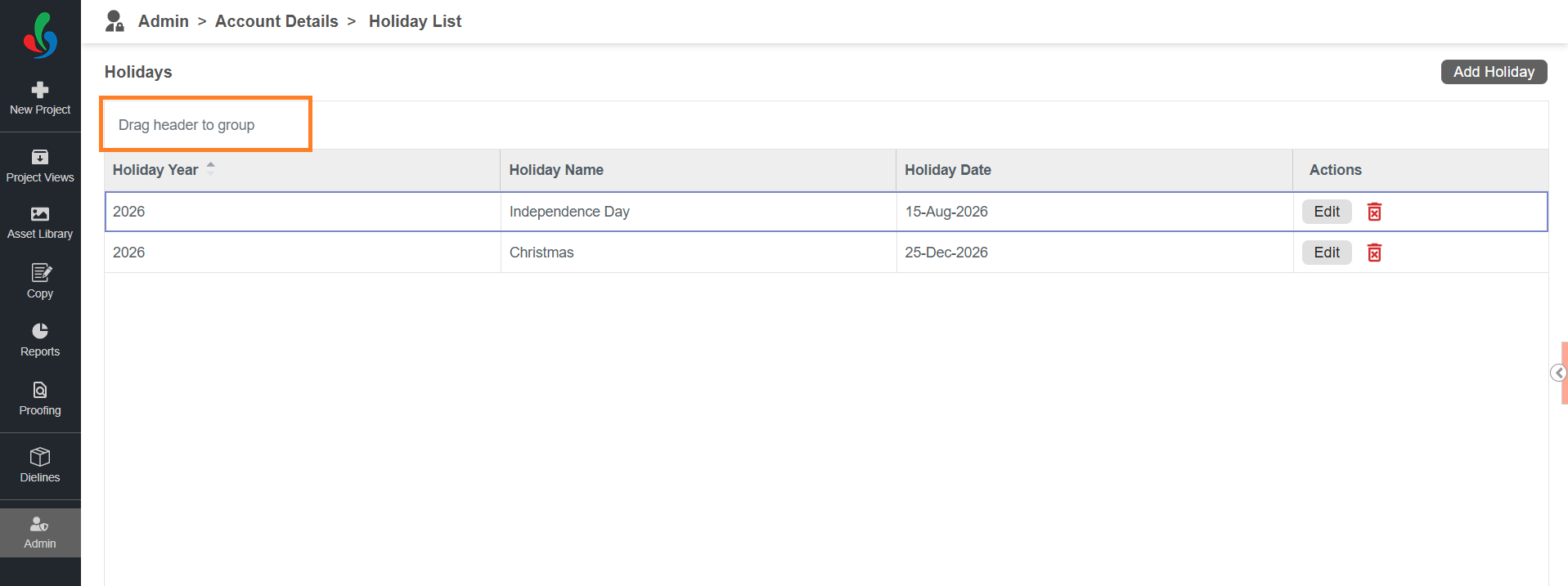
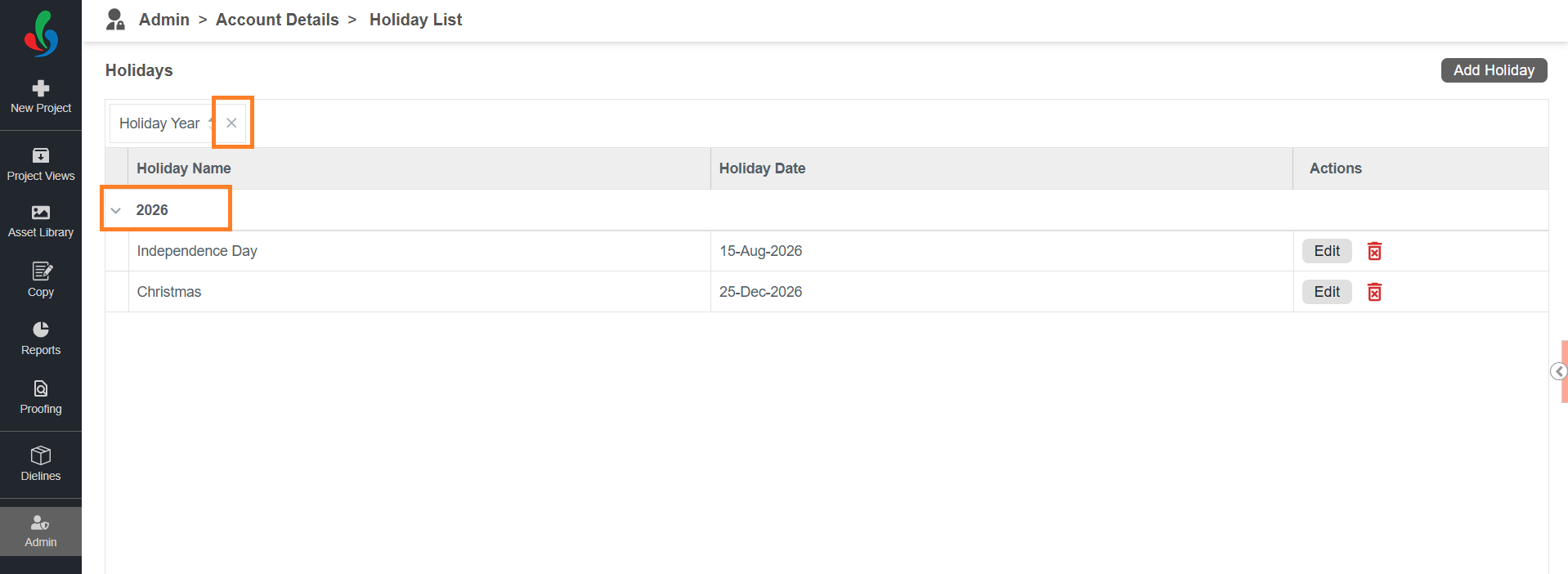
- Drag a column header into the Drag header to group area at the top of the list — for example, drag Holiday Year to group the holidays by year.
- To group by more than one column, drag additional column headers into the same area. The groups are nested in the order you add them.
- Select a group to expand or collapse it.
- To remove a grouping, select the close (×) icon next to the column name.
How Holidays Affect Deadlines
An active holiday overrides a working day. If a holiday falls on a day that is already a non-working day in your working week, deadlines are unaffected.
For example, a task with a two-day duration starts on Friday at 9:00 AM, and Saturday and Sunday are set as non-working days. The task is due by Tuesday, 9:00 AM. If Monday is an active holiday, the task is due by Wednesday, 9:00 AM instead.
For more information on setting your working days and hours, refer to Configure Working Hours.
 | Note: Adding, editing, or deleting a holiday applies to in-progress projects as well as new ones, so deadlines on active projects are recalculated. Review the impact before changing the holiday list while projects are running. |