Proofread Artwork Against the Copy Sheet
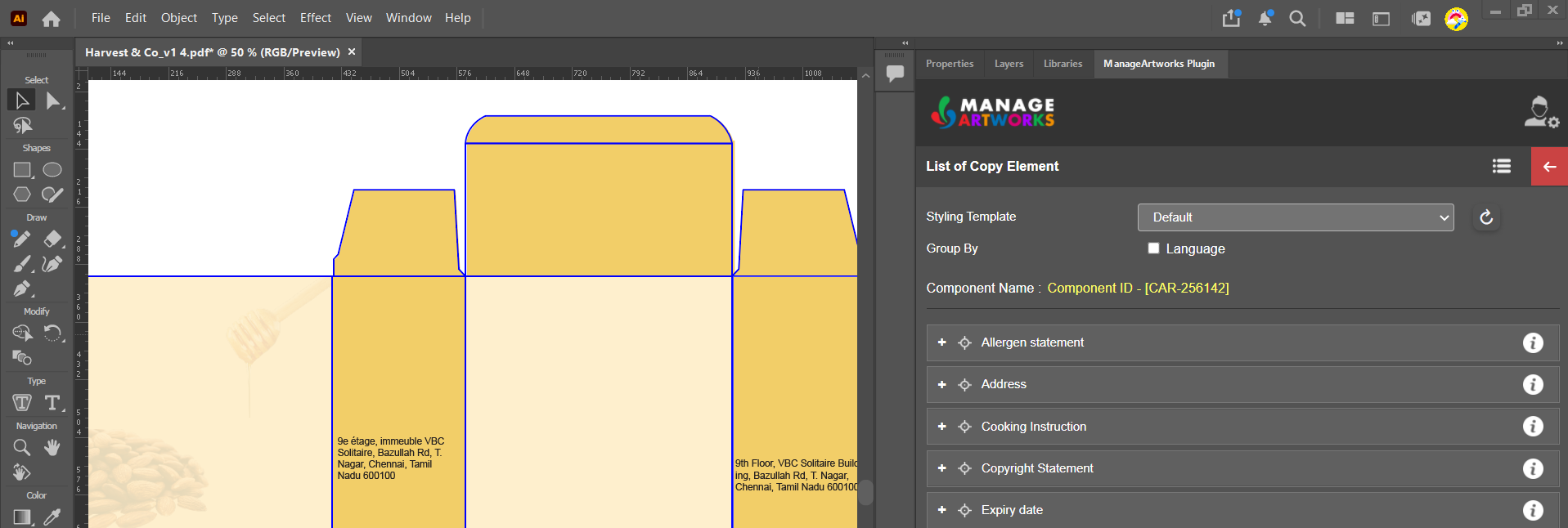
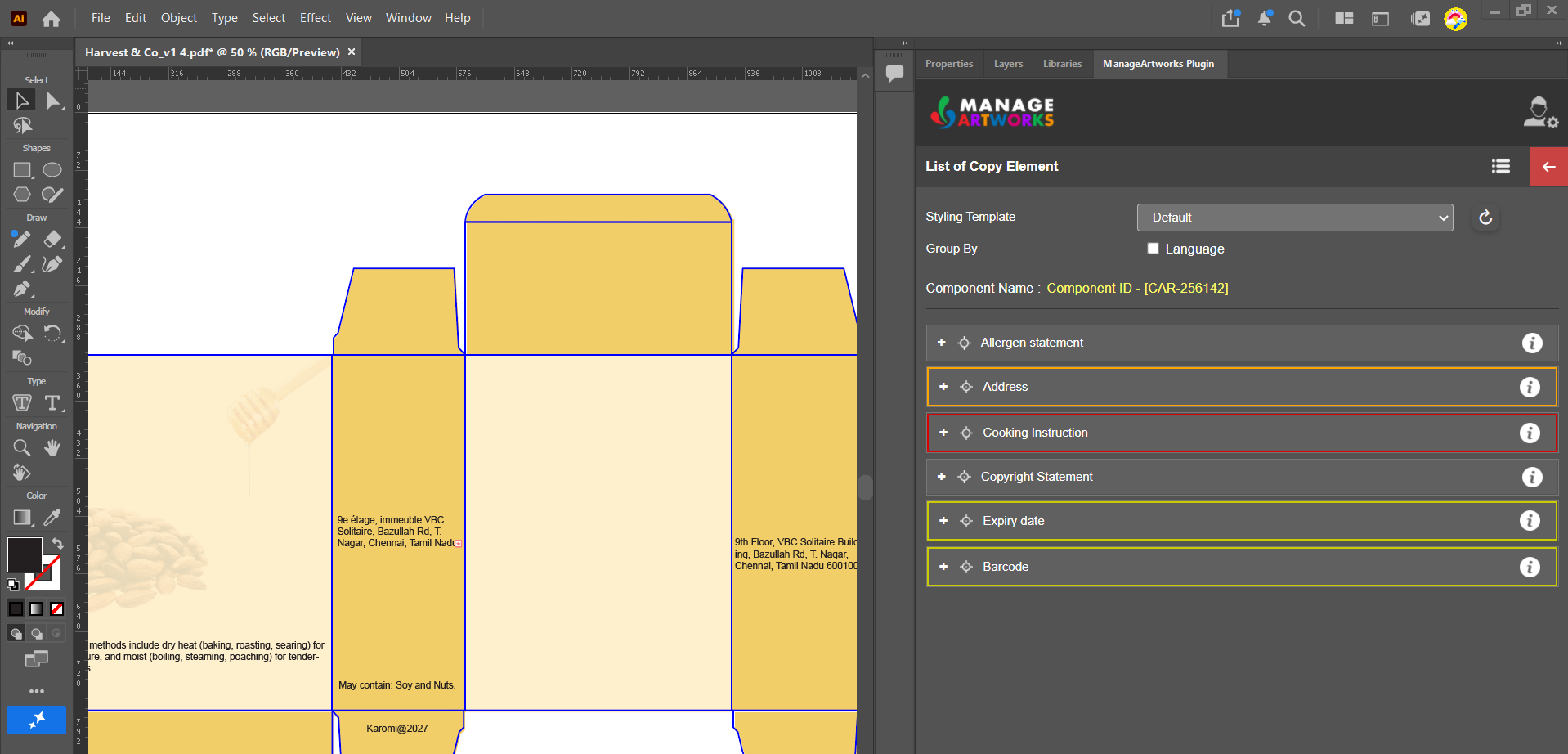
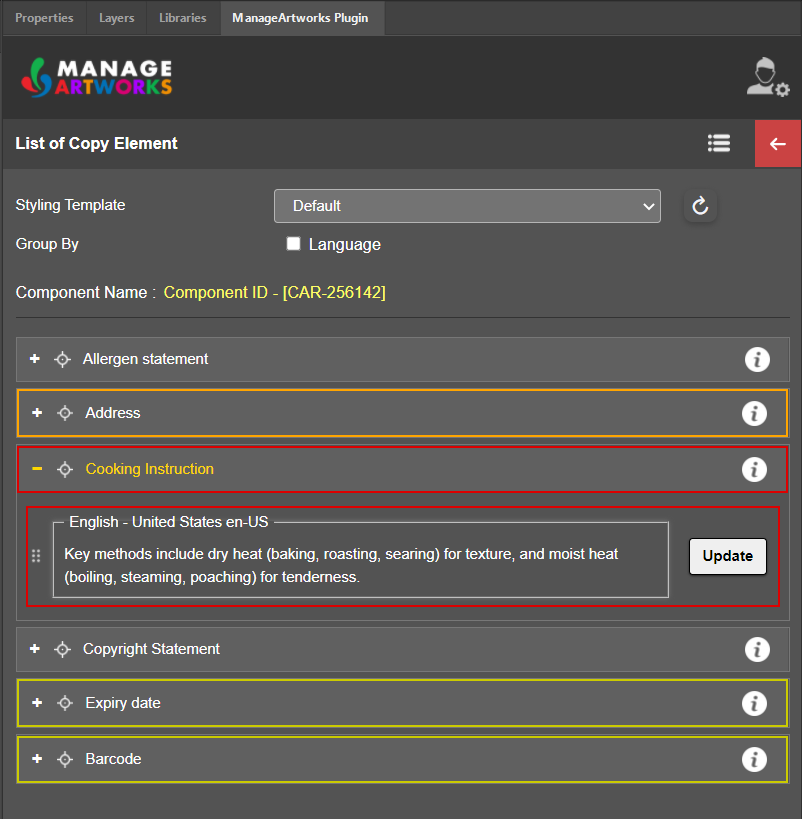
Designers can use the plugin to check that the content in an artwork in Adobe Illustrator or InDesign matches the approved copy sheet. The plugin compares the artwork with the copy elements of the copy and highlights each element with a problem in the panel, with a colored border.
| Color | What it means | What to do |
|---|---|---|
| Yellow | The element's content is missing from the artwork. | Drag and drop the content into the artwork. |
| Orange | The content is in the artwork but is not fully visible, because the text frame is too small. | Resize the text frame until all the content is visible. |
| Red | The content in the artwork does not match the copy sheet. | Replace it with the content from the copy sheet. |
01. Get the Copy Elements
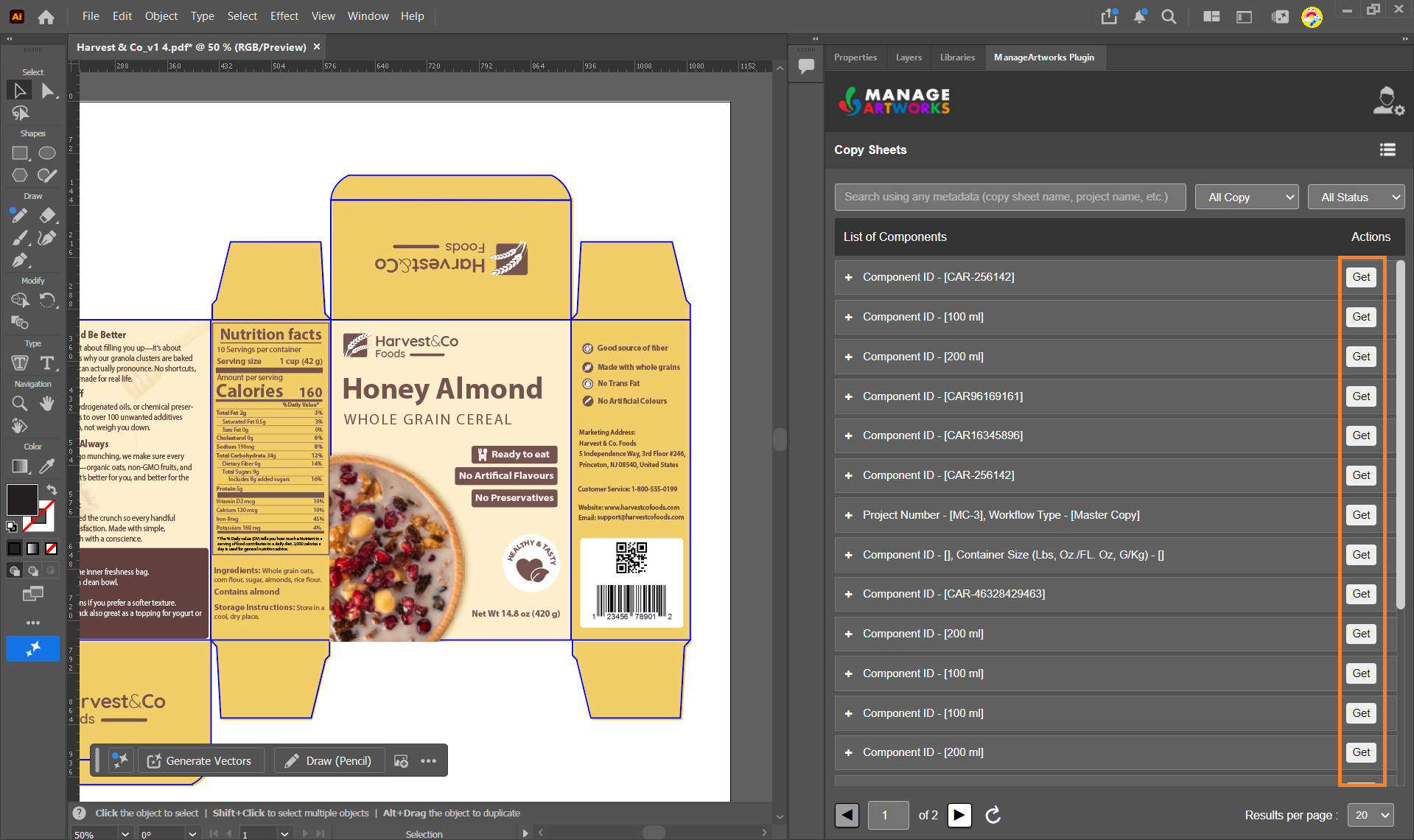
- Locate the copy you used in the artwork. For more information, refer to 01. Access the Copy Sheet.
- Select Get next to the copy. The plugin opens the List of Copy Element page.
02. Verify the Artwork
- Make sure that the artwork is open in Illustrator or InDesign.
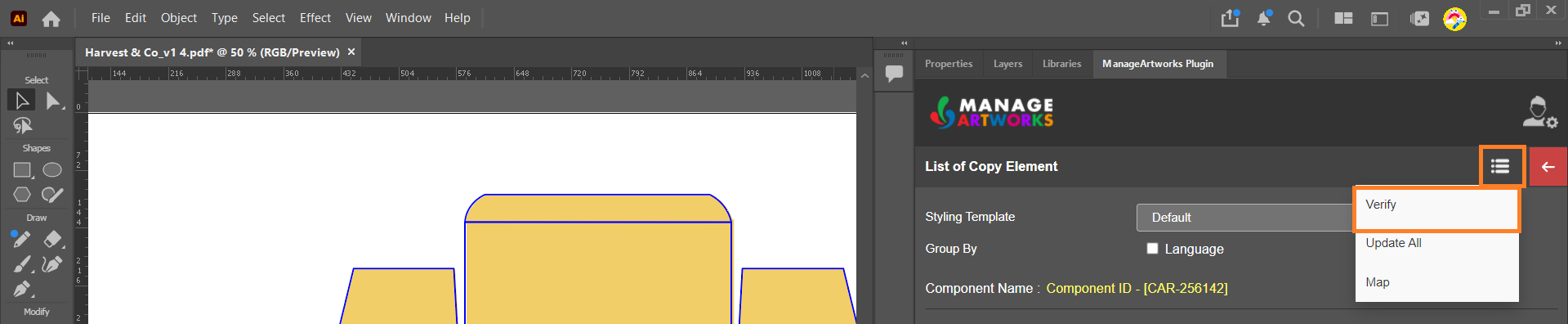
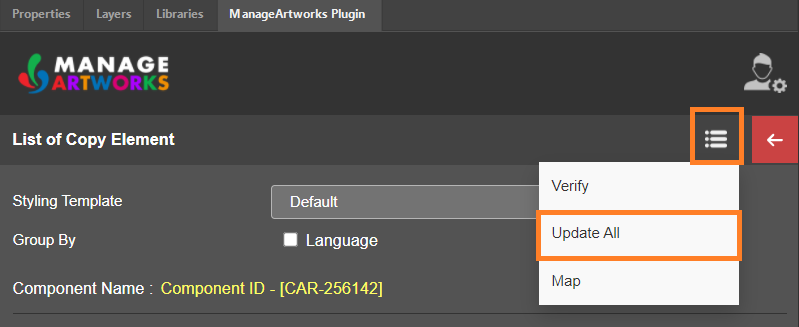
- On the List of Copy Element page, hover over the Menu (☰) icon, then select Verify.
- The plugin compares the artwork with the copy elements and highlights each element with a problem in the panel, in yellow, orange or red.
03. Fix the Highlighted Content
1. Add Missing Content (Yellow)
Drag and drop the element's content from the plugin into the artwork. For more information, refer to Drag and Drop Copy Content into Your Artwork.
| Note: If you selected only some languages in the Choose languages drop-down list, the content of the other languages is also highlighted in yellow. |

2. Make Hidden Content Visible (Orange)
In Illustrator or InDesign, resize the element's text frame in the artwork until all of its content is visible.
3. Replace Mismatched Content (Red)
- To replace the content of one element, select Update next to the element.
- To replace the content of every mismatched element at once, hover over the Menu (☰) icon, then select Update All.
The plugin replaces the content in the artwork with the content from the copy sheet, and applies the template selected in the Styling Template drop-down list.
04. Verify Again
- After you fix the content, hover over the Menu (☰) icon and select Verify again.
- When the artwork matches the copy sheet, the plugin removes the colored borders around the copy elements.