General Leaflet
| Note: The use cases highlighted in this article represent common situations where this file type and its combinations are useful. However, depending on your artwork structure and review objectives, other valid use cases may also apply. |

Leaflet Terminology
In the context of General Leaflet comparison, the following terms are used:
Leaflet Word
The source content of the leaflet that is used for design. This is typically a DOCX file, or a PDF converted from a DOCX file.
- The Leaflet Compare module expects the Leaflet Word file to have single-column text across multiple pages.
- If the leaflet contains two-column layouts (commonly seen in US FDA pharmaceutical leaflets), it is recommended to:
- Use Manual Compare (Select regions before comparing), or
- Convert the content into a single-column layout before comparison.
Leaflet PDF
The designed leaflet file, usually formatted with multiple columns and typically spanning 1–2 pages.
- This file must be uploaded as a PDF.
- Do not convert a designed Leaflet PDF back into a DOCX file for comparison.
Leaflet Comparison Scenarios
There are three primary comparison scenarios based on the Master and Sample file types.
01. Leaflet Word vs Leaflet Word
In this scenario, changes are made directly in the source Leaflet Word file, and the reviewer wants to track content updates.
- Recommended comparison type: Text Compare
- Reason: This scenario focuses on proofreading and validating textual changes. Visual comparison is not relevant here.
02. Leaflet Word vs Leaflet PDF
In this scenario, a designed leaflet PDF—such as a Package Insert (PI) or Packaging Information Leaflet (PIL)—is compared against the approved Leaflet Word source content.
- Recommended comparison type: Text Compare
- Reason: The objective is to ensure that the designed PDF accurately reflects the approved source content, regardless of layout or formatting differences.
03. Leaflet PDF vs Leaflet PDF
This scenario includes three sub-cases:
- Same Leaflet Layout
- The master leaflet has undergone revisions, but the KLD/Dieline/Leaflet layout remains unchanged.
- Recommended approach:
- Text Compare is the preferred method.
- Pixel Compare may capture minor visual changes, but it is not reliable for comprehensive validation.
- Recommended approach:
- The master leaflet has undergone revisions, but the KLD/Dieline/Leaflet layout remains unchanged.
- Different Leaflet Layout
- The sample leaflet is designed using a different KLD/Dieline/Leaflet layout compared to the master.
- Recommended comparison type: Text Compare
- Reason: Layout differences make Pixel Compare unreliable, as visual alignment no longer matches.
- The sample leaflet is designed using a different KLD/Dieline/Leaflet layout compared to the master.
- Print Proof or Scanned Leaflet
- The sample file is a print proof PDF or a scanned version of the master leaflet PDF.
- Recommended comparison type: Pixel Compare
- Reason: In print proofing and print inspection workflows, visual comparison is the most effective way to identify deviations introduced during printing or scanning.
- The sample file is a print proof PDF or a scanned version of the master leaflet PDF.
Comparison Methods Supported
General Leaflet support two comparison workflows:
1. Automatic Compare (Whole File)
- The system automatically compares the entire artwork.
- Evaluates all visible elements without requiring manual region marking.
- Ideal for full-artwork validation.
2. Manual Compare (Select Regions Before Comparing)
- Users manually mark specific regions to compare.
- Only those regions are analyzed.
- Ideal when focusing on targeted corrections or specific artwork areas.
Both comparison methods are available across the following Review Modes:
- Leaflet Review – Used for validating live text, curved text, and design elements in editable leaflet files.
- Print Inspection – Used for scan-based validation of printed leaflet samples.
Optional add-ons (e.g., Remove Layers, Choose Specific Pages) can be applied depending on your configuration. For detailed behavior, refer to About Add-ons (Optional Controls).
Compare Type
For General Leaflet, both Pixel Compare and Text Compare are supported when using Leaflet Review.
However, unlike Artwork Review, Pixel Compare is not selected by default. This is because leaflets typically contain large volumes of text, and Text Compare is usually the most effective method for identifying content changes.
You may still enable Pixel Compare when required. The choice depends entirely on your use case:
- Use Text Compare when validating content accuracy, regulatory updates, or proofreading changes.
- Use Pixel Compare when visual layout verification is needed, such as spacing, alignment, or formatting consistency.
- In some scenarios, you may choose to run both to validate visual and textual accuracy together.
Note: When a Leaflet Word file (.docx) is used as either the Master or Sample file, Pixel Compare is automatically disabled, and only Text Compare is available. This is because Leaflet Word files contain structured text without fixed visual layout, making pixel-based comparison unreliable. In such cases, Text Compare is the recommended and supported method for reviewing content changes. |
Supported Combinations
The table below lists all supported comparison combinations for General Leaflet. Select any Ref. ID to view its detailed description and usage context.
Note: The availability of add-ons depends on the File Type, the selected sub-section, and the Compare Type. In each detailed combination explanation, the core behaviour is described without add-ons because add-ons function the same way across all combinations. For complete details about how each add-on works, refer to About Add-ons (Optional Controls). |
Ref. ID | Content Type | Review Option | Compare Option | Add-ons | Compare Type |
|---|---|---|---|---|---|
Live/Curve Text | Leaflet Review | Whole File | Remove Layers / Select Pages | Pixel and/or Text | |
Live/Curve Text | Leaflet Review | Select Regions | Remove Layers / Select Pages | Pixel and/or Text | |
Scan Image | Print Inspection | Whole File | Remove Layers / Select Pages | Pixel Only | |
Scan Image | Print Inspection | Select Regions | Remove Layers / Select Pages | Pixel Only |
Leaflet Review
Combination 1 — Whole File (Automatic Compare)
General Leaflets + Live/Curve Text + Leaflet Review + Compare the whole file + Pixel Compare and/or Text Compare
Recommendation
Note: When a Leaflet Word file (.docx) is used as either the Master or Sample file, Pixel Compare is automatically disabled, and only Text Compare is available. This is because Leaflet Word files contain structured text without fixed visual layout, making pixel-based comparison unreliable. In such cases, Text Compare is the recommended and supported method for reviewing content changes. |
Leaflet Review is designed for reviewing multi-page leaflet or booklet artwork, commonly used in pharmaceutical and healthcare packaging. This review mode helps ensure that regulatory, clinical, and safety content is accurately represented across all pages of the leaflet.
Use this review mode when performing:
- Regulatory leaflet reviews
- Page-by-page content and layout validation
- Compliance checks for multi-page leaflet artwork
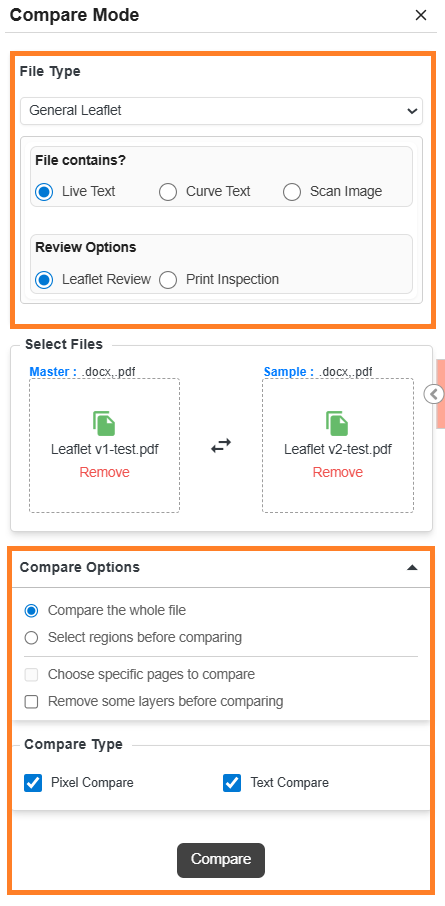
Configuration Details
To run this combination:
- Select the options in Compare Mode exactly as shown in this combination (General Leaflets + Live or Curve Text + Leaflet Review + Compare the whole file + Pixel Compare and/or Text Compare).
- Select the desired Master and Sample files.
- This configuration uses Automatic Compare, meaning:
- No manual region selection is required.
- The system compares the full artwork as soon as you select Compare.
- Since both comparison types are supported, in this example we select both, allowing the system to detect:
- Visual deviations (colors, shapes, icons, graphics, spacing, layout elements)
- Text deviations (added, modified, or removed text)
Note: Although both Pixel Compare and Text Compare are available, you may choose to run either one or both depending on your scenario.
For guidance on when to use each comparison type, refer to the Help available within the Web Viewer. |
When This Combination Is Useful
Use this combination when you need to review an entire leaflet end-to-end, ensuring that all pages, sections, and content blocks are accurate and consistent with the approved reference.
This configuration is especially useful when:
- Comparing Leaflet Word vs Leaflet Word to track content revisions in the source document
- Comparing Leaflet PDF vs Leaflet PDF where the leaflet layout, columns, and pagination remain unchanged
- Validating regulatory or safety text updates across multiple pages
- Reviewing global changes such as wording updates, dosage instructions, warnings, or formatting corrections
- Ensuring that no unintended visual or textual changes were introduced during document updates or re-export
- Performing a final content and layout verification before approval or submission
Because the comparison runs automatically on the entire leaflet, this configuration is ideal when changes are spread across multiple pages or when a complete validation is required rather than a targeted review.
What Happens After You Select Compare
 | Add-on Behavior: If you selected Remove Some Layers Before Comparing, the system opens the Layer Panel before running the comparison. Refer to About Add-ons (Optional Controls) for full workflow details. Or If you selected Choose Specific Pages to Compare, you must first choose page pairs before the comparison proceeds. See About Add-ons (Optional Controls) for more details. |
The system analyzes both the visual and textual components of the artwork and displays all identified deviations in the Deviation Panel.
Each deviation entry can be selected to navigate directly to the affected region in the artwork.
| Note: Only the tabs relevant to the comparison you performed will appear. For example, if you ran only a pixel comparison, only the Pixel Deviation tab is displayed. |


Combination 2 — Select Regions (Manual Compare)
General Leaflets + Live or Curve Text + Leaflet Review + Select region before comparing + Pixel Compare and/or Text Compare
This combination is used in scenarios similar to Leaflet Review (Automatic Compare), where leaflet content must be validated against an approved version.
The key difference is that you explicitly control which areas of the leaflet are compared. Instead of analyzing the entire document, you manually mark comparison regions. This helps focus the comparison on specific updates and avoids detecting unnecessary differences in unrelated areas.
Important Note on Manual Compare for Leaflets
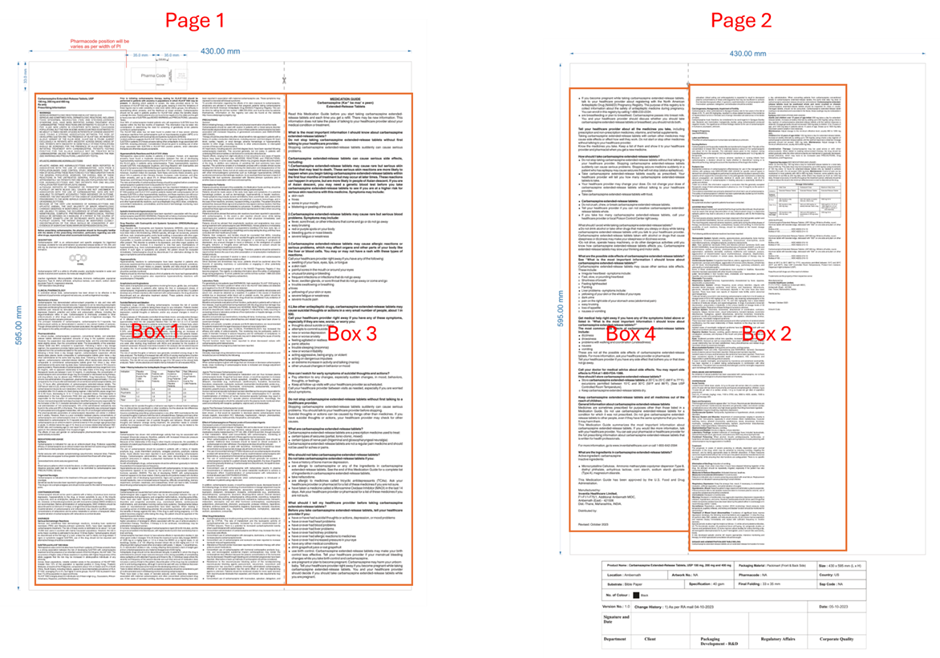
|
Manual Region Behavior by File Type
Leaflet Word
- Text typically flows top to bottom, from the first page to the last page, in a consistent order.
- If you do not mark any regions, all pages are automatically considered for comparison.
- You may still mark regions if you want to compare only a specific section of the leaflet.
Leaflet PDF (PI / PIL)
- Text flow is often non-standard, with:
- Multiple columns
- Varying page layouts
- Different section arrangements
- For full-document comparison, all pages must be manually marked in the correct reading order.
- Alternatively, you can mark only specific sections of interest if partial validation is required.
When Manual Region Selection Is Recommended
Manual region selection is especially useful when:
- Leaflet Word files contain repetitive or insignificant content (such as headers and footers on every page)
- Leaflet PDFs include decorative artwork or background elements that are not relevant to proofreading
- You want to focus only on regulatory text, dosage instructions, warnings, or key sections
- Comparing only a specific portion of the leaflet instead of the entire document
Rules for Marking Regions in Leaflet PDFs
When marking regions in Leaflet PDFs, follow these rules to ensure accurate comparison:
- Mark regions in the correct reading order:
- The sequence of marked regions must reflect how the leaflet is intended to be read.
- Each bounding box must contain either:
- A single column, or Multiple columns together, but not a mix of both within the same bounding box.
Following these rules ensures that the system correctly interprets text flow and produces reliable comparison results.
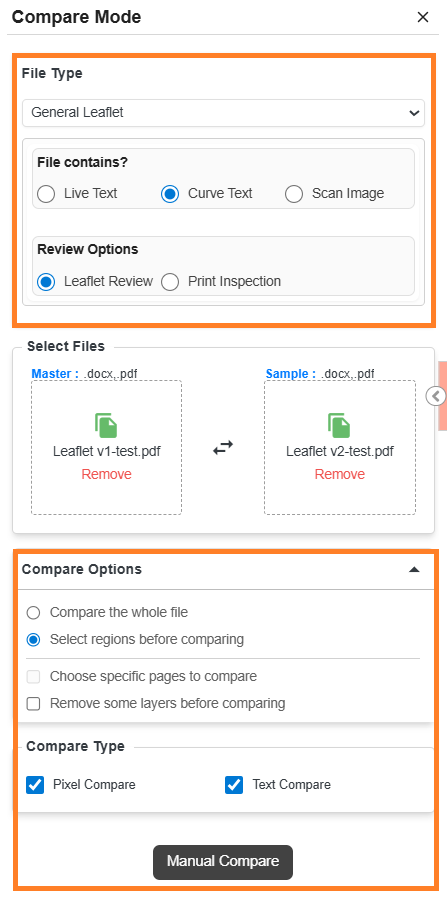
Configuration Details
To run this combination:
- Select the options in Compare Mode exactly as shown in this combination (General Leaflets + Live or Curve Text + Leaflet Review + Select region before comparing + Pixel Compare and/or Text Compare).
- Select the desired Master and Sample files.
- This configuration uses Manual Compare, meaning:
- You control which areas of the artwork will be compared.
- The system analyzes only the regions you select and displays deviations based on those regions.
- Since it is a manual comparison, the Compare button label changes to Manual Compare.
- Both comparison types are supported, allowing you to identify visual layout changes (columns, spacing, formatting) as well as textual changes in regulatory and informational content.
Note: Although both Pixel Compare and Text Compare are available in this combination, you may choose to run either one or both based on your scenario. In certain cases, Pixel Compare may surface irrelevant or redundant differences (false positives), and in other cases Text Compare may not be necessary. For guidance on when to use each comparison type, refer to the Help available within the Web Viewer. |
When This Combination Is Useful
Use this configuration when you need to review specific sections of a leaflet rather than validating the entire document. It is especially useful in scenarios such as:
- Leaflet layouts contain multiple columns or non-linear text flow, where manual region selection is required to guide the correct reading order
- Comparing Leaflet Word vs Leaflet PDF, where layout differences make full-file automatic comparison unreliable
- Validating regulatory updates, warnings, dosage instructions, or safety information limited to specific sections
- Excluding repetitive or non-essential content such as headers, footers, page numbers, or background artwork
- Reviewing only the sections of interest instead of the full leaflet to reduce unnecessary deviations
- Leaflet PDFs (PI/PIL) where manual region marking is mandatory for accurate text comparison
By manually selecting regions, this combination ensures accurate text flow interpretation and focused comparison results, making it ideal for complex leaflet layouts and targeted content validation.
What Happens After You Select Manual Compare
| Add-on Behavior: If you selected Remove Some Layers Before Comparing, the system opens the Layer Panel before running the comparison. Refer to About Add-ons (Optional Controls) for full workflow details. Or If you selected Choose Specific Pages to Compare, you must first choose page pairs before the comparison proceeds. See About Add-ons (Optional Controls) for more details. |
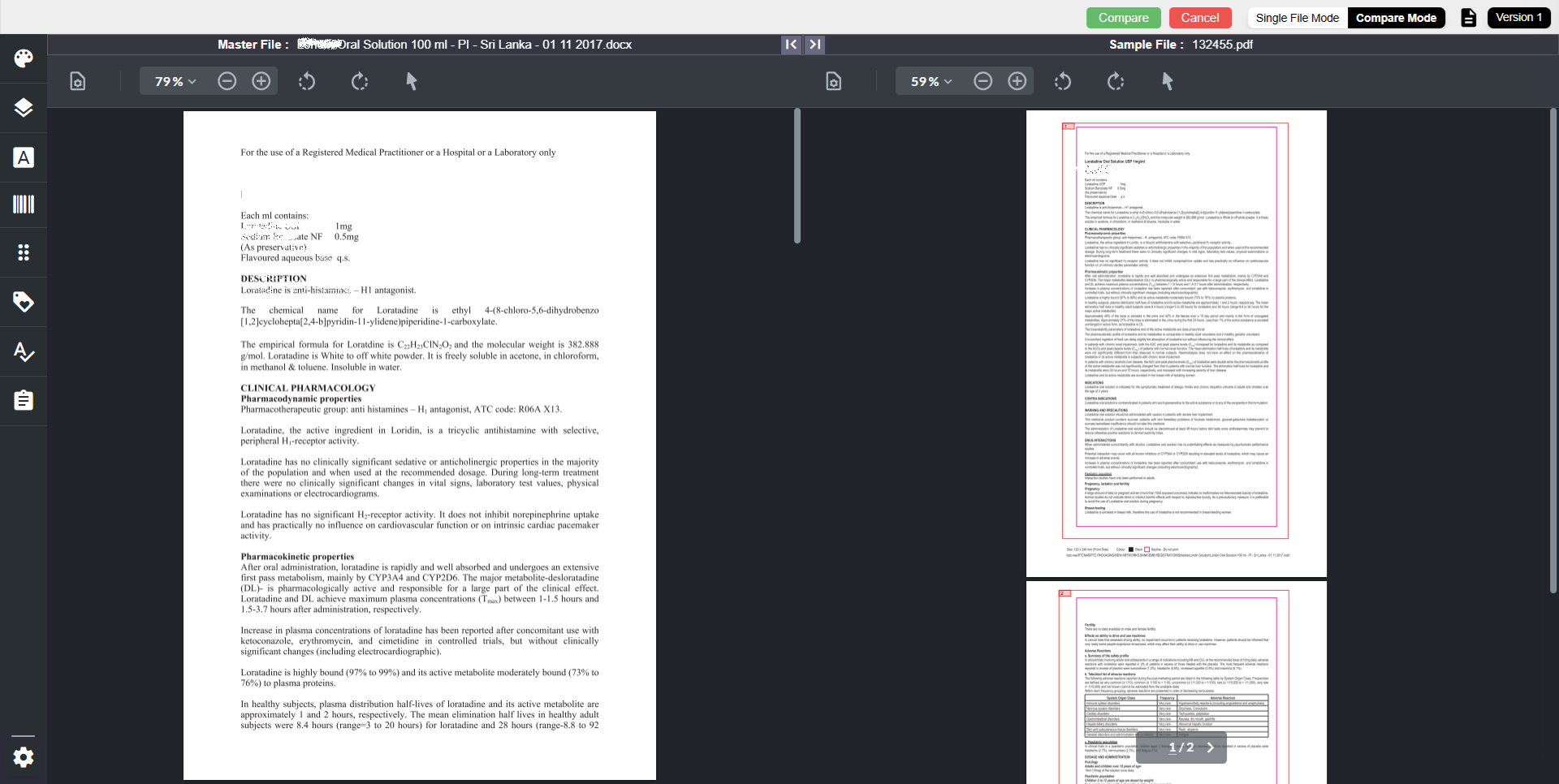
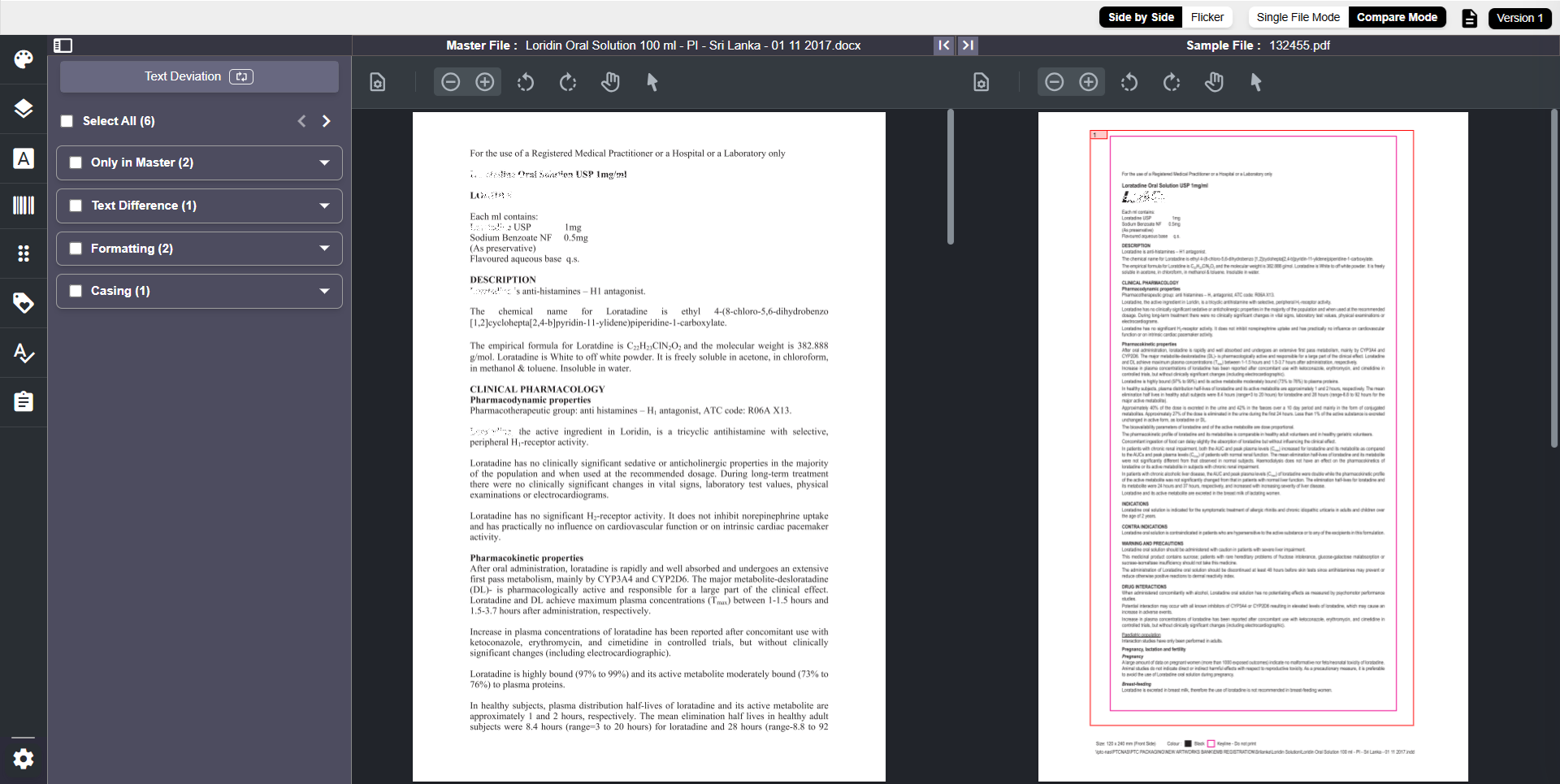
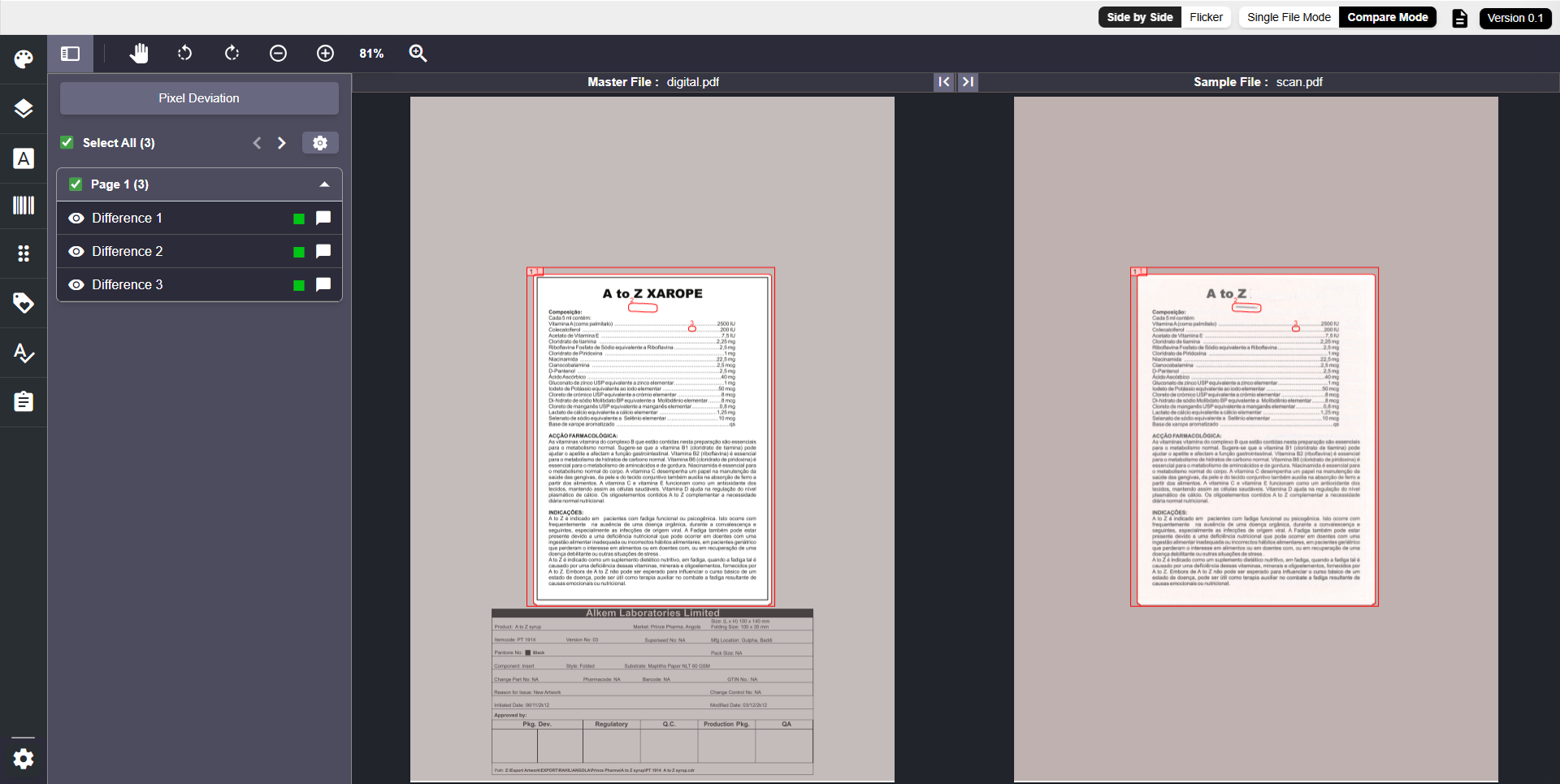
When you select Manual Compare, the system displays the Master and Sample artwork. You must now define the regions where comparison should occur.
How region selection works:
- Use your mouse to draw a bounding box around each region you want to compare in both the Master and Sample files.
Note: Multiple region selection is not supported for Pixel Compare. If you need to compare multiple specific regions, ensure that only Text Compare is selected as the Compare Type. - Each bounding box is automatically numbered in both files (1, 2, 3, etc.).
- During comparison, the system matches regions by their assigned number:
- 1 ↔ 1
- 2 ↔ 2
- And so on
- After marking all required regions, click Compare from the toolbar near Single File Mode.
Note: Multiple region selection is not supported for Pixel Compare. If you need to compare multiple specific regions, ensure that only Text Compare is selected as the Compare Type. - The system analyzes only the selected areas and displays all identified deviations in the Deviation Panel.
- Each deviation entry can be selected to navigate directly to the affected region in the artwork.
| Note: Only the deviation tabs relevant to the comparison you performed will appear. For example, if you ran only a pixel compare, only the Pixel Deviation tab will be displayed. |
Note:
|
Print Inspection
Combination 3 — Whole File (Automatic Compare)
General Leaflets + Scan Image + Print Inspection+ Compare the whole file + Pixel Compare
Print Inspection is used during post-printing validation of leaflet artwork. At this stage, the leaflet has already been physically printed and is then scanned for quality verification. The scanned leaflet is compared against the approved artwork or the print proof to ensure that the final printed output meets quality and compliance expectations.
Because scanned leaflet files do not contain live or selectable text—and may include minor visual distortions introduced by scanners, lighting conditions, or paper texture—visual inspection becomes the primary method of validation.
Using Pixel Compare, the system helps identify printing-related issues such as:
- Ink smudges, streaks, or uneven ink coverage
- Missing, broken, or faint text caused by printing defects
- Misalignment or registration issues across pages
- Color shifts or inconsistencies compared to the approved leaflet artwork
- Artifacts introduced during the printing or scanning process
This comparison ensures that the printed leaflet accurately reflects the approved content before it proceeds to distribution or mass production.
Why File Contains? must be Scan Image
- Scanned print outputs do not contain live text, making Live Text or Curve Text options inapplicable.
- Print Inspection workflows for leaflets typically involve scanned PDFs or image-based scanned files.
- Therefore, Scan Image is the only supported and valid option under File Contains? for Print Inspection.

Configuration Details
To run this combination:
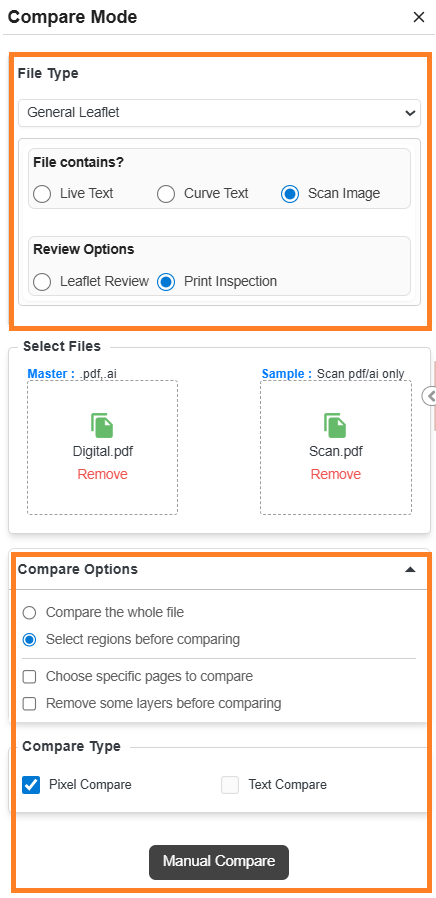
- Select the options in Compare Mode exactly as shown in this combination (General Leaflets + Scan Image + Print Inspection+ Compare the whole file + Pixel Compare).
- Select the desired Master and Sample files.
- This configuration uses Automatic Compare, meaning:
- No manual region selection is required.
- The system compares the full artwork as soon as you select Compare.
- Since Print Inspection supports only Pixel Compare, this combination focuses solely on detecting visual deviations such as:
- Ink smudges or streaks
- Missing or faint text caused by printing defects
- Misalignment or registration issues
- Color inconsistencies or scanning artifacts
| Note: For Print Inspection, Pixel Compare is the only supported Compare Type. Text Compare is not available because scanned print files contain no live text. |
When This Combination Is Useful
Use this combination when you need to validate the overall print quality of a leaflet after it has been physically printed and scanned. It is especially useful in scenarios such as:
- Performing final quality checks on printed leaflet samples before mass production or distribution
- Comparing a scanned leaflet against the approved artwork or print proof to ensure visual consistency
- Detecting printing defects that may affect readability, such as faded text, broken characters, or uneven ink coverage
- Identifying alignment or registration issues introduced during the printing process
- Verifying color accuracy and consistency across the leaflet pages
- Reviewing scanned samples from different print batches to ensure consistent output
Because this configuration uses Automatic Compare on the entire scanned leaflet, it is ideal when a complete visual inspection is required rather than focusing on individual sections.
What Happens After You Select Compare
| Add-on Behavior: If you selected Remove Some Layers Before Comparing, the system opens the Layer Panel before running the comparison. Refer to About Add-ons (Optional Controls) for full workflow details. Or If you selected Choose Specific Pages to Compare, you must first choose page pairs before the comparison proceeds. See About Add-ons (Optional Controls) for more details. |
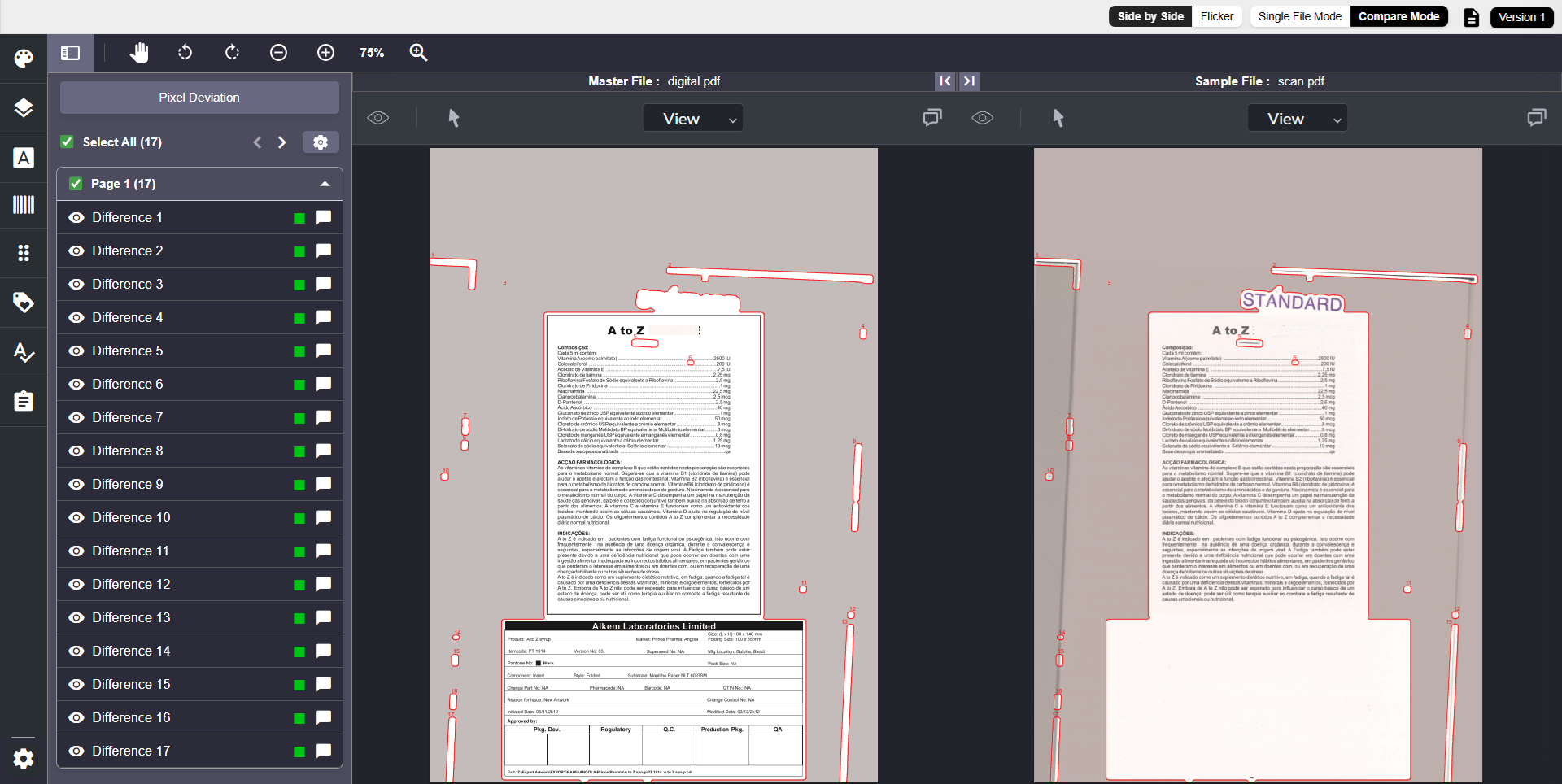
The system analyzes the visual components of the artwork and displays all identified deviations in the Deviation Panel.
Each deviation entry can be selected to navigate directly to the affected region in the artwork.
Combination 4 — Select Regions (Manual Compare)
General Leaflets + Scan Image + Print Inspection + Select region before comparing + Pixel Compare
This combination is used in scenarios similar to the Print Inspection – Automatic Compare workflow, where a printed leaflet is scanned and validated against the approved artwork or print proof.
The key difference is that you control which areas of the scanned leaflet are compared. Instead of analyzing the entire file, you manually draw bounding boxes to define the regions of interest. This approach allows you to focus on specific areas that are more likely to contain print defects—such as smudging, misalignment, or faded text—while avoiding irrelevant differences in unaffected sections.
Configuration Details
To run this combination:
- Select the options in Compare Mode exactly as shown in this combination (General Leaflets + Scan Image + Print Inspection + Select region before comparing + Pixel Compare).
- Select the desired Master and Sample files.
- This configuration uses Manual Compare, meaning:
- You control which areas of the artwork will be compared.
- The system analyzes only the regions you select and displays deviations based on those regions.
- Since it is a manual comparison, the Compare button label changes to Manual Compare.
- Print Inspection supports only Pixel Compare, so this combination focuses solely on detecting visual deviations.
Note:
|
When This Combination Is Useful
Use this configuration when you need to inspect specific areas of a printed leaflet rather than reviewing the entire scanned file. It is particularly useful in situations such as:
- A known or suspected print defect needs focused verification
- Only certain sections—such as warnings, dosage instructions, or key headings—require validation
- Quality checks are limited to areas that are more prone to printing issues
- Investigating localized problems such as ink smudges, broken characters, or uneven printing
- Avoiding unnecessary deviations from parts of the leaflet that are visually unchanged
- Comparing scanned samples where only a small portion of the leaflet is under review
By manually selecting regions, this combination enables targeted print inspection, helping you isolate and validate critical areas of the leaflet while minimizing noise from unaffected sections.
What Happens After You Select Manual Compare
| Add-on Behavior: If you selected Remove Some Layers Before Comparing, the system opens the Layer Panel before running the comparison. Refer to About Add-ons (Optional Controls) for full workflow details. Or If you selected Choose Specific Pages to Compare, you must first choose page pairs before the comparison proceeds. See About Add-ons (Optional Controls) for more details. |
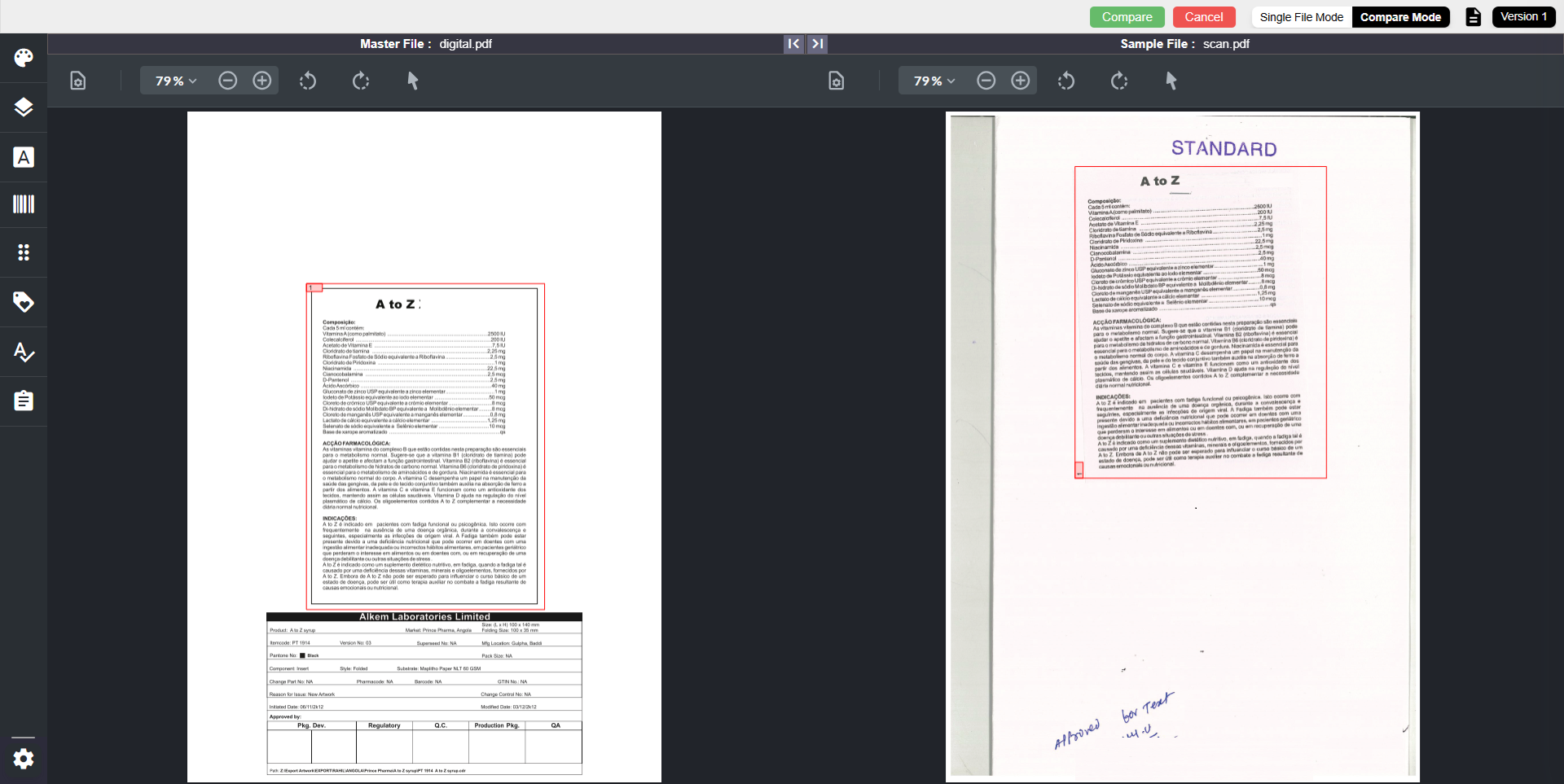
When you select Manual Compare, the system displays the Master and Sample artwork. You must now define the regions where comparison should occur.
How region selection works:
- Use your mouse to draw a bounding box around the region you want to compare in both the Master and Sample files.
Note: Print Inspection supports only Pixel Compare, and multiple regions are not supported. Draw only one bounding box in the Master file and one in the Sample file. - Each bounding box is automatically numbered in both files (1, 2, 3, etc.).
- During comparison, the system matches the bounding box in the Master file with the corresponding bounding box in the Sample file.
- After selecting the region, click Compare from the toolbar near Single File Mode.
Note: Multiple region selection is not supported in Print Inspection. Only one region can be compared per comparison session. - The system analyzes only the selected areas and displays all identified deviations in the Deviation Panel.
- Each deviation entry can be selected to navigate directly to the affected region in the artwork.
Best Practices for Marking Leaflet PDFs for Text Comparison
Below are some examples that illustrate how to mark Leaflet PDFs in the correct reading order, using bounding boxes that contain either a clean single-column layout or a clean multi-column layout—never a mix of both.