
About Add-ons (Optional Compare Options)
Compare Options includes optional controls—called Add-ons—that allow users to refine how the system evaluates artwork differences. These add-ons modify or narrow down what is compared, giving users more precision based on their workflow needs.
| Note: You can use only one add-on at a time. Both add-ons cannot be used together. |

There are two available add-ons:
- Remove Some Layers Before Comparing
- Choose Specific Pages to Compare
Remove Some Layers Before Comparing
This add-on allows users to exclude non-essential layers—such as dielines, braille, measurements, or background layers—before running the comparison. This is especially useful when changes in those layers introduce unnecessary noise in the comparison output.
 | Availability: This add-on is available for all comparison combinations except when Compare Mode = Multi Up. |
How It Works
When this add-on is selected:
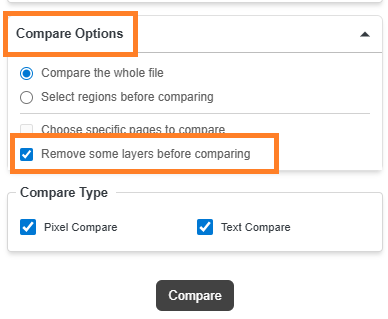
- Selecting Compare or Manual Compare opens the Layer Panel.
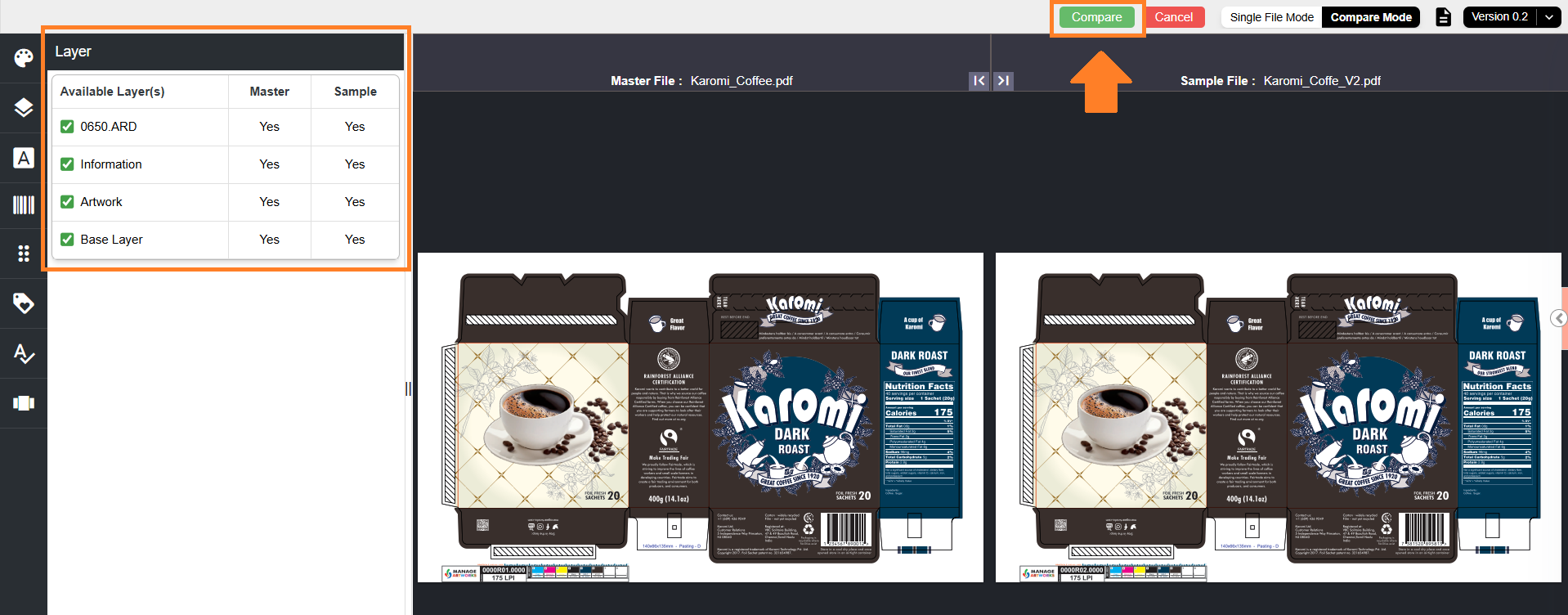
- The panel lists all layers detected in both the Master and Sample files.
- You can uncheck the layers you want to exclude from the comparison.
- After deselecting layers, select Compare from the toolbar near Single File Mode.
- The system analyzes only the remaining visible layers and shows deviations in the Deviation Panel.
This add-on is helpful when you want to focus comparison results on critical artwork content and avoid changes caused by dielines, measurement or background layers.
Choose Specific Pages to Compare
This add-on allows users to define custom page mappings between the Master and Sample files, enabling more control over which pages should be compared in multi-page documents.
| Availability: This add-on is enabled only when all conditions below are met:
|
How It Works
When Choose specific pages to compare is selected:
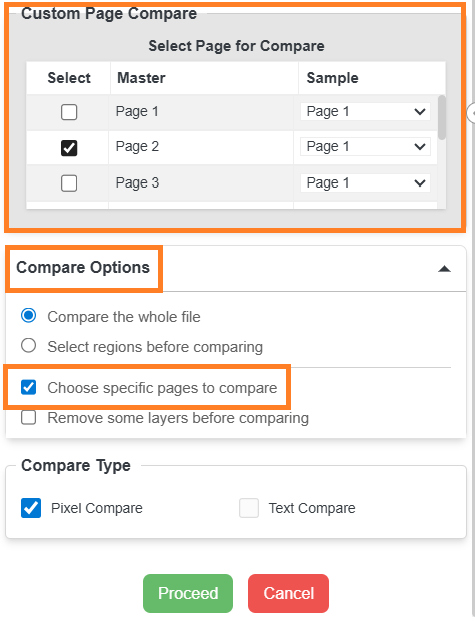
- A new section titled Custom Page Compare appears.
- The Compare or Manual Compare button is replaced by Proceed and Cancel buttons.
- All pages from the Master file are listed. These remain fixed.
- For each Master page, you can select a corresponding Sample page using the dropdown.
- The number of rows equals the number of pages in the Master file.
- Check the Select column checkbox associated with the row you want to include in the comparison.
- Select Proceed.
Note: The Proceed button is enabled only when at least one row is selected. - The system compares only the selected page pairs.
- Results are displayed in the Deviation Panel, just like a regular comparison.
This add-on is useful when the Master and Sample files have matching content but are arranged differently, or when only specific pages need to be validated.