---
title: "Use Bulk Actions on a Copy Sheet"
url: "https://help.manageartworks.com/en/article/use-bulk-actions-on-a-copy-sheet"
language: "en"
last_updated: "2026-09-29T05:33:02.889Z"
---
# Use Bulk Actions on a Copy Sheet
When the same change applies to several copy elements, select them and act on all of them at once instead of repeating the action element by element.
|  | **Note:** The actions available in the **Bulk Action** menu depend on the copy task you are working in. |
| --- | --- |
|  | **Important Consideration**
- The **Bulk Action** button appears only when you select two or more eligible items, and each count is the number of eligible items rather than the number you selected.
- Bulk actions follow the same permissions as the equivalent single-element actions. Items you cannot act on, or that are not eligible for the action, are excluded automatically and named in the confirmation message.
- Bulk actions are not available in Only View tasks or in completed projects.
- A copy element marked as mandatory cannot be deleted. |
| --- | --- |
## Bulk Delete
Deletes the selected copy elements.
Available wherever you have edit rights, except in the Translation Language Input and Translation Language Approval tasks, where the copy element itself cannot be deleted.
1. Select the checkbox for each required copy element.
2. Select **Bulk Action**.
**Note:** The menu lists only the actions available at the current stage, each with the number of selected items eligible for it.
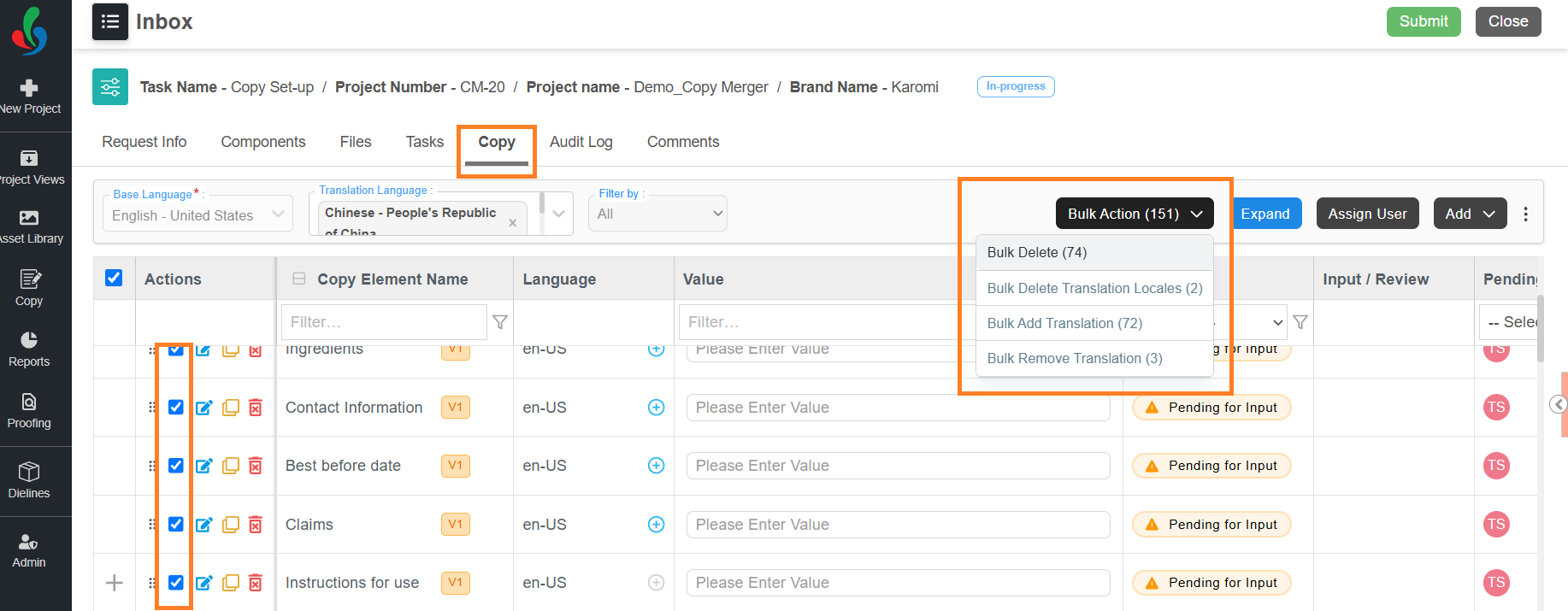
3. Select **Bulk Delete** from the **Bulk Action** menu.
1. If **Deletion Reason Mandatory** is disabled in [Copy Manager Settings](https://help.manageartworks.com/en/article/copy-manager-settings), then the selected copy elements are deleted immediately. No further steps are needed.
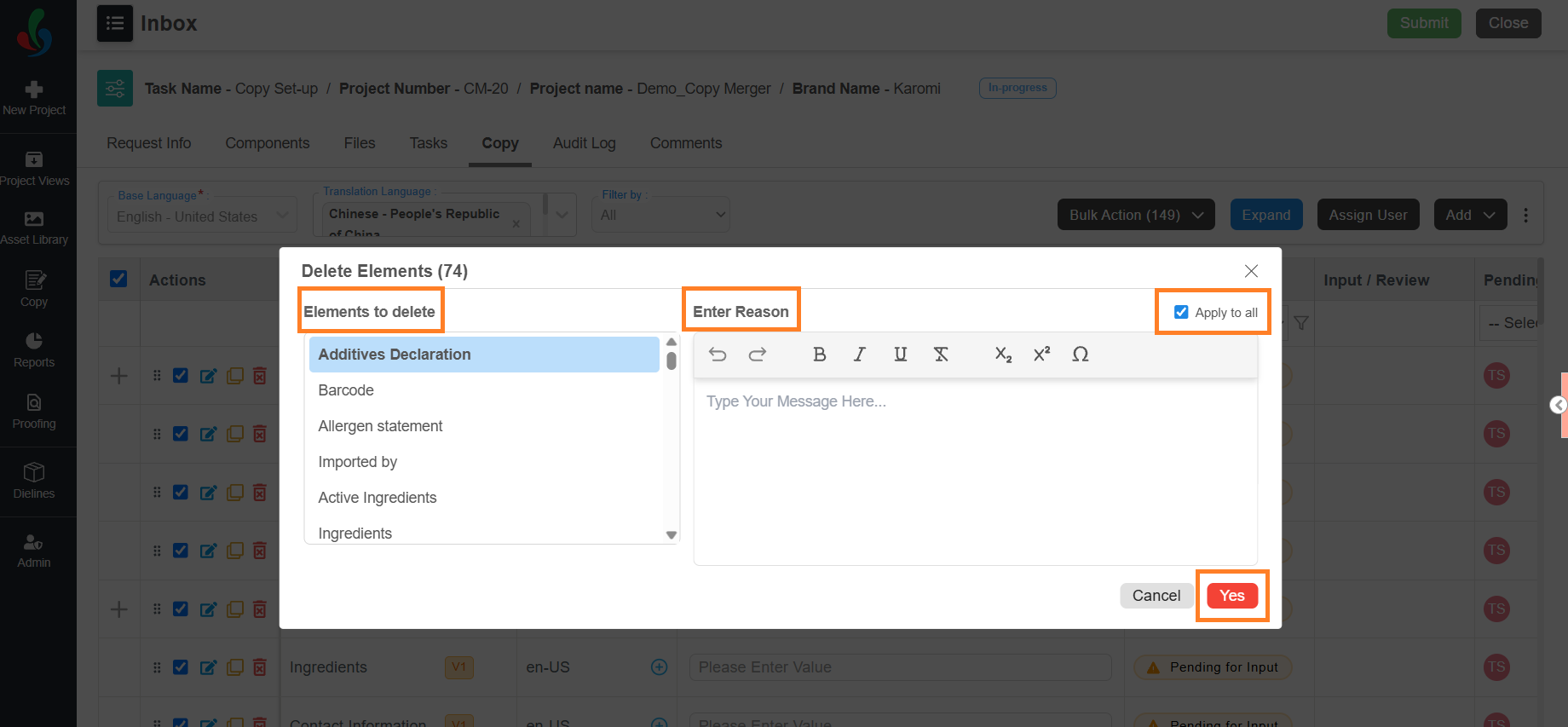
2. If **Deletion Reason Mandatory** is enabled, the **Delete Elements** dialog is displayed.
1. Enter the reason for deletion under **Enter Reason**.
**Note:** **Apply to all** is selected by default, so the reason you enter covers every element.
2. If required, give elements their own reasons, clear **Apply to all**.
1. Select an element in the **Elements to delete** list.
2. Enter the reason for that element under **Enter Reason**.
3. Repeat for each element in the list.
3. Select **Yes**. The selected copy elements are deleted from the project.
## Bulk Add Translation
Adds one or more translation languages to every selected copy element, so you do not have to add them element by element. In an approval task, this action is available only when the copy task is configured to let approval participants modify copy.
1. Select the checkbox for each required copy element.
2. Select **Bulk Action**.
**Note:** The menu lists only the actions available at the current stage, each with the number of selected items eligible for it.

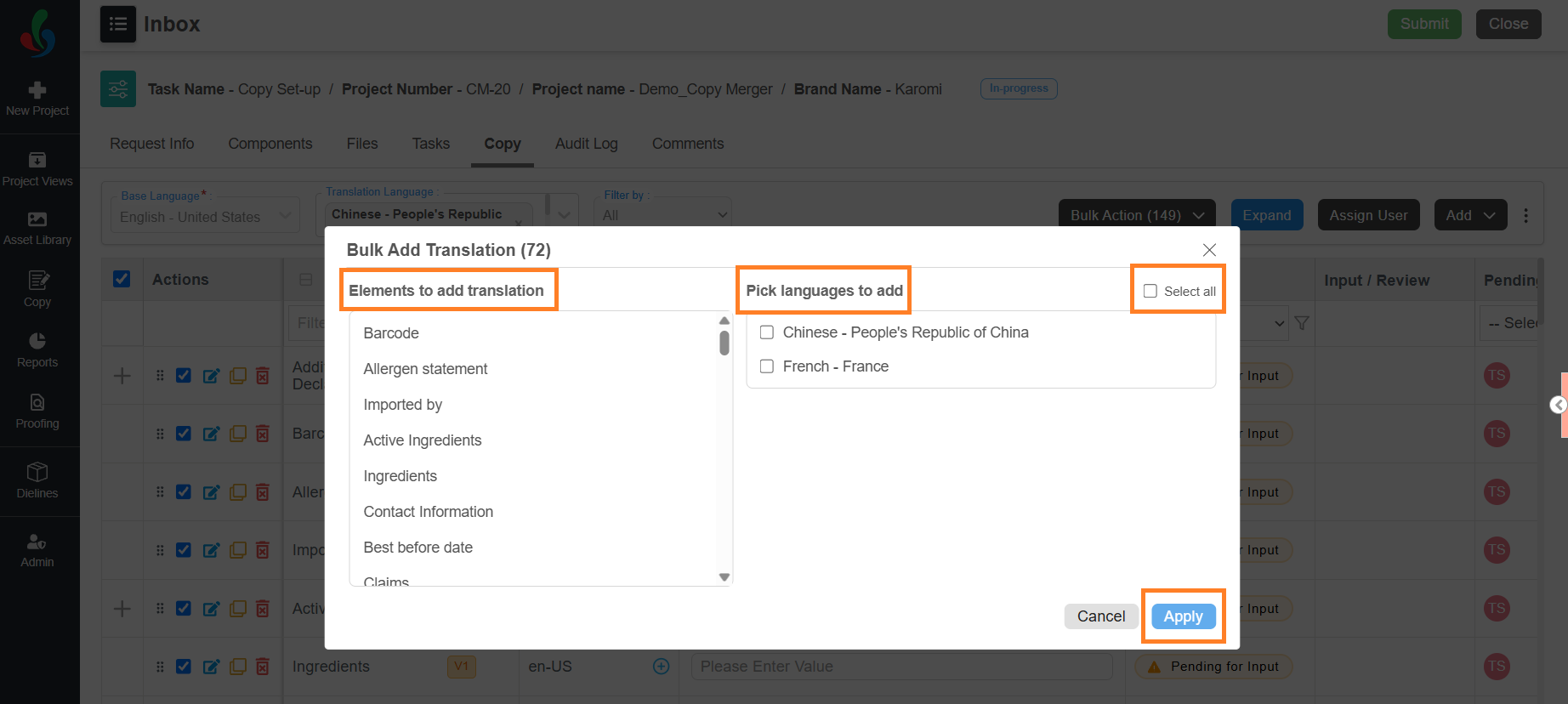
3. Select **Bulk Add Translation** from the **Bulk Action** menu. The **Bulk Add Translation** dialog lists the selected copy elements under **Elements to add translation**.
4. Under **Pick languages to add**, select the required languages, or select **Select all**.
5. Select **Apply**.
6. Each language you selected is added to every copy element that does not already have it, and appears on the copy sheet immediately.
**Note:** Only the translation languages configured for the project are offered.
## Bulk Remove Translation
Removes the languages you choose from every selected copy element. Select the copy elements for this action; their language rows do not need to be selected. Use **Bulk Delete Translation Locales** instead when the languages to remove differ from one copy element to the next. In an approval task, this action is available only when the copy task is configured to let approval participants modify copy.
1. Select the checkbox for each required copy element.
2. Select **Bulk Action**.
**Note:** The menu lists only the actions available at the current stage, each with the number of selected items eligible for it.

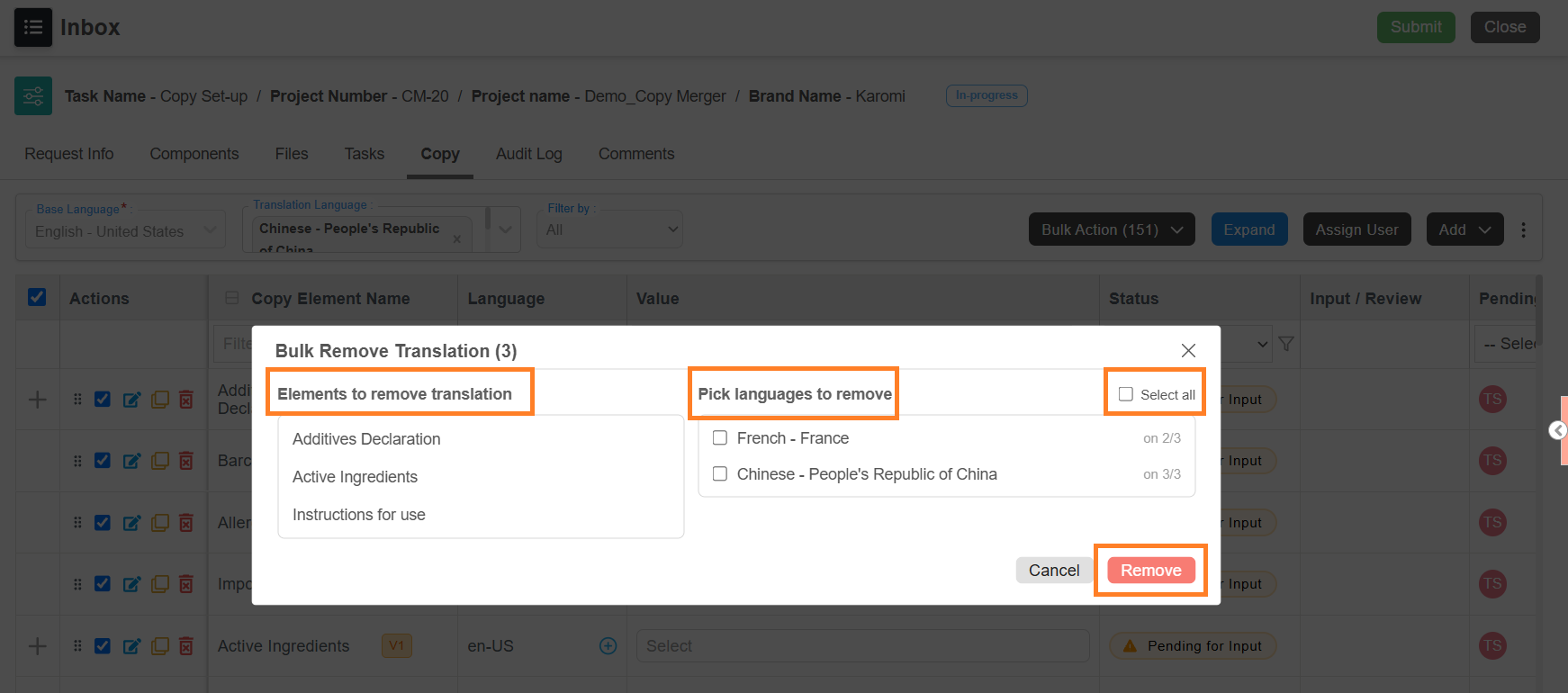
3. Select **Bulk Remove Translation** from the **Bulk Action** menu. The **Bulk Remove Translation** dialog lists the selected copy elements under **Elements to remove translation**.
4. Under **Pick languages to remove**, select the required languages, or select **Select all**. Each language shows how many of the selected copy elements currently have it.
5. Select **Remove**.
1. If **Deletion Reason Mandatory** is disabled in [Copy Manager Settings](https://help.manageartworks.com/en/article/copy-manager-settings), the languages are removed immediately. No further steps are needed.
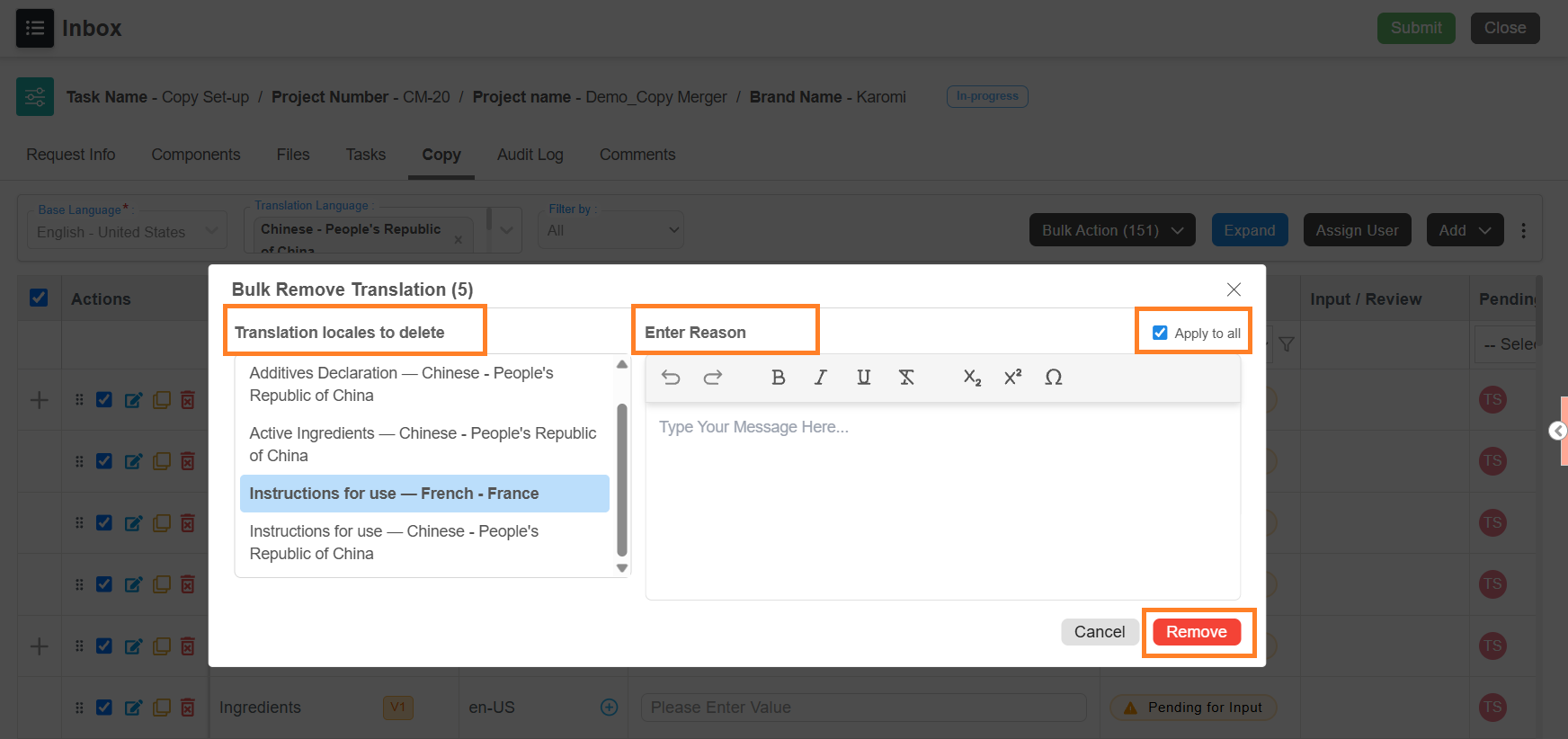
2. If **Deletion Reason Mandatory** is enabled, the dialog asks for a reason and lists each copy element and language to be removed under **Translation locales to delete**.
1. Enter the reason for deletion under **Enter Reason**.
**Note:** **Apply to all** is selected by default, so the reason you enter covers every entry in the list.
2. If required, give entries their own reasons, clear **Apply to all**.
1. Select an locale element in the **Elements to delete** list.
2. Enter the reason for that entry under **Enter Reason**.
3. Repeat for each entry in the list.
3. Select **Remove**. The languages are removed from every selected copy element. Copy elements that do not have any of the languages you chose are skipped and named in a message.
**Note:** A translation language that is part of a Nutrition Panel is not removed by this action. Remove it from the copy element instead.
## Bulk Delete Translation Locales
Deletes only the translation language rows you selected. Select the language rows for this action — selecting a copy element does not make it available.
1. Select **Bulk Delete Translation Locales** from the **Bulk Action** menu.
1. If **Deletion Reason Mandatory** is disabled in [Copy Manager Settings](https://help.manageartworks.com/en/article/copy-manager-settings), the selected translation languages are deleted immediately. No further steps are needed.
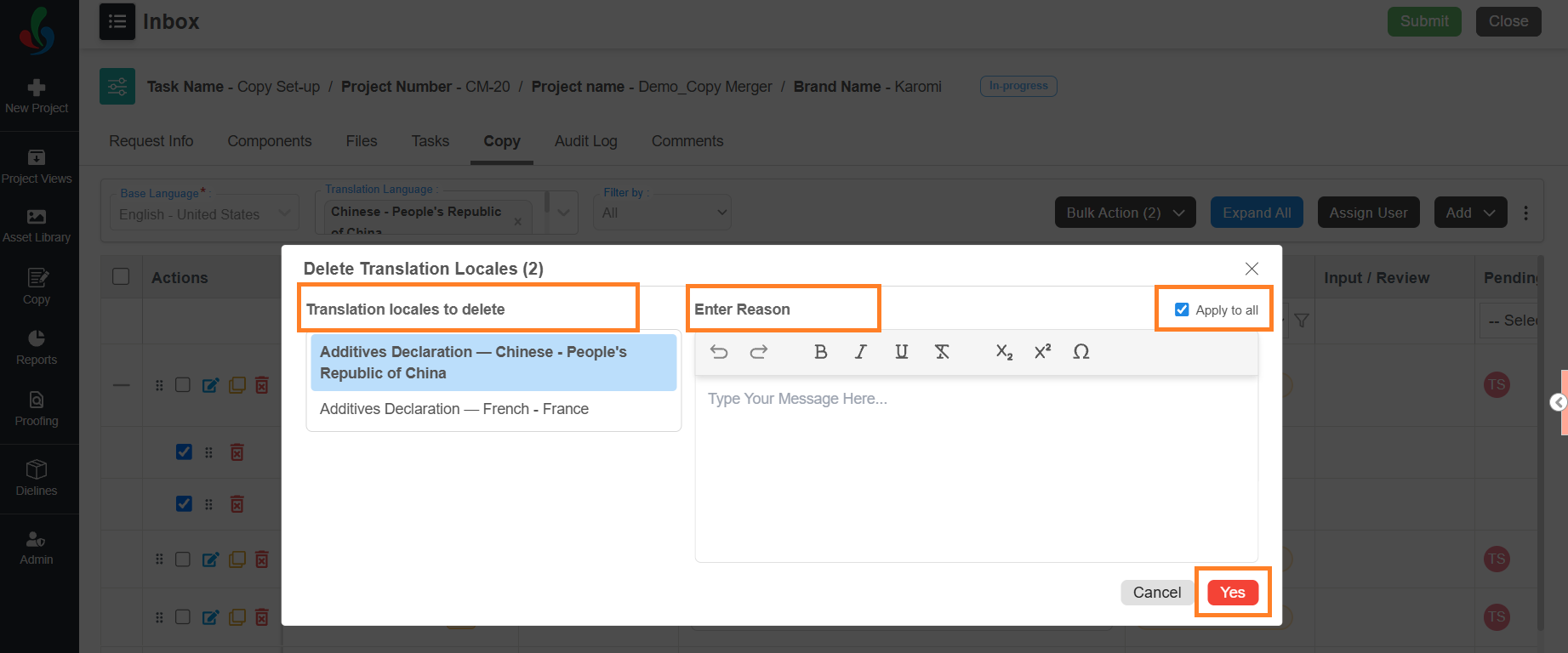
2. If **Deletion Reason Mandatory** is enabled, the **Delete Translation Locales** dialog is displayed.
1. Enter the reason for deletion under **Enter Reason**.
**Note:** **Apply to all** is selected by default, so the reason you enter covers every entry in the list.
2. If required, give entries their own reasons, clear **Apply to all**.
1. Select an locale element in the **Translation locales to delete** list.
2. Enter the reason for that entry under **Enter Reason**.
3. Repeat for each locale element in the list.
1. Select **Yes**. The selected translation language rows you will be deleted.
## Bulk Submit
Submits the selected items, exactly as if you had submitted each one individually.
Available in the Copy Input and Translation Language Input tasks. Only the items assigned to you are eligible, and only after a value has been entered. In the Copy Input task, a copy element also needs a component assigned.
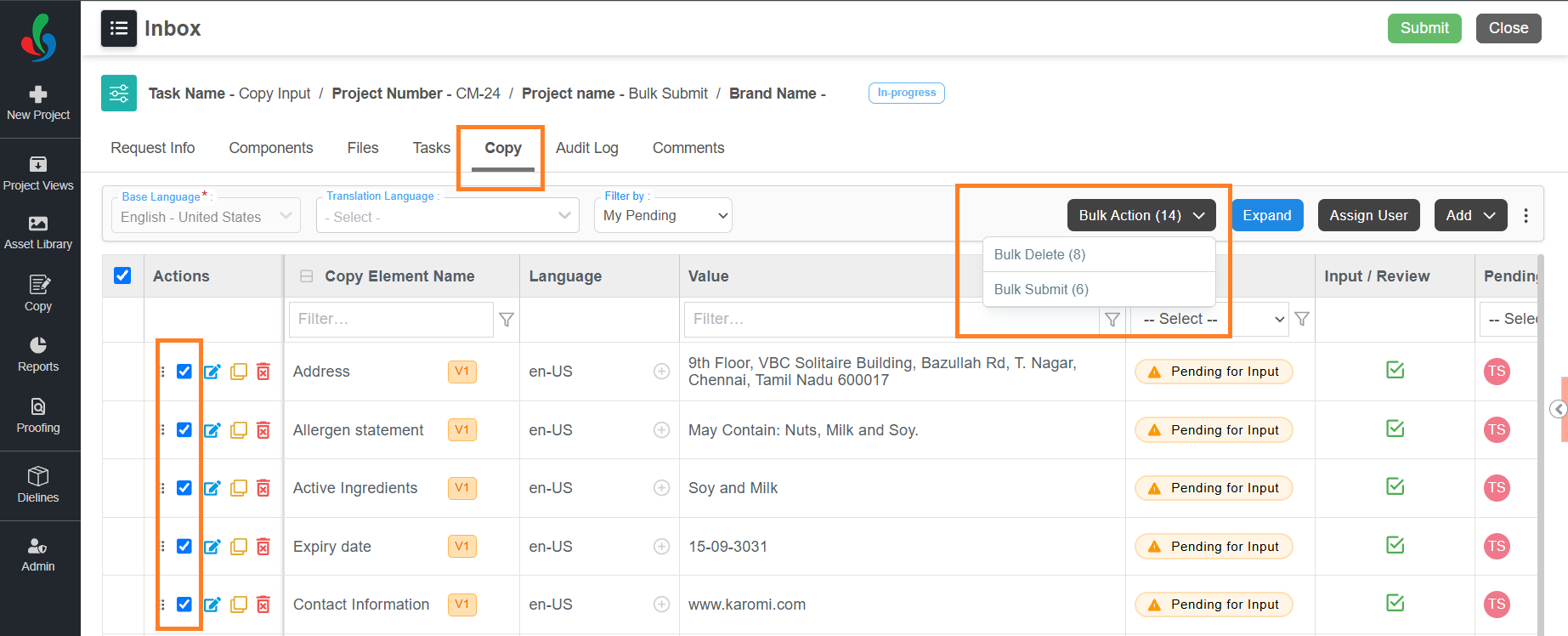
1. Select the checkbox for each required copy element. In the Translation Language Input task, select the checkbox on each translation language row.
2. Select **Bulk Action**.
**Note:** The menu lists only the actions available at the current stage, each with the number of selected items eligible for it.
3. Select **Bulk Submit** from the **Bulk Action** menu.
The values are locked and the status changes to **Input Given** in the Copy Input task, or **Translation Given** in the Translation Language Input task.
## Bulk Approve
Approves the selected items.
Available in the Copy Approval and Translation Language Approval tasks. Only the items assigned to you and still awaiting your decision are eligible.
1. Select the checkbox for each required copy element. In the Translation Language Approval task, expand the copy element and select the checkbox on each translation language row.
2. Select **Bulk Action**. **Note:** The menu lists only the actions available at the current stage, each with the number of selected items eligible for it.
3. Select **Bulk Approve** from the **Bulk Action** menu.
The values are locked and the status changes to **Copy Input Approved** in the Copy Approval task, or **Translation Approved** in the Translation Language Approval task.
To change a decision afterwards, select the **Undo** icon in the **Input / Review** column for that item, then approve or reject it again.
## Bulk Reject
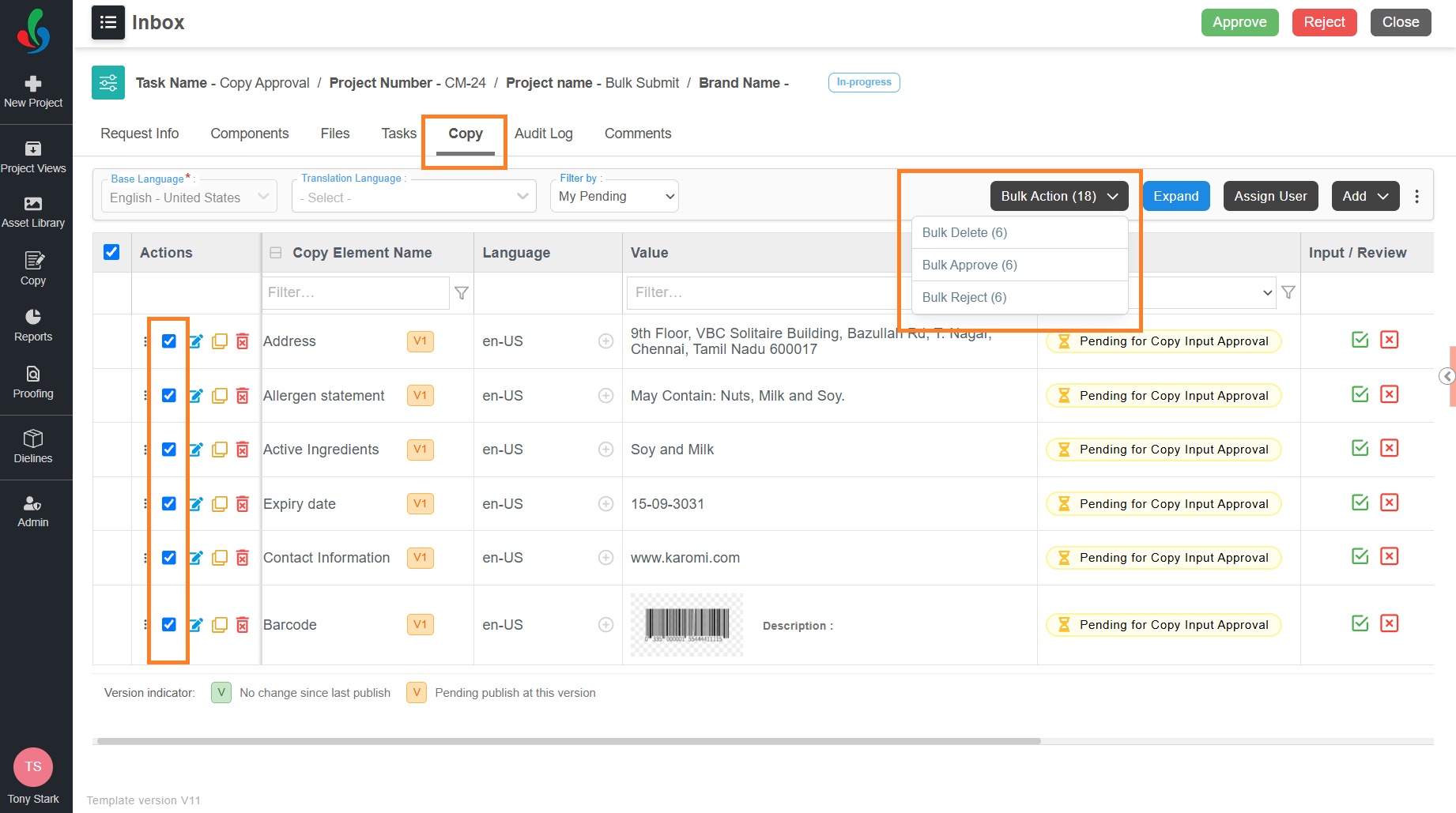
Rejects the selected items and changes their status to **Copy Input Rejected** in the Copy Approval task, or **Translation Rejected** in the Translation Language Approval task.
Available in the Copy Approval and Translation Language Approval tasks. Only the items assigned to you and still awaiting your decision are eligible.
1. Select the checkbox for each required copy element. In the Translation Language Approval task, select the checkbox on each translation language row.
2. Select **Bulk Action**.
**Note:** The menu lists only the actions available at the current stage, each with the number of selected items eligible for it.
3. Select **Bulk Reject** from the **Bulk Action** menu.
1. If **Rejection Reason Mandatory** is disabled in [Copy Manager Settings](https://help.manageartworks.com/en/article/copy-manager-settings), the selected items are rejected immediately. No further steps are needed.

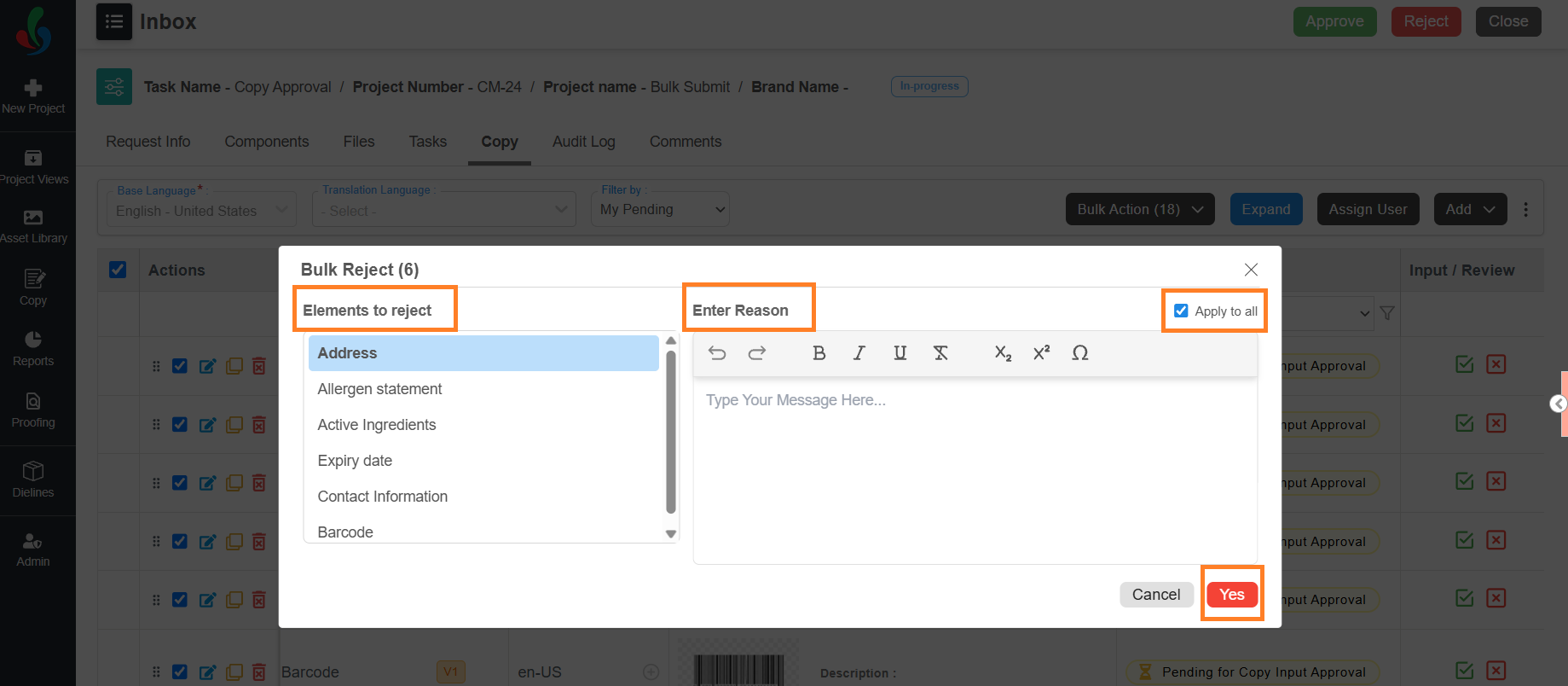
2. If **Rejection Reason Mandatory** is enabled, the **Bulk Reject** dialog is displayed.
1. Enter the reason for rejection under **Enter Reason**.
**Note:** **Apply to all** is selected by default, so the reason you enter covers every item in the list.
2. If required, give items their own reasons. Clear **Apply to all**.
1. Select an item in the list.
2. Enter the reason for that item under **Enter Reason**.
3. Repeat for each item in the list.
3. Select **Yes**. The selected items are rejected.
## Bulk Unapprove
Unapproves the selected copy elements so their values can be edited. Editing and deletion stay locked on a copy element until it is unapproved.
Available in the **Artwork Review Edit** task.
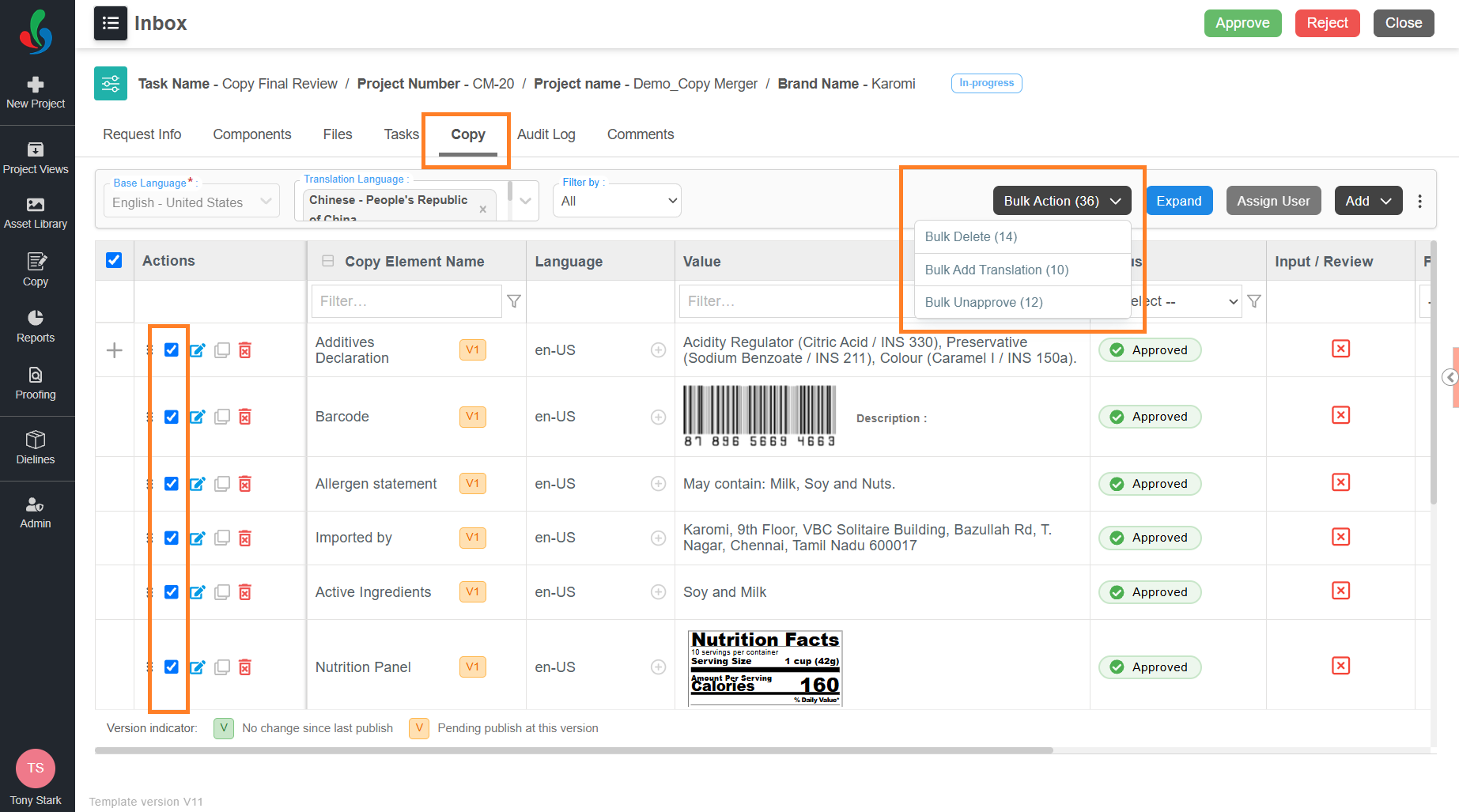
1. Select the checkbox for each required copy element.
2. Select **Bulk Action**.
**Note:** The menu lists only the actions available at the current stage, each with the number of selected items eligible for it.
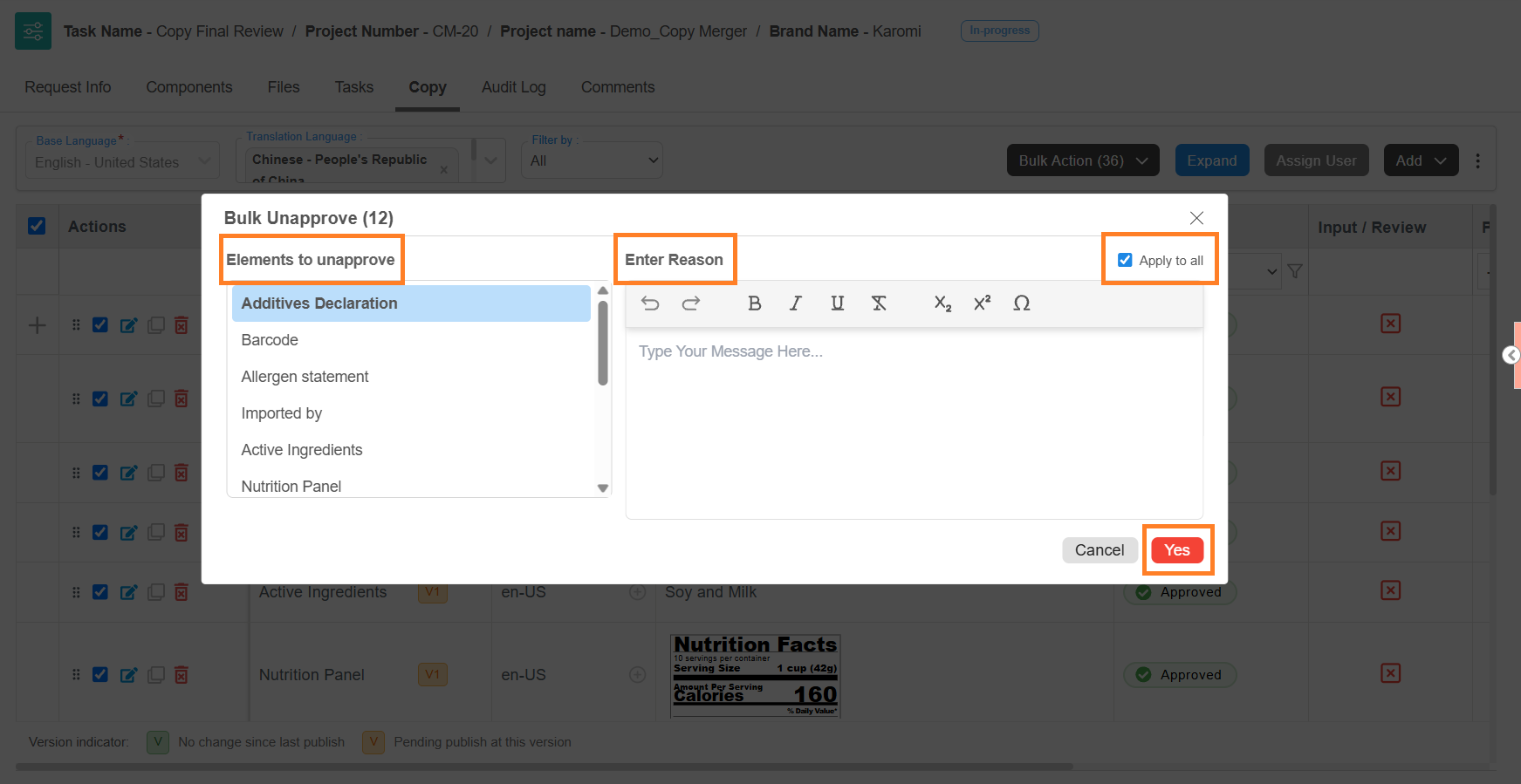
3. Select **Bulk Unapprove** from the **Bulk Action** menu. The **Bulk Unapprove** dialog is displayed.
4. Enter the reason under **Enter Reason**.
**Note:** **Apply to all** is selected by default, so the reason you enter covers every element.
5. If required, give elements their own reasons.
1. Clear **Apply to all**.
2. Select an element in the list.
3. Enter the reason for that element under **Enter Reason**.
4. Repeat for each element in the list.
6. Select **Yes**. The selected copy elements are unapproved.
## Bulk Revise
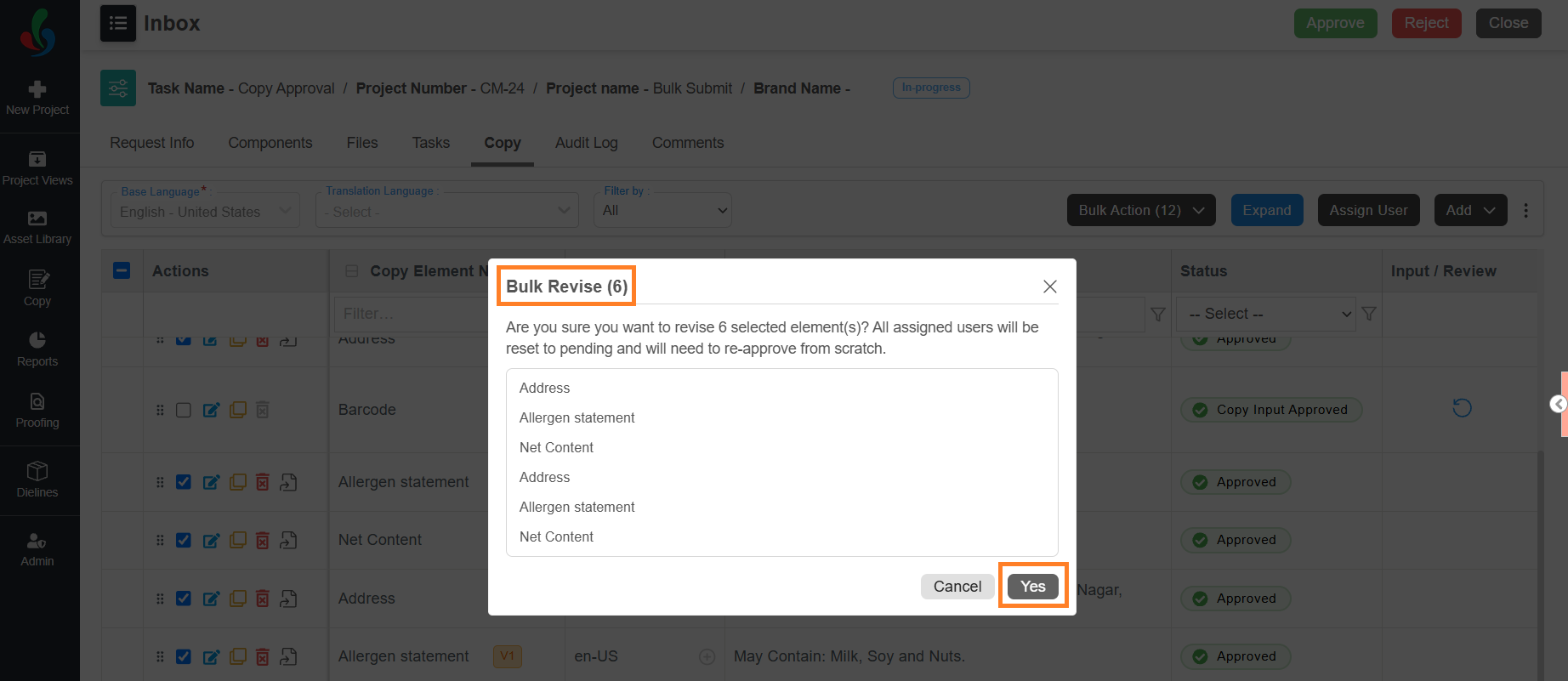
Puts the selected copy elements back into an editable state and restarts their approval. Their status returns to **Pending for Input**, and every assigned user must approve again from the beginning.
Only approved copy elements are eligible.
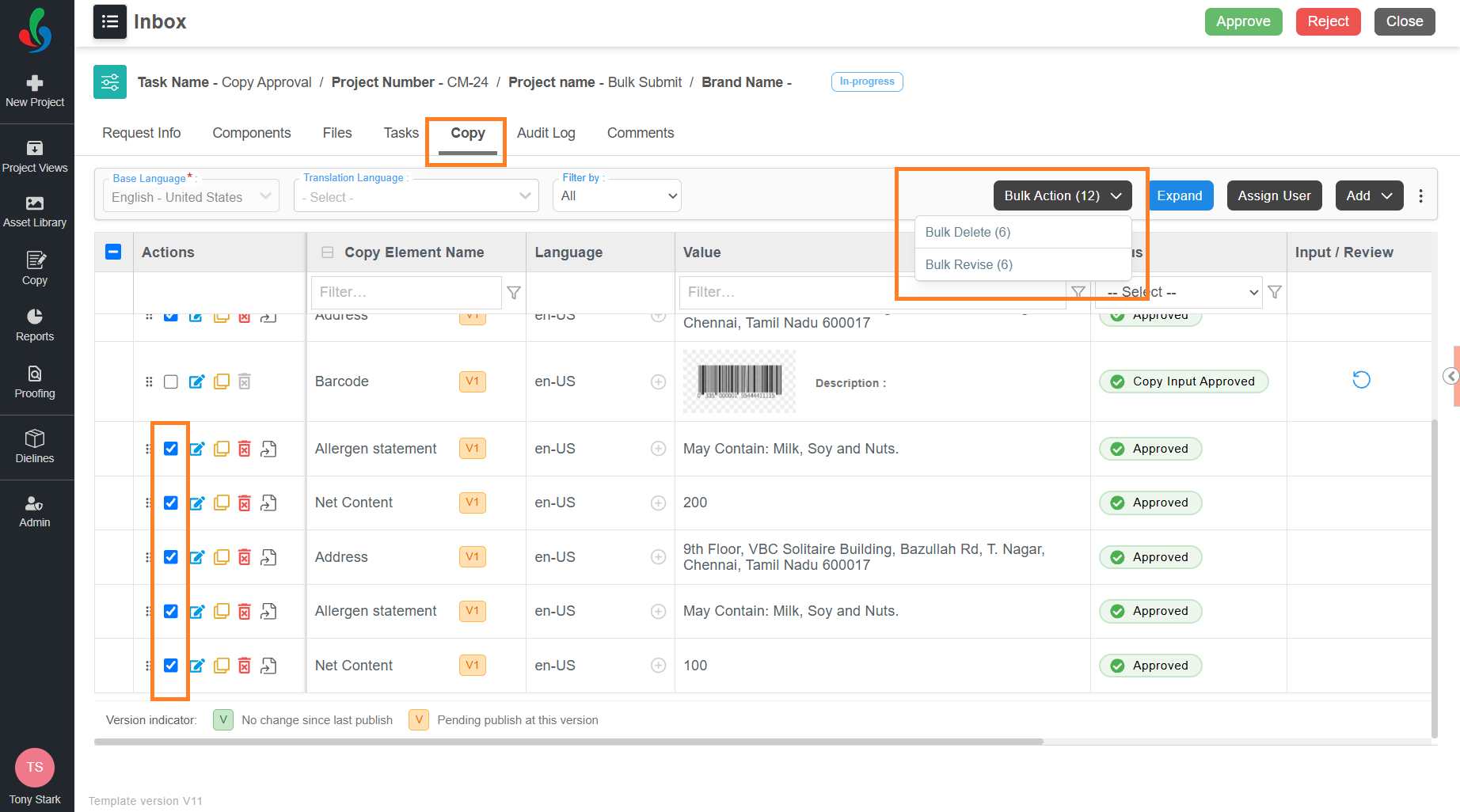
1. Select the checkbox for each required copy element.
2. Select **Bulk Action**.
**Note:** The menu lists only the actions available at the current stage, each with the number of selected items eligible for it.
3. Select **Bulk Revise** from the **Bulk Action** menu.
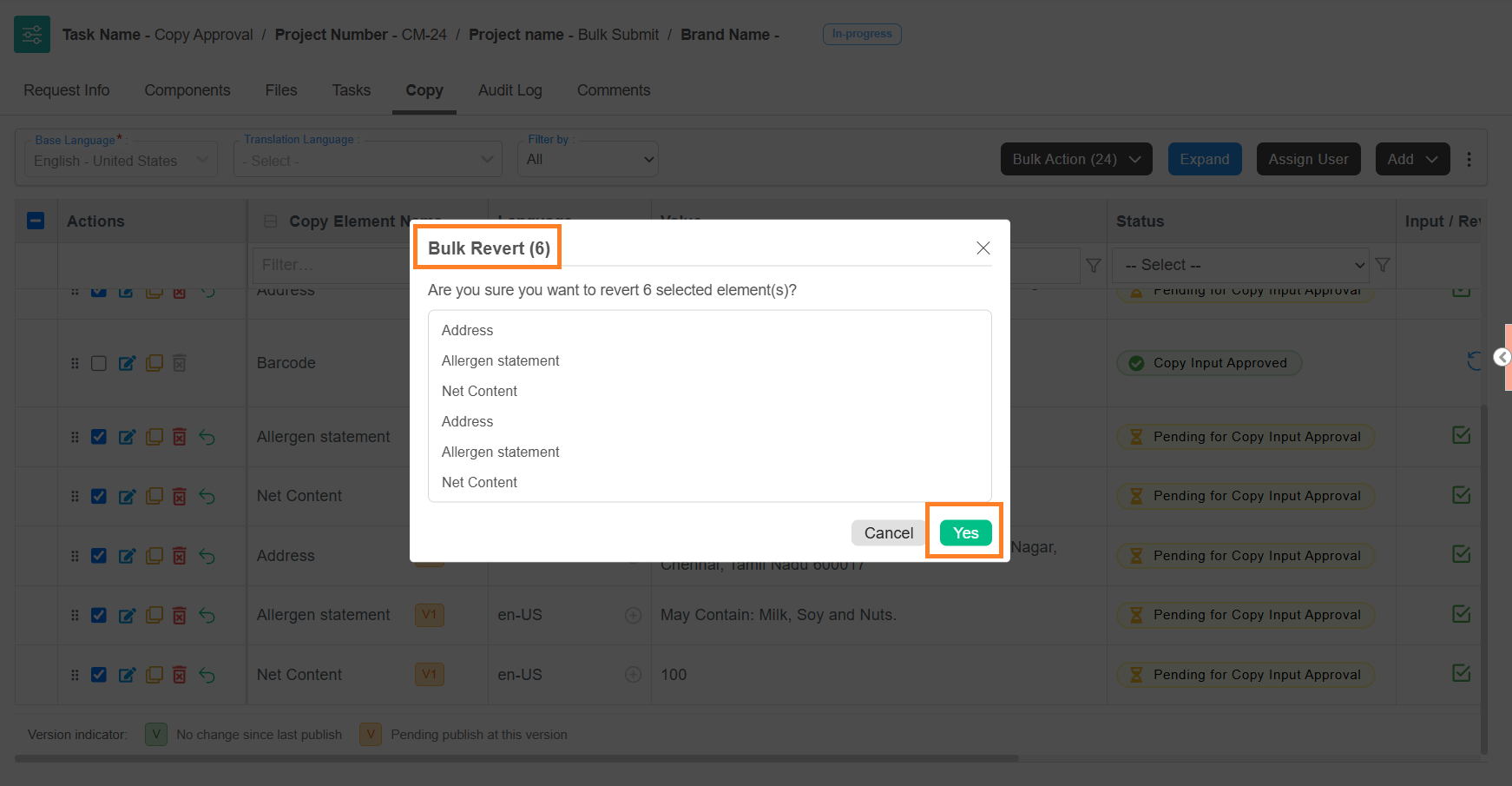
4. Check the copy elements listed in the confirmation dialog, then select **Yes**.
## Bulk Revert
Restores the last published value for the selected copy elements.
Only revised copy elements are eligible.
1. Select the checkbox for each required copy element.
2. Select **Bulk Action**.
**Note:** The menu lists only the actions available at the current stage, each with the number of selected items eligible for it.
3. Select **Bulk Revert** from the **Bulk Action** menu.
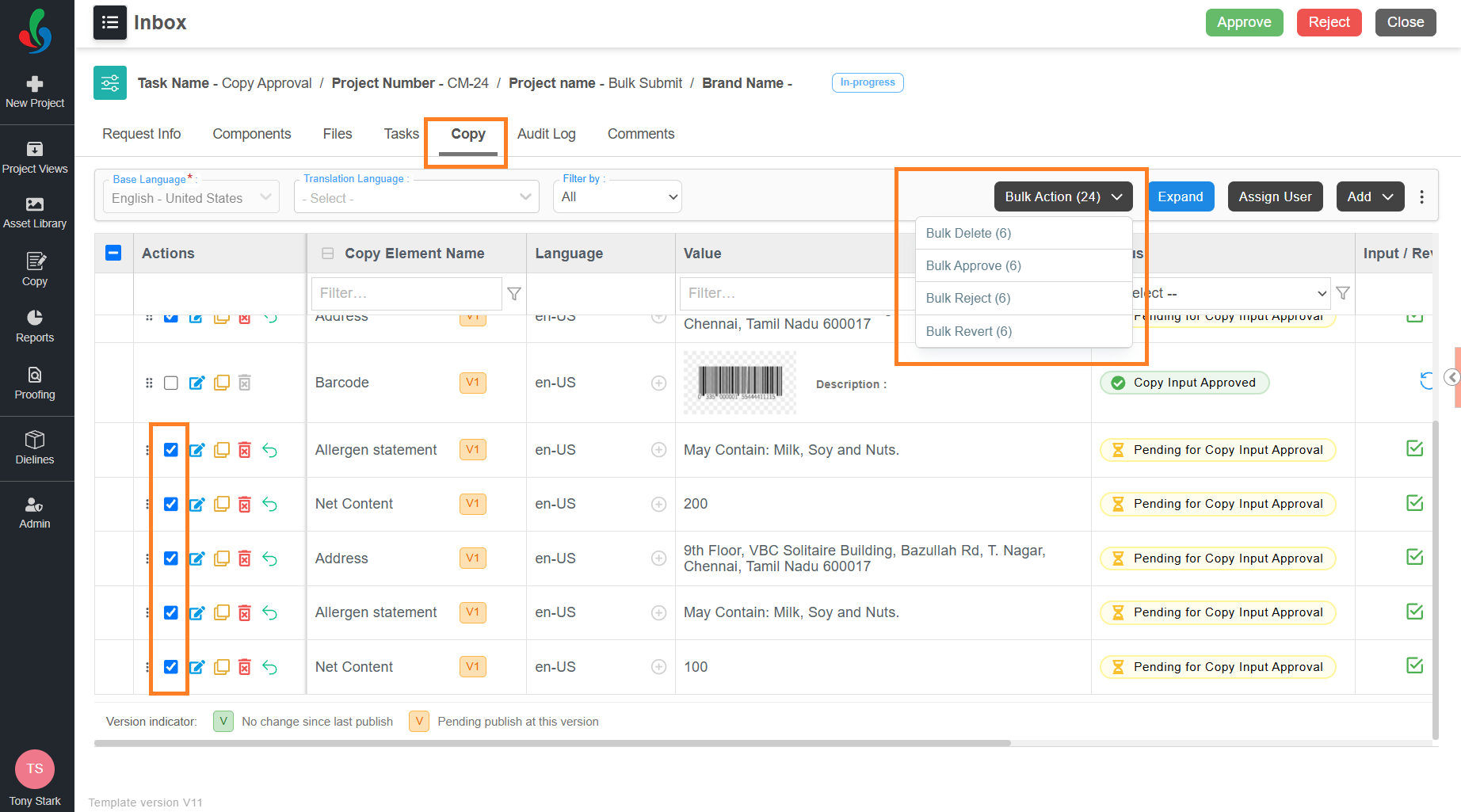
4. Check the copy elements listed in the confirmation dialog, then select **Yes**.