---
title: "Manage Metadata Fields (Enterprise Plan)"
url: "https://help.manageartworks.com/en/article/manage-metadata-fields-enterprise-plan"
language: "en"
last_updated: "2026-08-06T10:16:12.027Z"
---
# Manage Metadata Fields (Enterprise Plan)
|  | **Note:** Metadata Fields feature differ between the Growth and Enterprise plans. This article covers managing metadata fields in the **Enterprise Plan**.
For information about managing metadata fields in the **Growth Plan**, see [Manage Metadata Fields (Growth Plan](https://help.manageartworks.com/en/article/manage-metadata-fields-growth-plan)). |
| --- | --- |
You can update the display name and configure additional properties for metadata fields in ManageArtworks.
## Manage Metadata Field Properties
### 01\. Access Metadata Fields
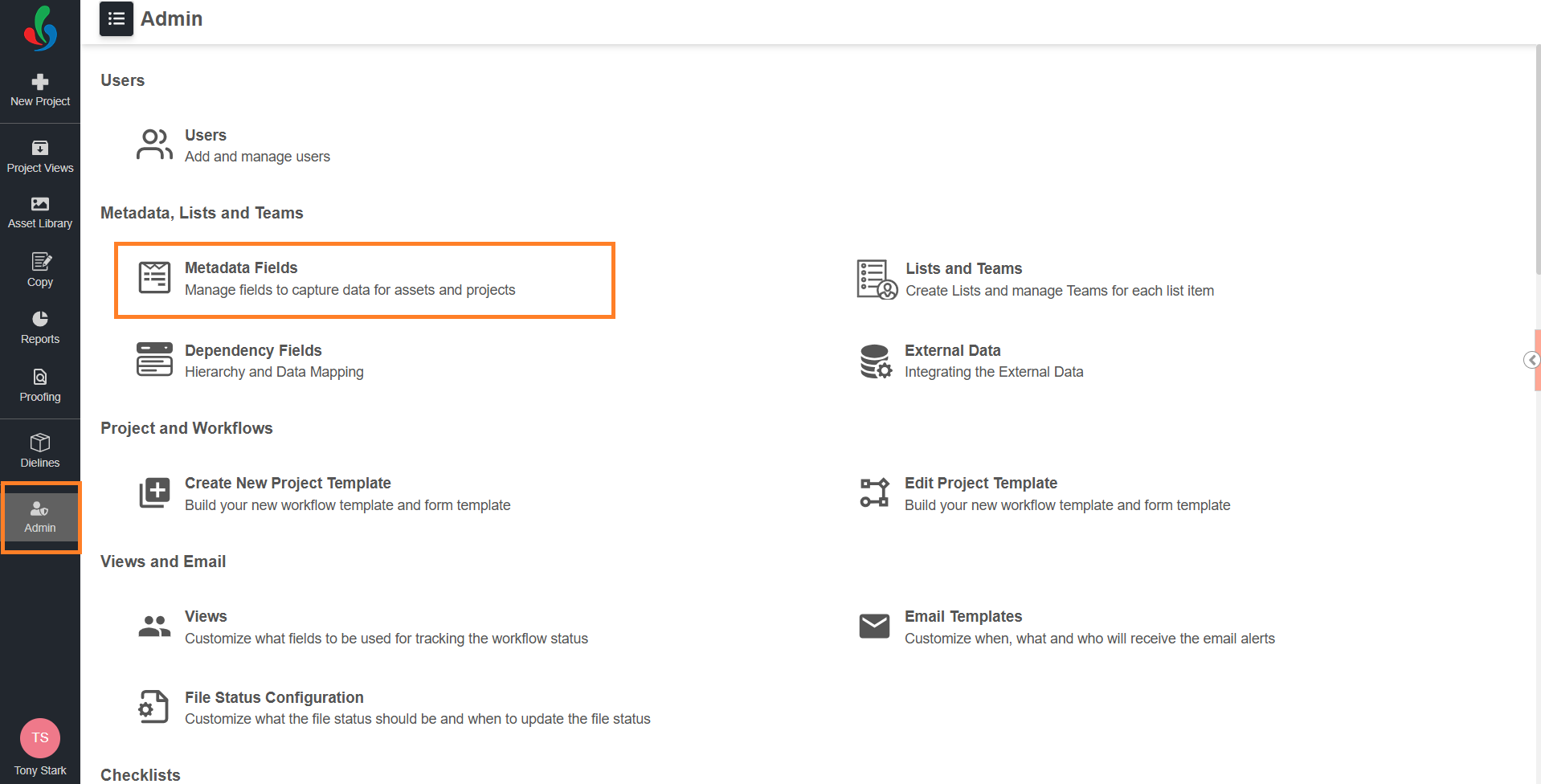
1. Sign in to your [ManageArtworks](https://app.manageartworks.com/karomi/global/build/login) account.
2. Navigate to the **Admin** module.
3. Under **Metadata, Lists and Teams**, select **Metadata Fields**.
### 02\. Update Field Display Name
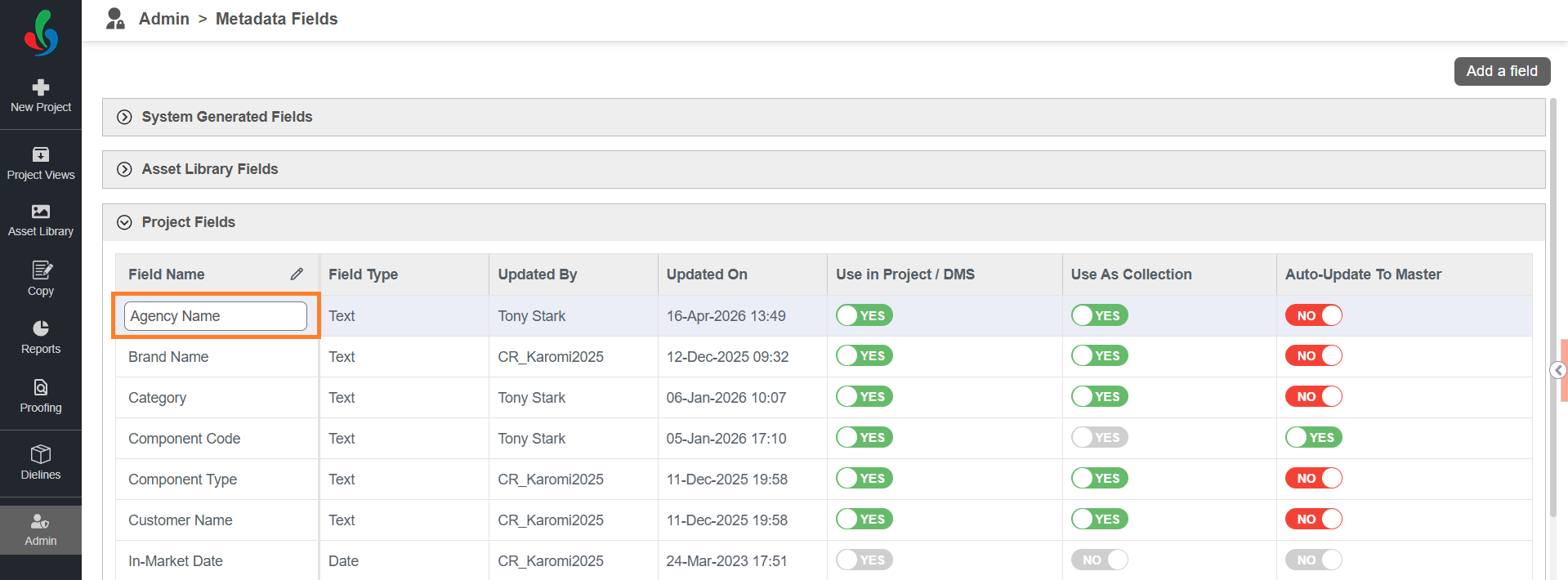
1. Select the required field category (for example, **Project Fields** or **Component Fields**).
2. Double-click the field to enable edit mode.
3. Enter the new display name.
4. Select outside the field to save the changes.
|  | **Note:** Changing the display name does not modify the field’s backend behavior.
For example, renaming *Project Due Date* to *Project Name* does not change its functionality—the field will still store date values.
The display name is only a label for the field. When you rename a field, the new name appears everywhere that field is used — including projects that are in progress, completed, or terminated. |
| --- | --- |
### 03\. Configure Field Properties
|  | **Note:** Additional properties can be configured only for **Project Fields** and **Component Fields**. Some fields have predefined settings that cannot be modified. |
| --- | --- |
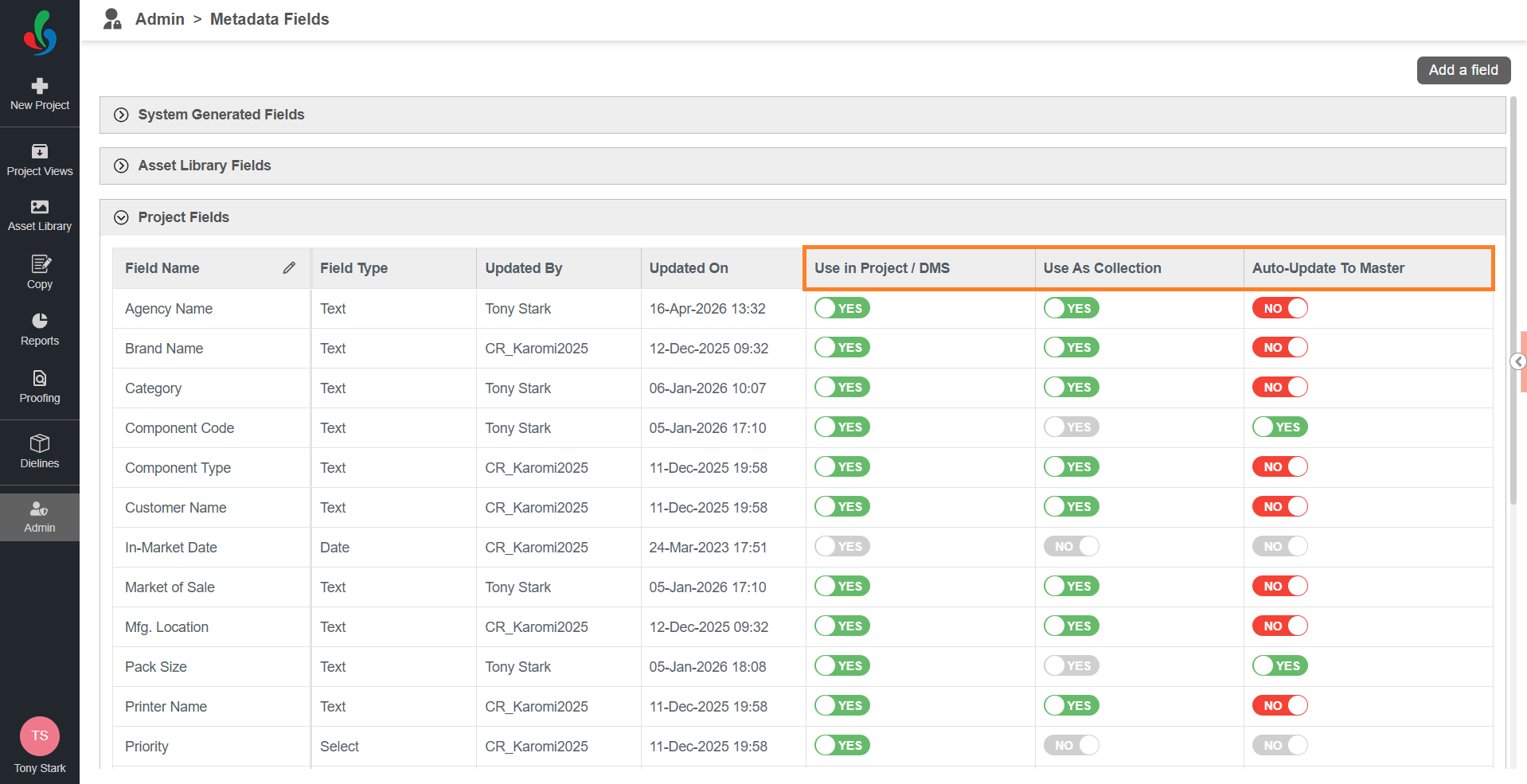
#### **Use in Project / DMS**
Determines whether the field is available during:
- Project related activities
- File upload in the Asset Library
Enabling this option allows users to capture relevant metadata for projects and assets.
|  | **Note:** If **Use in Project / DMS** is set to **YES** and the field is already used in uploaded assets or project(s), you cannot change it to **NO**. This ensures data consistency and prevents loss of associated metadata. |
| --- | --- |
#### **Use as Collection**
When set to **YES**, users can only select values from a predefined list.
- Ensures data consistency
- Reduces manual entry errors
The master data for these fields can be managed under [Lists and Teams](https://help.manageartworks.com/en/article/add-edit-lists-and-teams) in the Admin module.
#### **Auto-Update to Master**
When set to **YES**, users can:
- Select existing values from the collection or enter new values
Any new value entered is automatically added to the master data.
|  | **Note:** This option is available only when **Use as Collection** is set to **YES**. |
| --- | --- |