---
title: "Manage Dependency Field"
url: "https://help.manageartworks.com/en/article/manage-dependency-field"
language: "en"
last_updated: "2025-07-03T11:27:48.758Z"
---
# Manage Dependency Field
|  | **Note:** The Dependency Field is an **Enterprise Plan** feature but can be added as an **add-on** for **Growth Plan** users. It is essential to configure the required metadata fields as "**Use as Collection**" for them to appear as dependency fields. Only metadata fields with "Use as Collection" properties will be available for selection. For configuration instructions, refer to [Manage Metadata Fields](https://help.manageartworks.com/en/article/manage-metadata-fields). |
| --- | --- |
## Edit Dependency Hierarchy
### 01\. Access the Dependency Field Settings
1. Log in to your [ManageArtworks](https://app.manageartworks.com/karomi/global/build/login) account.
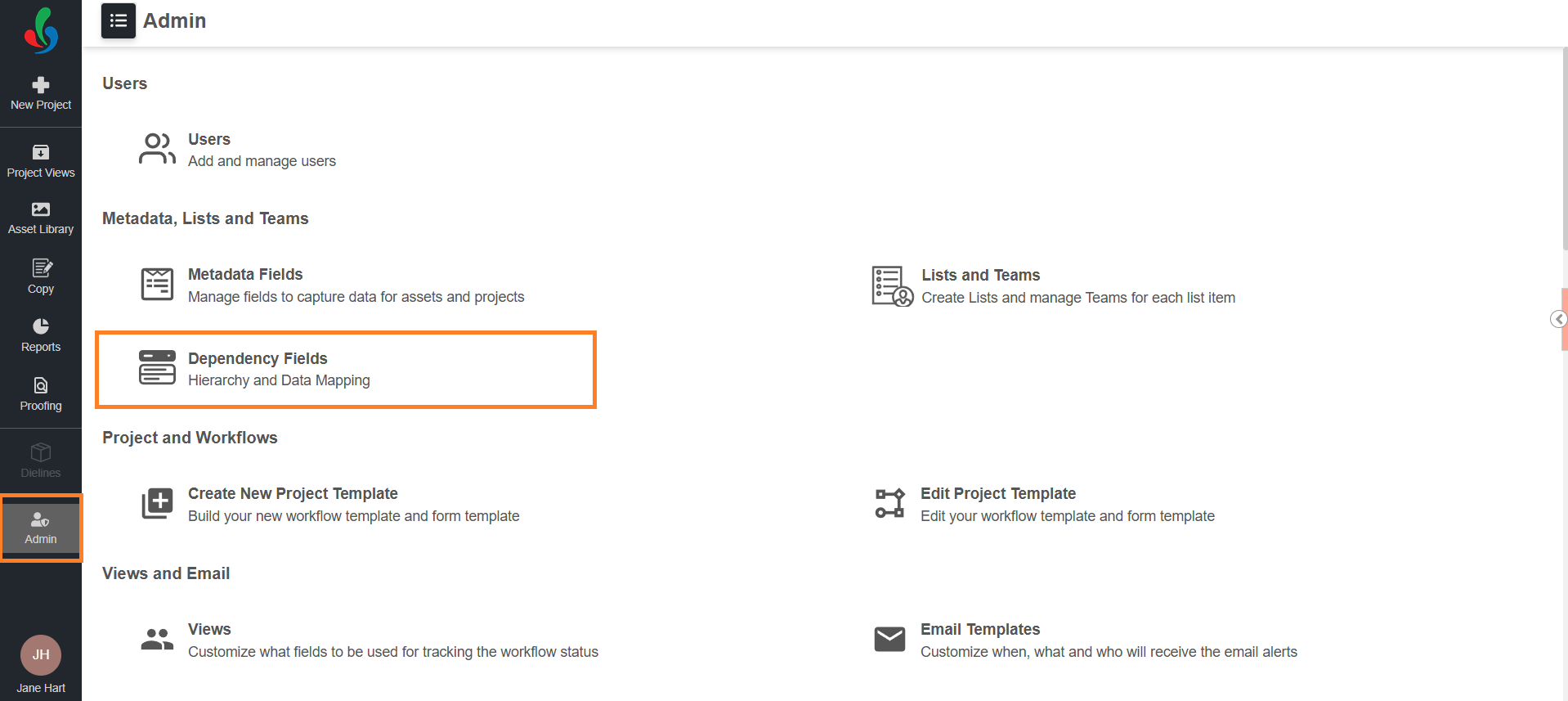
2. Navigate to the **Admin** module.
3. Click the **Dependency Field** tab.
### 02\. Edit Hierarchy
|  | **Note:** A dependency hierarchy cannot be edited if it has existing data mappings. To make changes to the hierarchy, delete all associated data mappings first. |
| --- | --- |
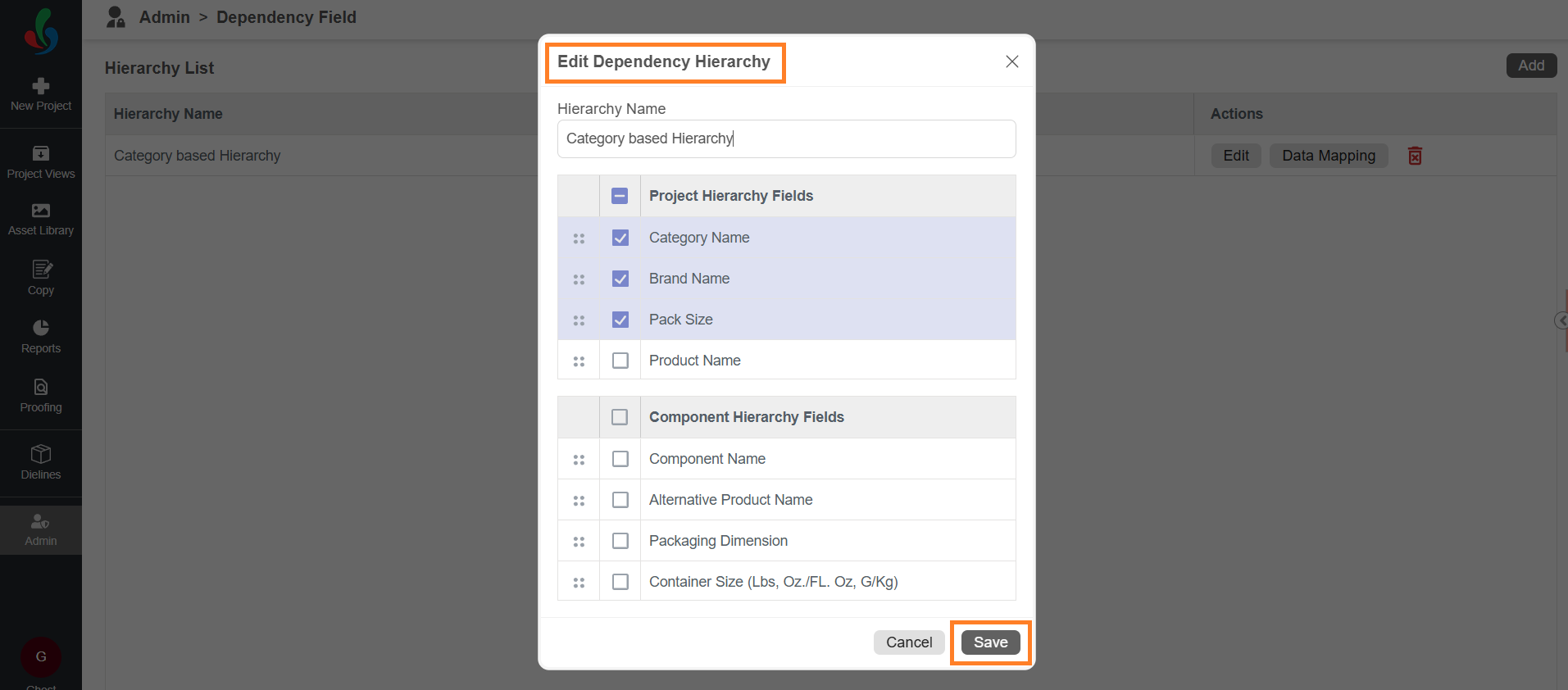
1. Click the **Edit** button in the Action column associated with the desired hierarchy that you want to edit.
2. Make the desired changes.
3. Click the **Save** button to apply your edits.
## Delete Hierarchy
### 01\. Access the Dependency Field Settings
1. Log in to your [ManageArtworks](https://app.manageartworks.com/karomi/global/build/login) account.
2. Navigate to the **Admin** module.
3. Click the **Dependency Field** tab.

### 02\. Delete Hierarchy
|  | **Note:** A dependency hierarchy cannot be edited if it is linked to a form template or contains existing data mappings. To make changes, first remove the hierarchy from all associated form templates and then delete any related data mappings. |
| --- | --- |
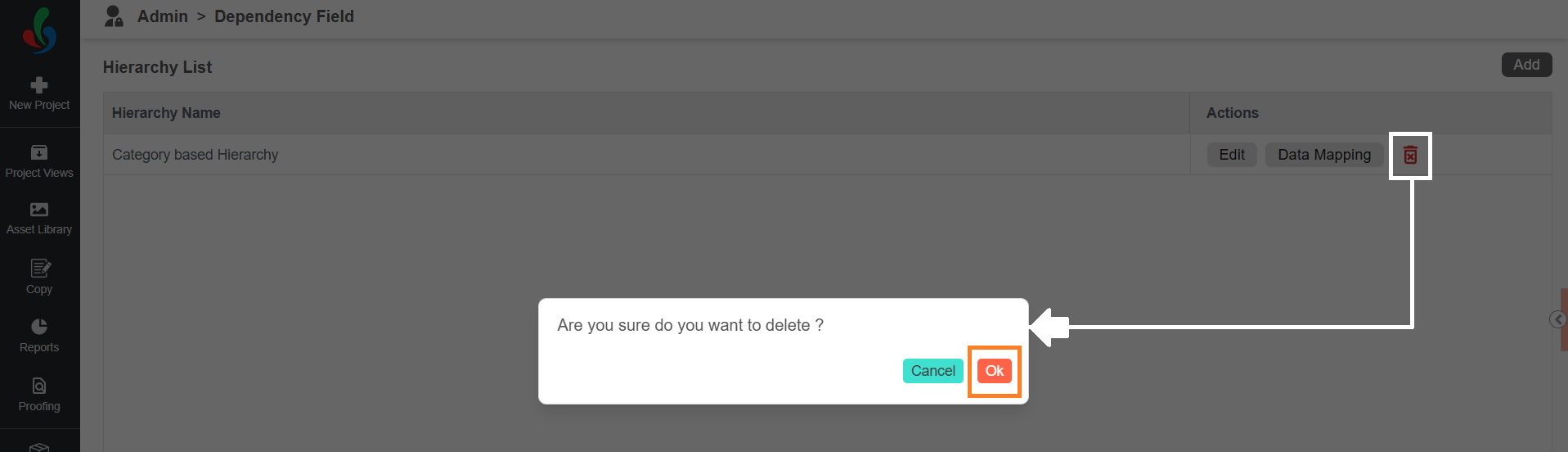
1. Click the Delete icon in the Action column associated with the desired hierarchy that you want to delete.
2. Confirm deletion by clicking **Ok** in the pop-up.
## Edit Data Mapping
### 01\. Access the Dependency Field Settings
1. Log in to your [ManageArtworks](https://app.manageartworks.com/karomi/global/build/login) account.
2. Navigate to the **Admin** module.
3. Click the **Dependency Field** tab.

### 02\. Edit Data Mapping
|  | **Note:** A Data Mapping cannot be edited if the hierarchy is linked to a form template. To make changes, first remove the hierarchy from all associated form templates. |
| --- | --- |
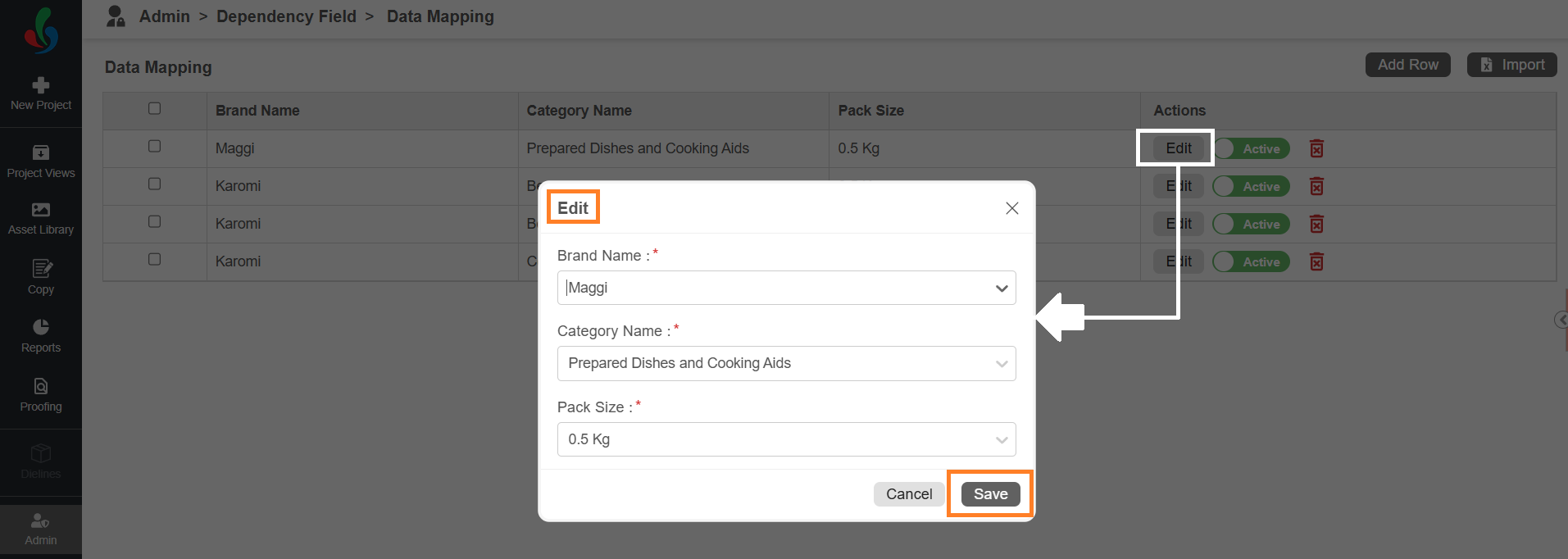
1. Click the Data Mapping button in the Action column associated with the desired hierarchy that you want to edit.

2. Click the **Edit** button in the Action column associated with the desired data mapping that you want to edit.
3. Make the desired changes.
4. Click the **Save** button to apply your edits.
## Delete Data Mapping
### 01\. Access the Dependency Field Settings
1. Log in to your [ManageArtworks](https://app.manageartworks.com/karomi/global/build/login) account.
2. Navigate to the **Admin** module.
3. Click the **Dependency Field** tab.

### 02\. Delete Data Mapping
|  | **Note:** A Data Mapping cannot be deleted if the hierarchy is linked to a form template. To make changes, first remove the hierarchy from all associated form templates. |
| --- | --- |
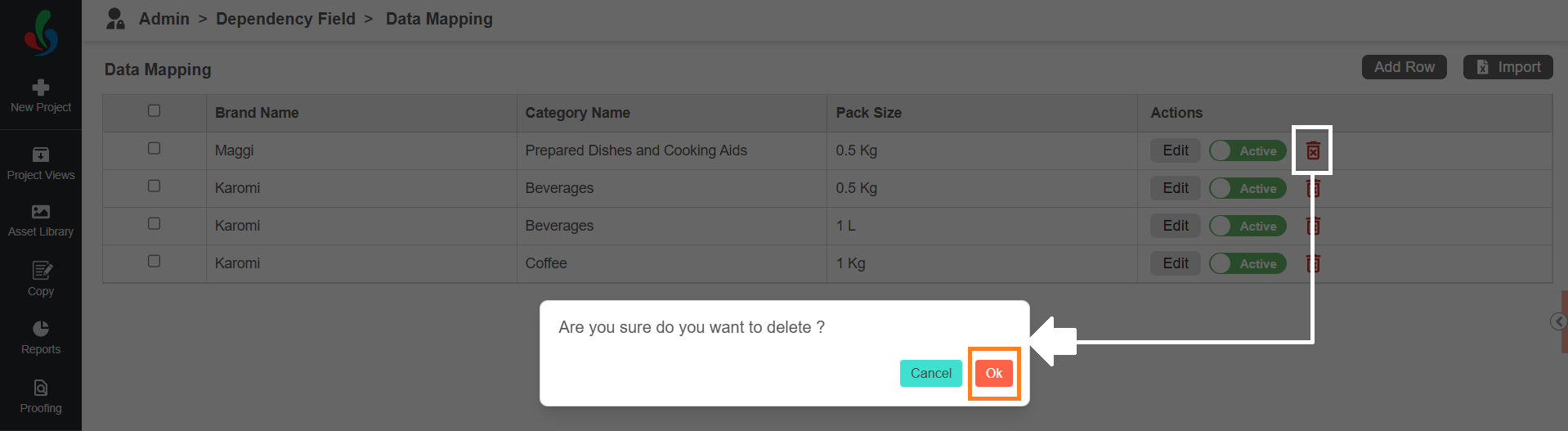
1. Click the Data Mapping button in the Action column associated with the desired hierarchy that you want to edit.

2. Click the Delete icon in the Action column associated with the desired data mapping that you want to delete.
3. Confirm deletion by clicking **Ok** in the pop-up.
## Activate/Deactivate Data Mapping
### 01\. Access the Dependency Field Settings
1. Log in to your [ManageArtworks](https://app.manageartworks.com/karomi/global/build/login) account.
2. Navigate to the **Admin** module.
3. Click the **Dependency Field** tab.

### 02\. Activate/Deactivate Data Mapping
|  | **Note:** Marking a mapping as **Inactive** has the following effects:
- **Completed projects** will remain unaffected.
- In **ongoing projects**, any previously selected values will still be visible.
- However, if the field is edited, inactive data mappings will no longer be available for selection. |
| --- | --- |
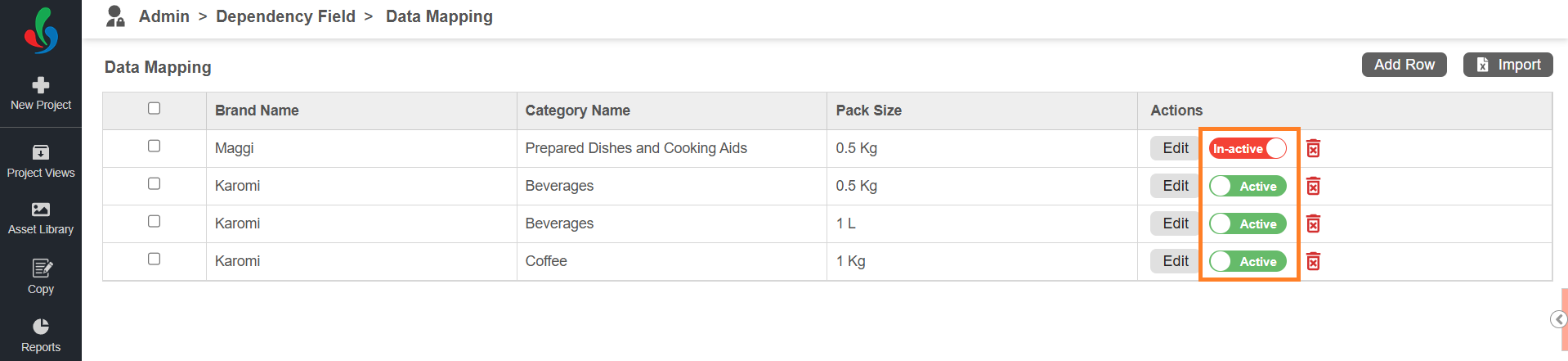
1. Click the **Data Mapping** button in the Action column for the hierarchy you wish to update.

2. Use the **Active/Inactive** toggle icon next to the specific data mapping you want to update.
3. A success message will appear confirming the change.