---
title: "File Status Configuration"
url: "https://help.manageartworks.com/en/article/file-status-configuration"
language: "en"
last_updated: "2025-05-12T05:37:45.880Z"
---
# File Status Configuration
|  | **Note:** File Status Configuration is an enterprise feature available exclusively to users on the **Enterprise plan**. For more information on all ManageArtworks plans, click [here](https://www.manageartworks.com/pricing). |
| --- | --- |
The **File Status Configuration** feature allows you to customize file statuses, such as **Obsolete** and **Effective**, and define when these statuses should automatically update after a file is published.
If you want your system to automatically manage file status changes (e.g., **Effective,** **Obsolete**), this feature is the ideal solution.
> How to set-up automatic file status changes (Obsolete, Effective)?
## 01\. Access File Status Configuration
1. Log in to your [ManageArtworks](https://app.manageartworks.com/karomi/global/build/login) account.
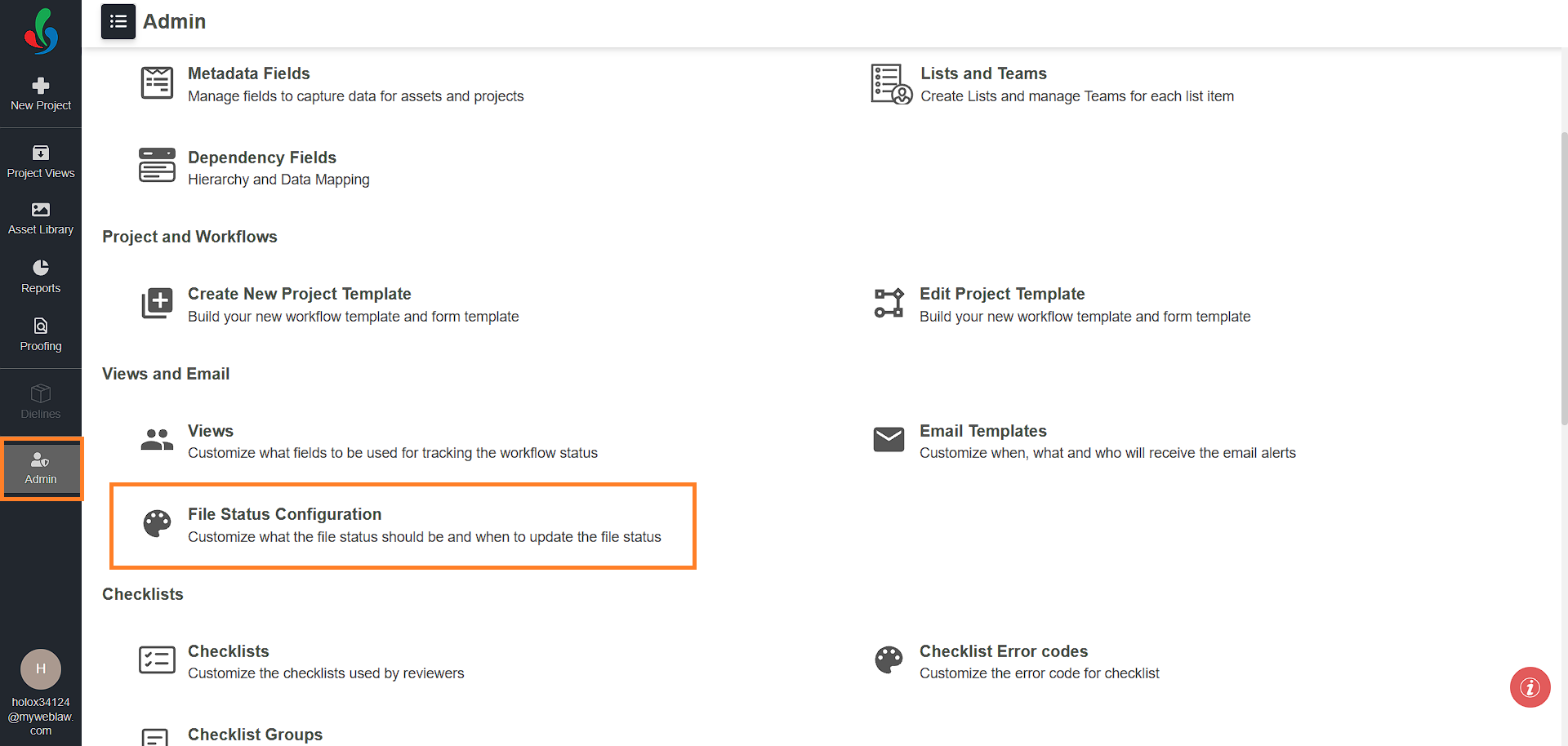
2. Select the **Admin** module.
3. Click the **File Status Configuration** tab.
## 02\. Enable Automatic File Status Change by System
1. Toggle the "**File Status Change by System**" button to green to enable automatic file status updates.

### Obsolete Status Configuration
|  | **Note:** A dedicated view is available to access all obsolete files in the Asset Library. For details, refer to the [**Obsolete File View**](https://help.manageartworks.com/en/article/manage-files#obsolete-files-view). |
| --- | --- |
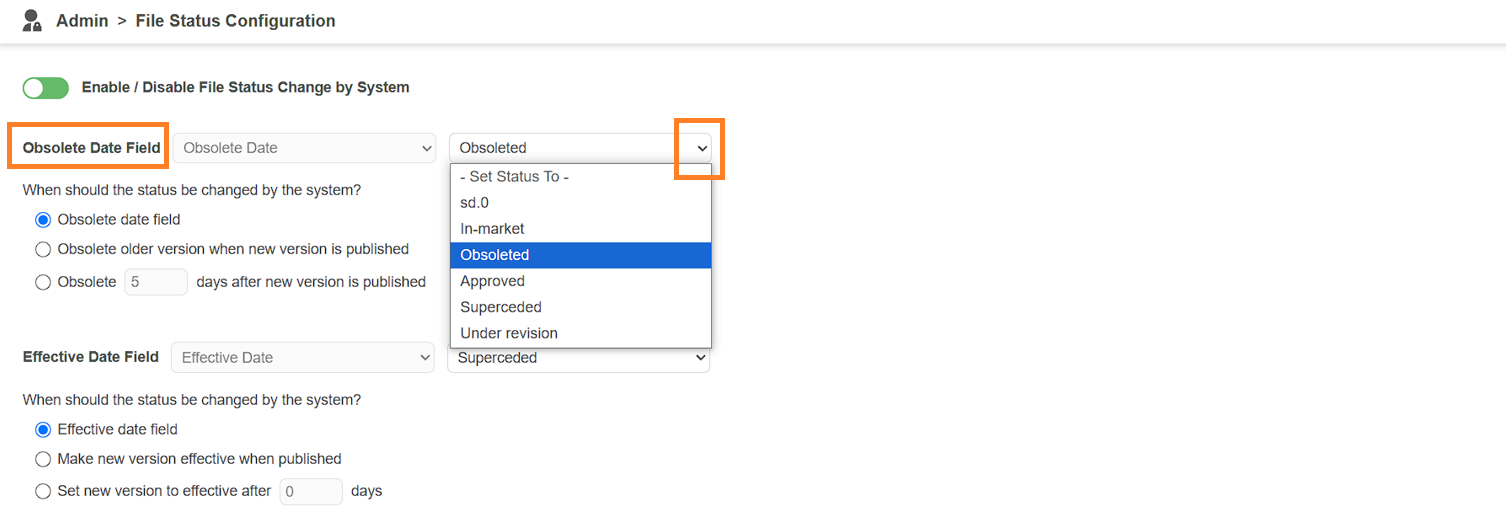
1. Select obsoleted asset status:
1. Click the drop-down menu next to the **Obsolete Date Field** to view available asset statuses.
2. Choose the desired status to be assigned when a file becomes obsolete.
2. Configuring when the system should change the file status to obsolete:
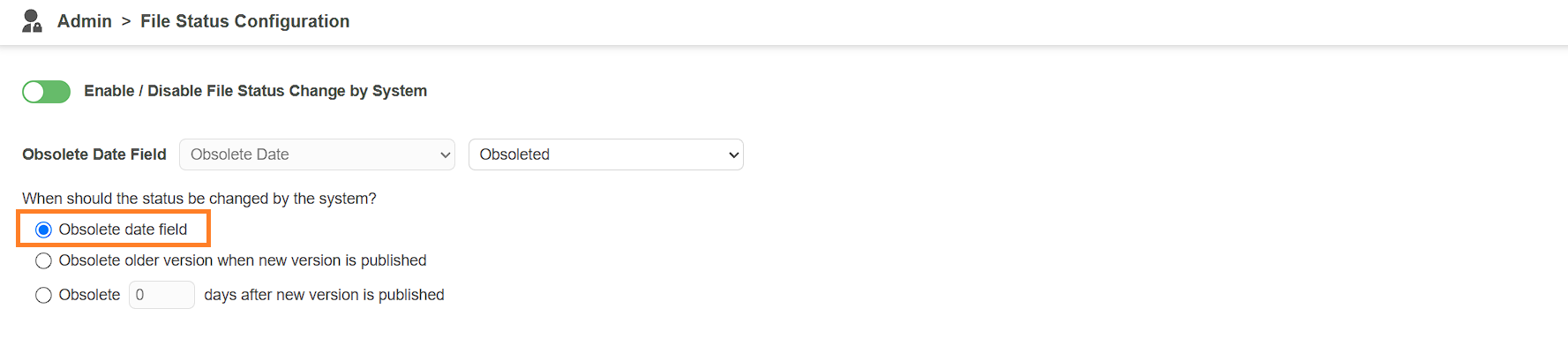
1. **Obsolete Date Field:**
1. Select this option to allow the system to automatically change the file status to **Obsolete** based on the date specified in the file’s metadata (**Obsolete Date Field**) after it's published to the asset library.
**Note:** Make sure that the obsolete date metadata is available for files published to the asset library. If no date is specified, the status will not change.
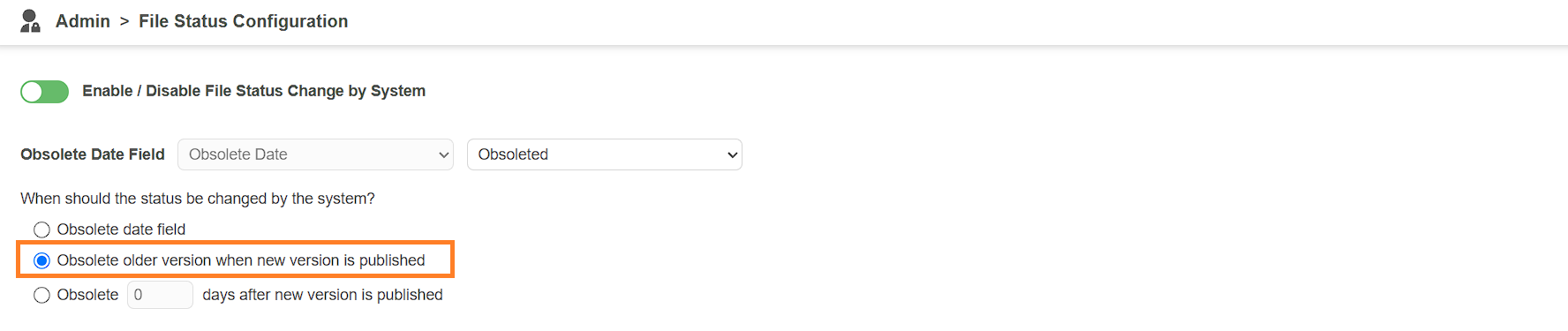
2. **Obsolete Older Version when New Version is Published:**
1. Select this option to automatically mark the previous version of a file as **Obsolete** when a new version is published and overrides it.
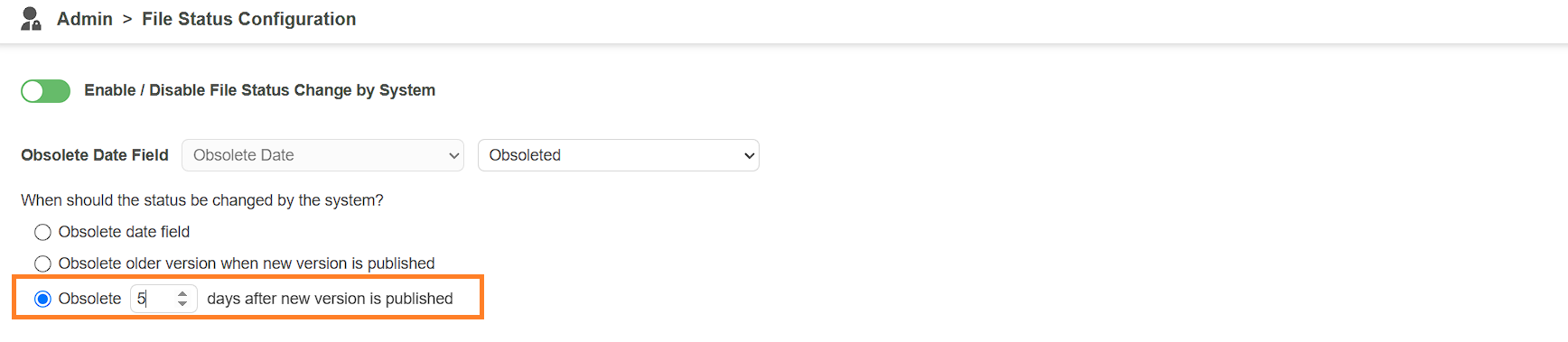
3. **Obsolete \_\_ Days After New Version is Published:**
1. Choose this option to automatically mark a file as **Obsolete** after a specified number of days following the publication of a new version.
2. Enter the desired number of days in the provided field.
**Note:** The system will change the asset status to **Obsolete** once the specified number of days has passed since the file was published or uploaded to the asset library. If a file is updated, then the older version will be marked as **Obsolete** after the entered number of days from the update date.
|  | **Note**: The system updates file statuses daily at **11 PM** based on the time zone set in ManageArtworks.
- If **Option 3** (*Obsolete \_\_ Days After New Version is Published*) is selected, but the file contains obsolete date metadata, the system will prioritize the metadata date and update the status accordingly—ignoring the specified number of days.
- **Option 3** will only apply to files that do not have obsolete date metadata. In all cases, the **Obsolete Date Field** takes precedence over **Option 3.** |
| --- | --- |
### Effective Status Configuration
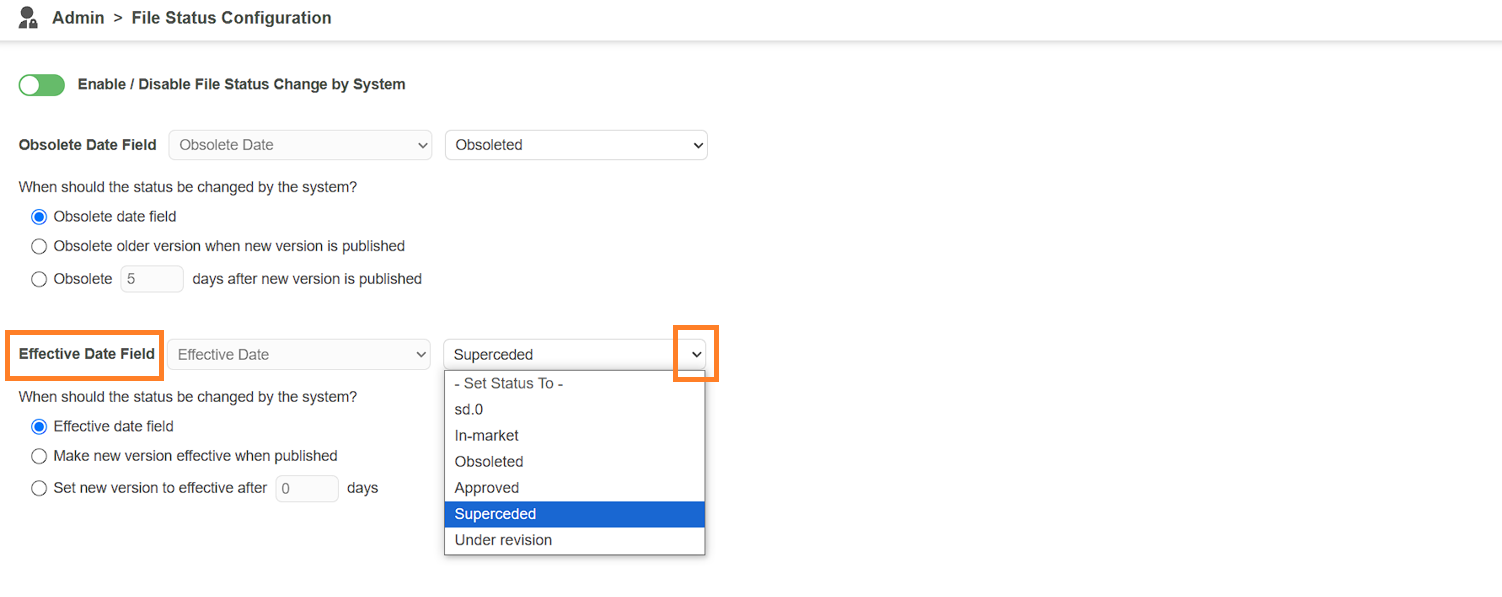
1. Select effective asset status:
1. Click the drop-down menu next to the **Effective Date Field** to view available asset statuses.
2. Choose the desired status to be assigned when a file becomes effective.
2. Configuring when the system should change the file status to effective:
1. **Effective Date Field:**
1. Select this option to allow the system to automatically change the file status to **Effective** based on the date specified in the file’s metadata (**Effective Date Field**) after it's published to the asset library.
**Note:** Make sure that the effective date metadata is available for files published to the asset library. If no date is specified, the status will not change.

2. Make New Version Effective when Published:
1. Choose this option to automatically mark the file as **Effective** immediately upon publishing a new version.

3. **Set New Version to Effective After \_\_\_\_ Days:**
1. Choose this option to automatically mark a file as **Effective** after a specified number of days following the publication of a new version.
2. Enter the desired number of days in the provided field.
**Note:** The system will change the asset status to **Effective** once the specified number of days has passed since the file was published or uploaded to the asset library. If a file is updated, then the newer version of the file will be marked as **Effective** after the entered number of days from the update date. Older version will be marked as obsolete after the newer version is effective.

|  | **Note**: The system updates file statuses daily at **11 PM** based on the time zone set in ManageArtworks.
- If **Option 3** (*Set New Version to Effective After \_\_\_\_ Days*) is selected, but the file contains effective date metadata, the system will prioritize the metadata date and update the status accordingly—ignoring the specified number of days.
- **Option 3** will only apply to files that do not have effective date metadata. In all cases, the **Effective Date Field** takes precedence over **Option 3.** |
| --- | --- |
|  | **Important Considerations:**
- Once a file is marked as **Obsolete**, this action **cannot be undone**.
- Be cautious when assigning dates, especially if using both time-based options for **Obsolete** and **Effective** statuses.
- **Example:** If you set a file to become **Effective** after 10 days but also configure it to be **Obsolete** after 5 days, the file will be marked as **Obsolete** before it ever becomes **Effective**—and this cannot be reversed.
- Always review and plan your settings carefully to avoid conflicts in file status transitions. |
| --- | --- |
## 03\. Save the Configuration
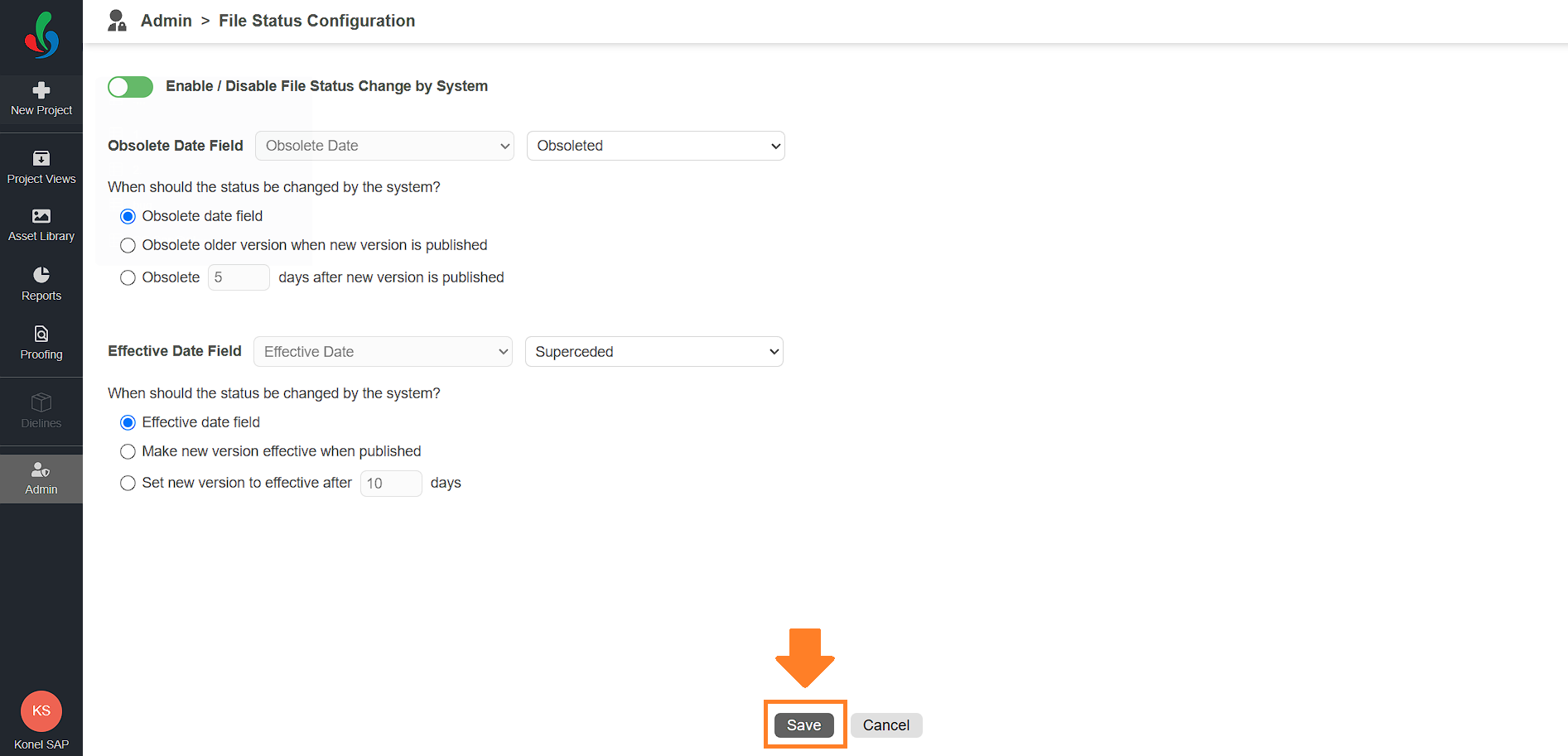
1. After completing the file status configuration, click the **Save** button to apply and activate your changes.