---
title: "Edit Project (Enterprise Plan)"
url: "https://help.manageartworks.com/en/article/edit-project-enterprise-plan"
language: "en"
last_updated: "2026-02-04T08:08:57.286Z"
---
# Edit Project (Enterprise Plan)
| ###  | **Note:** The Edit Project behavior varies based on your plan. This article explains how **Edit Project** works in the **Enterprise Plan**. For the **Growth Plan**, see *Edit Project (Growth Plan)*. |
| --- | --- |
Once a project is initiated, you can edit **individual project tabs** instead of editing the entire project at once. This allows multiple users to work on different areas of the same project simultaneously.
|  | ## Editing Behavior in the Enterprise Plan
In the Enterprise Plan:
- Each editable tab is locked **independently**
- Multiple users can work on **different tabs at the same time**
- Only one user can edit a **specific tab** at a time
- Other users viewing the same tab will have **read-only access**
To prevent conflicting or unsaved changes, a locking mechanism is applied only when a tab is actively edited. |
| --- | --- |
## Editable Tabs and Access Rules
Editing access to project tabs depends on the **user role** and **workflow configuration**.
- **Project initiators** (users assigned to the Start activity of the project) can edit editable project tabs at any stage of the project, even when editing is not enabled for that task during runtime.
- **Task participants** can edit project tabs only when editing rights are enabled for the corresponding tab in the workflow template.
Based on permissions and configuration, the following tabs can be edited:
- **Request Info**
- **Components**
- **Tasks**
## Tabs without Locking Restrictions
The following tabs do not support editing locks and can be accessed by multiple users simultaneously:
- **Files**
- **Audit Log**
- **Comments**
- **Copy** (available only when Copy Manager is enabled for the workflow template)
These tabs do not include **Edit** or **Take Control** options.
## How to Edit a Project
| ###  | **Note:** Project editing is supported **only when the project status is In Progress**. Completed or terminated projects open in view-only mode. |
| --- | --- |
1. Sign in to your [**ManageArtworks**](https://app.manageartworks.com/karomi/global/build/login) account.
2. Navigate to **Project Views**.
3. Select the hamburger menu and choose the required view that lists **In Progress** projects.
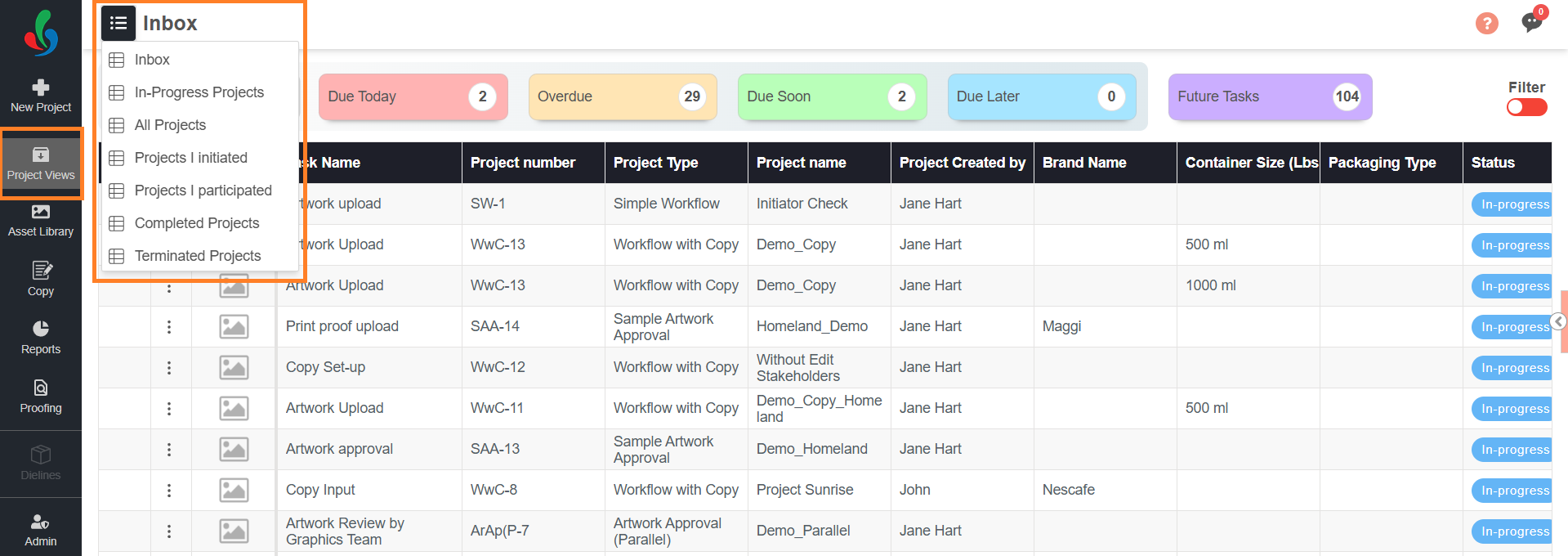
4. Open the required **In Progress** project. All tabs open in **view-only mode** by default.
5. Navigate to the tab you want to update.
6. Select the appropriate action based on the selected tab:
- **Request Info** – Select **Edit Form**
- **Components** – Select **Add/Edit Component**
- **Tasks** – Select **Edit Tasks**
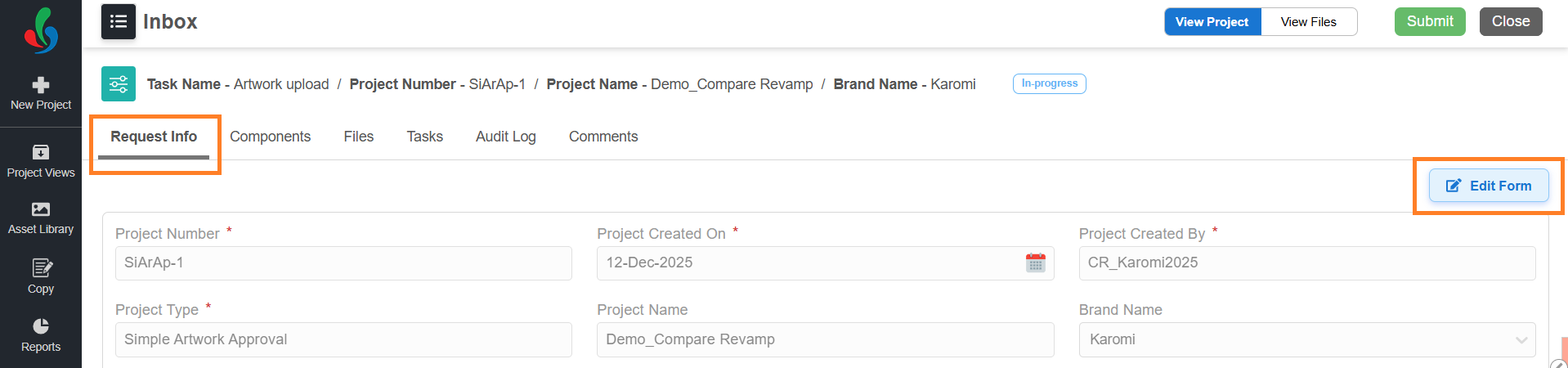
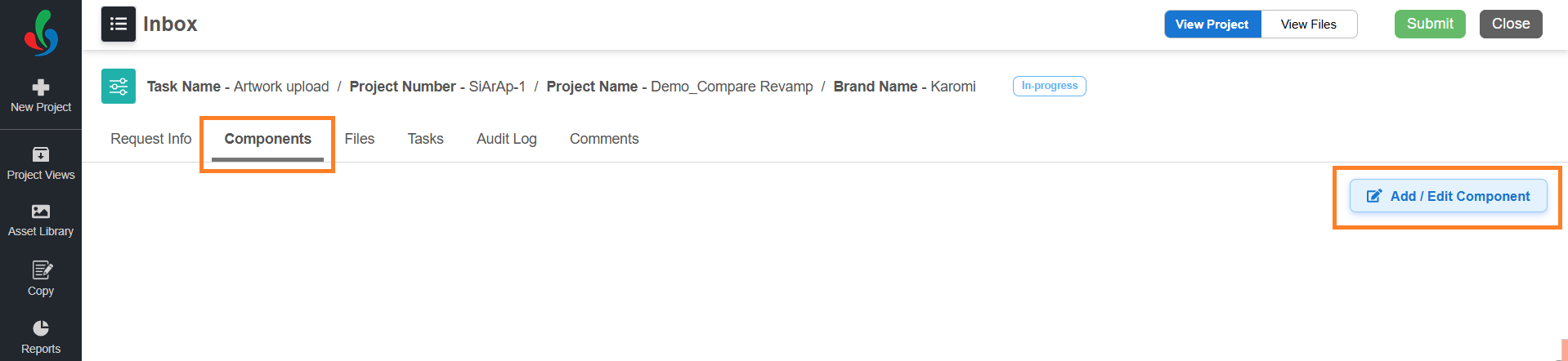
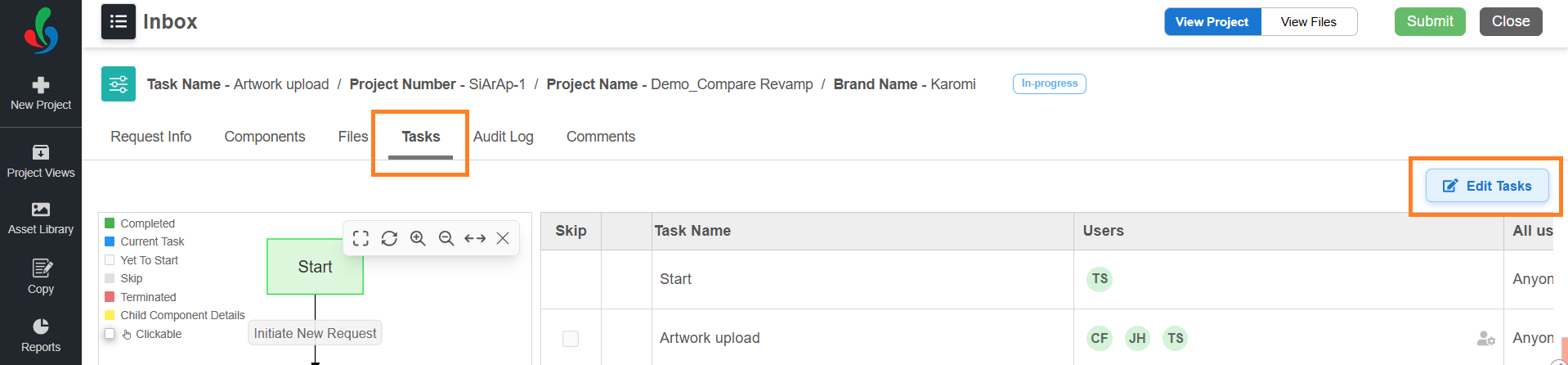
7. The selected tab switches to **edit mode**.
**Note:** If another user is editing the selected tab, it opens in read-only mode and displays “\[User Name\] is currently editing…”. Use [Take Control](https://help.manageartworks.com/en/article/edit-project-enterprise-plan#request-edit-access-using-take-control) to request editing access.
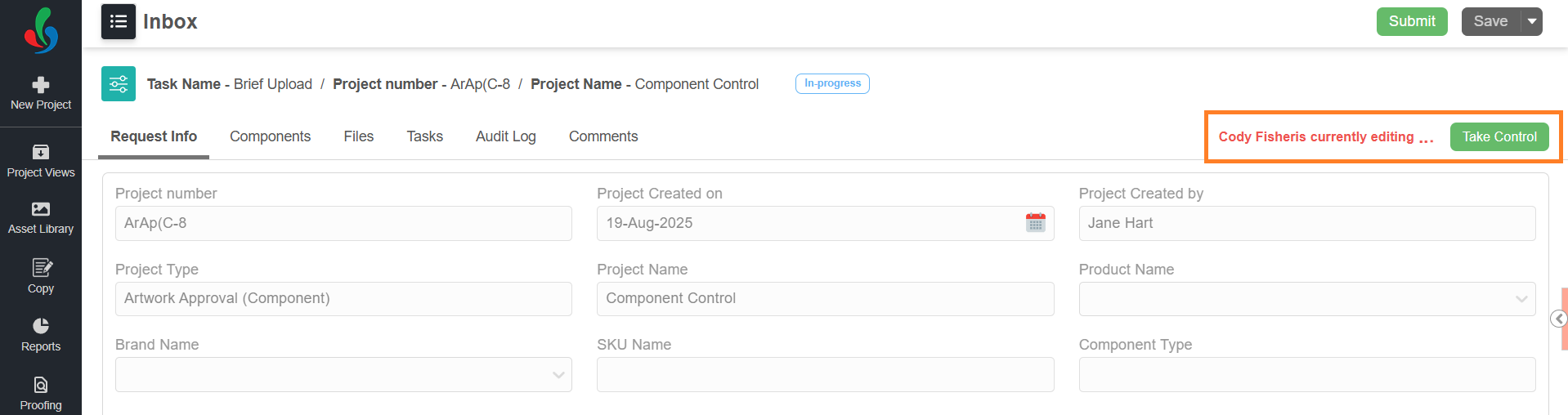
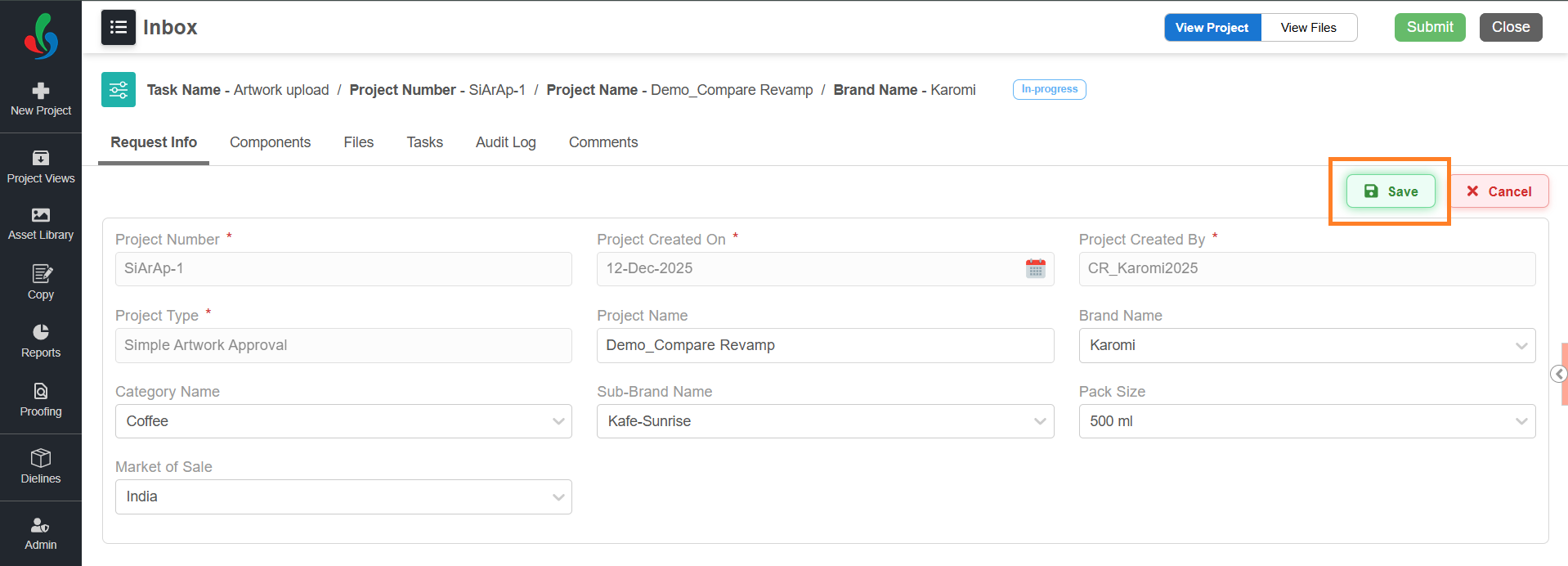
8. Make the required changes.
9. Select **Save** to apply your changes.
### When Another User Is Editing the Same Tab
If another user is already editing the selected tab, you will see a message:
*\[User Name\] is currently editing…*

In this case, the tab opens in **read-only mode**.
#### **Request Edit Access Using Take Control**
To request access:
1. Select **Take Control**.
2. A request will be sent to the active user, and you will see a notification: *“Request Sent.”*
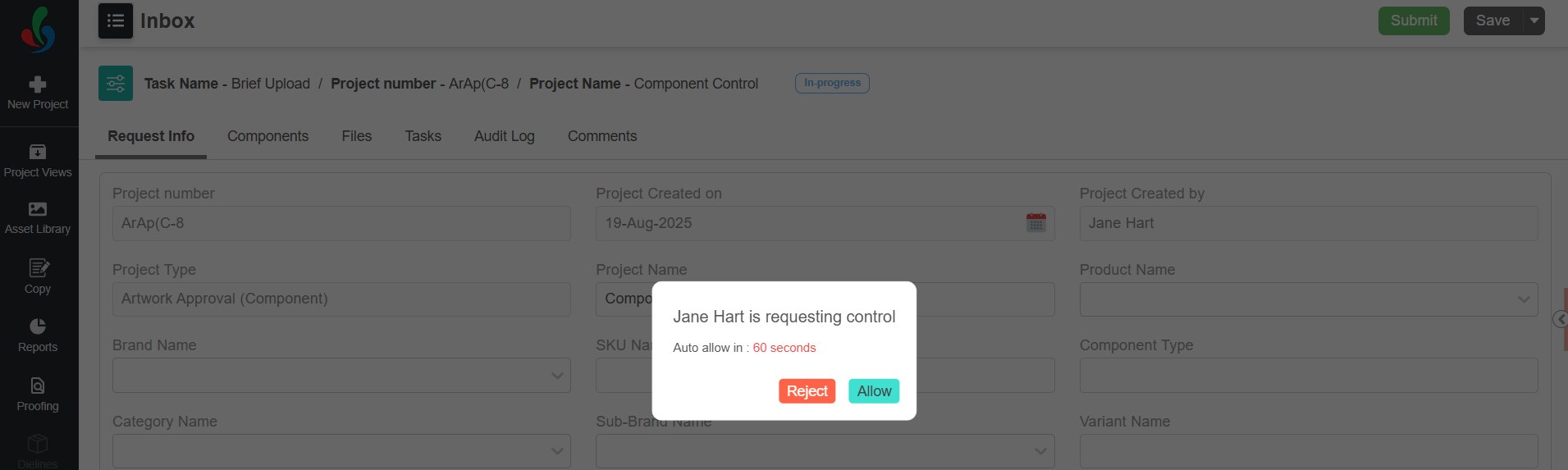
3. The active user will receive a pop-up:
*“\[User Name\] is requesting control”* with options to **Allow** or **Reject**.
|  | **Note:** If no action is taken by the active user, control is **automatically approved after 60 seconds**. |
| --- | --- |
#### **Outcomes of a Take Control Request**
- If approved, you receive a notification:
**“Control Request Allowed”**, and the tab switches to edit mode.
- If rejected, you receive a pop-up:
**“Control Request Rejected.”**
#### **Take Control for Components**
When a project is split into components, **each component functions as an independent sub-project**.
- The **Take Control** feature applies **individually to each component**
- Locking and editing rights are managed **separately per component**
- Multiple users can work on different components at the same time
For example, one component may be in an initial stage while another is nearing completion. Even if the same user is assigned to multiple components, they can work on them independently without conflicts.