---
title: "Edit Current Activity"
url: "https://help.manageartworks.com/en/article/edit-current-activity"
language: "en"
last_updated: "2025-12-23T08:57:33.604Z"
---
# Edit Current Activity
The **Edit Current Activity** option allows initiators to:
- Skip the current task
- Complete the current task
- Modify task participants.
|  | **Note:**
- The **Edit Current Activity** option is available only to **initiators** (users assigned to the **Start** activity of the project).
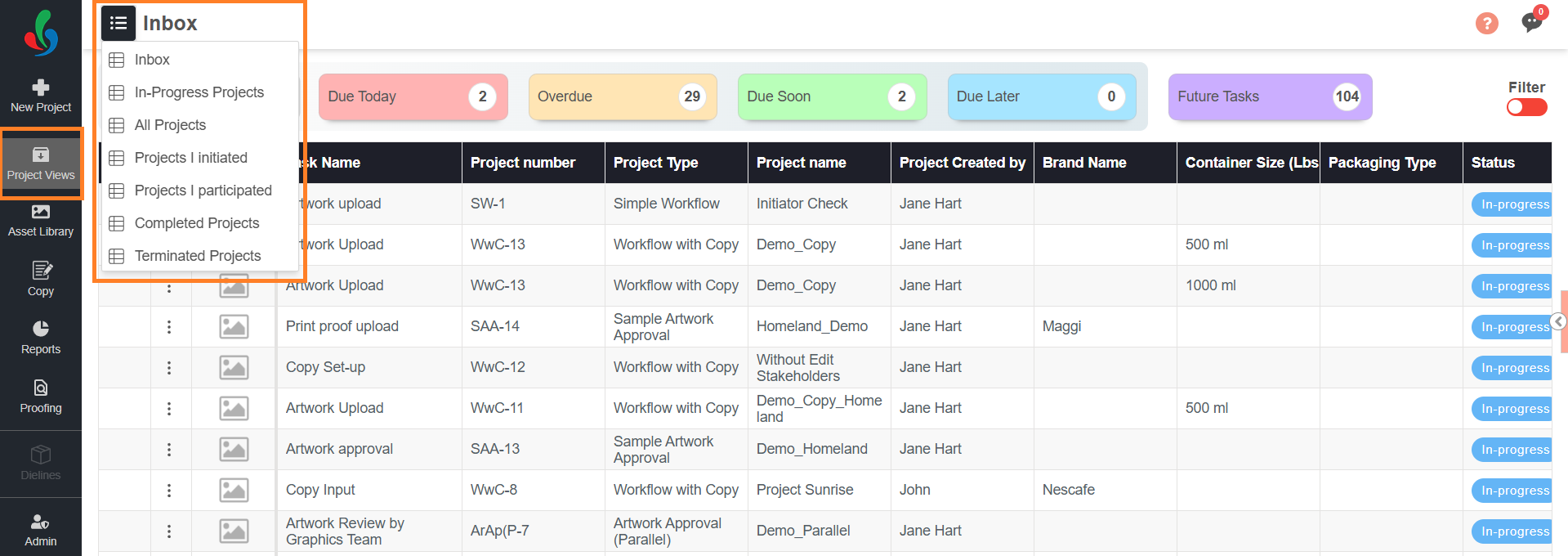
- It is available only for **in-progress projects** and will not appear in the **Inbox** view. To use it, open the project from any other view that lists your in-progress projects.
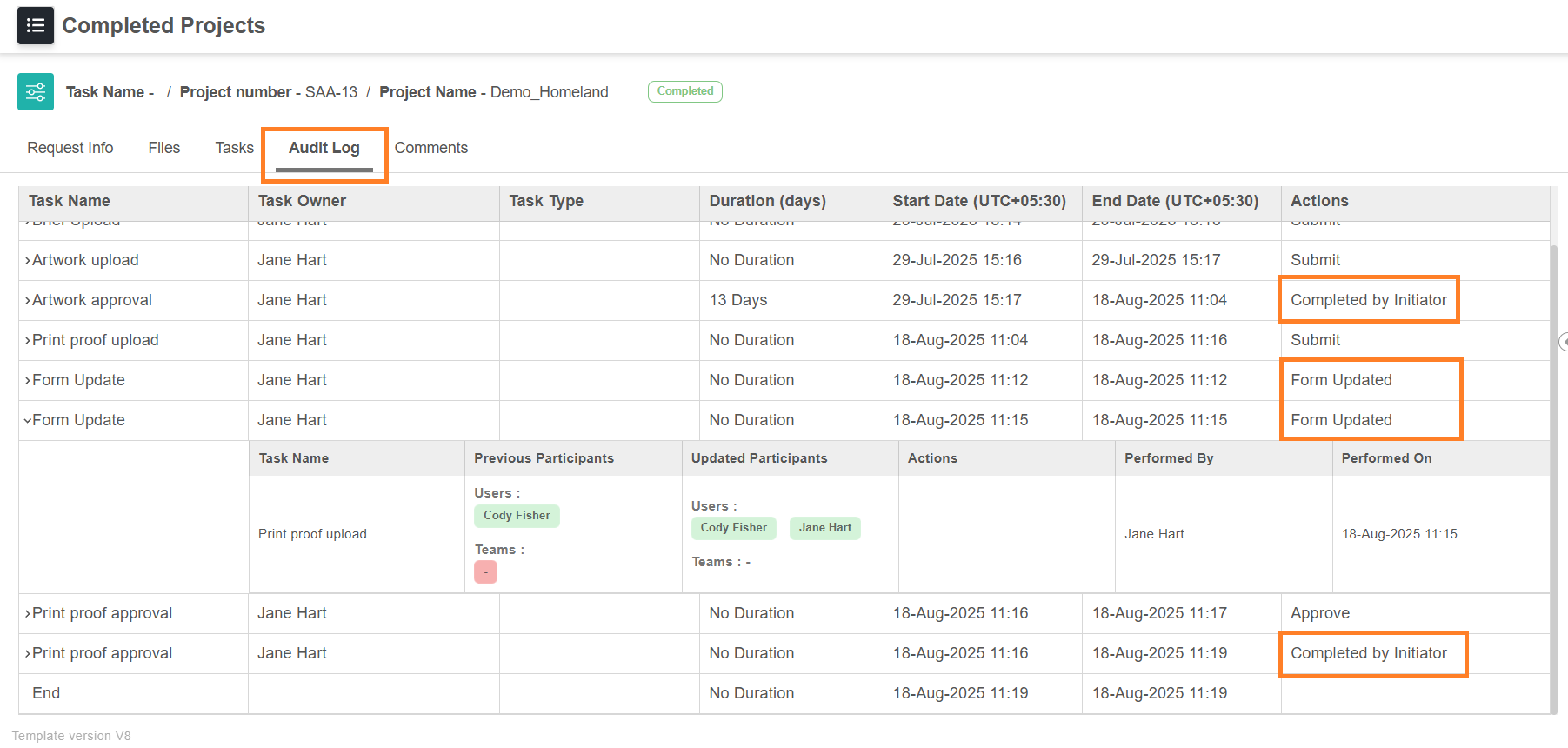
- When a task is skipped or completed using **Edit Current Activity**, it is recorded in the audit log as **Completed by Initiator**.
- The **Edit Current Activity** option will not be available for ***Copy*** tasks. |
| --- | --- |
## Access Edit Current Activity
1. Sign in to your [ManageArtworks](https://app.manageartworks.com/karomi/global/build/login) account.
2. Navigate to **Project Views**.
3. Select the hamburger menu and select the desired view that lists your in-progress projects.
**Note:** Edit Current Activity option will not appear in the **Inbox** view. To use it, open the project from any other view that lists your in-progress projects.
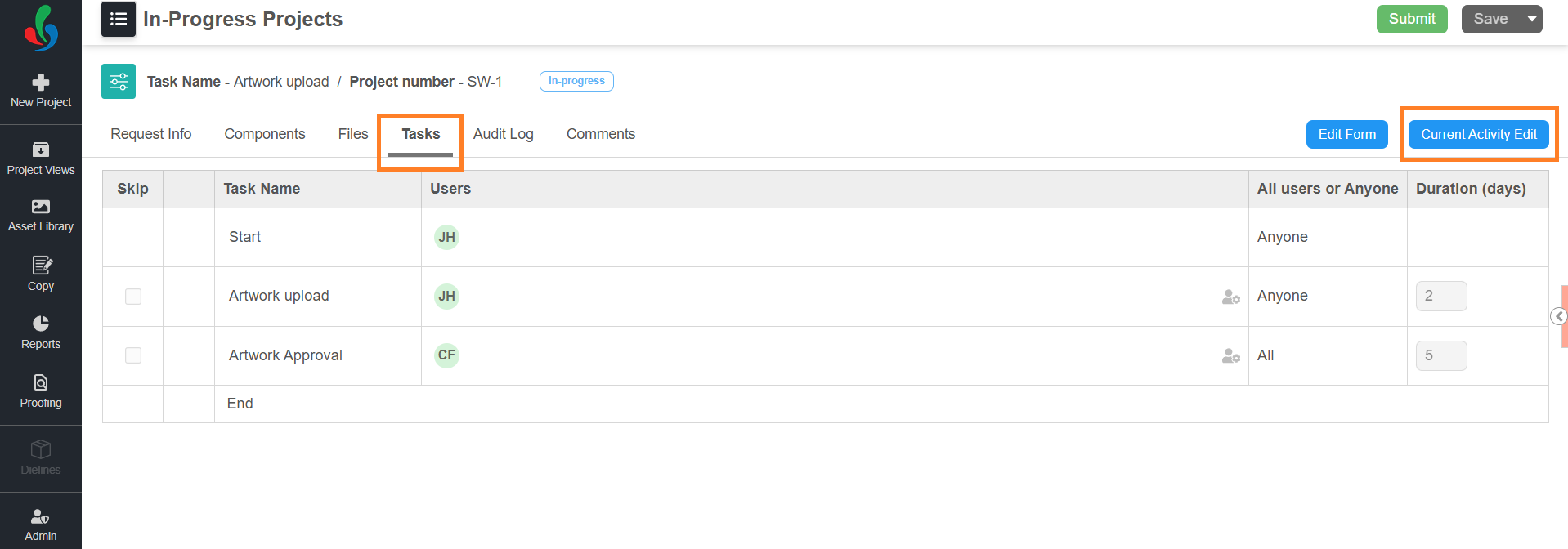
4. Open the desired in-progress project and go to the **Tasks** tab.
**Note:** If the project is split, open the required component to configure its current activity. Once a project is split, the **Edit Current Activity** option will be available for the current activity only within the component.
5. Select **Edit Current Activity**.
### 
To Skip the Current Activity
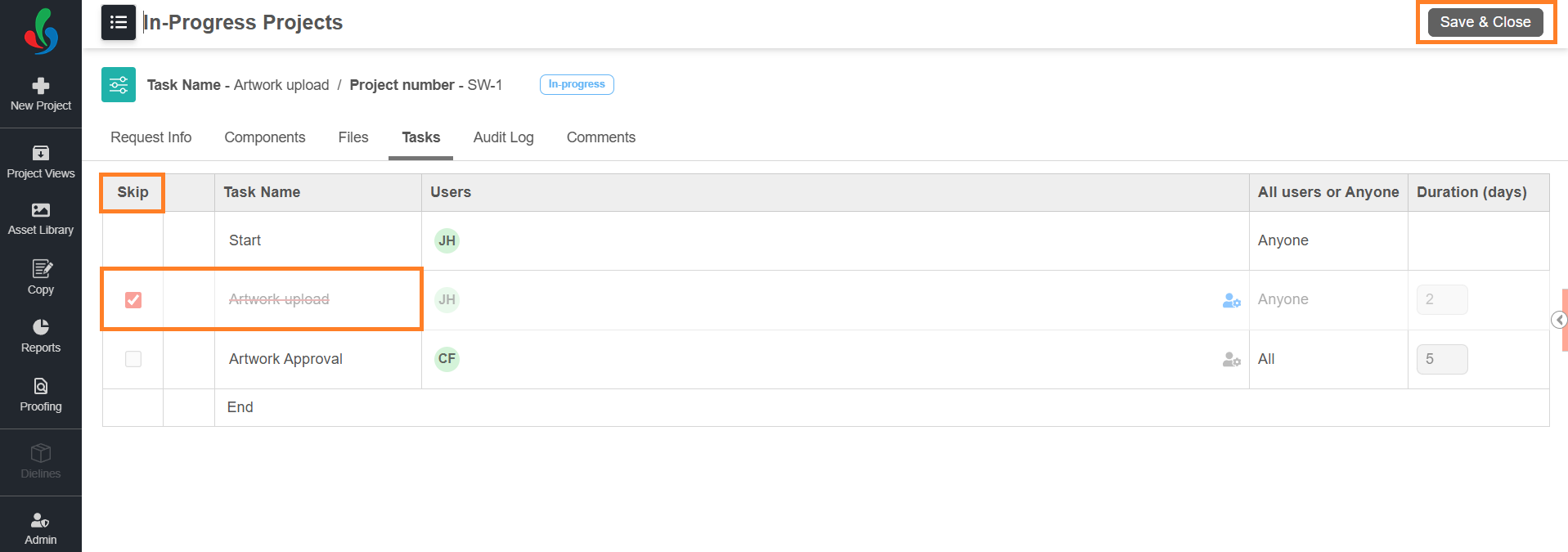
1. In the **Skip** column, select the checkbox for the current activity. The task name will display with a strike-through.
2. Select **Save & Close**.
3. Confirm by selecting **Ok** in the pop-up.
4. The task will be skipped, and in the audit log it will be recorded as [Completed by Initiator](https://help.manageartworks.com/en/article/edit-current-activity#audit-log).
### 
To Complete the Current Activity
If a task requires approvals from multiple users (All Must Approve) but some users have not taken action, you can move the project forward by either [skipping](https://help.manageartworks.com/en/article/edit-current-activity#to-skip-the-current-activity) the task or removing pending participants.
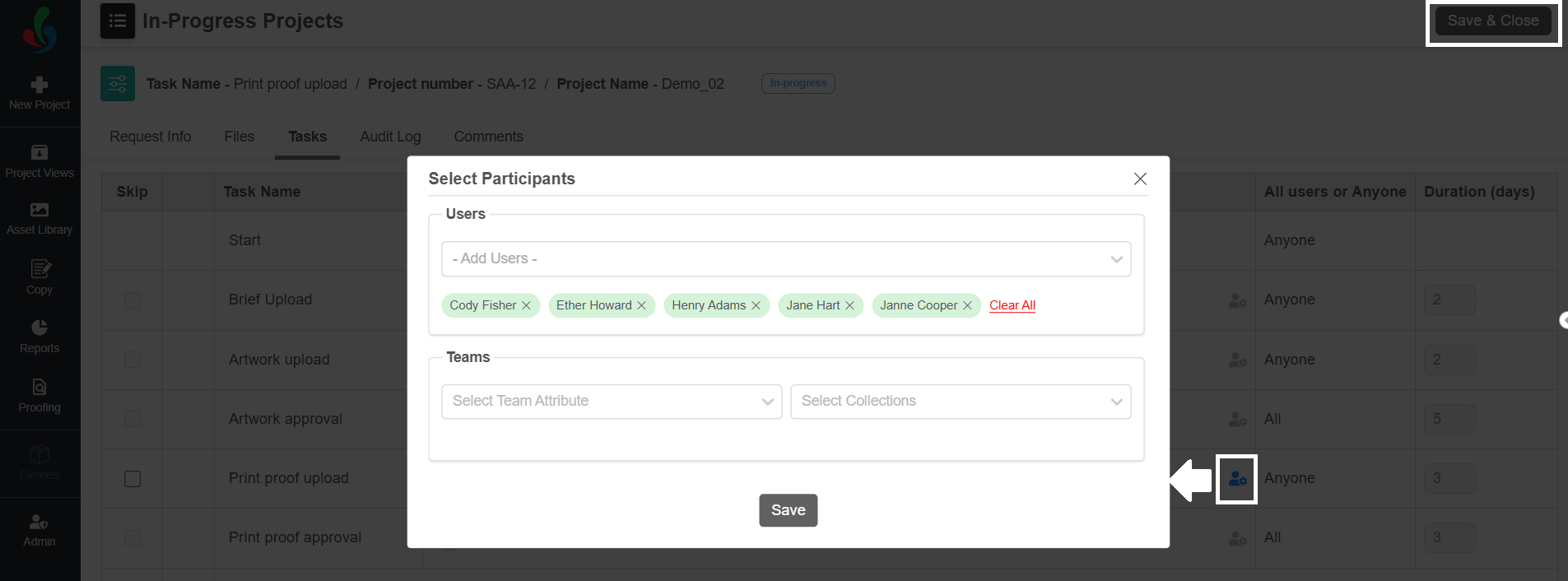
1. Select the **Task Participant Settings** icon in the Users column associated with the current task.
2. Remove the users who have not taken any action.
3. Select **Save** and confirm again with **Ok** in the pop-up.
4. Select **Save & Close** and confirm again by clicking **Ok**.
5. The task will be completed, and in the audit log it will be recorded as [Completed by Initiator](https://help.manageartworks.com/en/article/edit-current-activity#audit-log).
### 
To Modify Task Participants
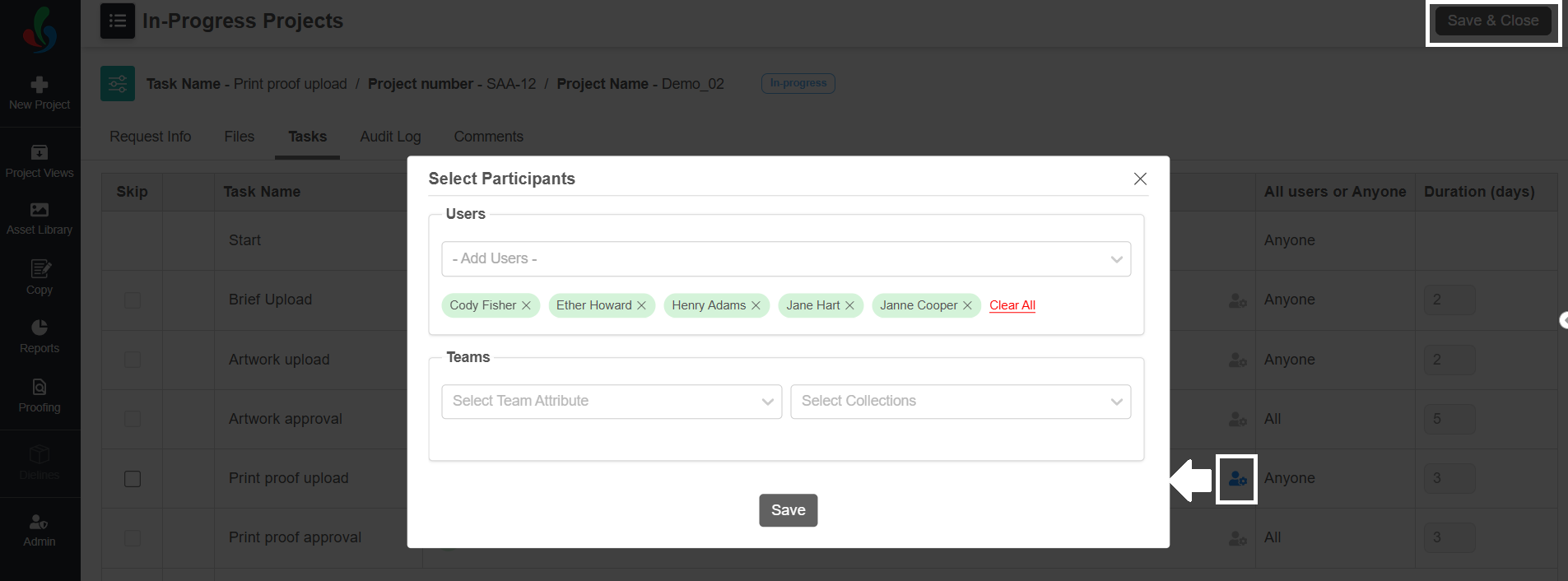
1. Select the **Task Participant Settings** icon in the Users column associated with the current task.
2. Add or remove participants as required.
3. Select **Save** and confirm again with **Ok** in the pop-up.
4. Select **Save & Close** and confirm again by clicking **Ok**.
5. The update will be applied, and in the audit log it will be recorded as [Form Updated](https://help.manageartworks.com/en/article/edit-current-activity#audit-log) with the details.
### 
Audit Log