---
title: "Dieline and 3D Simulation"
url: "https://help.manageartworks.com/en/article/dieline-and-3d-simulation"
language: "en"
last_updated: "2026-03-04T05:40:39.620Z"
---
# Dieline and 3D Simulation
A dieline is a flattened template that shows the folds and cuts needed to create a physical package. It's like a blueprint for your packaging design, ensuring everything fits together perfectly. ManageArtworks makes creating and customizing dielines a breeze.
|  | **Note:** The Dieline module is an **Enterprise Plan** feature but can be added as an **add-on for Growth Plan** users. For more information on all ManageArtworks plans, click [here](https://www.manageartworks.com/pricing). |
| --- | --- |
> How do I create a dieline and simulate it in 3D?
The Dieline module in ManageArtworks allows users to create or edit Key Line Drawings (KLD) or dielines using a comprehensive library of pre-defined templates. Users can customize dimensions—such as width, length, and height—or adjust the appearance of the selected dieline to generate a realistic preview. Once finalized, the dieline can be exported as a PDF for further design work in external applications like Adobe Illustrator or InDesign.
|  | ## Note on Terminology
The terms **Key Line Drawing (KLD)**, **Dieline**, **Diecut**, and **Structural Design** all refer to the same concept. For consistency, we will use the term **Dieline** throughout this guide. |
| --- | --- |
## 01\. Access the Dieline Module
1. Sign in to your [ManageArtworks](https://app.manageartworks.com/karomi/global/build/login) account.
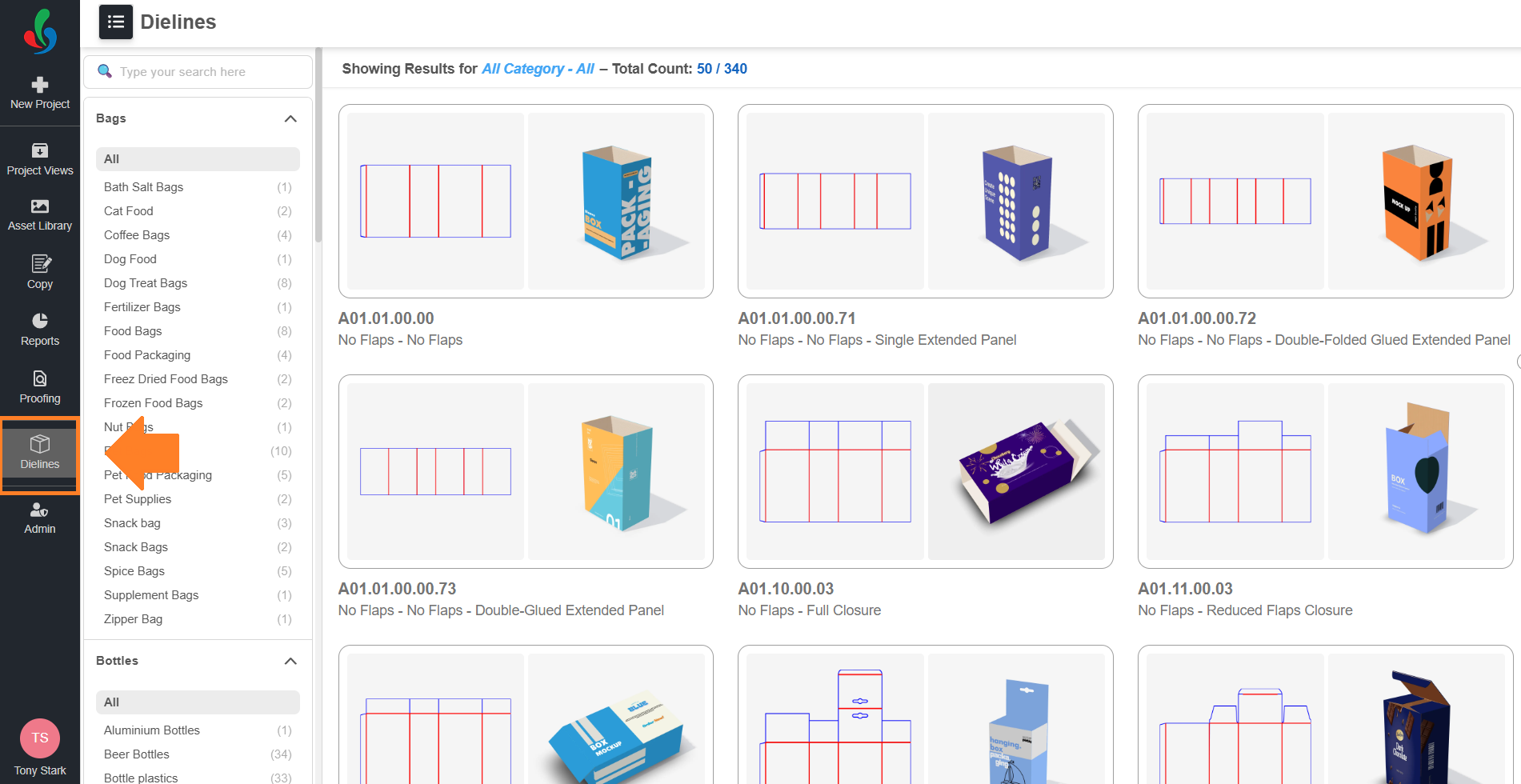
2. From the left main menu, select the **Dieline** module.
## 02\. Choose a Dieline Template
1. On selecting the **Dieline** module, a comprehensive list of predefined dielines will be displayed.
2. You can browse and select the desired dieline template using any of the following methods:
1. **Browse by Category**
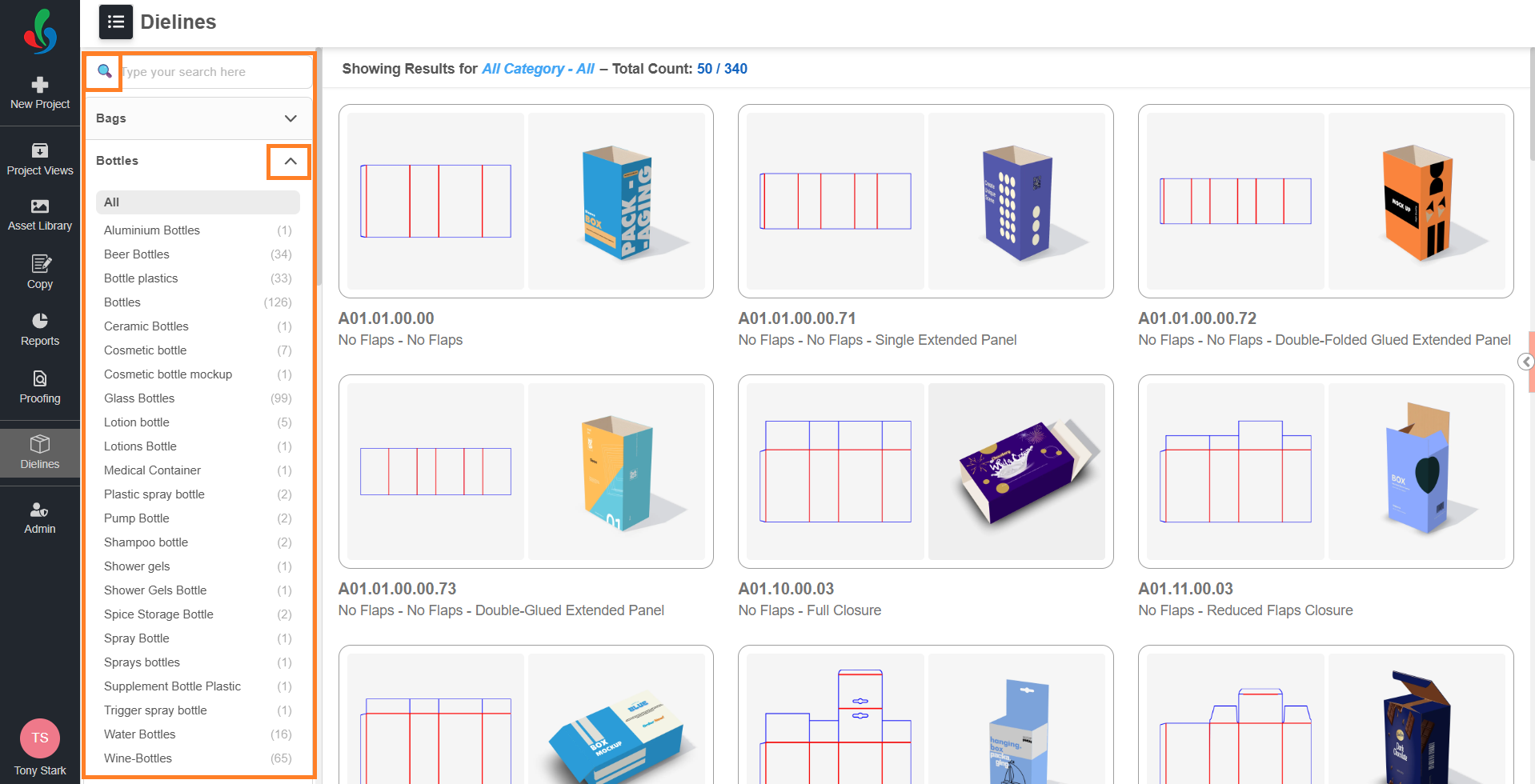
1. In the left filter panel, select a parent category (for example, **Bottles**) to view it's subcategories like:
- All
- Ceramic Bottles
- Wine Bottles
- Water Bottles
- Glass Bottles
- Bottle Plastics
2. Select a subcategory to display matching dieline templates.
3. From the results, select the template you want to use.
2. **Free Text Search:**
1. In the search box, type a template name or keyword.
2. Press **Enter** or select the **search icon** to filter results.
3. From the results, select the template you want to use.
## 03\. Customize and Preview
Upon selecting a dieline template from the library, you will be redirected to the **Customization Interface**. The available options vary depending on the type of dieline selected.
|  | **Note:**
- The dieline editor does not support saving of progress within the interface.
- To preserve work, users must **export** the customized dieline before exiting the editor.
- Navigating away from the editor (e.g., returning to the library) will discard all changes. |
| --- | --- |
### 1\. Customization Interface
#### For Folding Cartons
| **Panel** | **Functionality** |
| --- | --- |
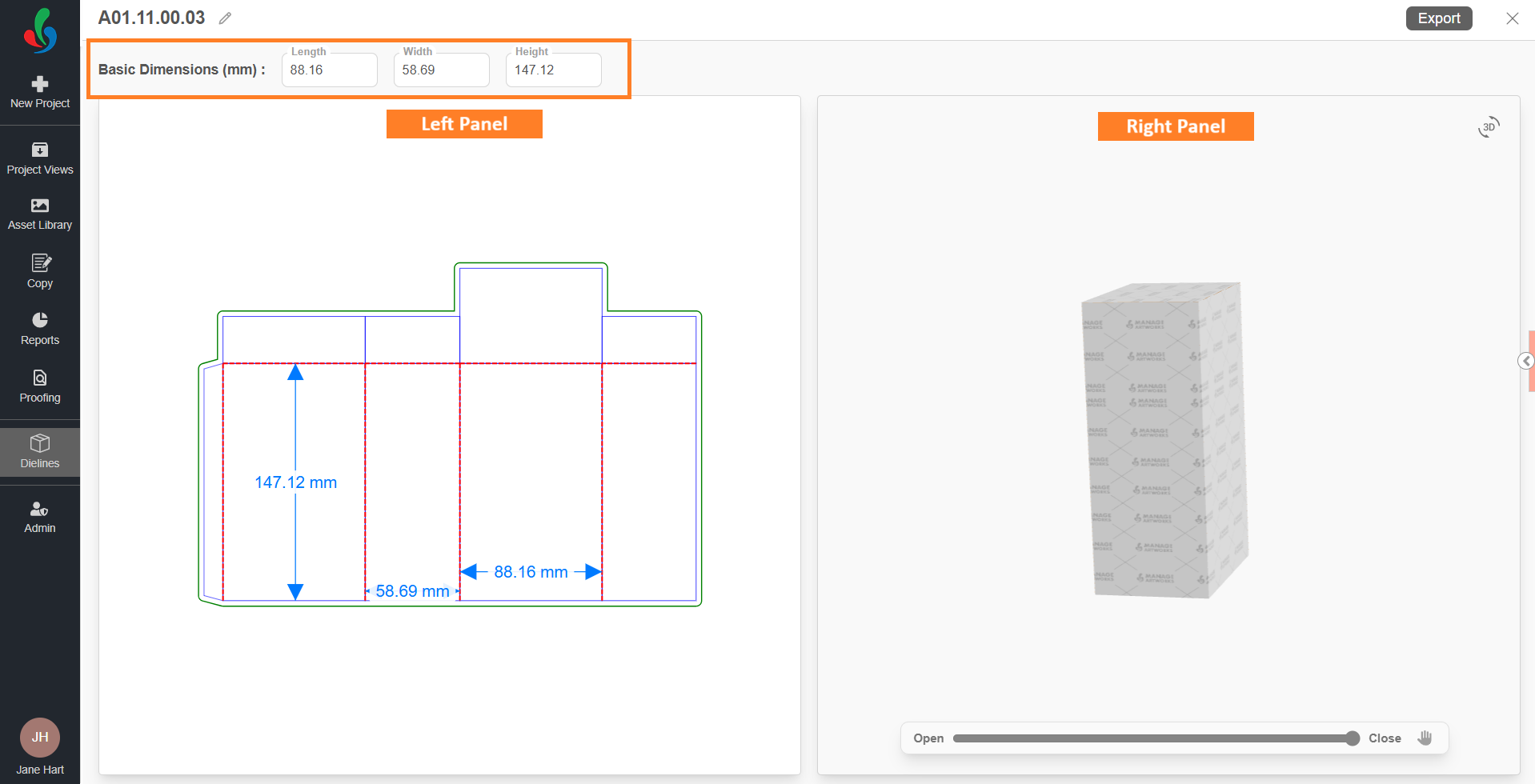
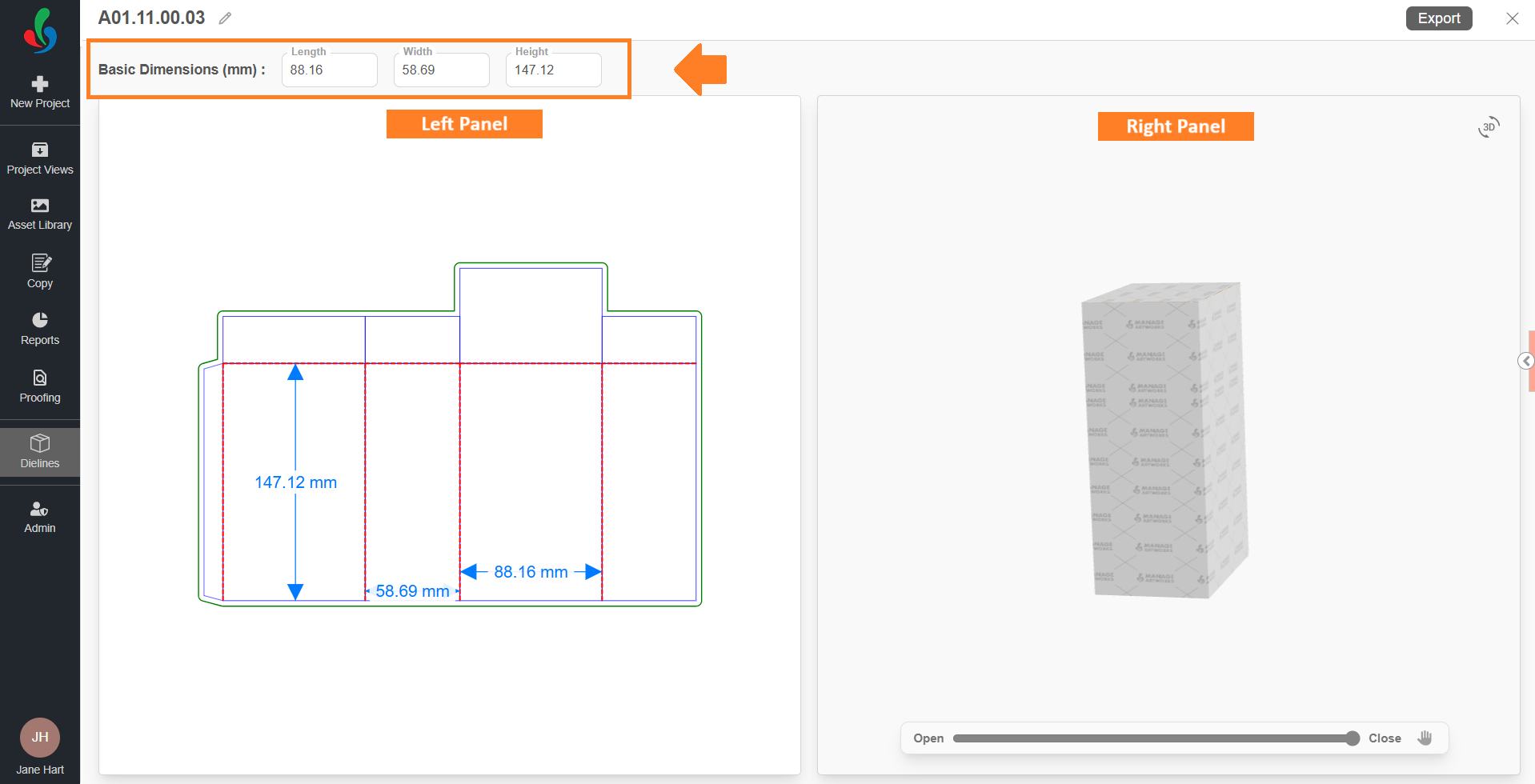
| **Left Panel** | Displays the dieline's **2D flat layout**, allowing users to view the structural design of the carton.
Users can also adjust the **Length**, **Width**, and **Height** fields at the top to modify the dieline’s dimensions. |
| **Right Panel** | Shows a **real-time 3D preview** of the dieline with interactive controls. |
#### For Non-Carton Categories
| **Panel** | **Functionality** |
| --- | --- |
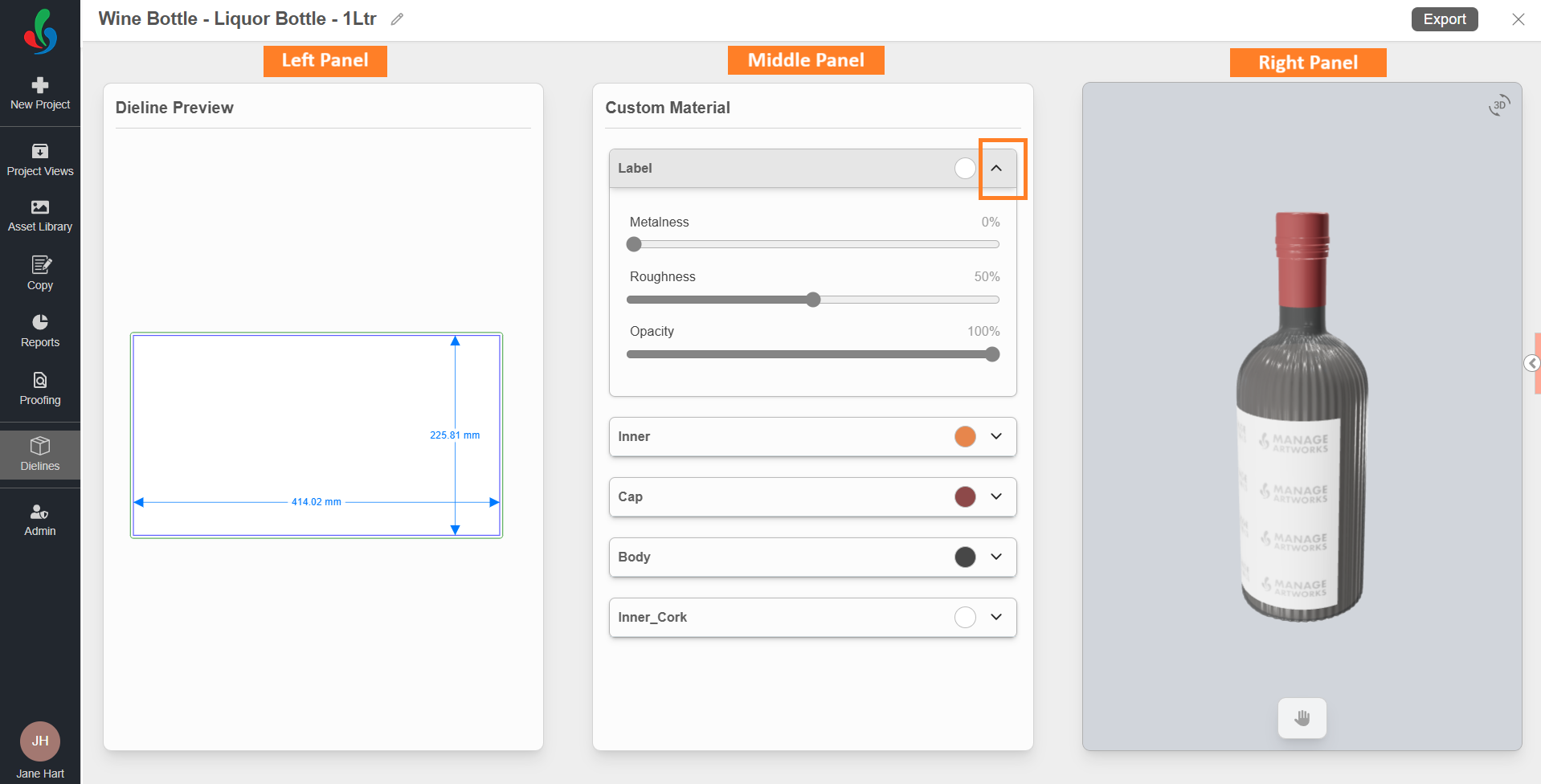
| **Left Panel** | Displays the dieline’s **2D structural layout** (flat view) for reference. |
| **Middle Panel** | Allows users to **customize material properties**, depending on dieline type. |
| **Right Panel** | Shows a **real-time 3D preview** of the dieline with interactive controls. |
### 2\. Rename the Dieline Title
1. Click the pencil (✏️) icon next to the current dieline title.
2. Enter a desired custom name in the text field
3. Press **Enter** or click outside the text field to apply.

|  | **Note:**
- The custom name is for user reference only and does not overwrite the original template in the library.
- The exported PDF will use the custom name as it's file name. |
| --- | --- |
### 3\. Customize the Dimension or Appearance
Customization options depends on the selected dieline type:
#### **a. For Folding Cartons**
You can configure the physical dimensions:
- Length
- Width
- Height
**To change the dimension:**
1. At the top of the Left panel, click the dimension field you want to change (**Length, Width, or Height**).
2. Enter the new value in the field.
3. Check the **3D Preview panel** (Right Panel) — the model updates immediately to reflect the new dimension.
#### 
**b. For Non-Carton Categories**
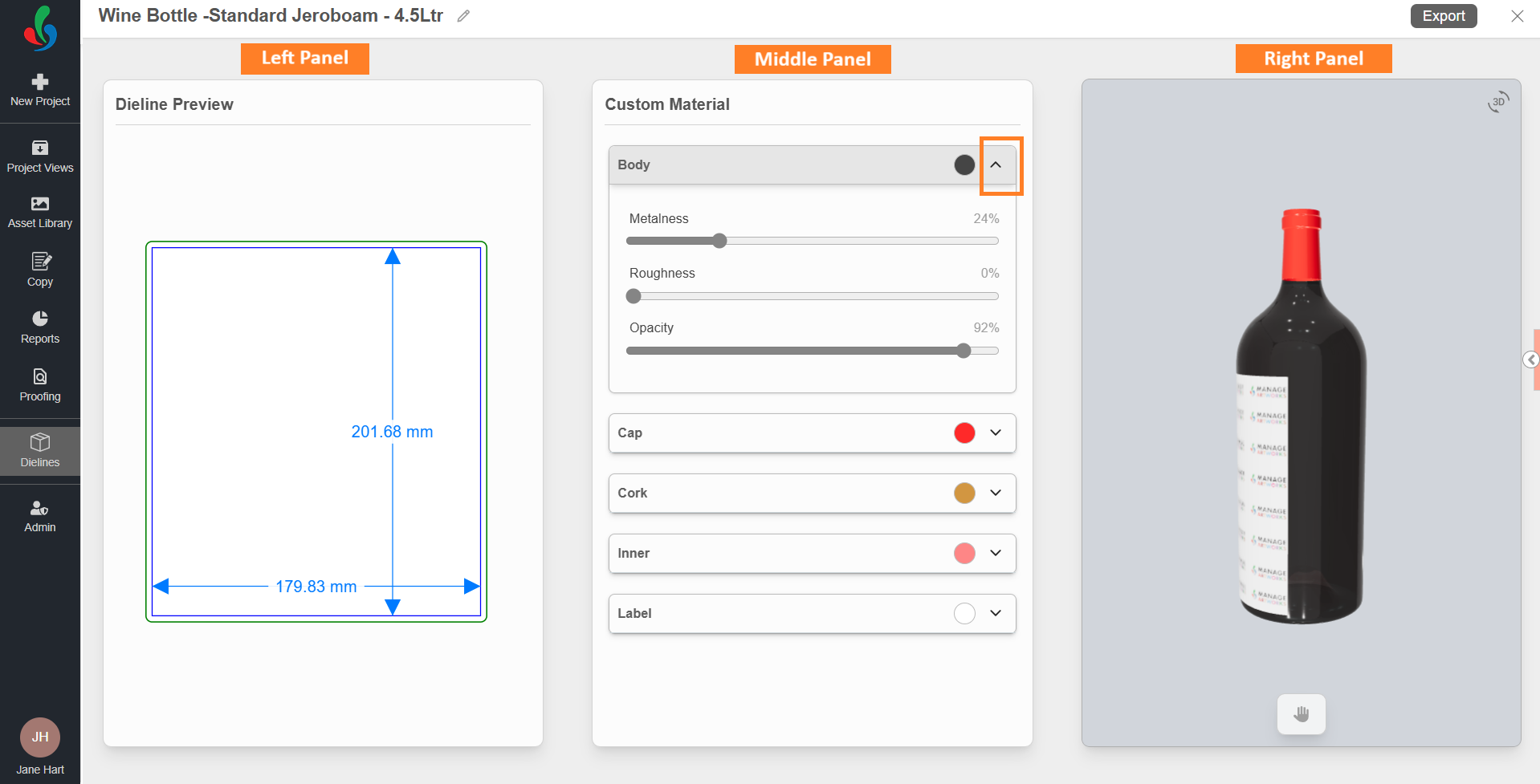
Instead of modifying physical dimensions, you can adjust **Material Appearance settings:**
- Metalness – Controls reflective quality of the surface.
- Roughness – Controls surface texture from glossy to matte.
- Opacity – Controls transparency of the material.
|  | **Note:** The scope of these settings depends on the dieline type. In some cases, they can be applied to specific parts; in others, they apply to the entire dieline. |
| --- | --- |
**Example (Bottles):**
For bottle dielines, appearance settings can be applied independently to parts such as:
- Cap
- Label
- Inner
- Cork
- Body
|  | **Note:** The available parts may vary by dieline type. The list below is for reference only and may differ based on the bottle structure. |
| --- | --- |
**To change the appearance setting:**
1. In the Middle panel, select the part you want to customize (e.g., Body, Cap, Cork, Inner, Label).
2. Adjust the **Metalness**, **Roughness**, or **Opacity** sliders to achieve the desired look.
3. Check the Right panel — all changes are updated in real time as you adjust the sliders.
4. Repeat the steps for other parts until all required customizations are complete.
### 04\. Export the Dieline
You can export the customized dieline as a PDF.
**Steps to Export:**
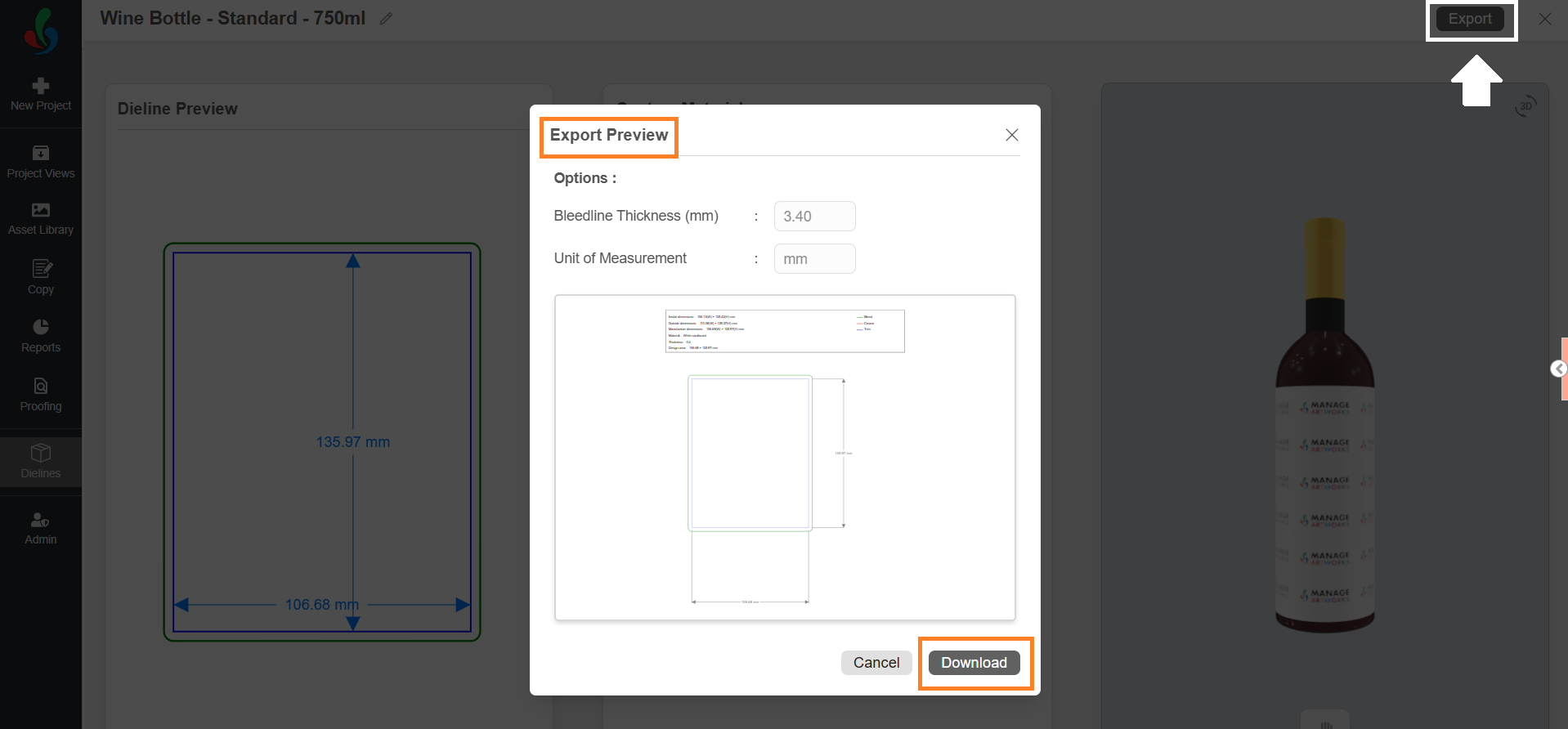
1. Click the **Export** button at the top-right corner of the Dieline editor.

2. The Export Preview dialog will appear, displaying the following options:
- **Bleed Measurement (mm):** This value is pre-filled based on the Admin settings. You can modify it if required.
- **Measurement Scale (UOM):** The default unit of measurement (e.g., inch or mm or cm) is also pulled from Admin settings. This field is non-editable during export.
**Note:** To modify the default Bleed Measurement or Unit of Measurement (UOM), refer to [Dieline Parameter Configuration](https://help.manageartworks.com/en/article/dieline-parameter-configuration) in the Admin module.
3. A preview of the final downloadable dieline is displayed in the dialog for reference.
4. Click **Download** to save the dieline as a PDF file.