---
title: "Configure Password Policy"
url: "https://help.manageartworks.com/en/article/configure-password-policy"
language: "en"
last_updated: "2026-08-03T10:20:05.056Z"
---
# Configure Password Policy
The password policy sets the password rules that apply to every user in your account. Use it to control how often passwords expire, how strong they must be, how many failed sign-in attempts are allowed before a user is locked out, and whether users can reuse an old password.
## How to Configure the Password Policy
### 01\. Access the Password Policy
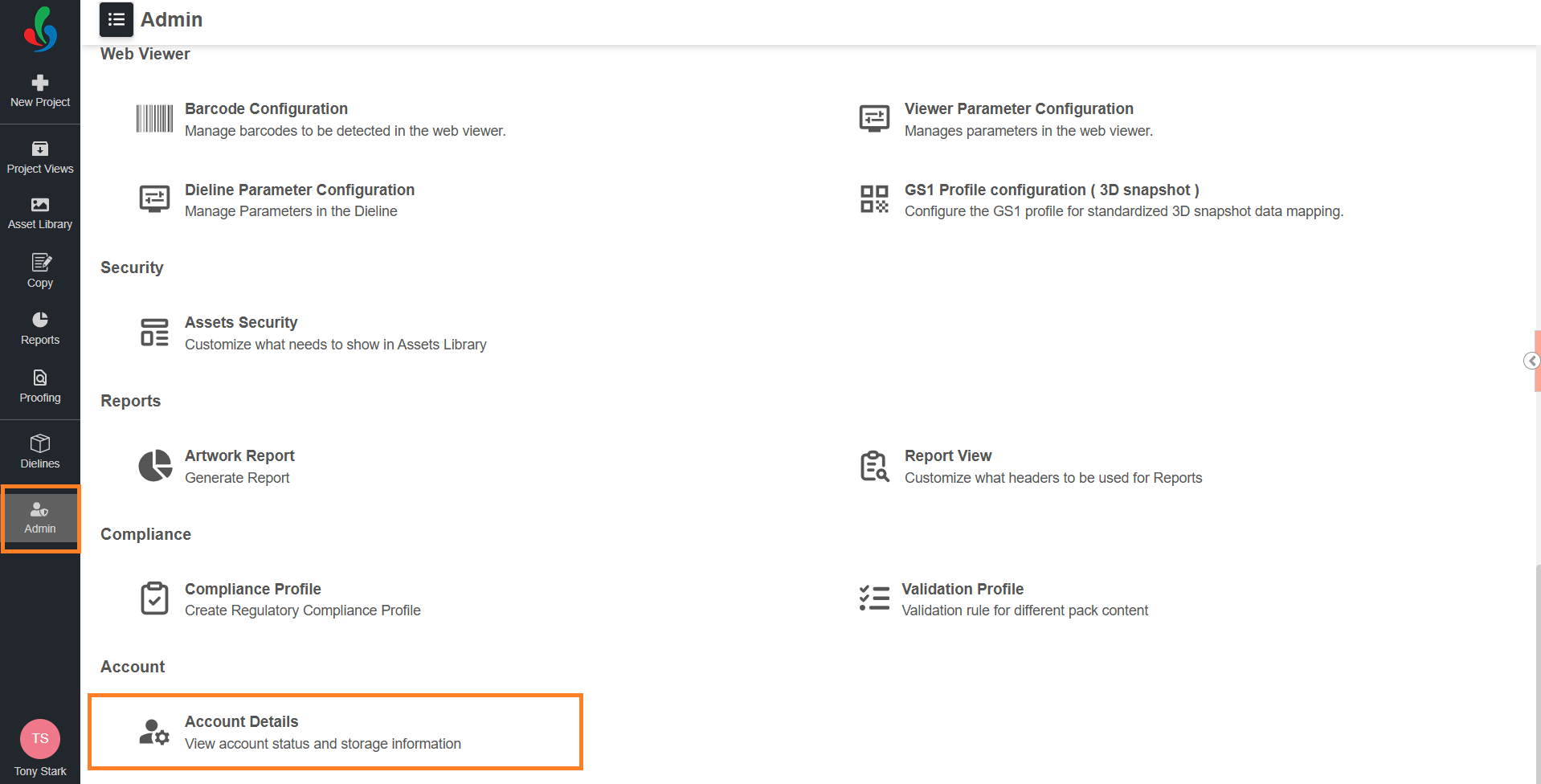
1. Sign in to your [ManageArtworks](https://app.manageartworks.com/karomi/global/build/login) account.
2. Navigate to the **Admin** module.
3. Select **Account Details**.
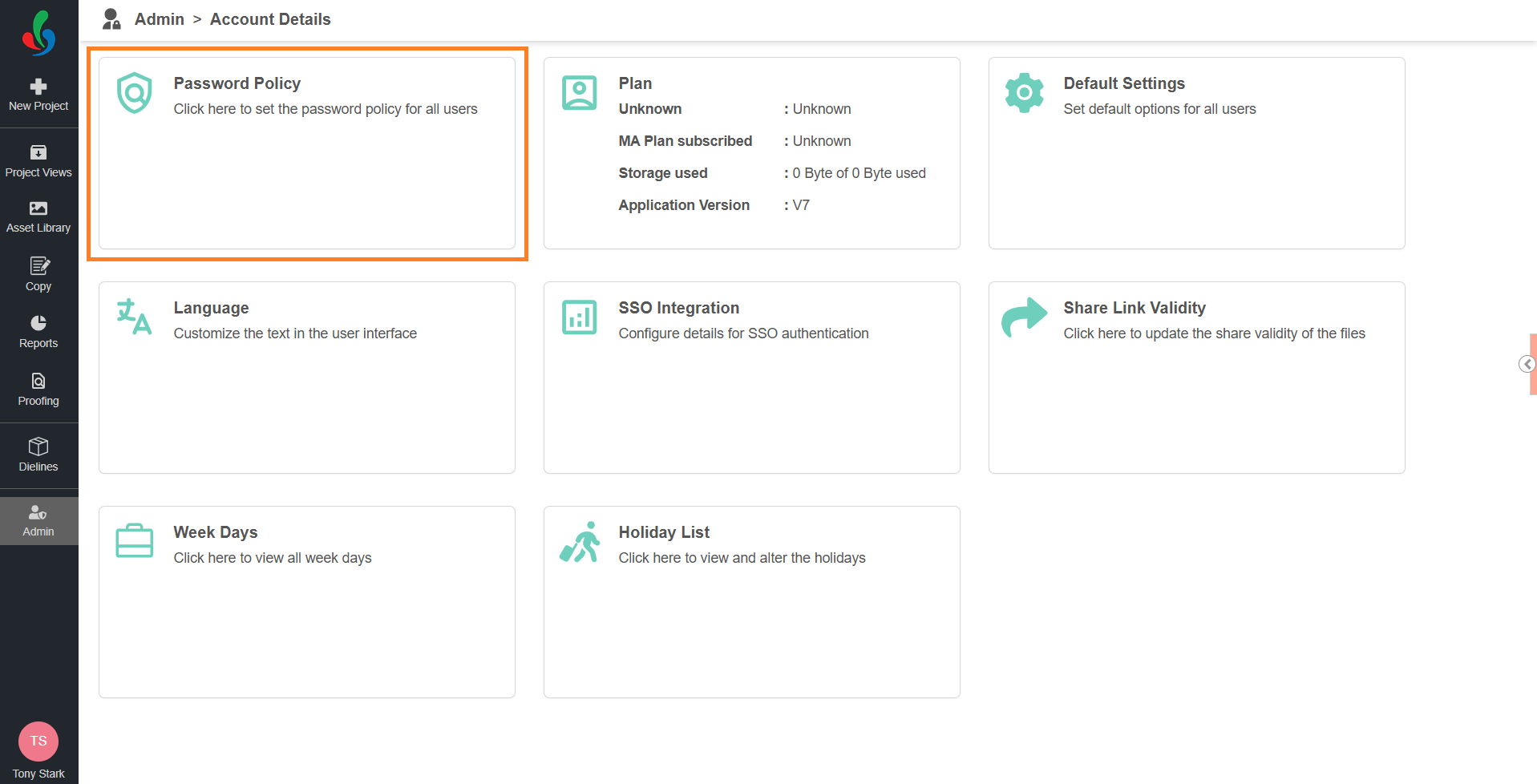
4. Select the **Password Policy** card. The **Password Policy** dialog is displayed.
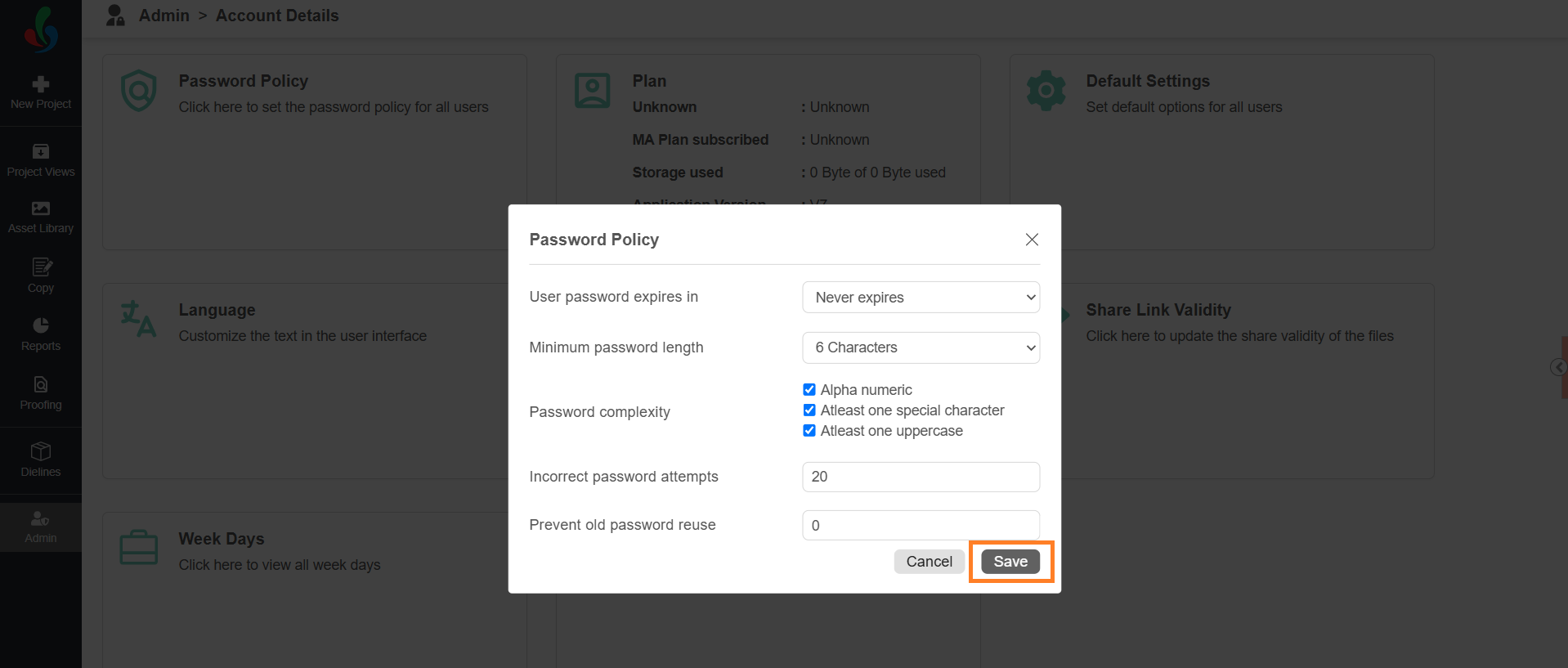
### 02\. Set the Password Rules
|  | **Note:** Existing passwords are not revalidated when you change the policy. The new rules apply the next time a user sets or changes a password. |
| --- | --- |
1. From the **User password expires in** drop-down list, select how long a password remains valid.
2. From the **Minimum password length** drop-down list, select the shortest password you allow.
3. For **Password complexity**, select the requirements you want to enforce, and clear the ones you do not:
- **Alpha numeric** — the password must contain both letters and numbers.
- **Atleast one special character** — the password must contain at least one special character.
- **Atleast one uppercase** — the password must contain at least one uppercase letter.
4. In the **Incorrect password attempts** field, enter the number of failed sign-in attempts allowed before the user is locked out.
**Note:** Enter 3 or more attempts.
5. In the **Prevent old password reuse** field, enter how many of the user's previous passwords cannot be reused. Enter 0 to allow reuse.
6. Select **Save**.
|  | - The policy applies to all users in your account.
- When a user's password expires, the system displays a message while they are signing in and provides an option to reset the password.
- If a user is locked out after too many incorrect attempts, an administrator can unlock them from **Users**. For more information, refer to [Manage Users](https://help.manageartworks.com/en/article/manage-users). |
| --- | --- |