---
title: "Compare Options Add-ons"
url: "https://help.manageartworks.com/en/article/compare-options-add-ons"
language: "en"
last_updated: "2025-12-17T05:20:37.673Z"
---
# Compare Options Add-ons
[Compare Options](https://help.manageartworks.com/en/article/compare-options) includes optional controls—called **Add-ons**—that allow users to refine how the system evaluates artwork differences. These add-ons modify or narrow down what is compared, giving users more precision based on their workflow needs.
| ###  | **Note:** You can use **only one add-on at a time**. Both add-ons cannot be used together. |
| --- | --- |
There are two available add-ons:
- **Remove Some Layers Before Comparing**
- **Choose Specific Pages to Compare**
## Remove Some Layers Before Comparing
This add-on allows users to exclude non-essential layers—such as **dielines, braille, measurements, or background layers**—before running the comparison. This is especially useful when changes in those layers introduce unnecessary noise in the comparison output.
|  | **Availability:** This add-on is available for all comparison combinations **except** when **Compare Mode = Multi Up**. |
| --- | --- |
### How It Works
When this add-on is selected:
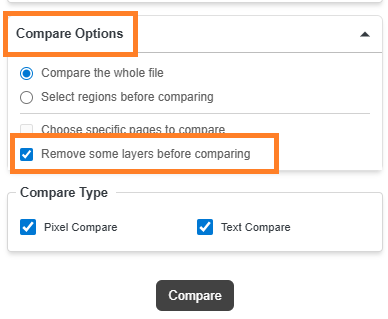
1. Selecting **Compare** or **Manual Compare** opens the **Layer Panel**.
2. The panel lists all layers detected in both the **Master** and **Sample** files.
3. You can uncheck the layers you want to exclude from the comparison.
4. After deselecting layers, select **Compare** from the toolbar near Single File Mode.
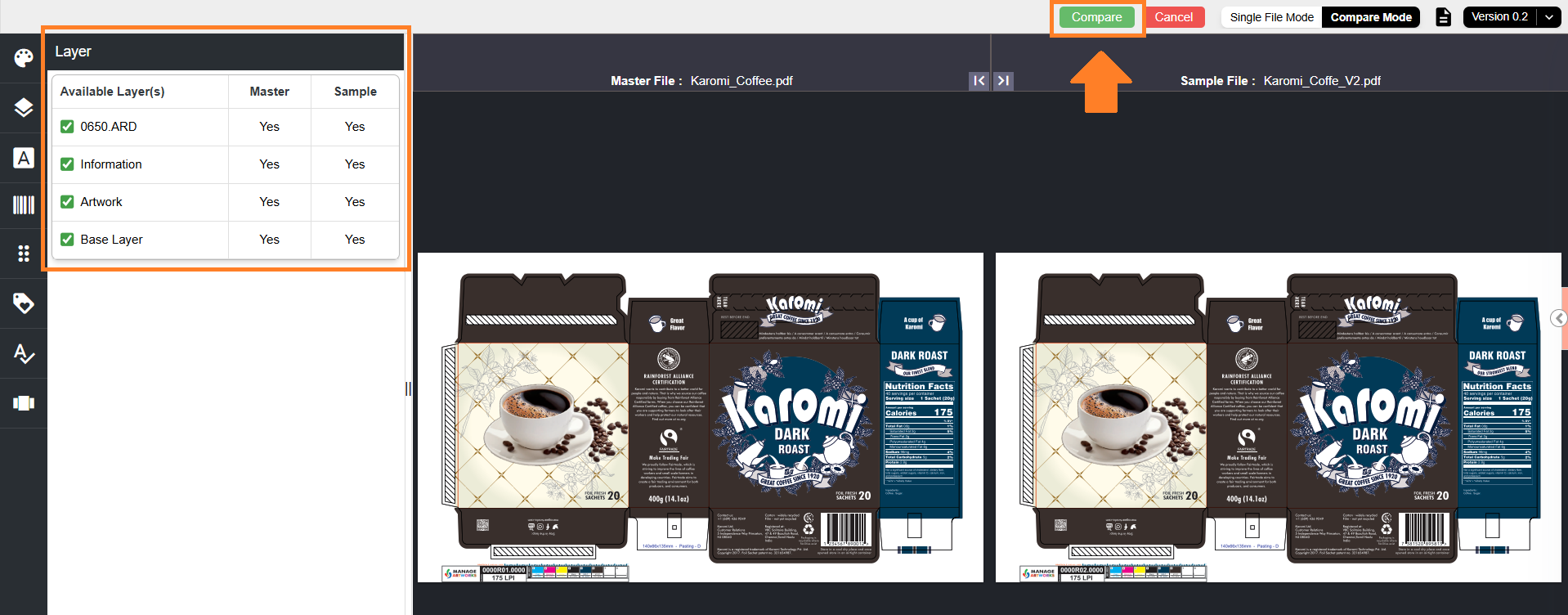
5. The system analyzes only the remaining visible layers and shows deviations in the [Deviation Panel](https://help.manageartworks.com/en/article/deviation-panel).
This add-on is helpful when you want to focus comparison results on critical artwork content and avoid changes caused by dielines, measurement or background layers.
## Choose Specific Pages to Compare
This add-on allows users to define **custom page mappings** between the Master and Sample files, enabling more control over which pages should be compared in multi-page documents.
|  | **Availability:** This add-on is enabled **only when all conditions below are met**:
- Both Master and Sample files contain **more than one page**.
- Only **Pixel Compare** is selected (the add-on is disabled if Text Compare is selected).
- Neither file is in **.docx** format (the add-on is disabled if either file is a Word document). |
| --- | --- |
### How It Works
When **Choose specific pages to compare** is selected:
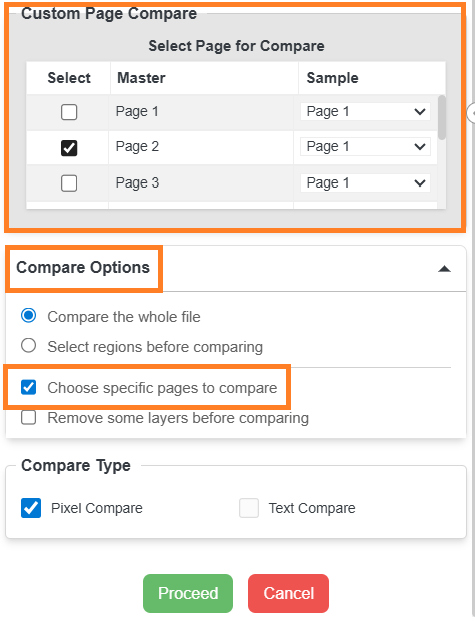
1. A new section titled **Custom Page Compare** appears.
2. The **Compare or Manual Compare** button is replaced by **Proceed** and **Cancel** buttons.
3. All pages from the **Master** file are listed. These remain fixed.
4. For each Master page, you can select a corresponding **Sample** page using the dropdown.
5. The number of rows equals the number of pages in the Master file.
6. Check the **Select** column checkbox associated with the row you want to include in the comparison.
7. Select **Proceed**.
**Note:** The **Proceed** button is enabled only when at least one row is selected.
8. The system compares only the selected page pairs.
9. Results are displayed in the [Deviation Panel](https://help.manageartworks.com/en/article/deviation-panel), just like a regular comparison.
This add-on is useful when the Master and Sample files have matching content but are arranged differently, or when only specific pages need to be validated.