---
title: "Add/Edit Lists and Teams"
url: "https://help.manageartworks.com/en/article/add-edit-lists-and-teams"
language: "en"
last_updated: "2026-08-06T07:12:22.737Z"
---
# Add/Edit Lists and Teams
Create and manage lists and teams, facilitating structured collaboration and organization within the projects.
Lists are the master data behind your fields. Set up the values for a field once — such as the departments, brands, or printers your organisation works with — so users select a value from the list instead of typing it in every time.
Assigning users to a list item creates a team, which you can then use to route tasks and control access.
|  | ## How Teams Are Used
Once you assign users to a list item, that team can be used in the following ways.
- **Task participants.** A workflow task can be assigned to a team instead of named individuals, so it reaches everyone in that team. Teams from any category can be used — for example, the Legal team under Department, or a team under Brand. You can also select a form field as the participant, in which case the users selected in that field on a project become the participants for the task.
Because the same applies to a template's **start activity**, the teams you add there also determine who can create projects from that template.
- **Record visibility for Restricted users.** A **Restricted** user sees only the records where the matching field has the value they are assigned to — for example, a user in a Brand team sees only the projects and files for that brand. **Normal** and **Power** users are not limited this way; they can access any file, and for them teams are used only to select task participants. |
| --- | --- |
| ###  | **Note:** The **Asset Status** and **Asset Type** categories have extra settings. To add or edit their values, refer to [Add/Edit Asset Status](https://help.manageartworks.com/en/article/add-edit-asset-status) and [Add/Edit Asset Type](https://help.manageartworks.com/en/article/add-edit-asset-type). |
| --- | --- |
## How to Add a List Item
### 01\. Access Lists and Teams
1. Sign in to your [ManageArtworks](https://app.manageartworks.com/karomi/global/build/login) account.
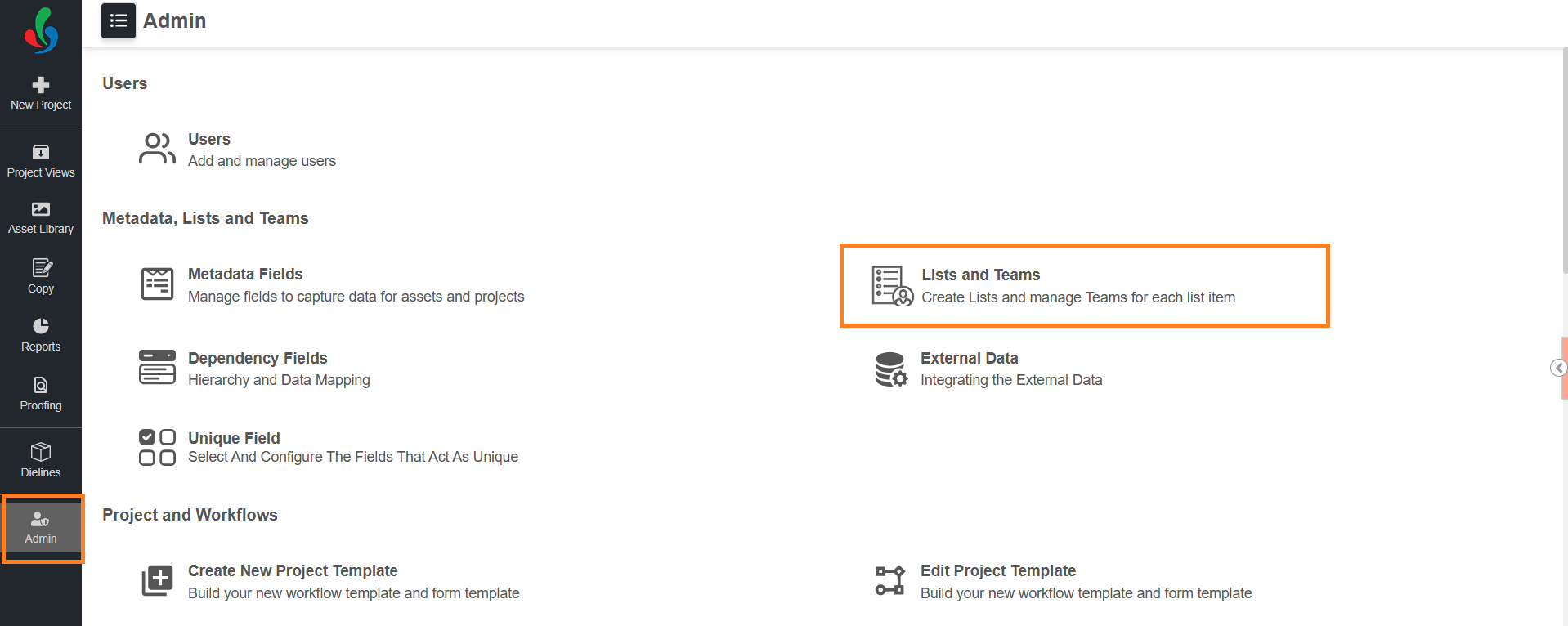
2. Navigate to the **Admin** module.
3. Select **Lists and Teams**. The page lists the categories set up for your account.
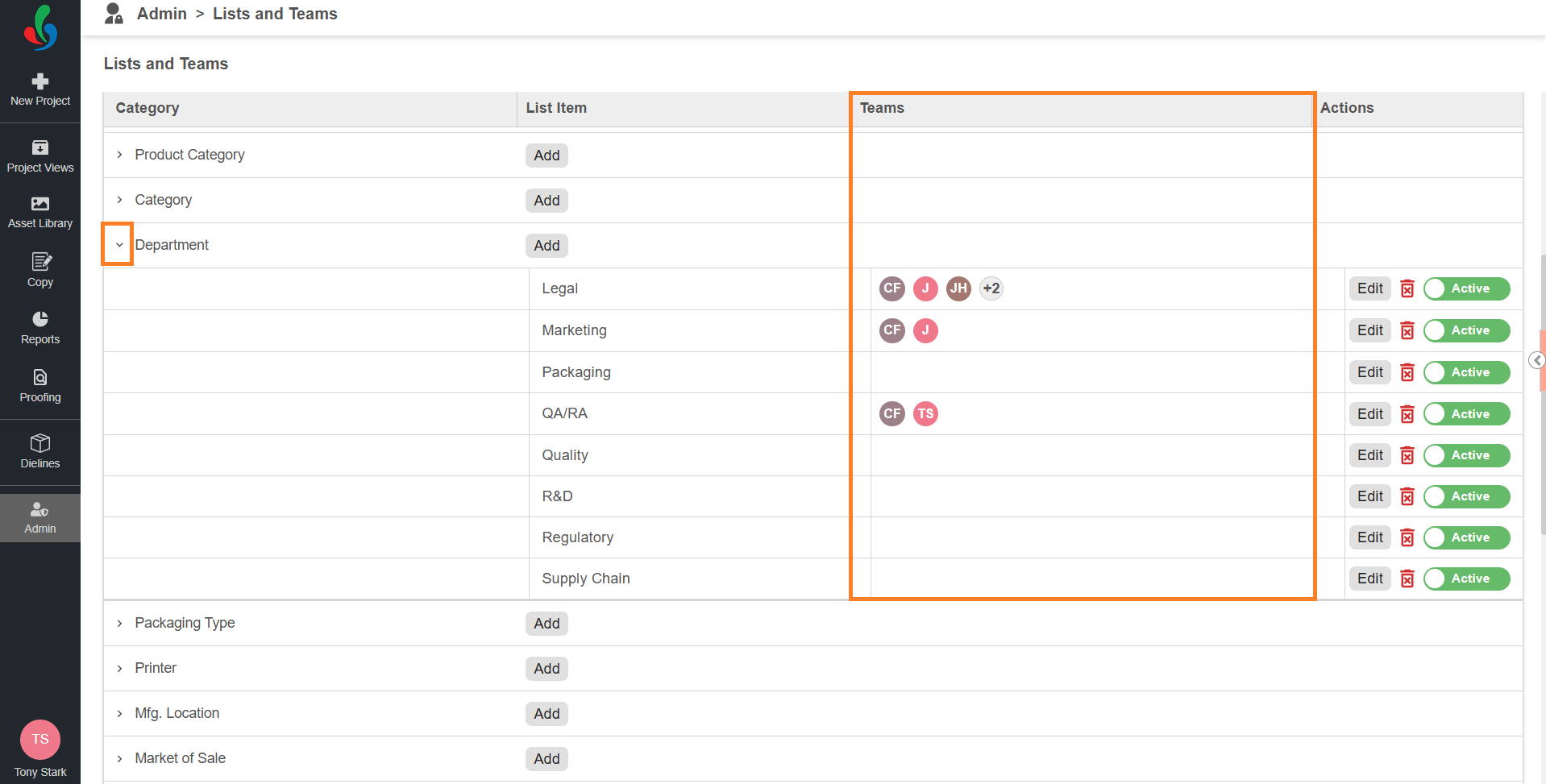
4. Select a category to expand it and see its list items. The **Teams** column shows the users assigned to each list item.
### 02\. Add the List Item
|  | **Note:** Only metadata fields with **Use as Collection** enabled appear on this page. If the category you want to add a list item to is not listed, enable **Use as Collection** for that field first. For more information, refer to [Metadata Fields (Enterprise Plan)](https://help.manageartworks.com/en/article/metadata-fields-enterprise-plan). |
| --- | --- |
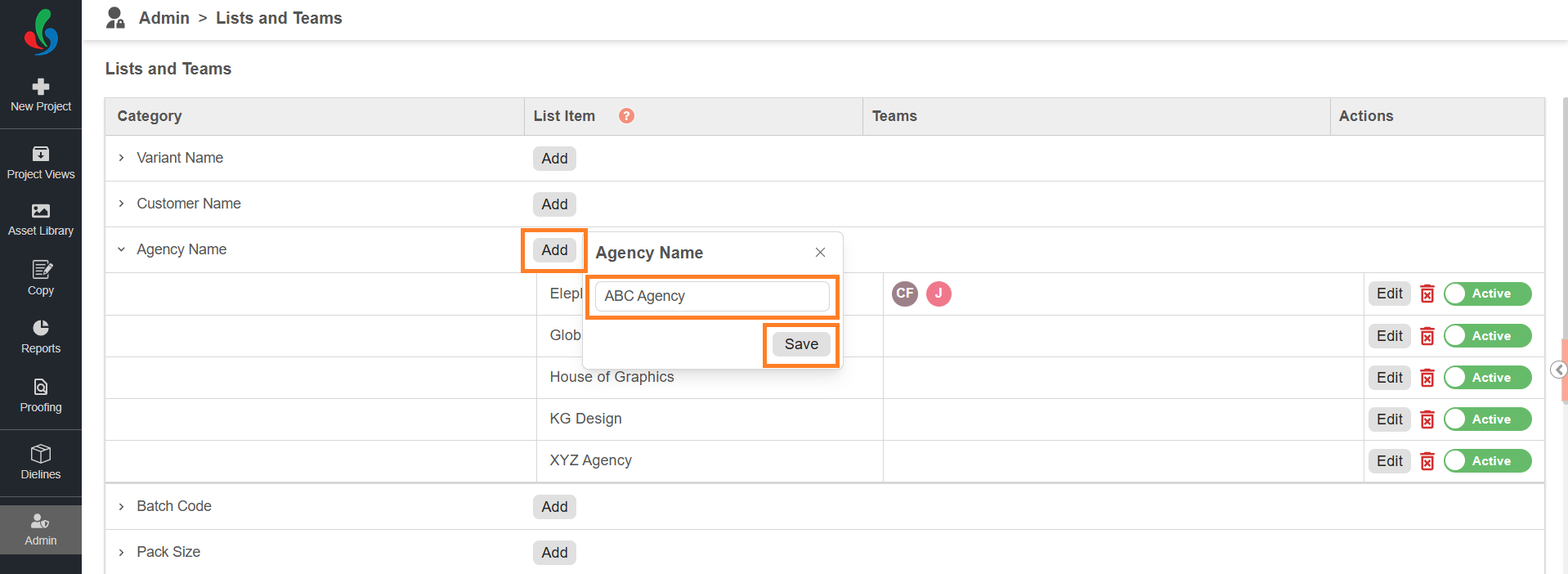
1. Select **Add** in the **List Item** column for the required category.
2. Enter a name for the list item.
**Note:** Make sure the name is unique within the category. You can enter up to 250 characters.
3. Select **Save**.
## How to Assign Users to a List Item
Assigning users to a list item creates the team for that value.
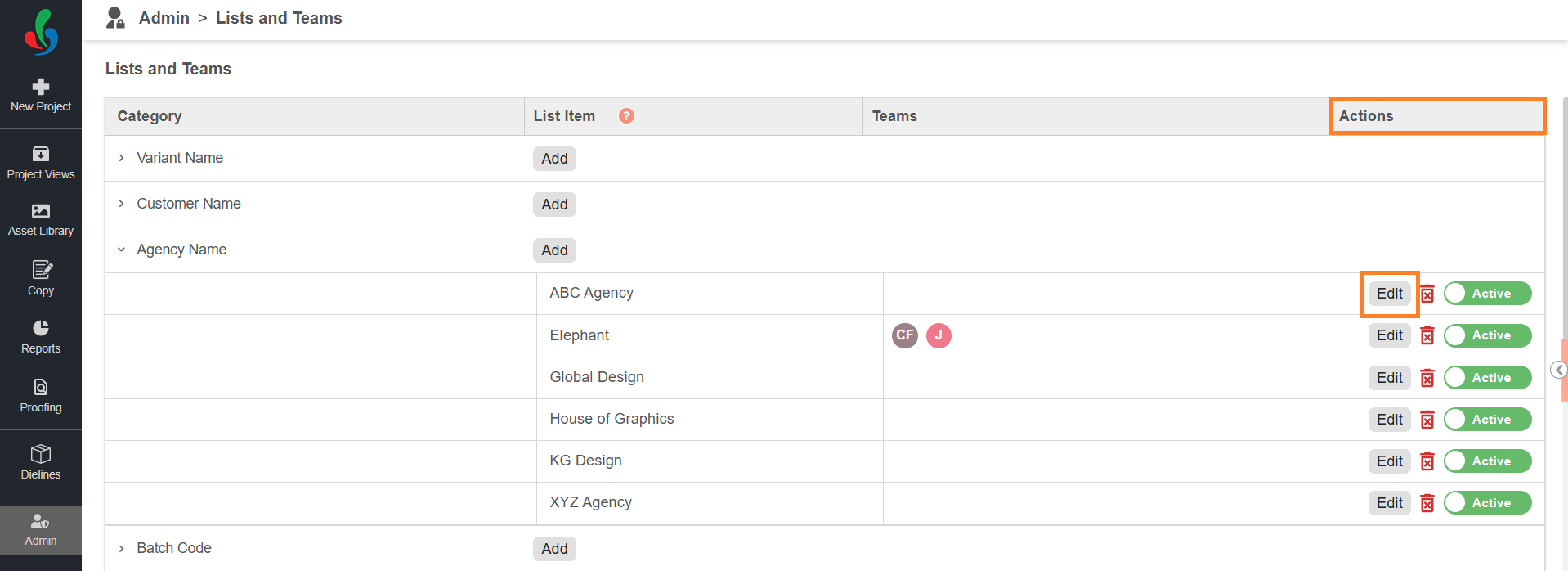
1. Select **Edit** in the **Actions** column for the required list item.
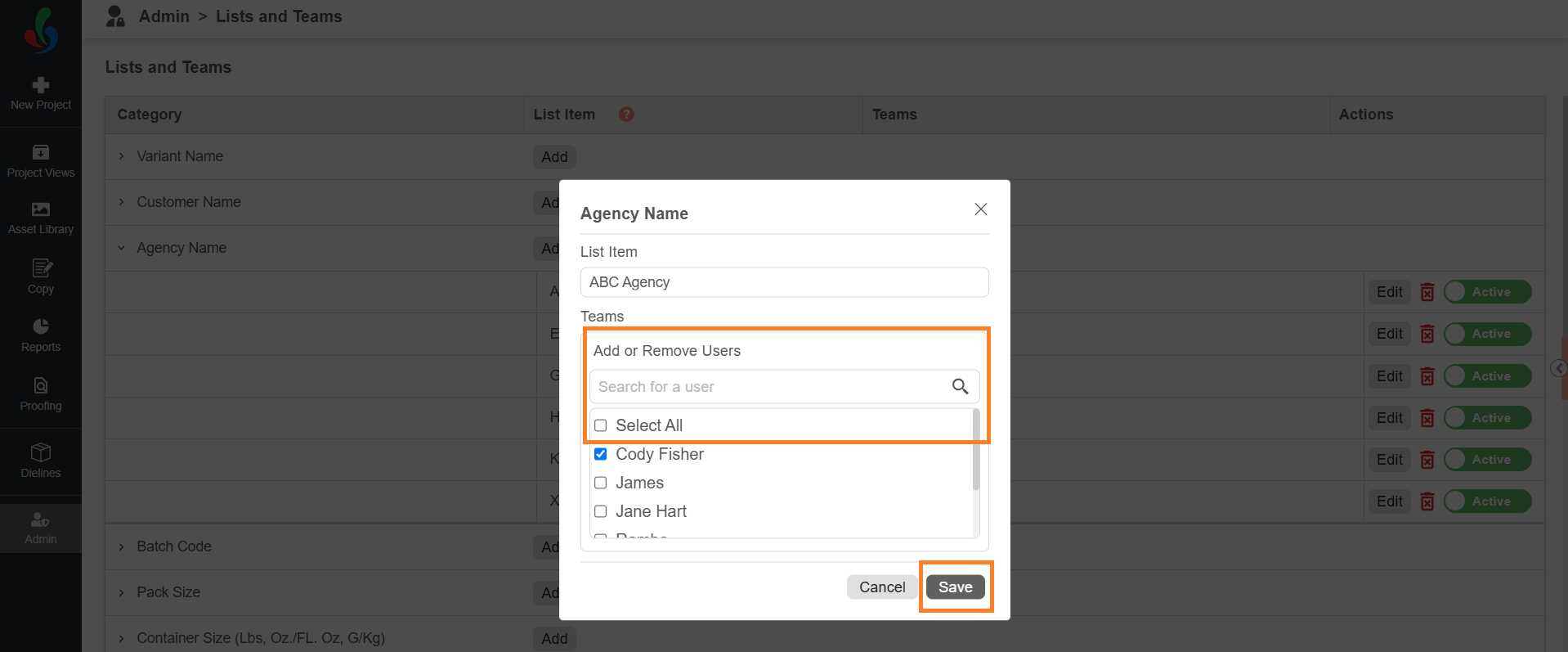
2. Under **Teams**, select the checkbox next to each user you want in the team. Use **Search for a user** to find a user by name, or select **Select All** to add everyone.
3. To remove a user from the team, clear their checkbox.
4. Select **Save**.
## How to Edit a List Item
|  | **Note:** Once a list item is used in a project, its name can no longer be changed. You can still add and remove users. |
| --- | --- |
1. Select **Edit** in the **Actions** column for the required list item.
2. Update the name, or add and remove users.
3. Select **Save**.

## How to Delete or Deactivate a List Item
To take a list item out of use, you can either delete it or deactivate it.
|  | **Note:** A list item that is used in a project cannot be deleted — deactivate it instead. A deactivated list item is no longer available for users to select, and projects that already use it keep the value. |
| --- | --- |
### To Delete a List Item
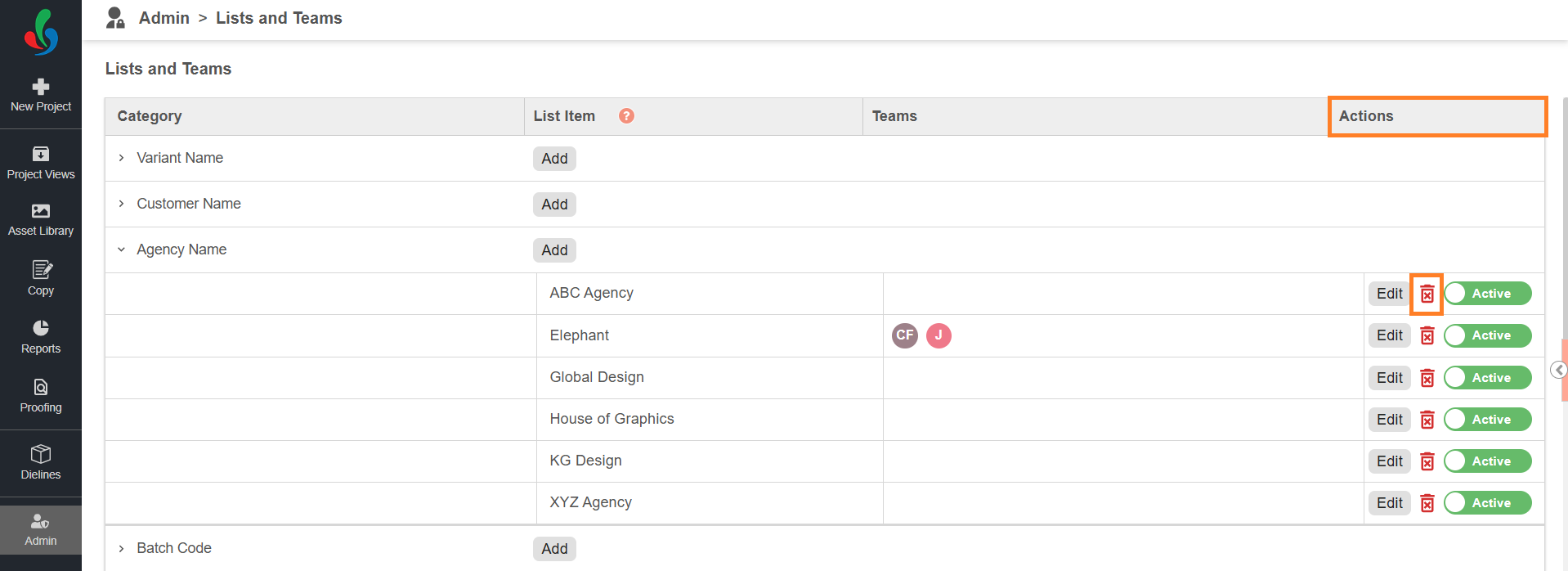
1. Select the delete icon in the **Actions** column for the required list item.
2. Select **Ok** in the confirmation dialog.
### To Deactivate a List Item
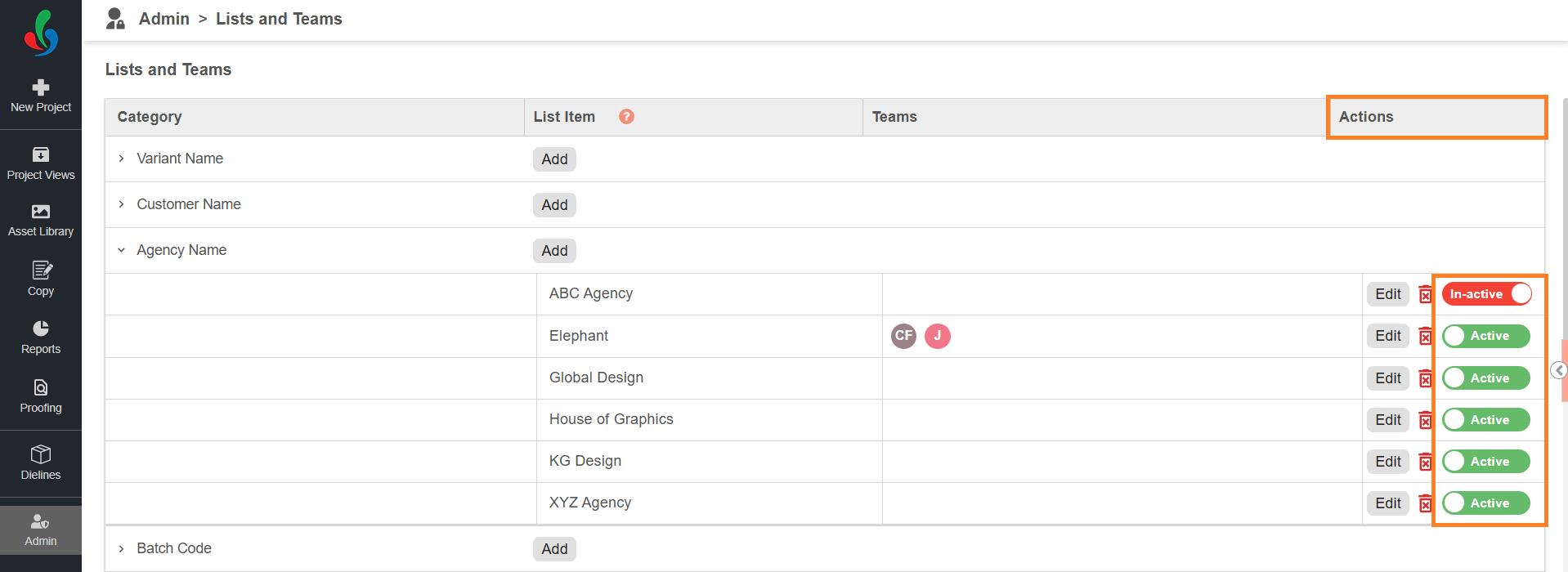
1. Select the status toggle for the required list item. The list item is set to **In-active**.
2. To make it available again, select the status toggle to make it **Active**.